
STEP 01
Open the project
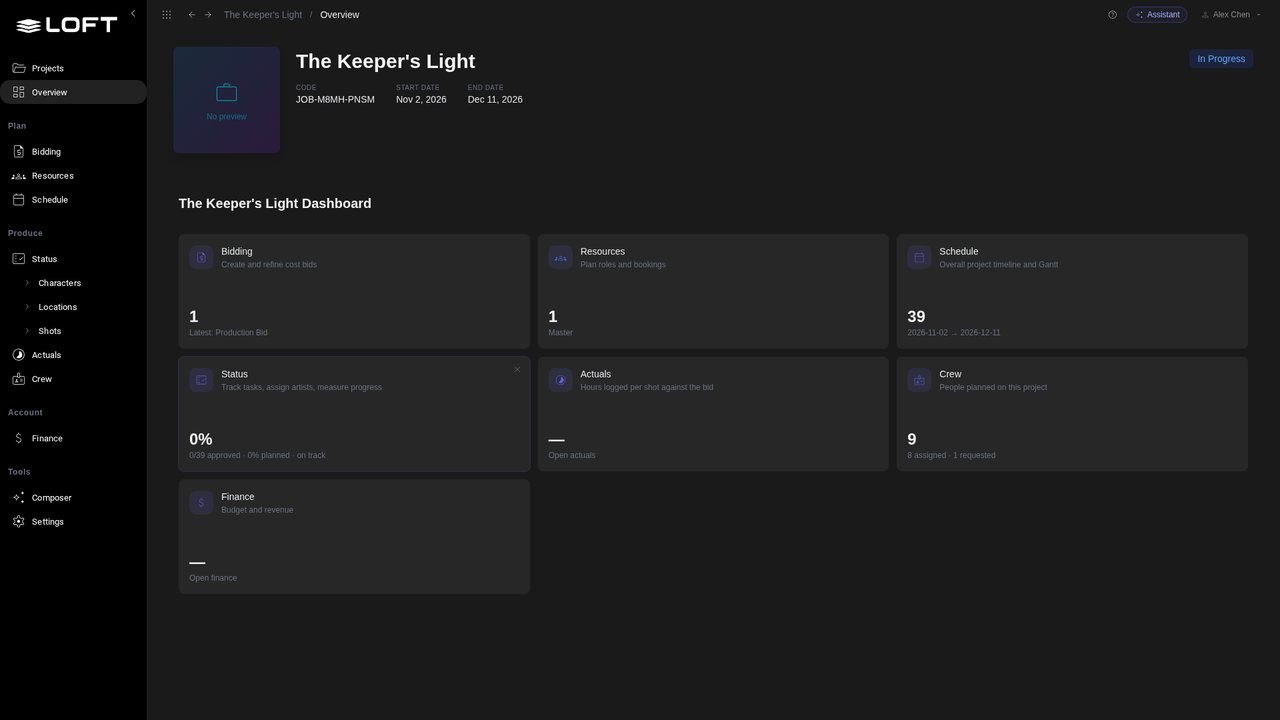
Open The Keeper's Light from the Projects page. It is a six-week AI short at kickoff: the bid is published, the schedule made, the crew booked.
Tutorials/Plan and run a production
AI generation is spent in tokens, and like labour it needs a budget. This tutorial budgets an AI short's tokens from its bid, gives an artist an allowance with a hard limit, then comes back three weeks later to see the spend against the work approved, a forecast at completion, an allowance doing its job, and the tokens in the project's P/L.
Follow along
Open The Keeper's Light from the Projects page. It is a six-week AI short at kickoff: the bid is published, the schedule made, the crew booked.
In the sidebar's Plan group, click Bidding. The bid holds the days each shot needs in each department, and next to them, the Tokens each one is expected to spend on AI generation.
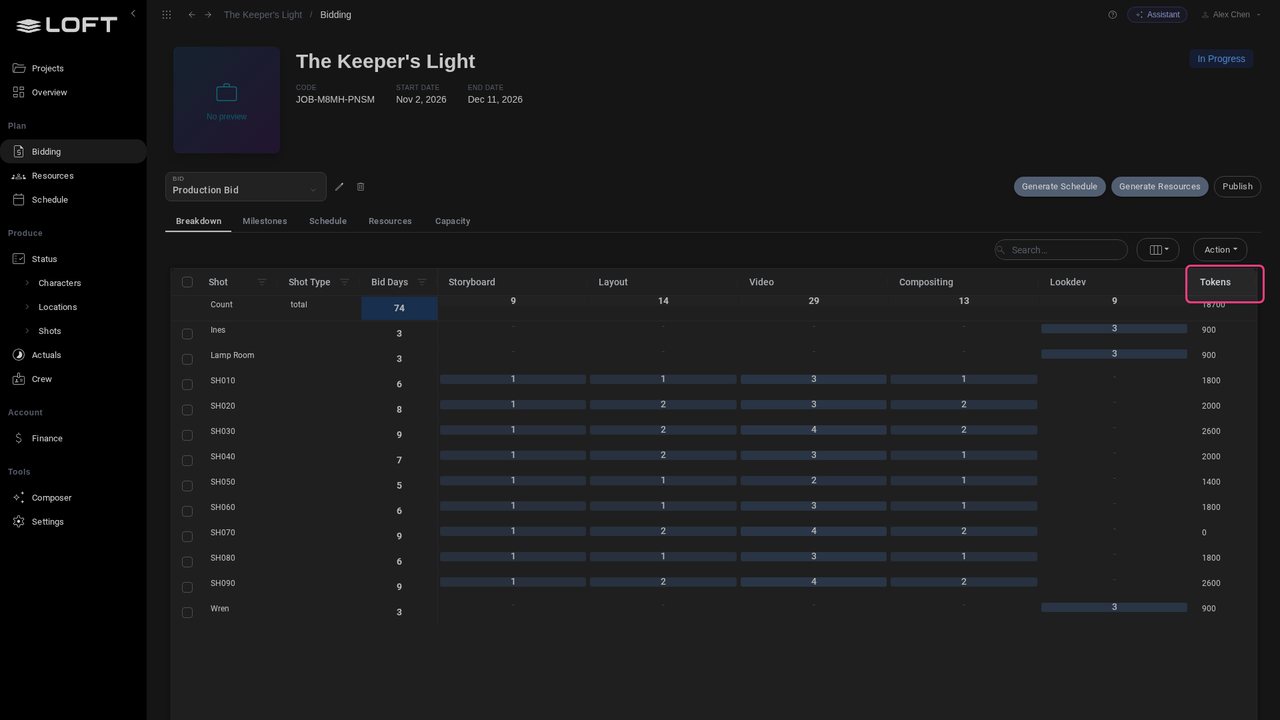
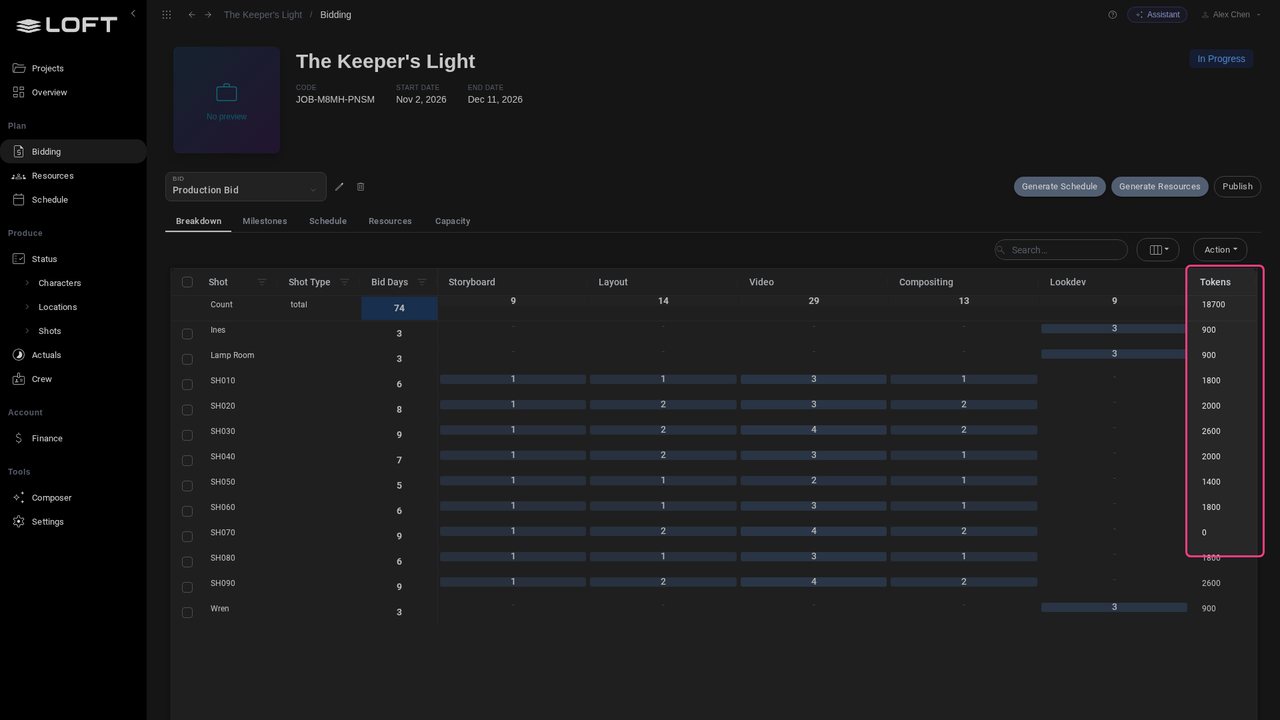
Tokens are what generation is charged in. Video takes most: a ten-second take costs 420 tokens, a frame 10 to 25. The Count row adds them up. SH070, the drowned nave, has no estimate yet.
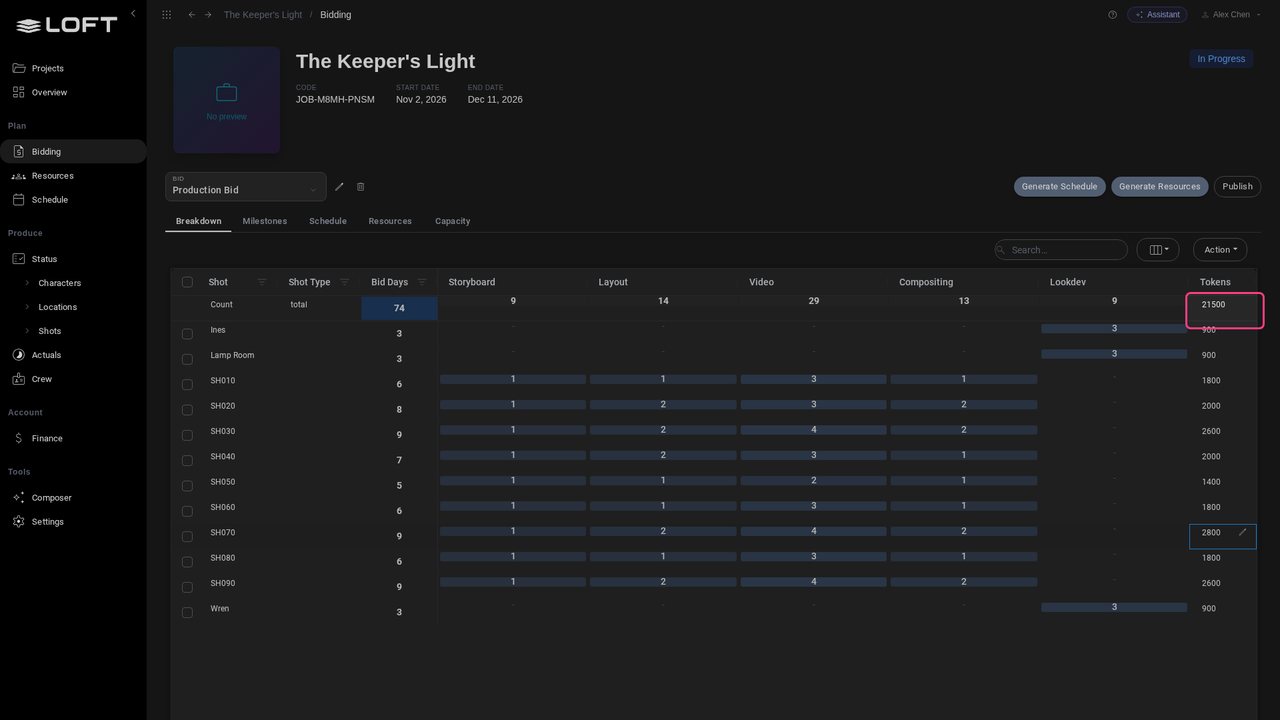
Double-click SH070's Tokens cell and type 2800: four days of video, more takes than most. The total becomes 21,500.
Click Publish, top right. Publishing to Master turns the bid's tokens into budgets: each shot's own, and their sum for the project.
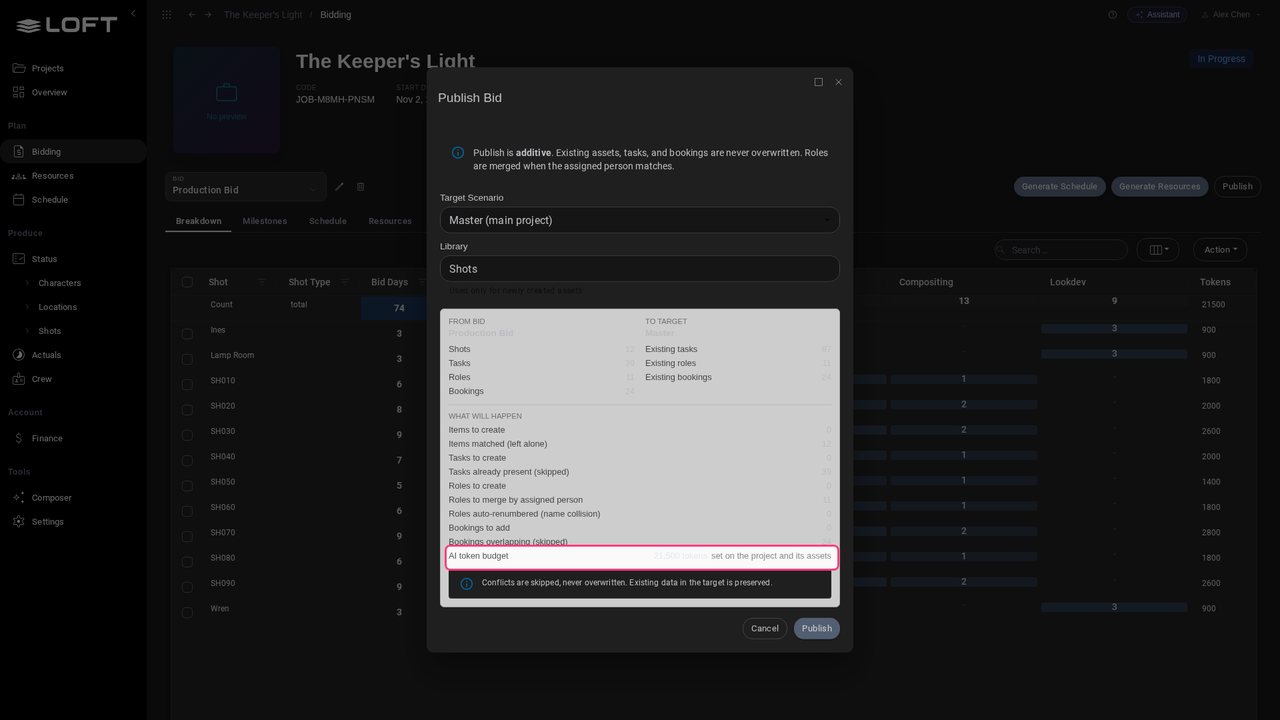
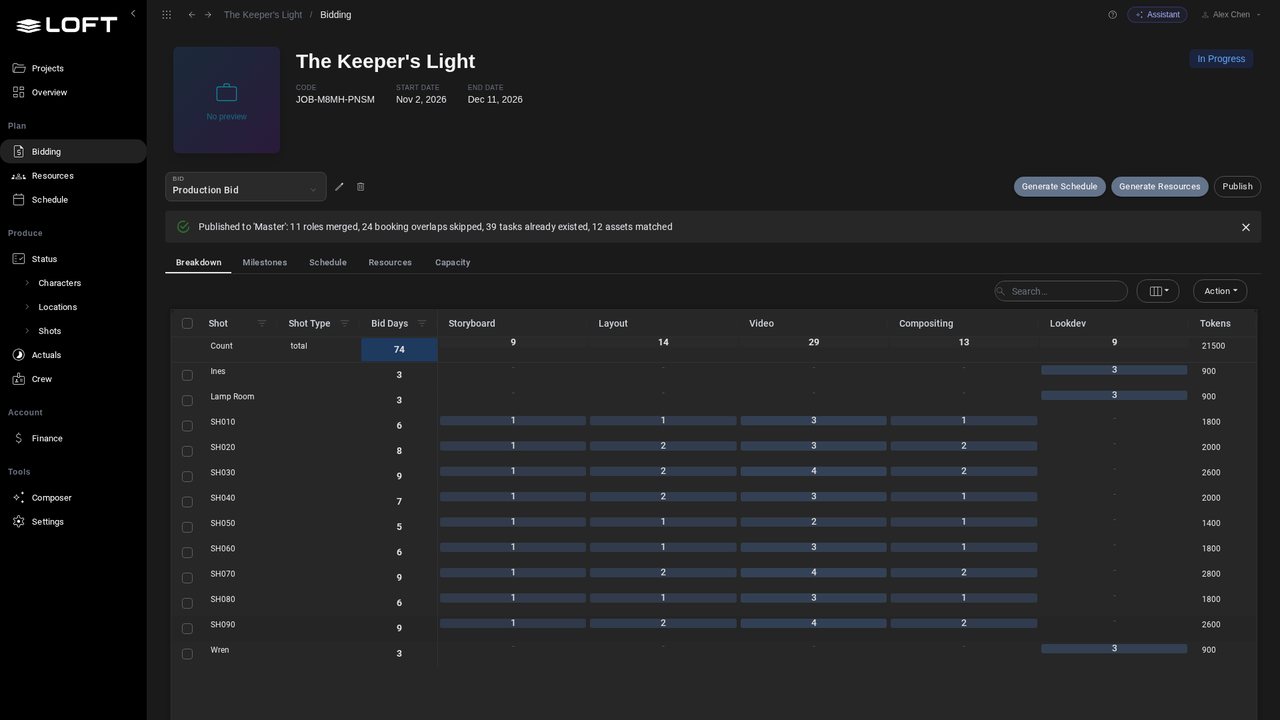
Click Publish in the dialog. The tasks and bookings are already there and stay as they are; the budgets are new.
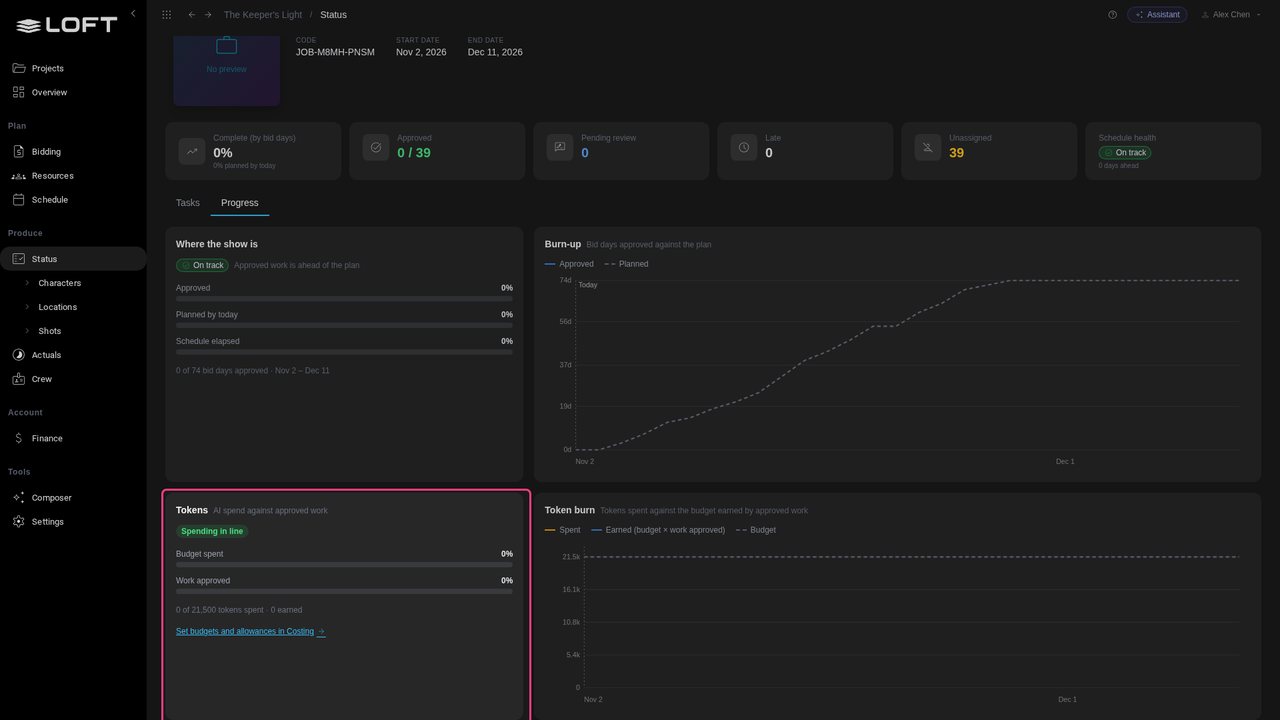
In the Produce group, click Status, then Progress. Next to the schedule, the Tokens card now has a budget to measure against: 21,500 tokens, none spent yet.
Click Set budgets and allowances in Costing. Costing is where the spend is broken down and every budget can be changed.
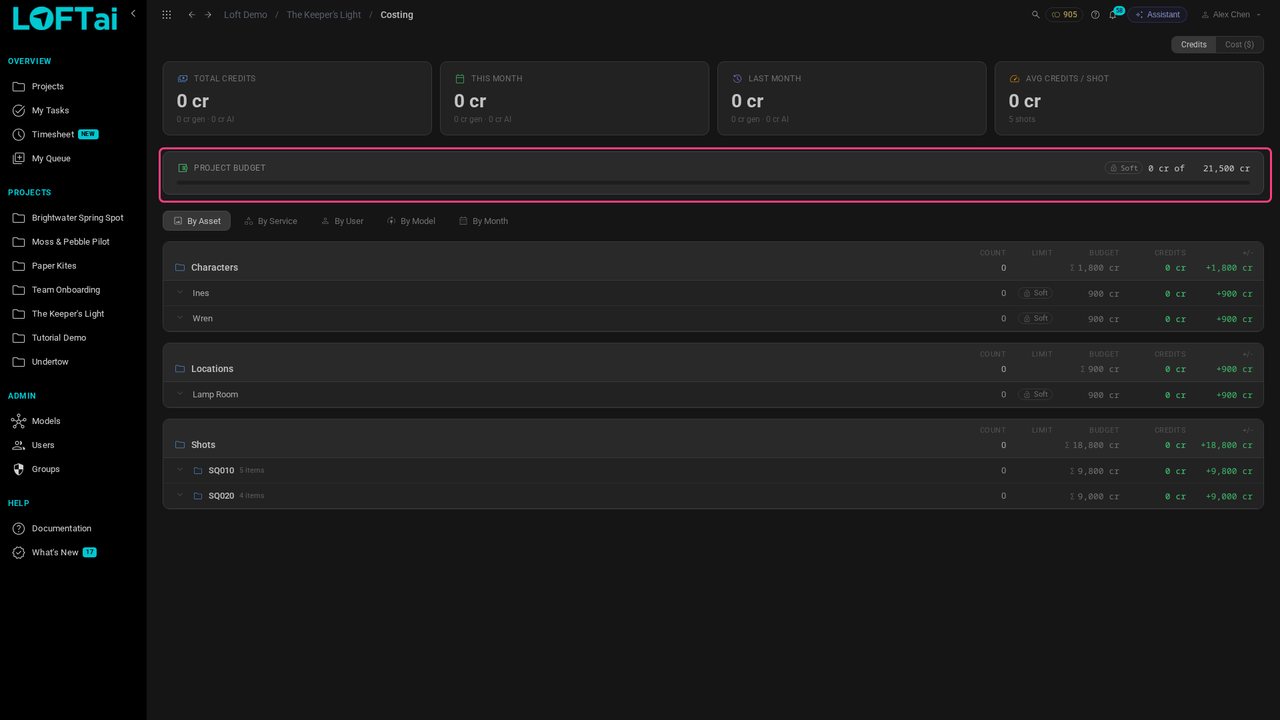
The Project Budget is the bid's total. It is Soft: spend past it is flagged here, but nobody is stopped. Each budget can be soft or hard; click the lock to switch.
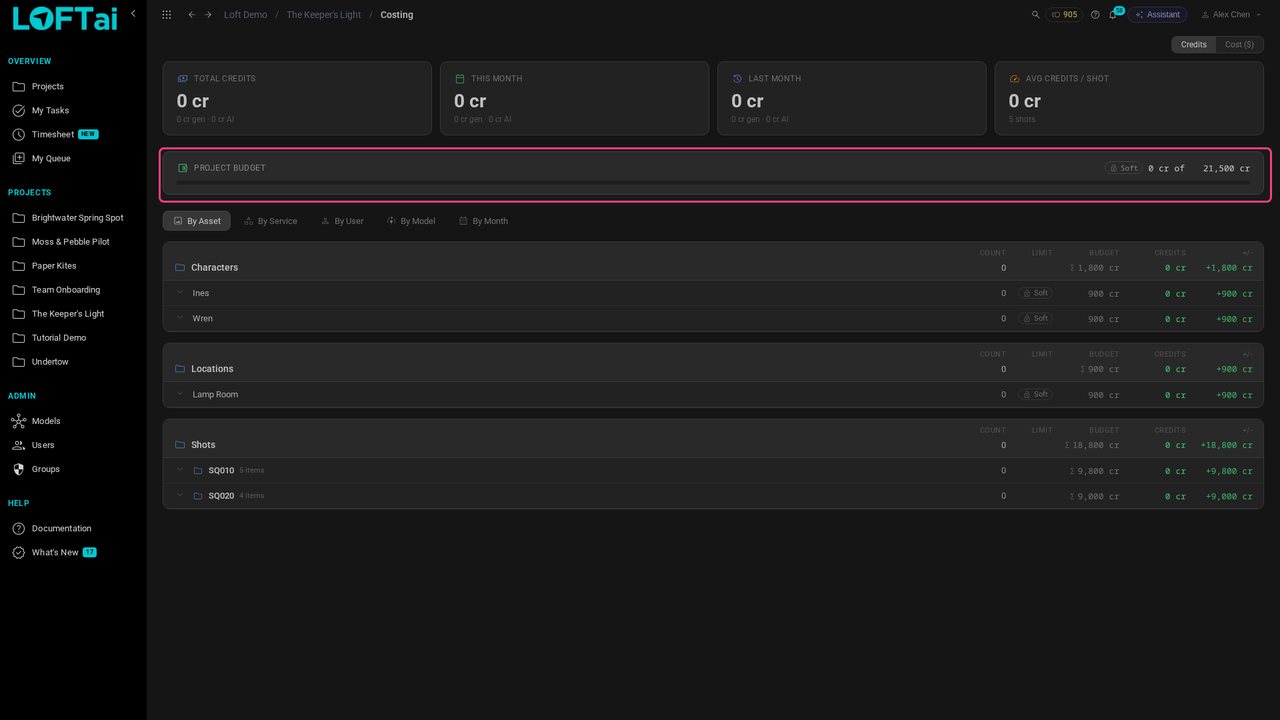
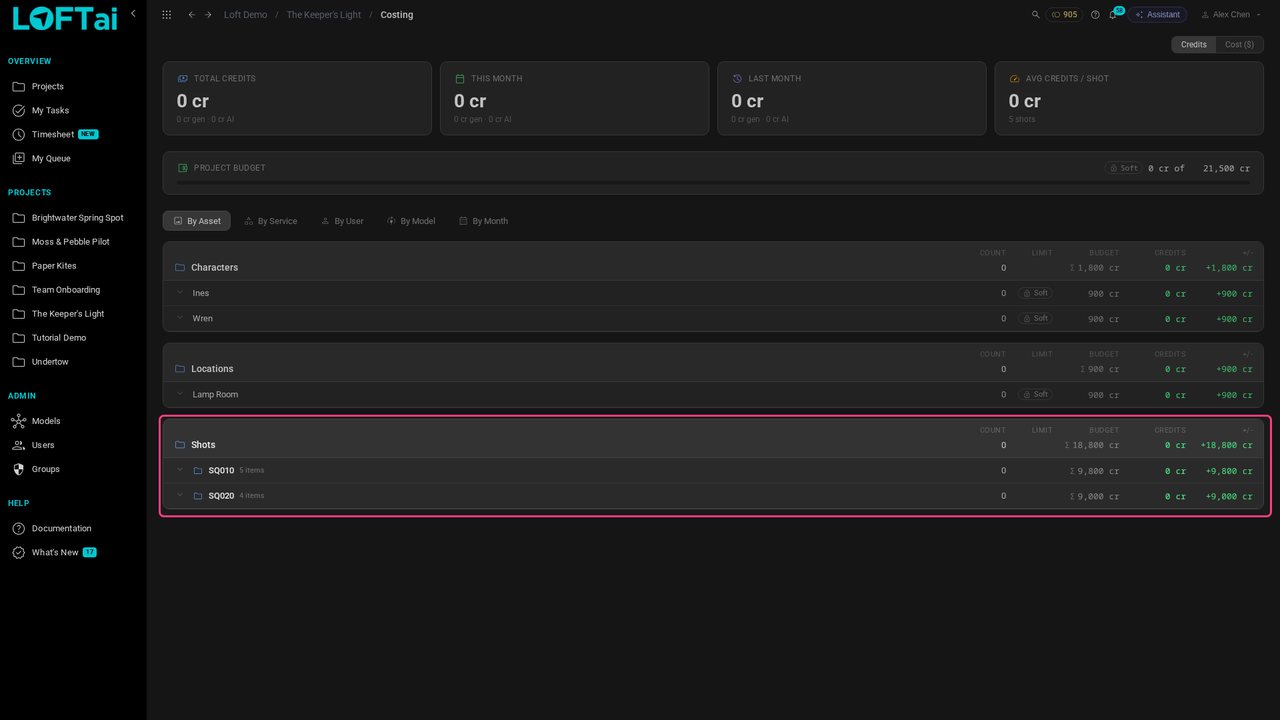
By Asset lists the budgets the bid gave each shot, character and location, rolled up by sequence, with what is spent and what is left.
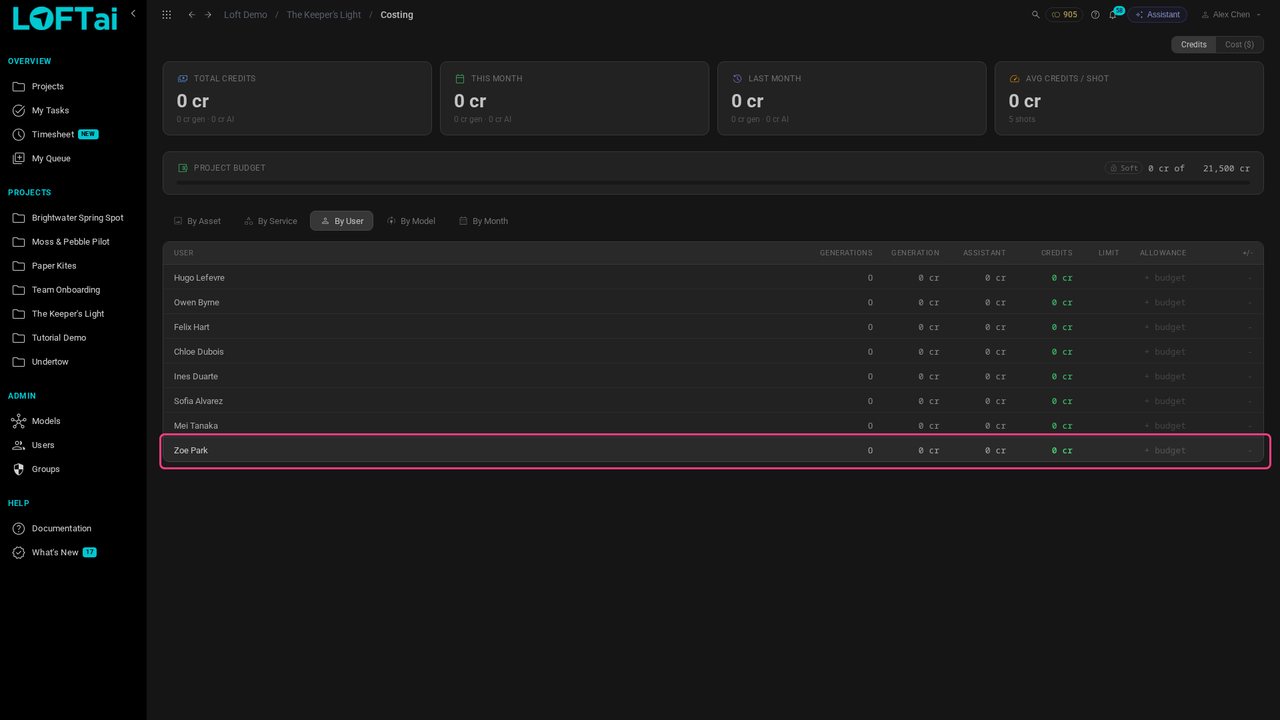
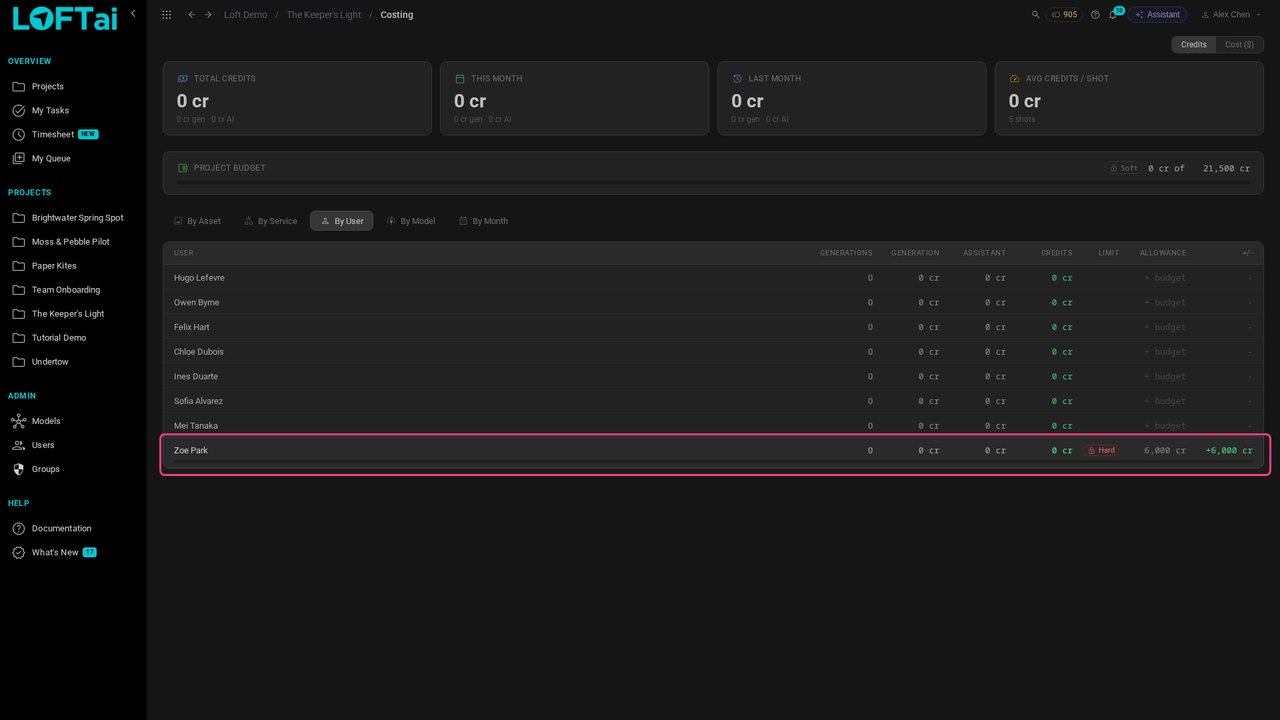
Click By User. Everyone working on the show is listed, with what they have spent and their allowance, so you can set one before anyone starts.
Click + budget on Zoe Park's row and type 6000. Zoe generates the first sequence's video, the biggest spend on the show.
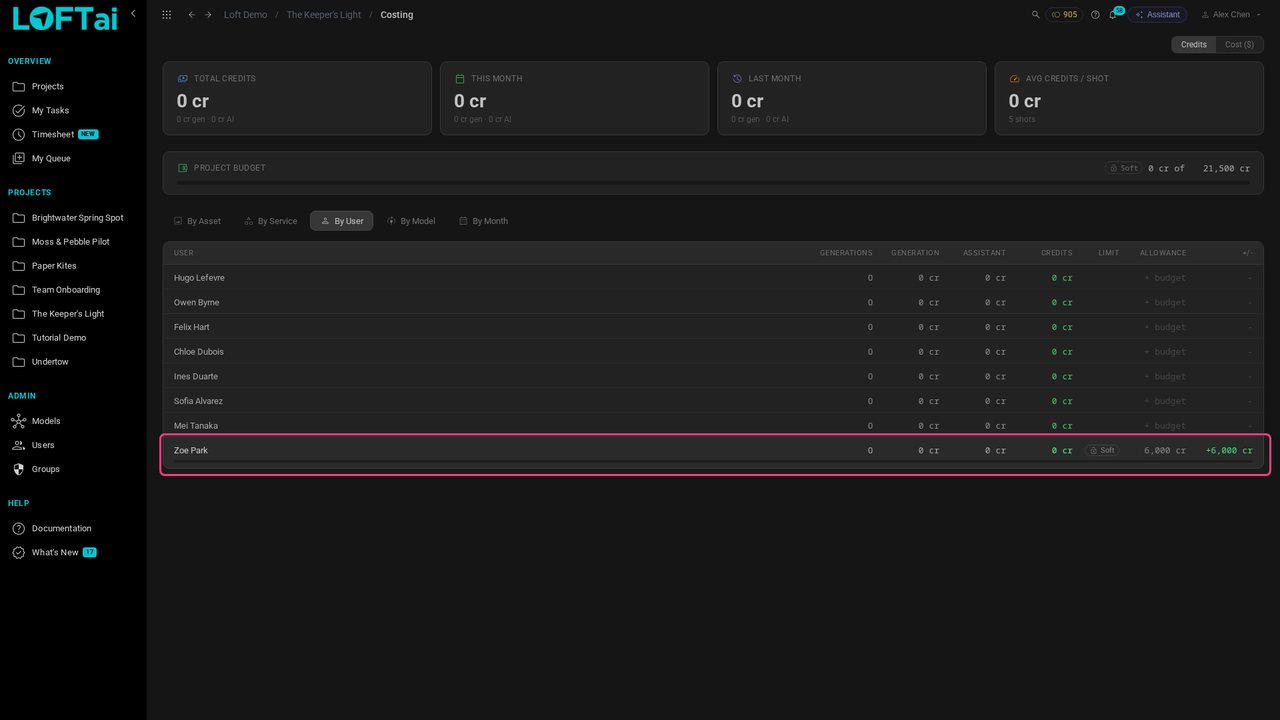
Click Soft on her row. It turns Hard: a generation that would take Zoe past 6,000 tokens is refused, until a manager raises it.
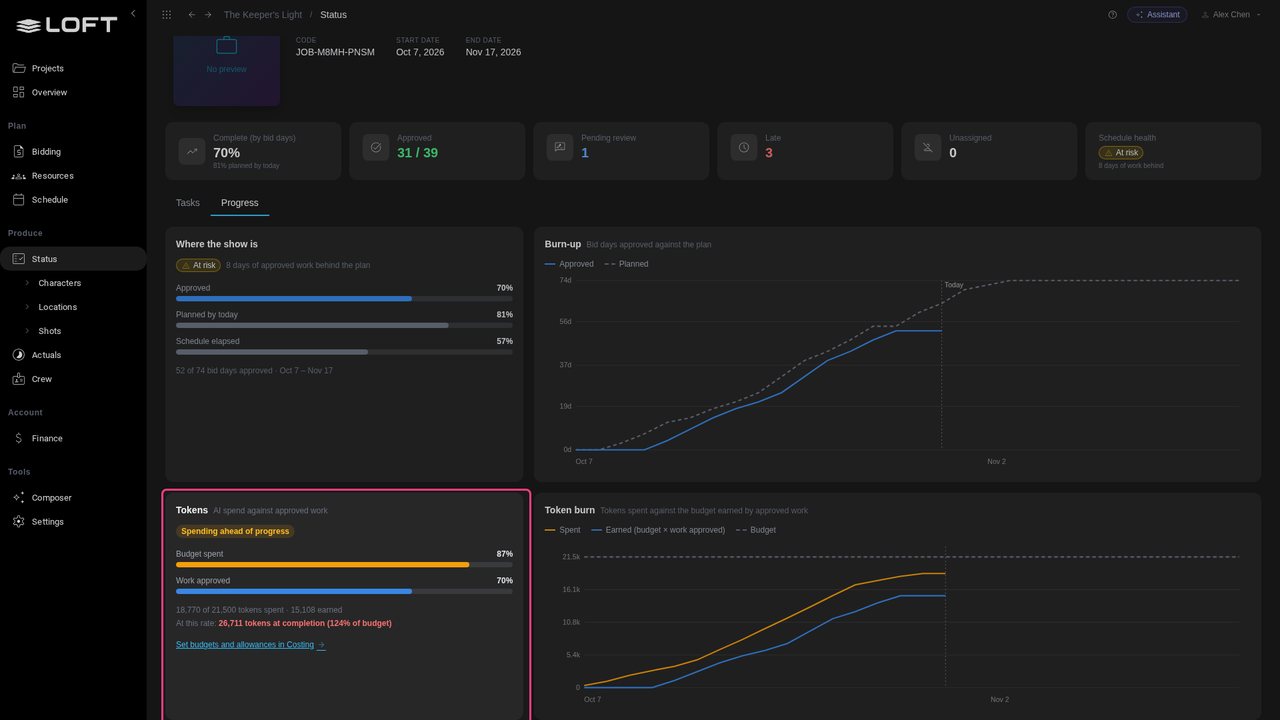
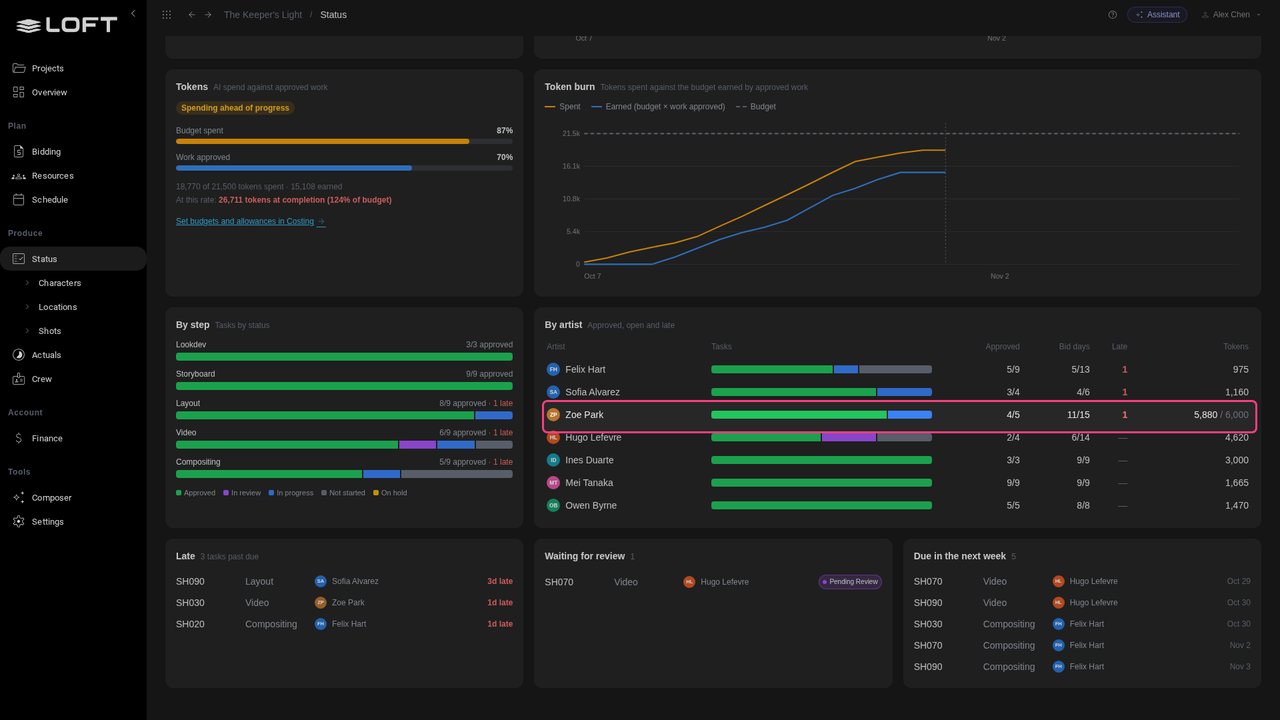
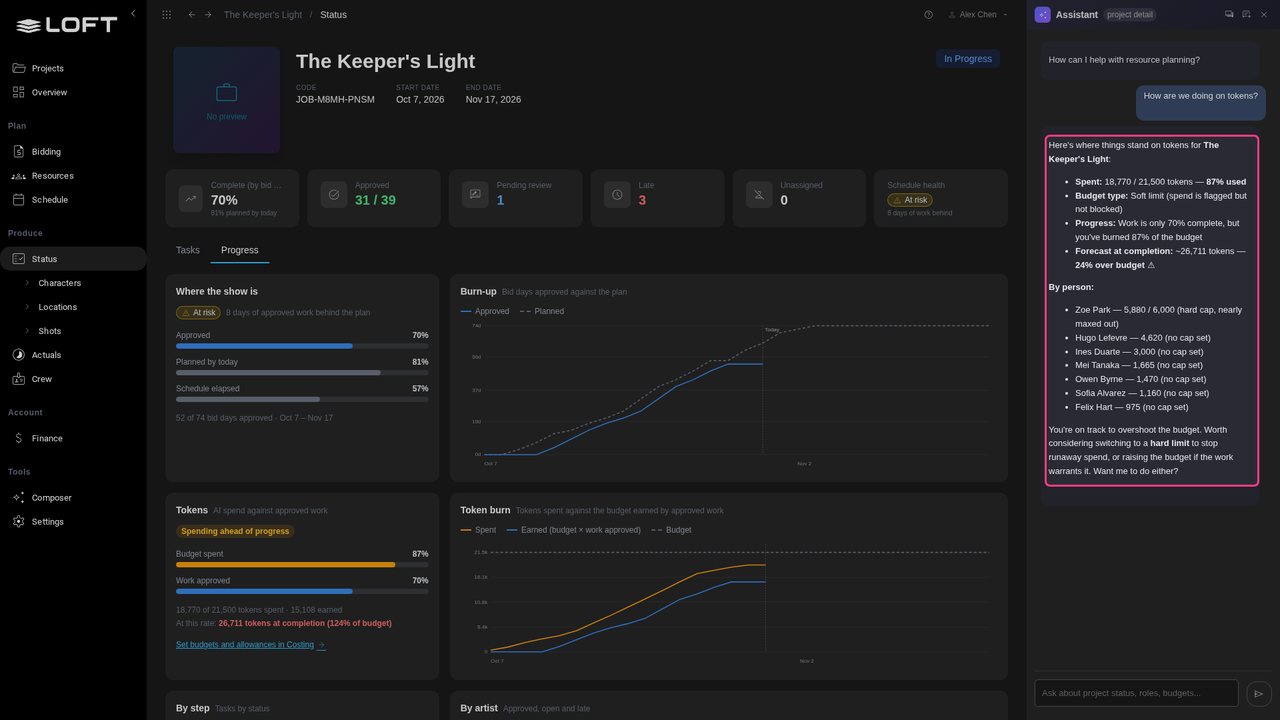
Three weeks into production, back on Status > Progress. The Tokens card says the show is spending ahead of progress: 87% of the budget is spent, but only 70% of the work is approved.
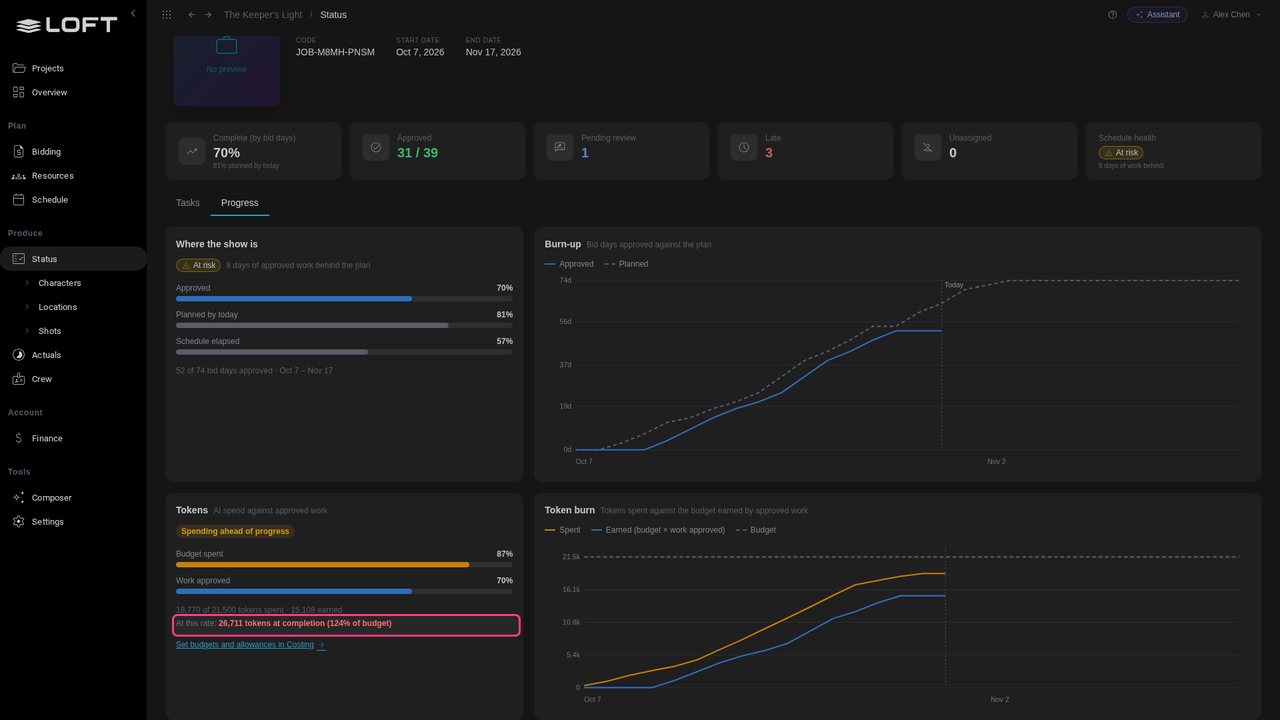
At the rate the approved work spent, the show finishes at about 27,000 tokens: 124% of its budget. Better to know in week three than in week six.
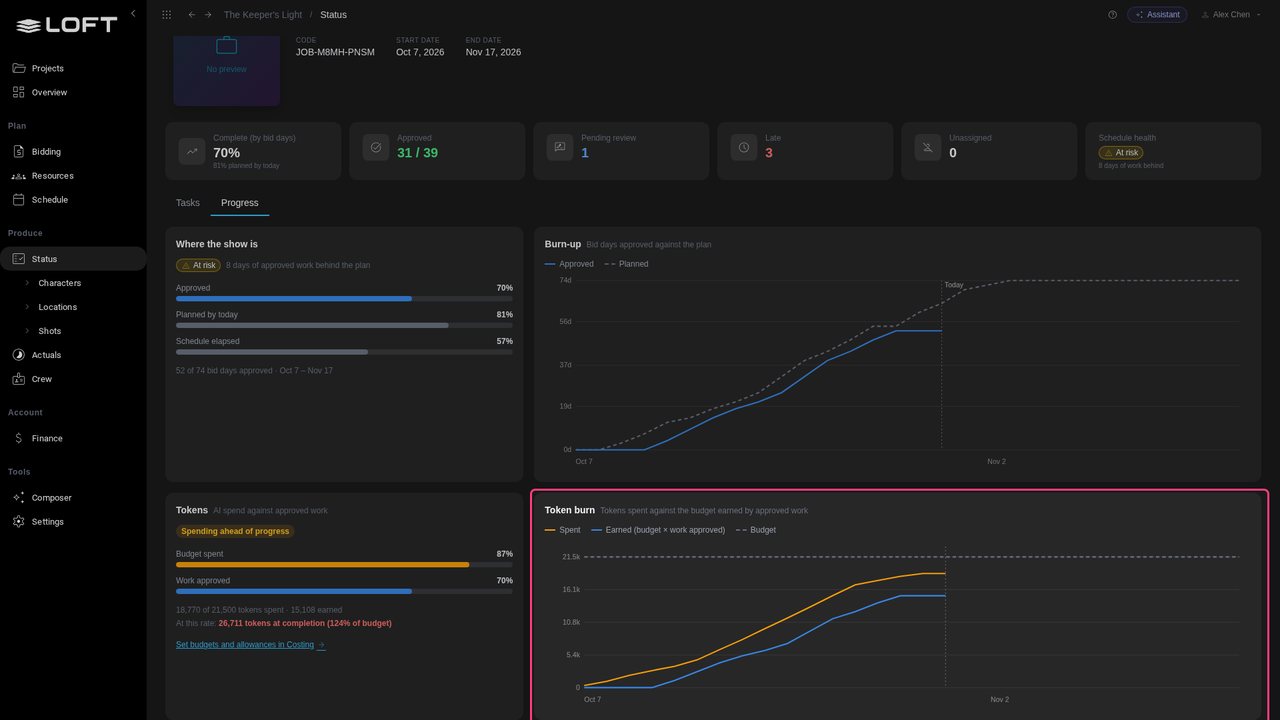
The Token burn chart: orange is tokens spent, blue is what the approved work was budgeted to cost. The gap opened with the video takes.
Under By artist, the Tokens column shows each person's spend. Zoe Park is at 5,880 of her 6,000.
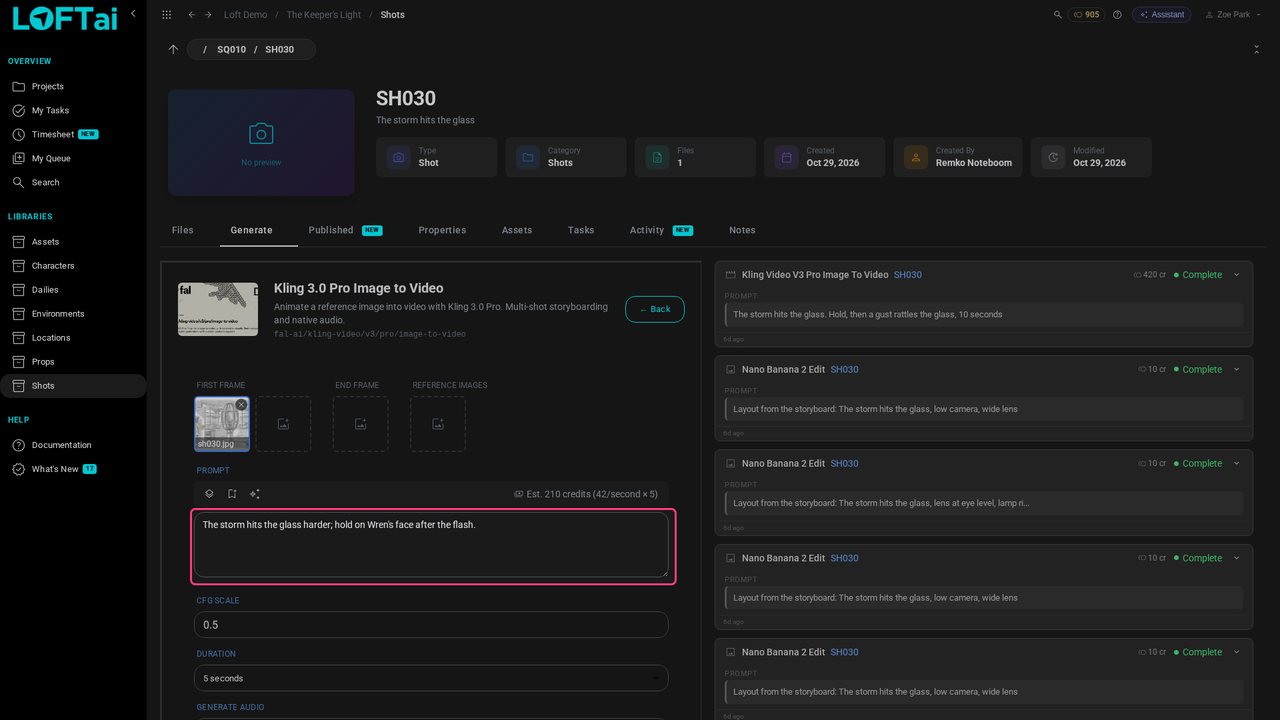
Now as Zoe. The director sent SH030's video back: the storm needs to hit the glass harder. She opens the shot, Generate, Kling 3.0 Pro Image to Video, with the storyboard as the first frame.
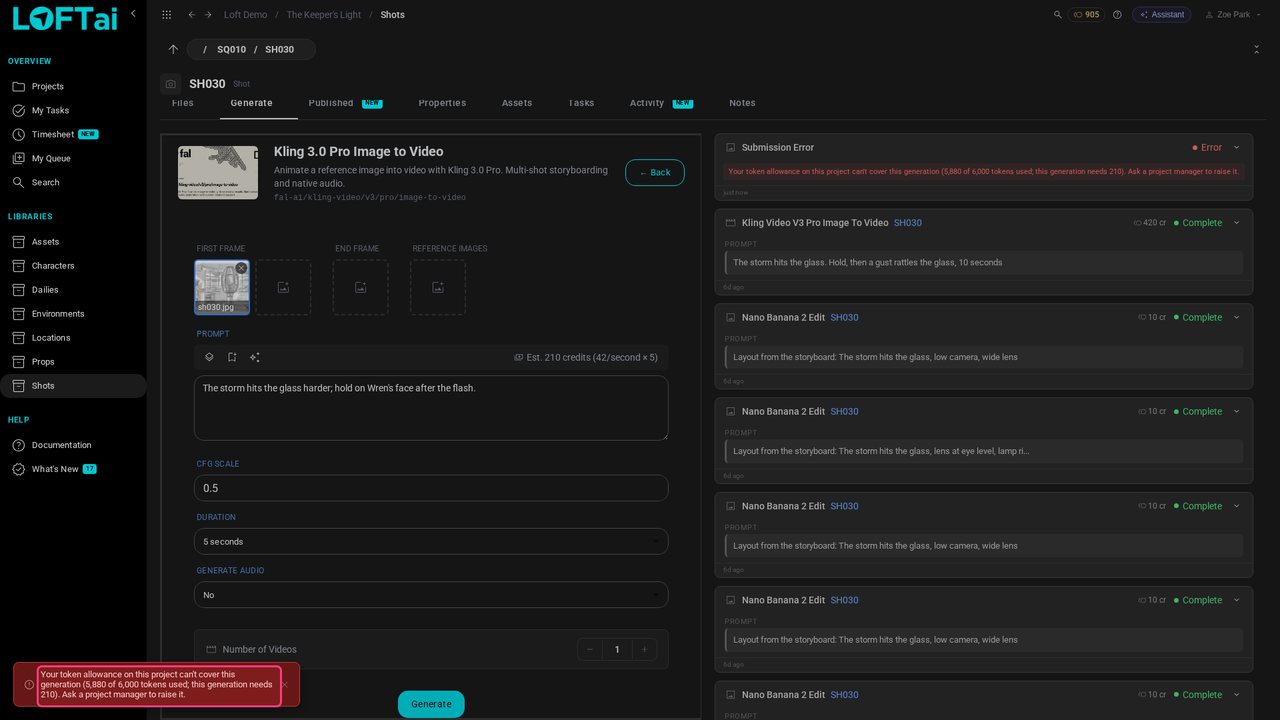
Click Generate. The take needs 210 tokens and Zoe has 120 left, so it is refused before it runs, with the reason and who can change it. Nothing was spent.
Back as the producer, on Status. Open the Assistant and ask: How are we doing on tokens?
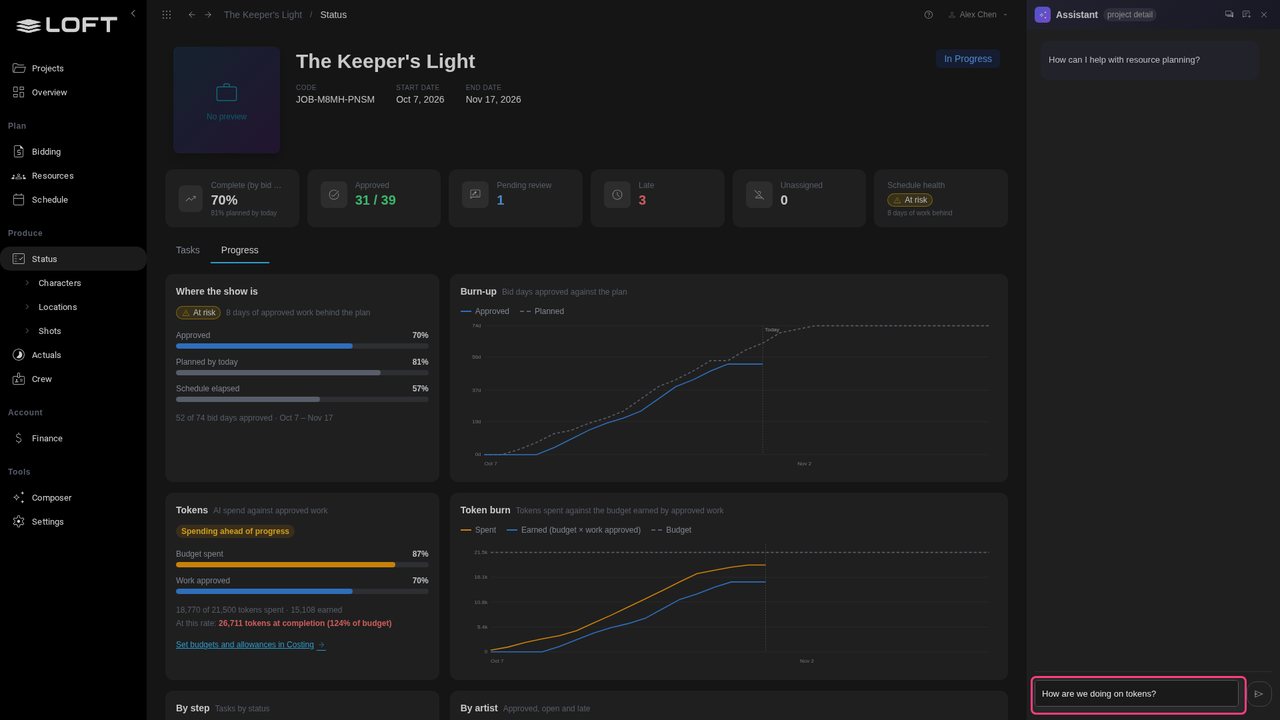
It reads the same figures: spend against the budget, what the approved work earned, the forecast, and Zoe at her limit.
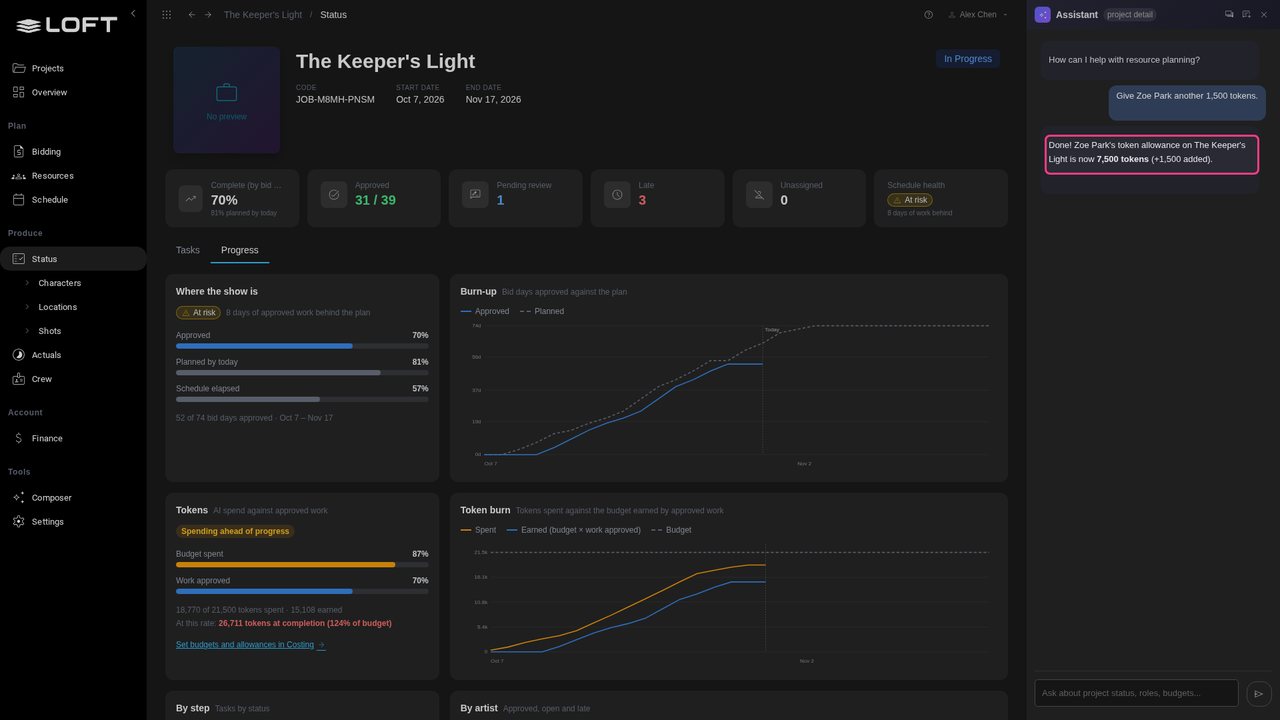
SH030 has to be redone. Ask: Give Zoe Park another 1,500 tokens. The allowance becomes 7,500 and Zoe can generate again.
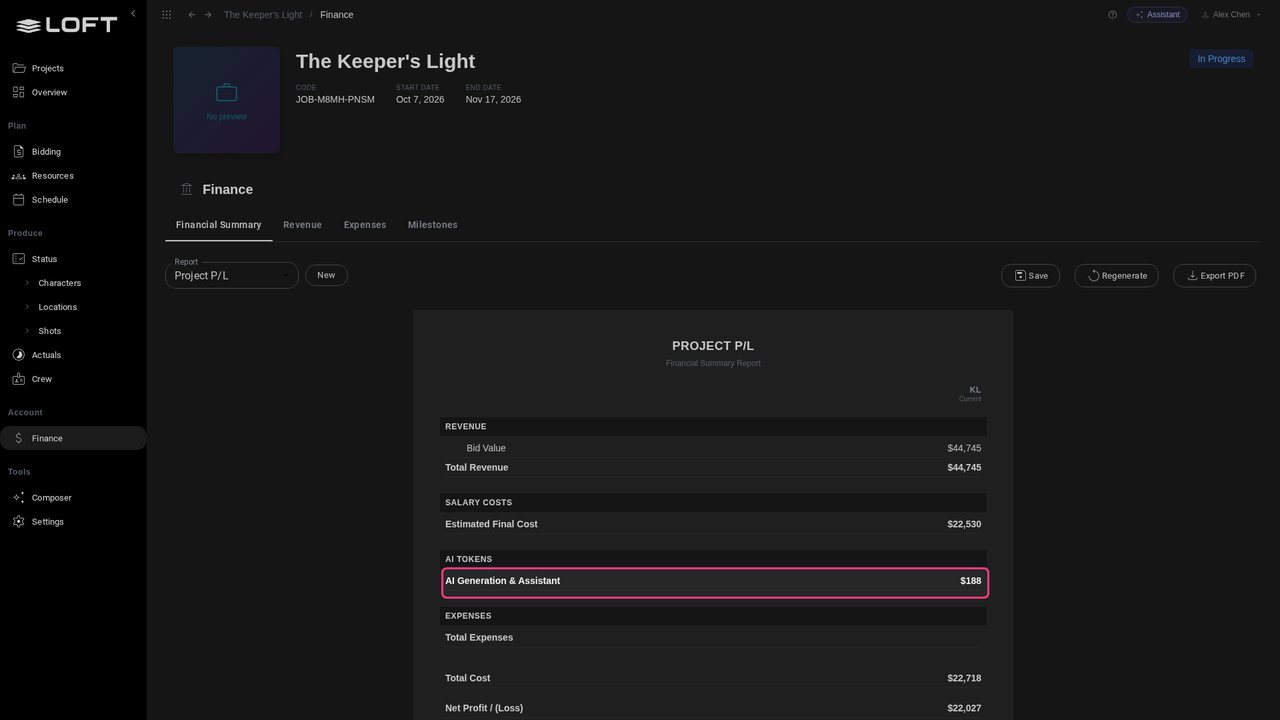
In the Account group, click Finance. The Project P/L carries the AI spend as its own line, next to labour, and the bid value includes the bid's tokens.
Up next in Plan and run a production
A client reviews what you choose to show them, and nothing else. Give the project a Client library that only the Client group can see, add a daily to it, and submit work there. The client opens the daily, looks at each submission and approves it or asks for changes.
In the playlists Plan and run a production.