
STEP 01
Open the project
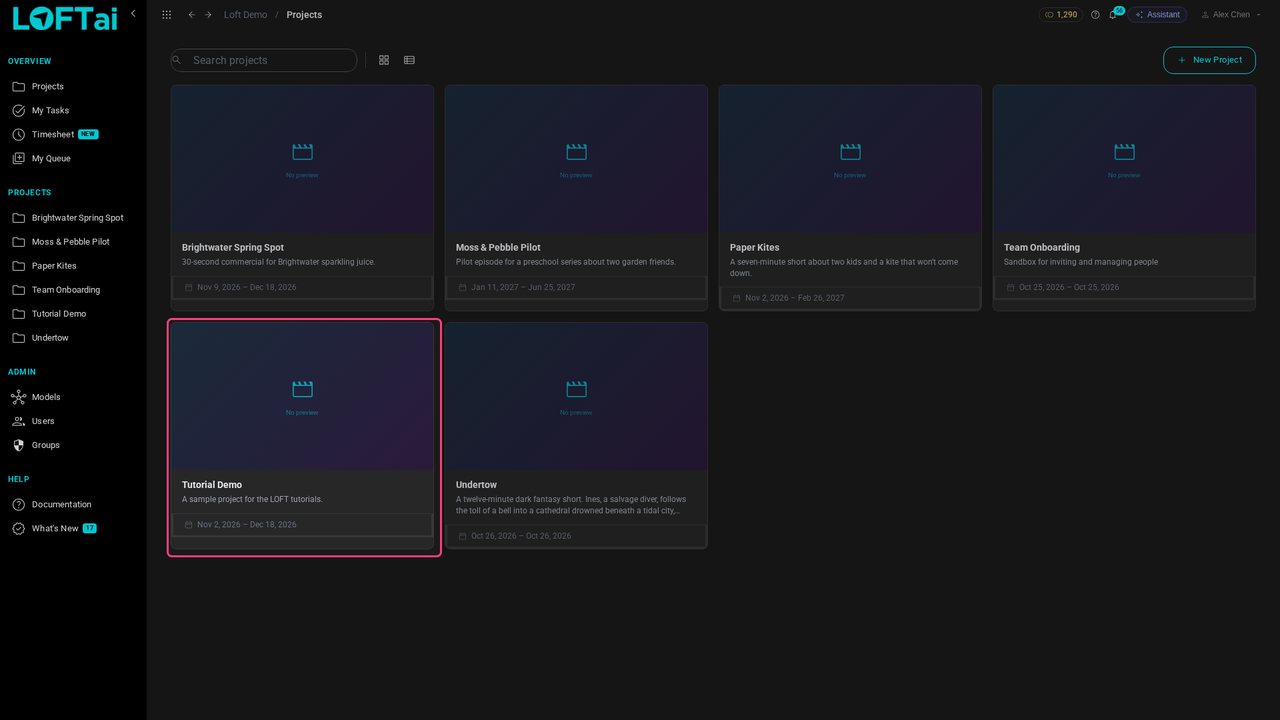
Open the project to work in. We'll use Tutorial Demo.
Tutorials/Make and review the work
Studios, guilds, insurers and regulators now ask the same question of AI-assisted work: what is it made from, who made it, and were you allowed to use it? Loft keeps that record as you work. This tutorial brings in three sources, generates and publishes a keyframe from them, and then follows the record: every action, every input, and every licence, with nothing typed in by hand.
Follow along
Open the project to work in. We'll use Tutorial Demo.
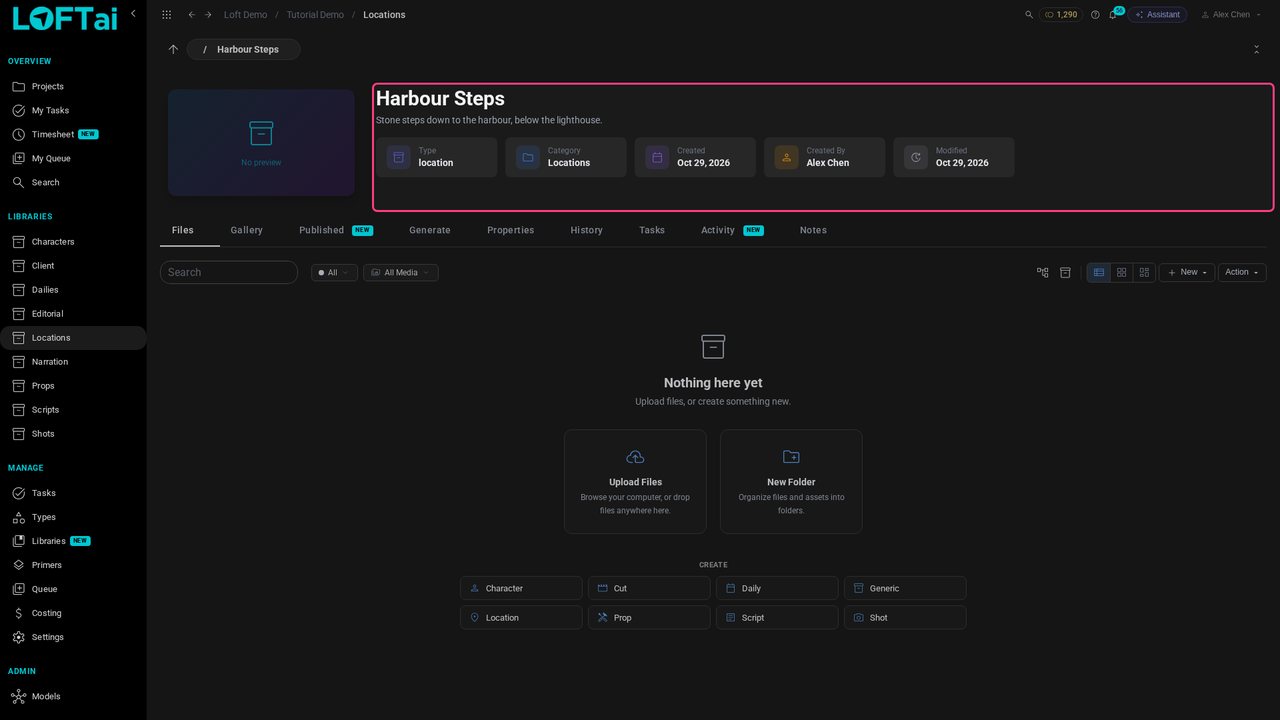
Open Locations and Harbour Steps, a new location with nothing in it yet.
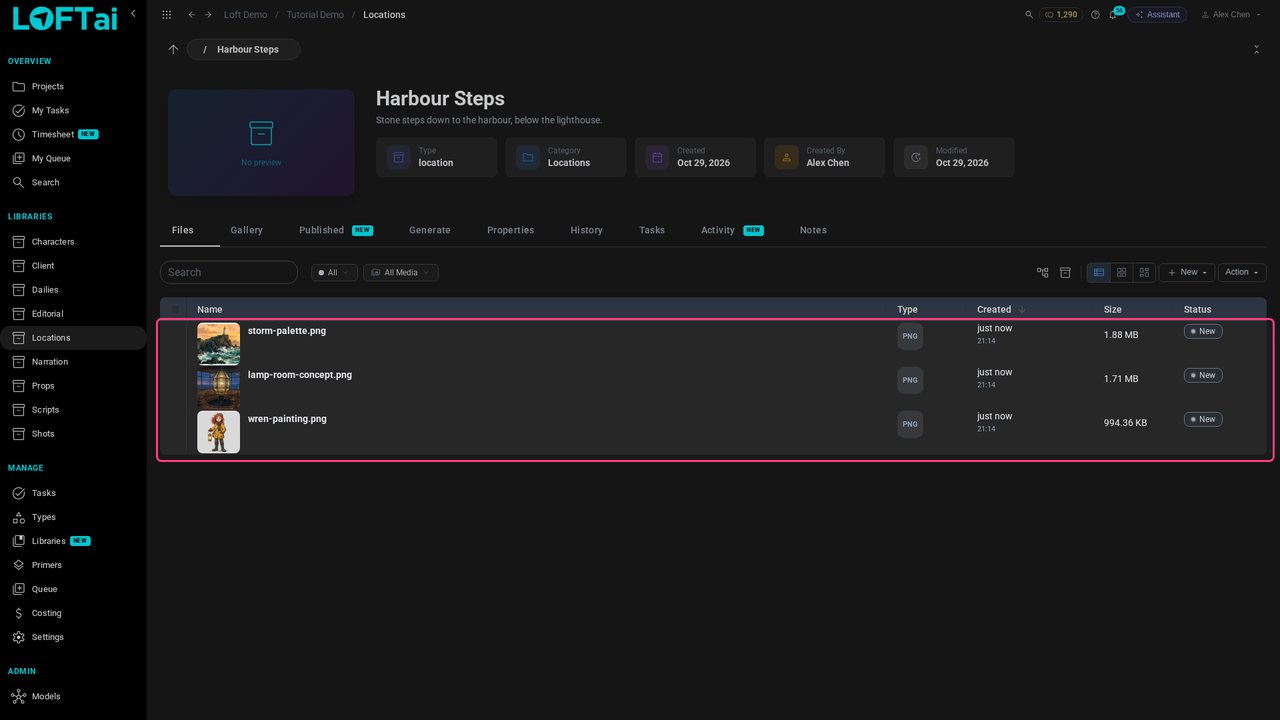
Upload three files: a painting of Wren by our artist Ines, a lamp room concept licensed from an outside studio, and a storm palette someone pulled off the web.
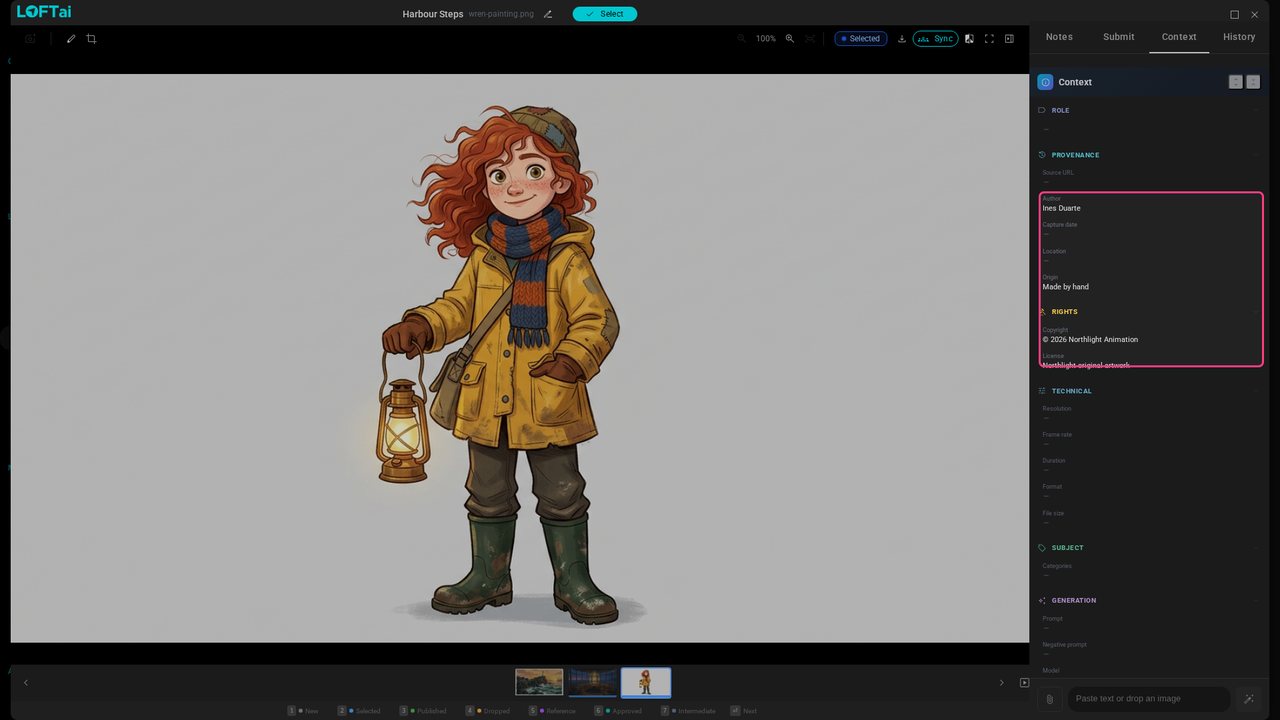
Open the concept and its Context tab. Author, copyright, licence and origin are already filled in: Loft read them from the file as it arrived. Nobody typed this. Press 2 to mark it Selected for use.
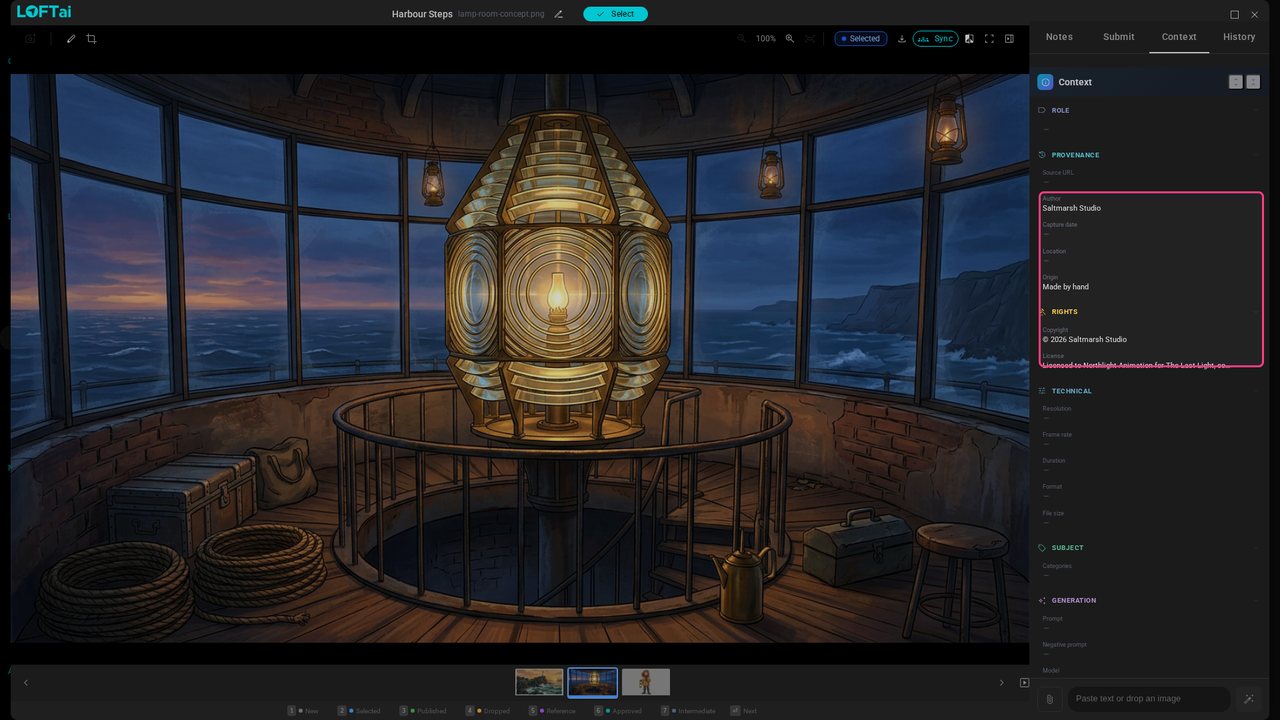
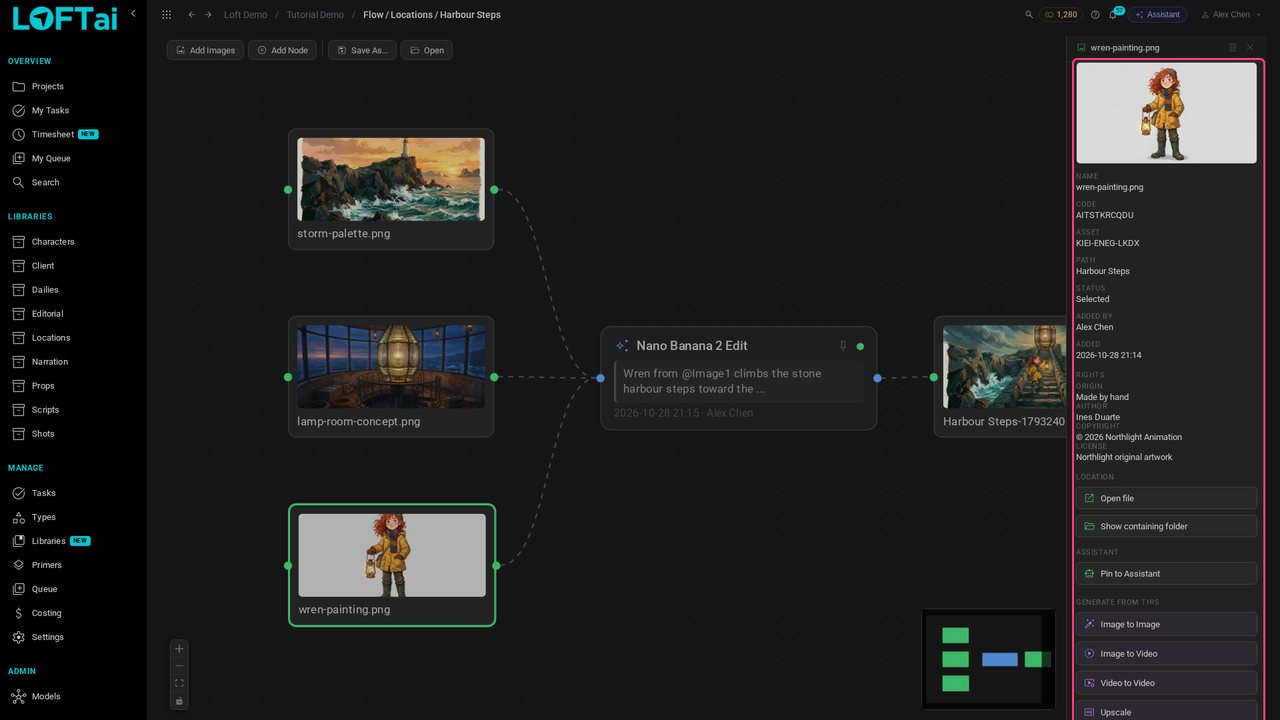
The painting says who made it, Ines Duarte, that Northlight owns it, and that a person made it, not a model.
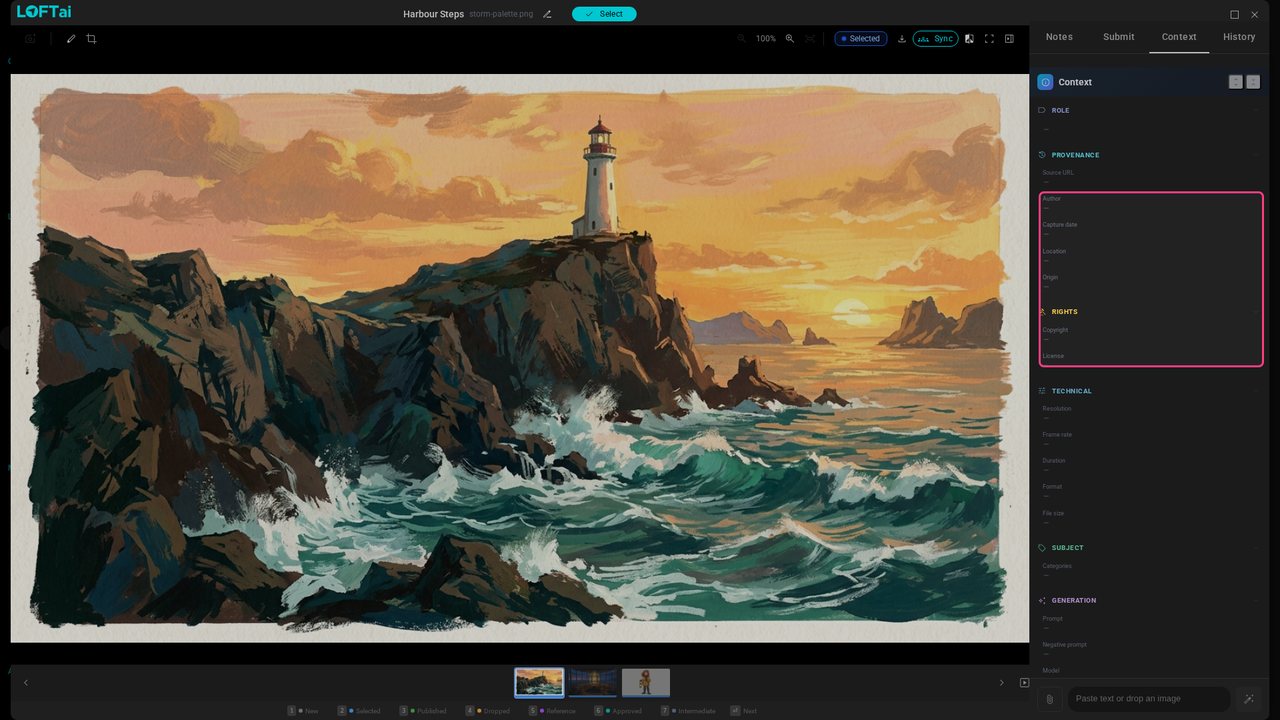
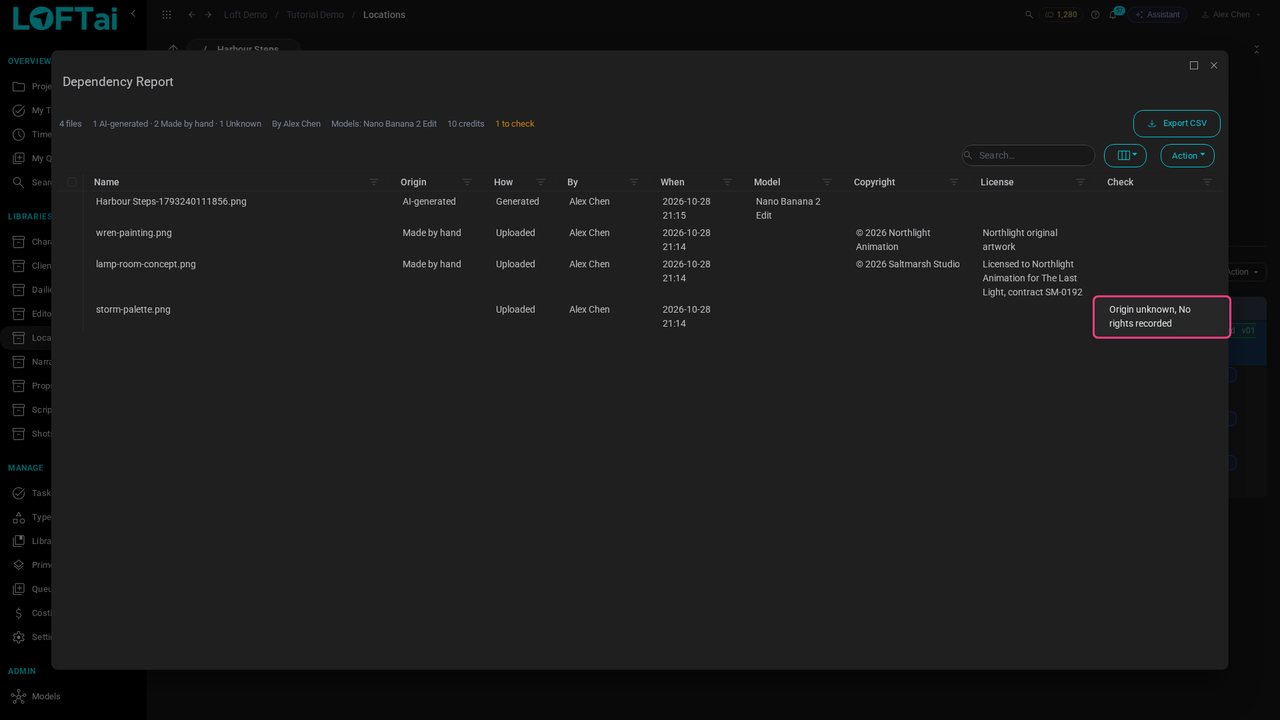
The palette carries nothing: no author, no licence. Files from the web usually don't. We'll use it anyway, as often happens, and see what Loft makes of it.
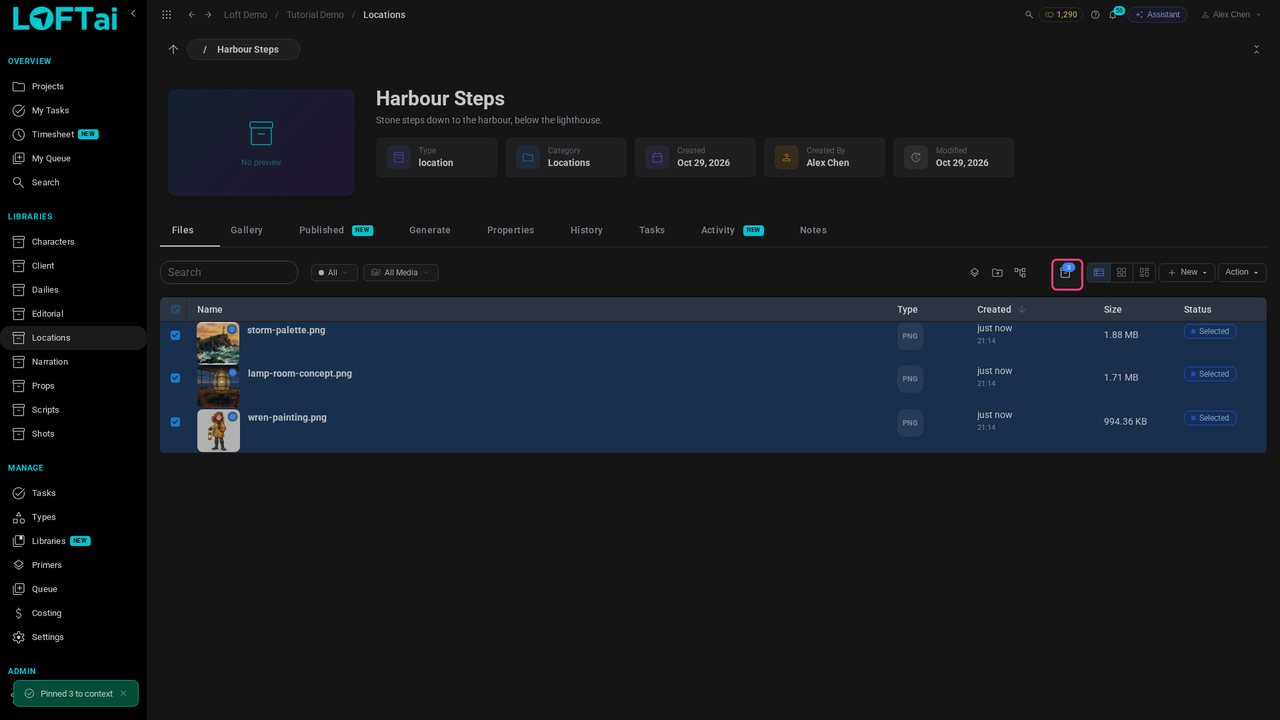
Close the viewer, select all three and pin them, so they're one click away as inputs.
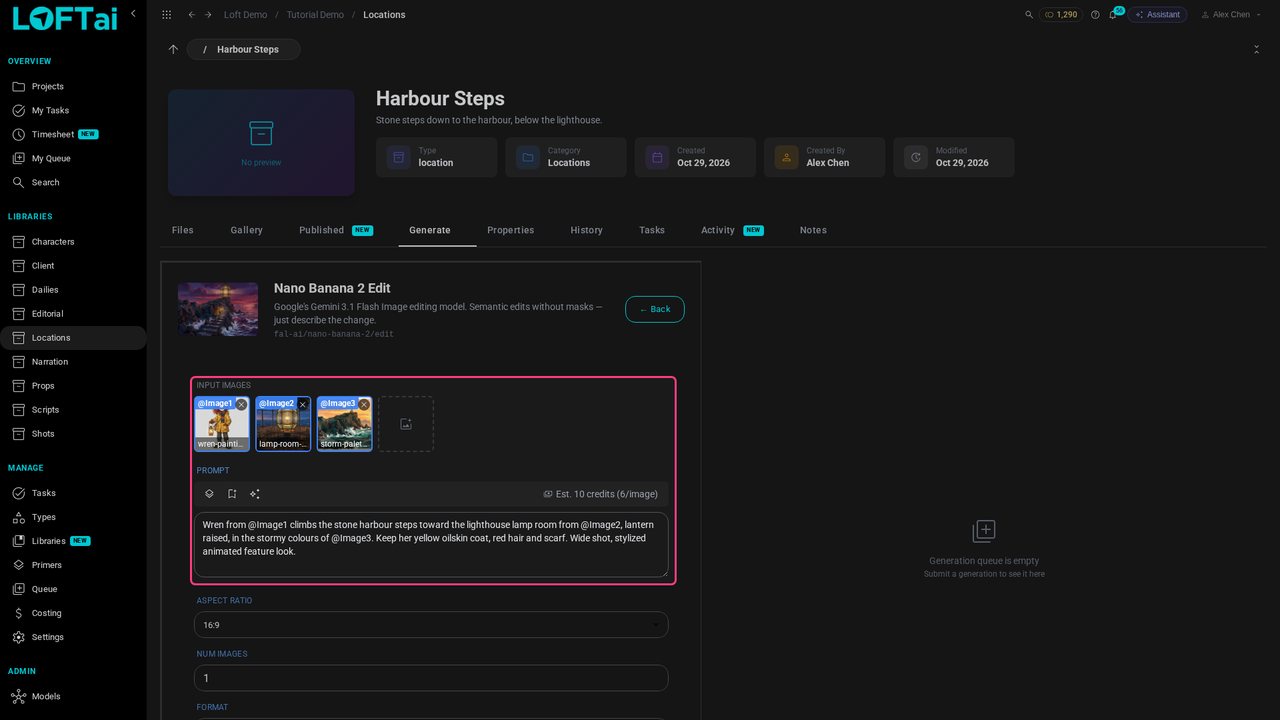
In Generate, choose Nano Banana 2 Edit, take the three pins as inputs, and ask for Wren on the harbour steps, in the palette's colours.
Click Generate. As the image lands, Loft has already recorded the model, the prompt, every input, who ran it and what it cost.
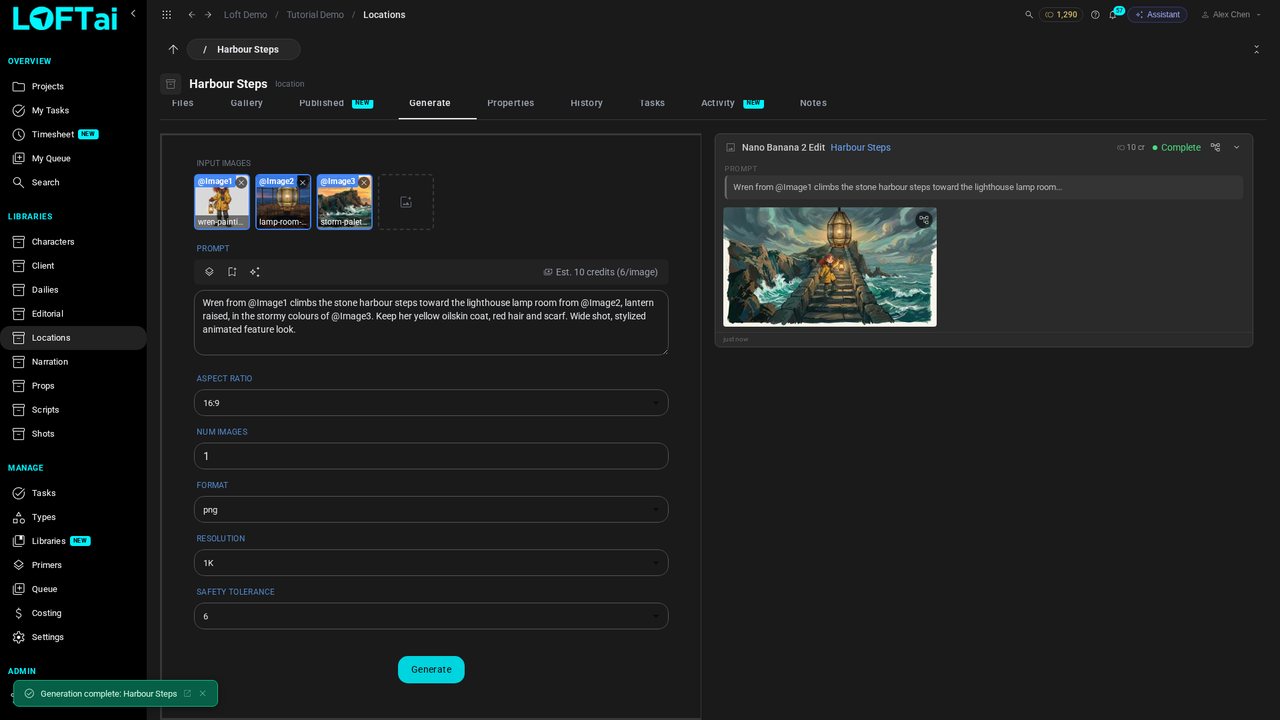
Open the keyframe and press 3 to publish it as a concept.
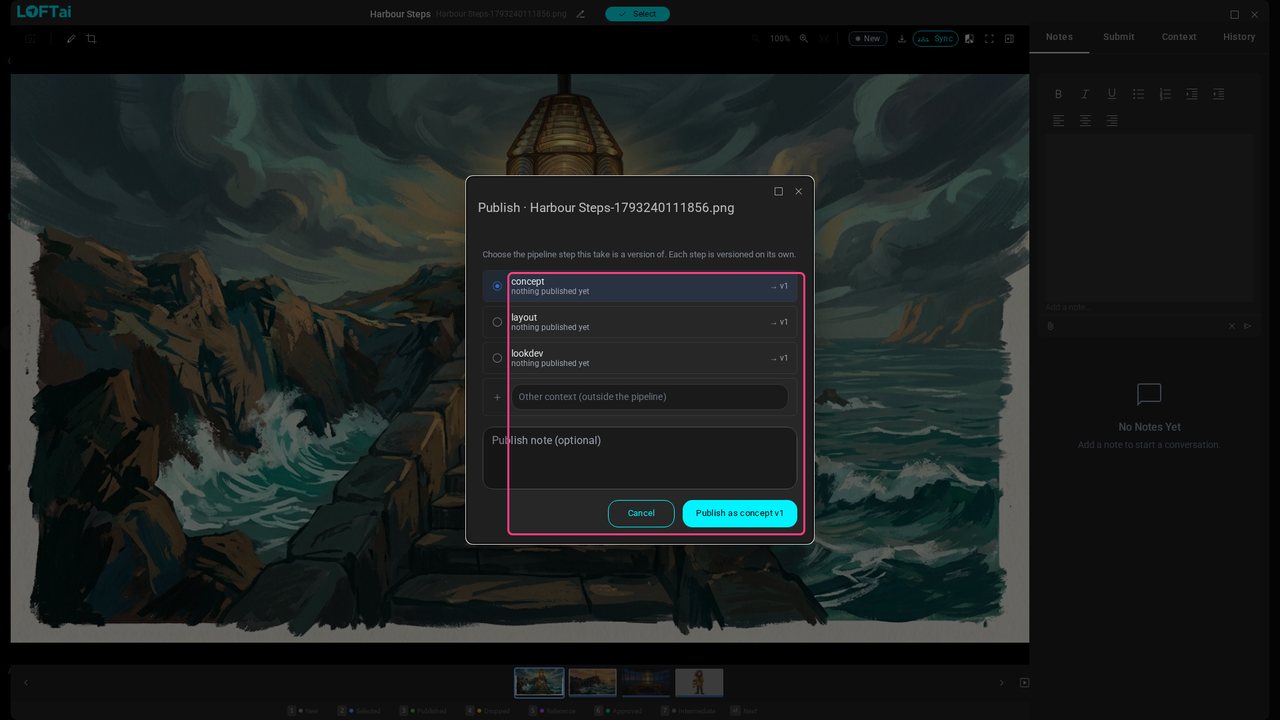
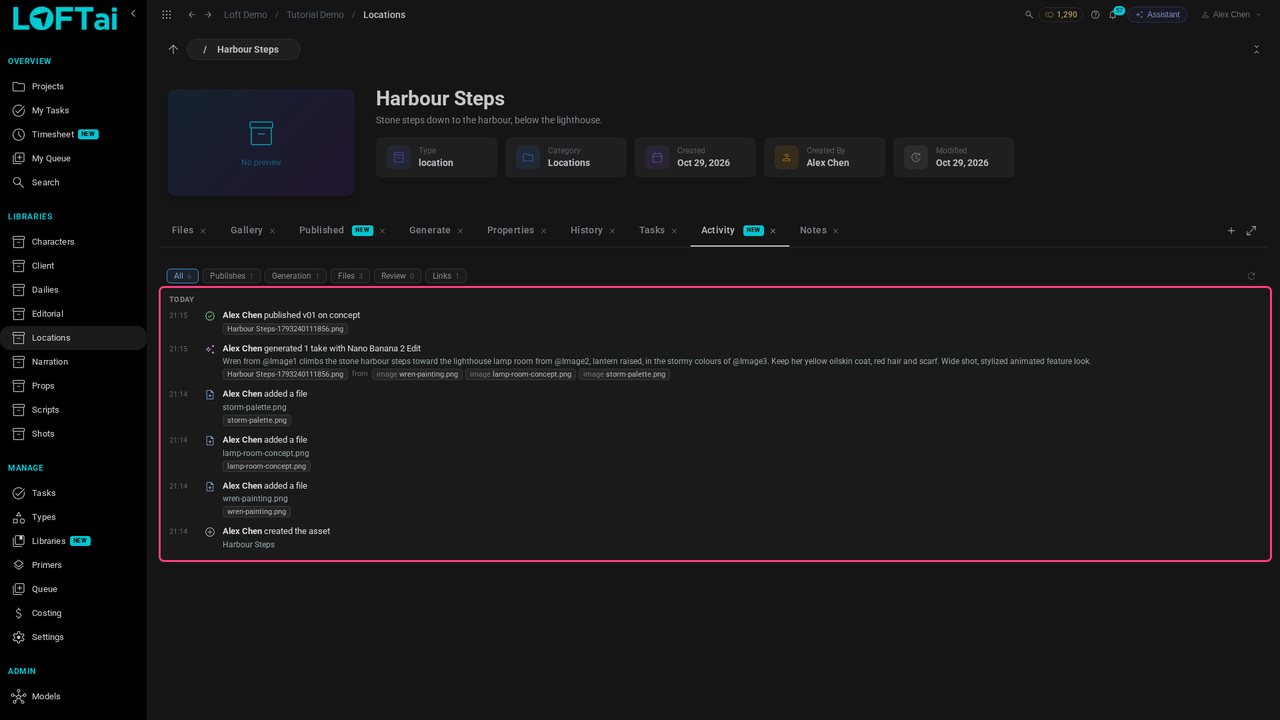
Publish, and open Activity. Everything that happened to the asset is here, newest first: who uploaded what, the generation with its model, prompt and inputs, and who published which version.
Select the keyframe and click View generation flow. The three sources feed the generation that made it.
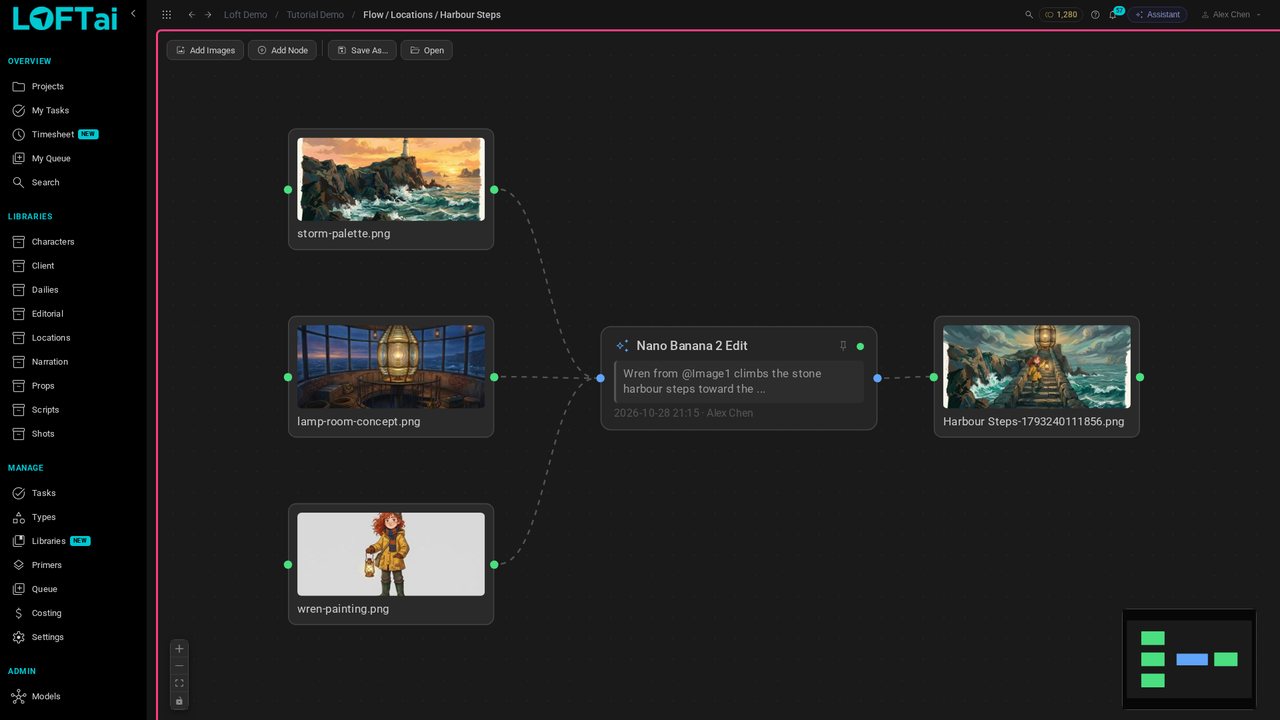
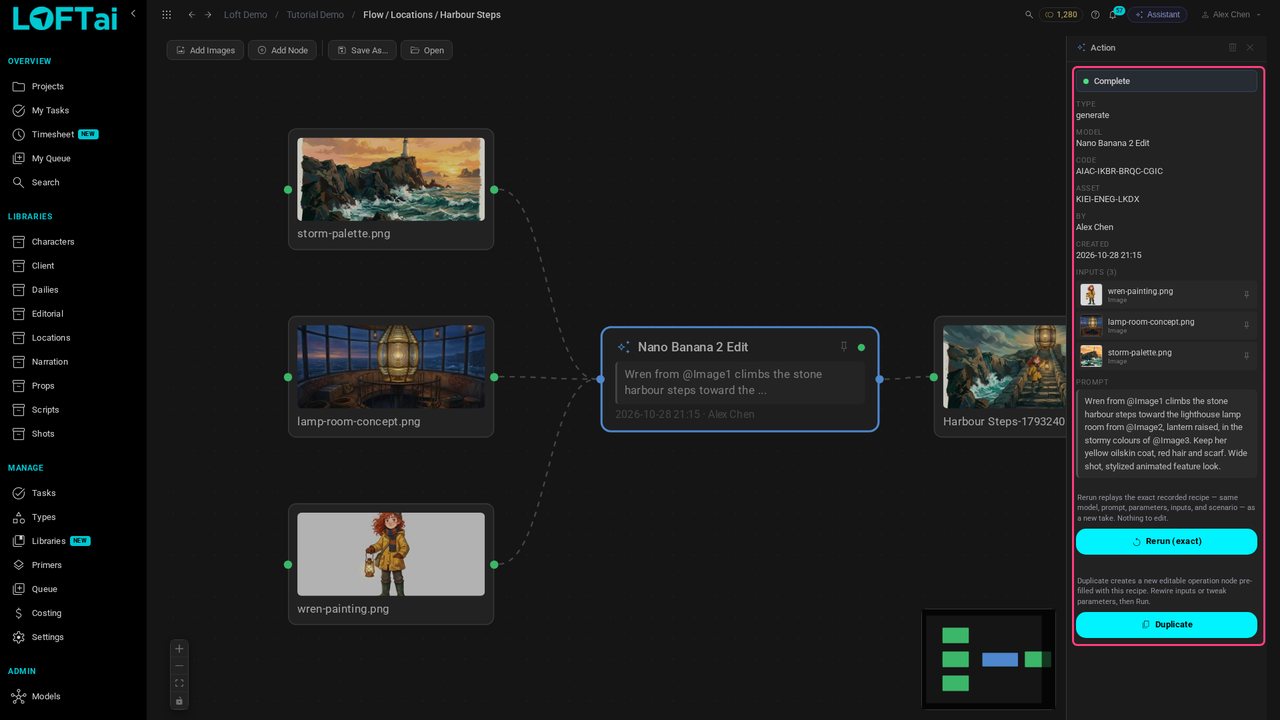
Click the generation: the model, who ran it and when, each input, and the prompt word for word. Rerun would make it again from exactly this.
Click Ines's painting: its rights travel with it into the flow.
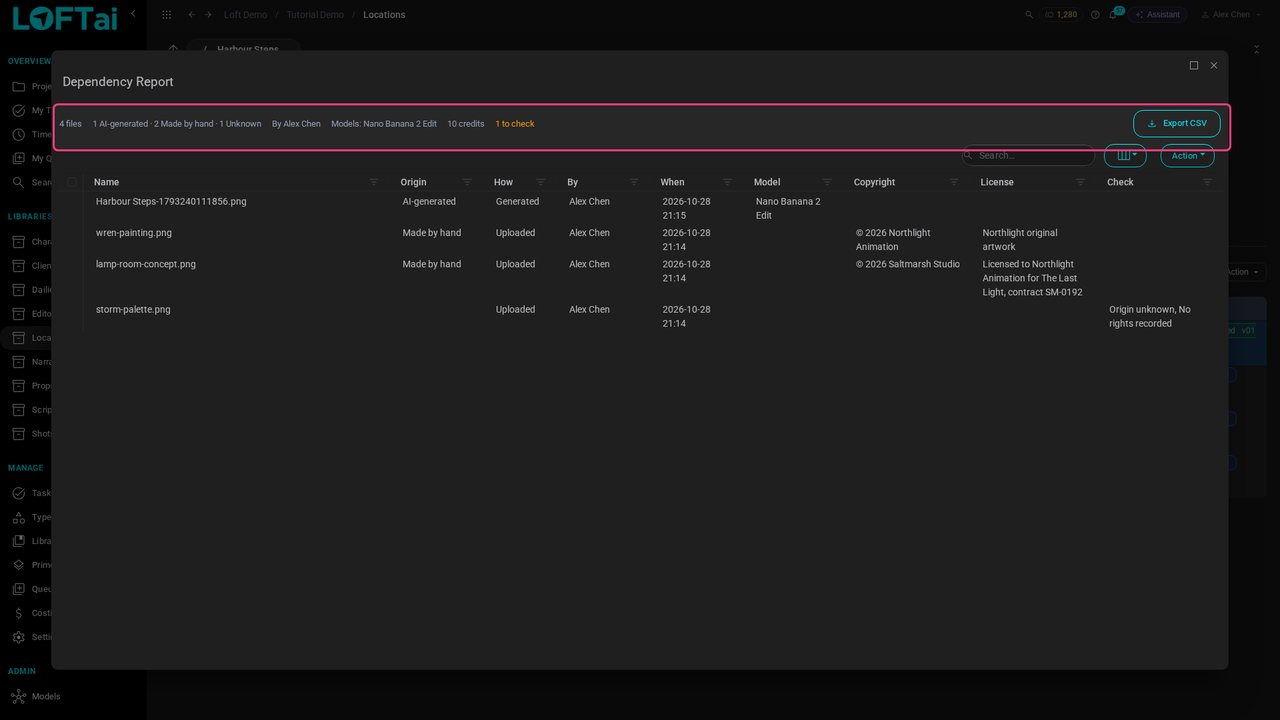
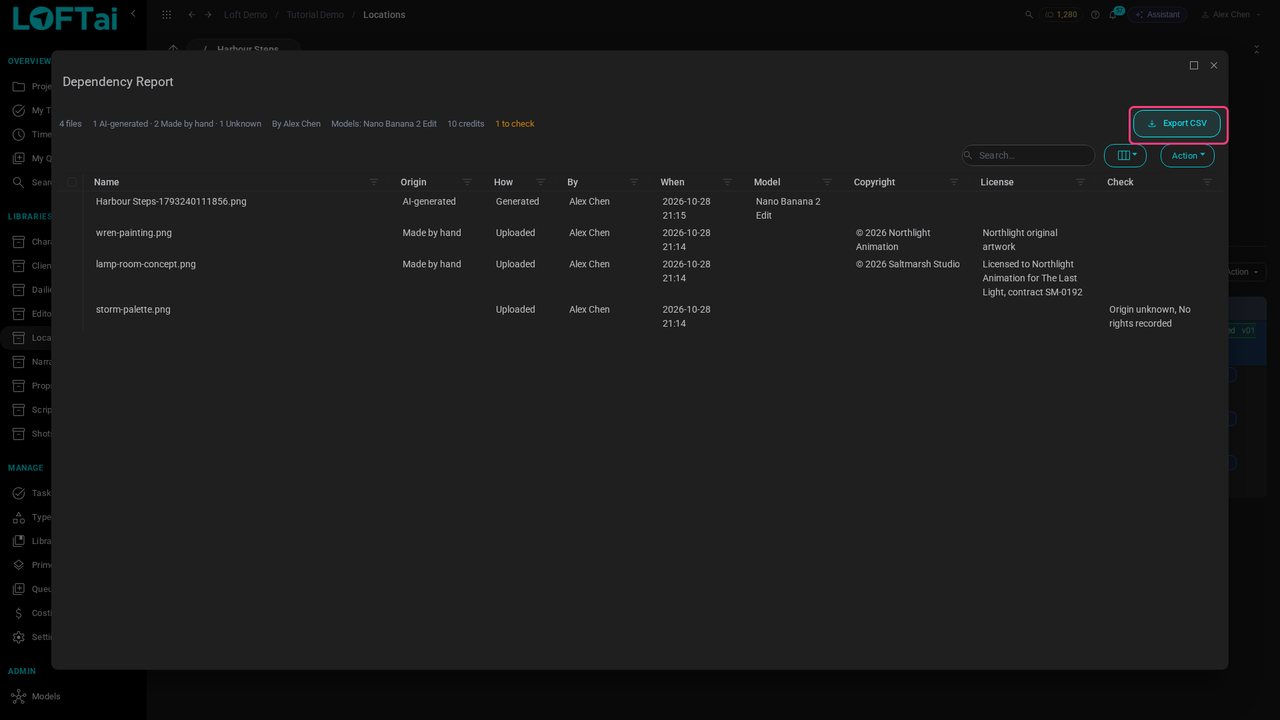
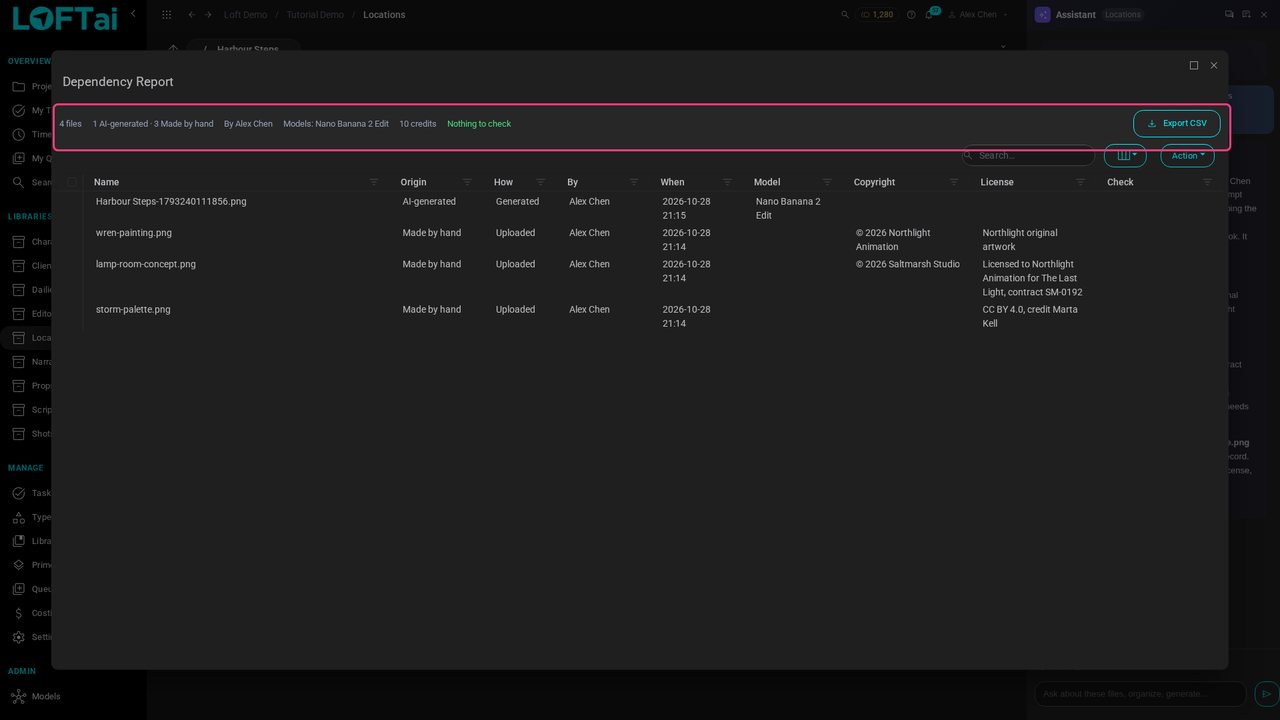
Back in the files, select the keyframe and choose Action > Dependency Report: every file it was made from, how each was made, by whom, with which model, and on what rights.
The palette is flagged: its origin is unknown and no rights are recorded. Loft can't say you may use it, so it says so.
Export CSV saves the whole record, for a client, a distributor or an insurer.
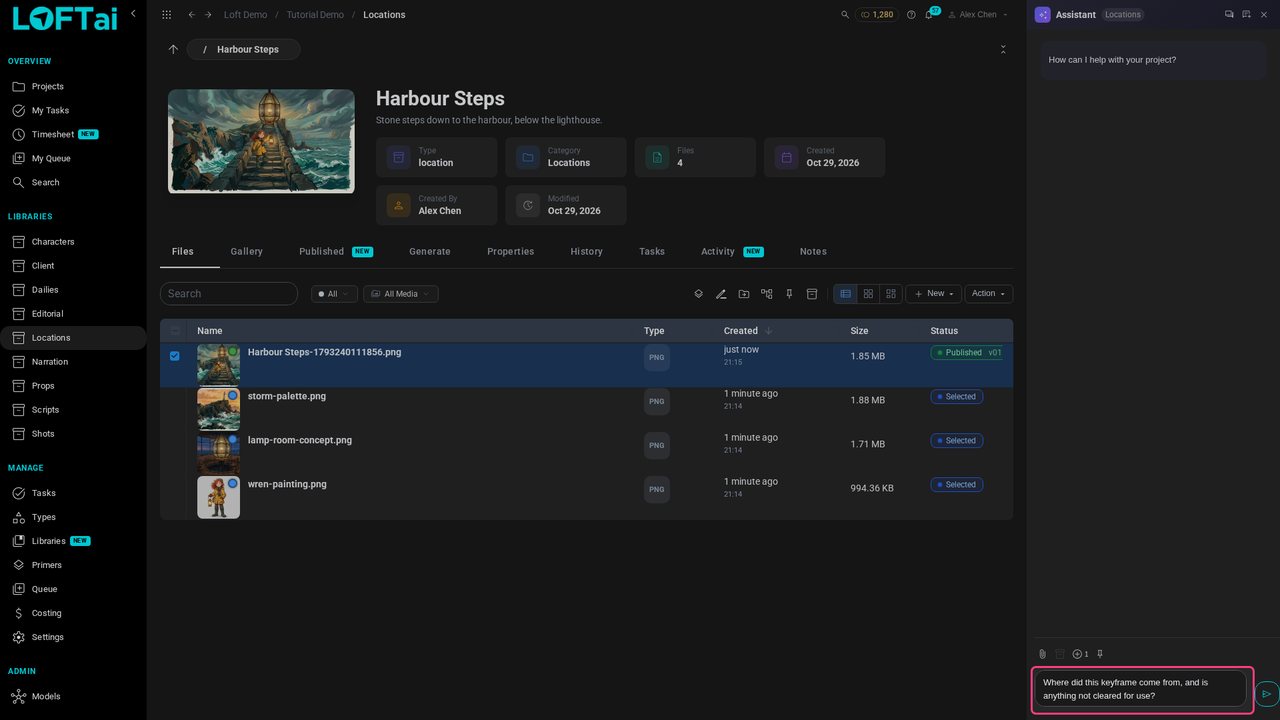
With the keyframe selected, open the Assistant and ask: Where did this keyframe come from, and is anything not cleared for use?
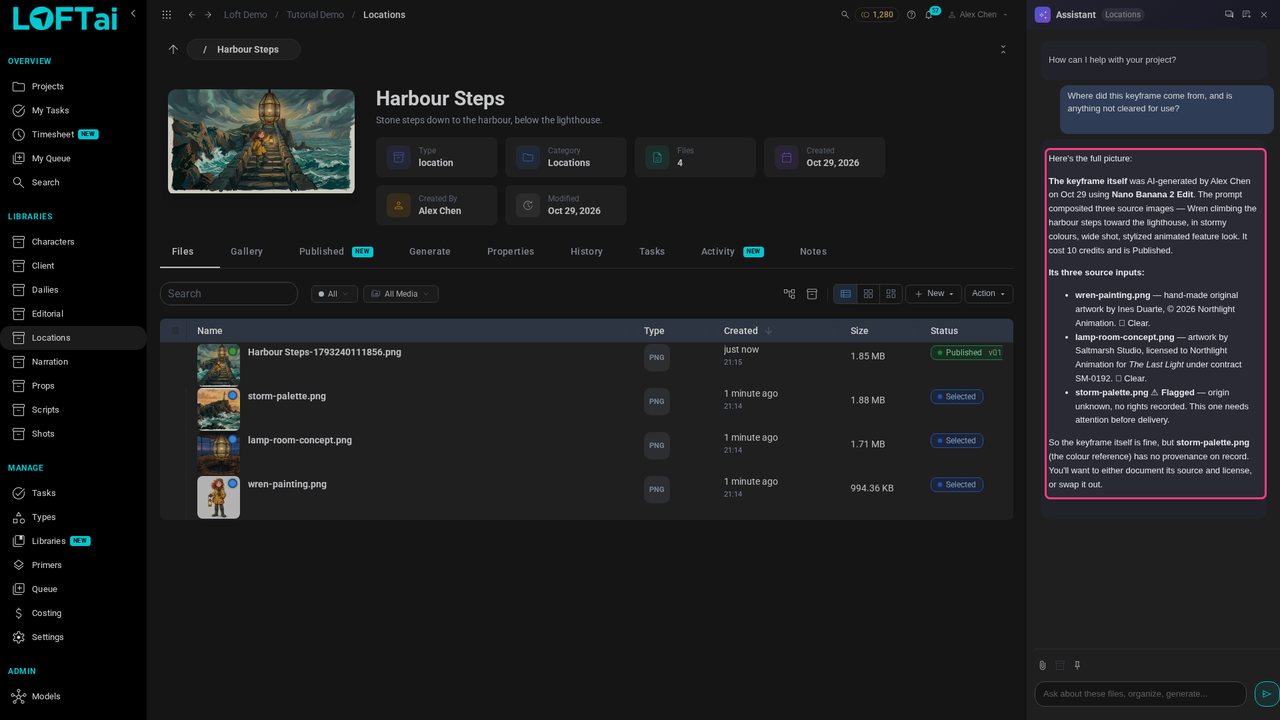
It reads the same record as the report: two sources cleared, and the palette to resolve before the keyframe goes further.
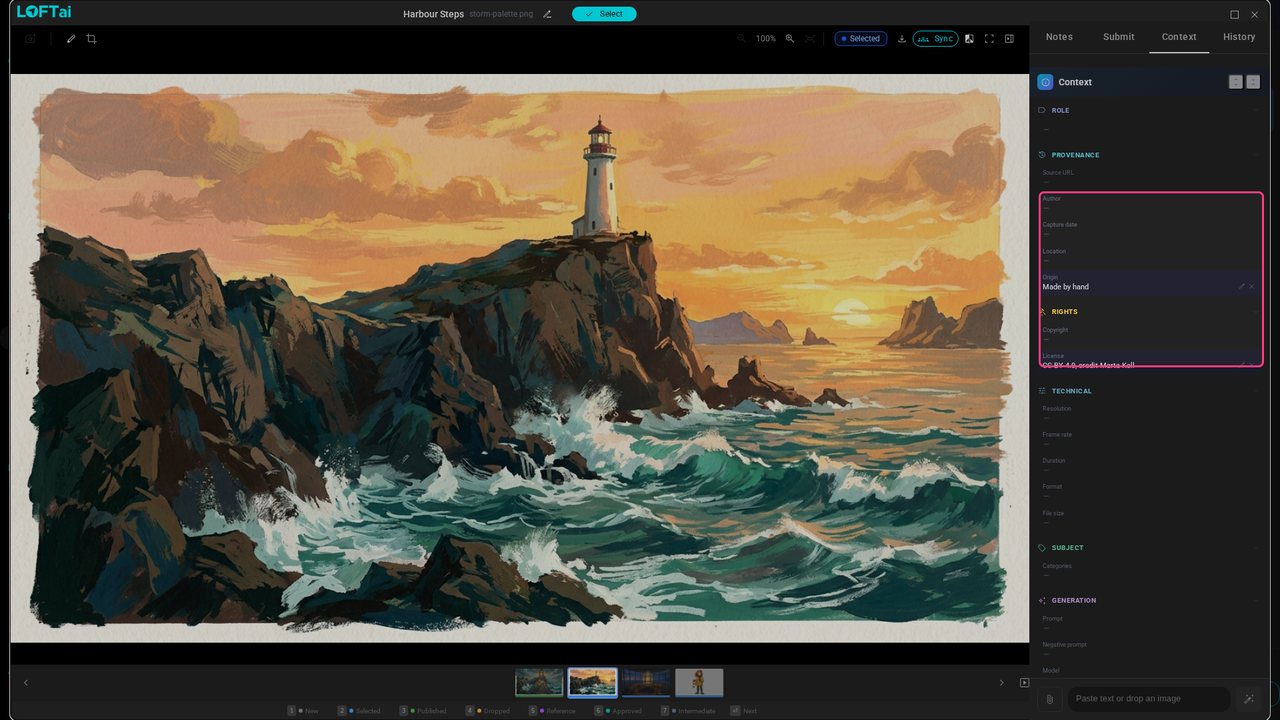
It turns out the palette is a painting shared under CC BY. Open it, and on Context set Origin to Made by hand and License to CC BY 4.0, credit Marta Kell.
Run the report again: every source is accounted for.
Up next in Make and review the work
Before a shot is animated, the cut tells you how long it should be. This tutorial puts five storyboard frames on a cut, times them by dragging and by tapping along as it plays, then works on one shot and publishes a finished frame, which the cut picks up on its own. Editorial in Loft is not a full editor; it is there so continuity and timing are right from the start.
In the playlists Make and review the work.