
STEP 01
Open the project
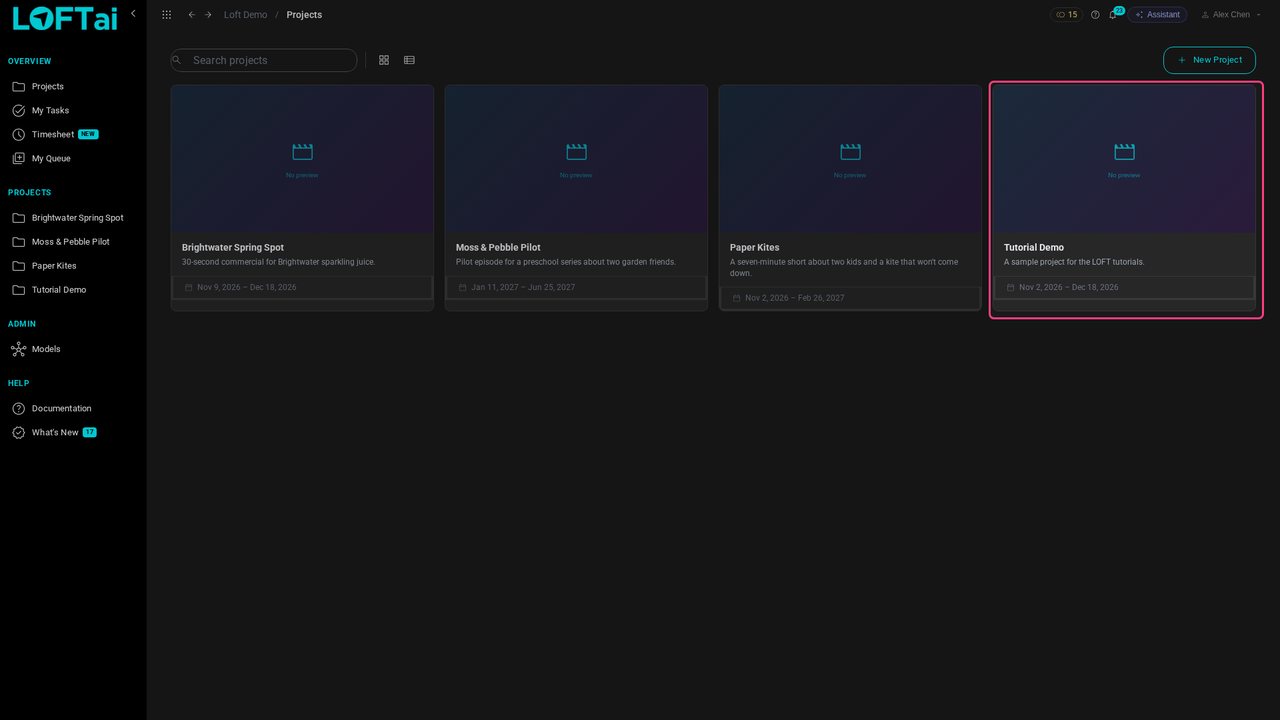
Open the project to work in. We'll use Tutorial Demo.
Tutorials/Make and review the work
Before a shot is animated, the cut tells you how long it should be. This tutorial puts five storyboard frames on a cut, times them by dragging and by tapping along as it plays, then works on one shot and publishes a finished frame, which the cut picks up on its own. Editorial in Loft is not a full editor; it is there so continuity and timing are right from the start.
Follow along
Open the project to work in. We'll use Tutorial Demo.
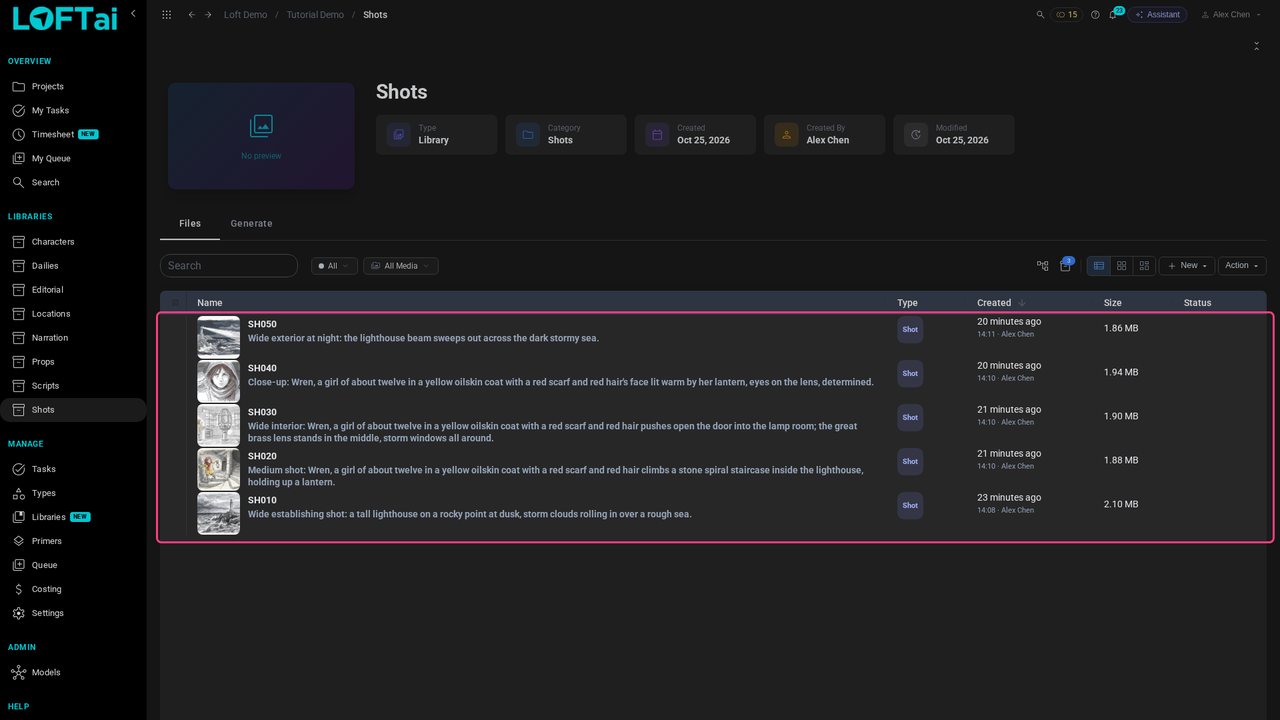
Open Shots. Each shot has a storyboard frame, generated from the line that describes it and published to the shot's storyboard step. That is all a cut needs to start.
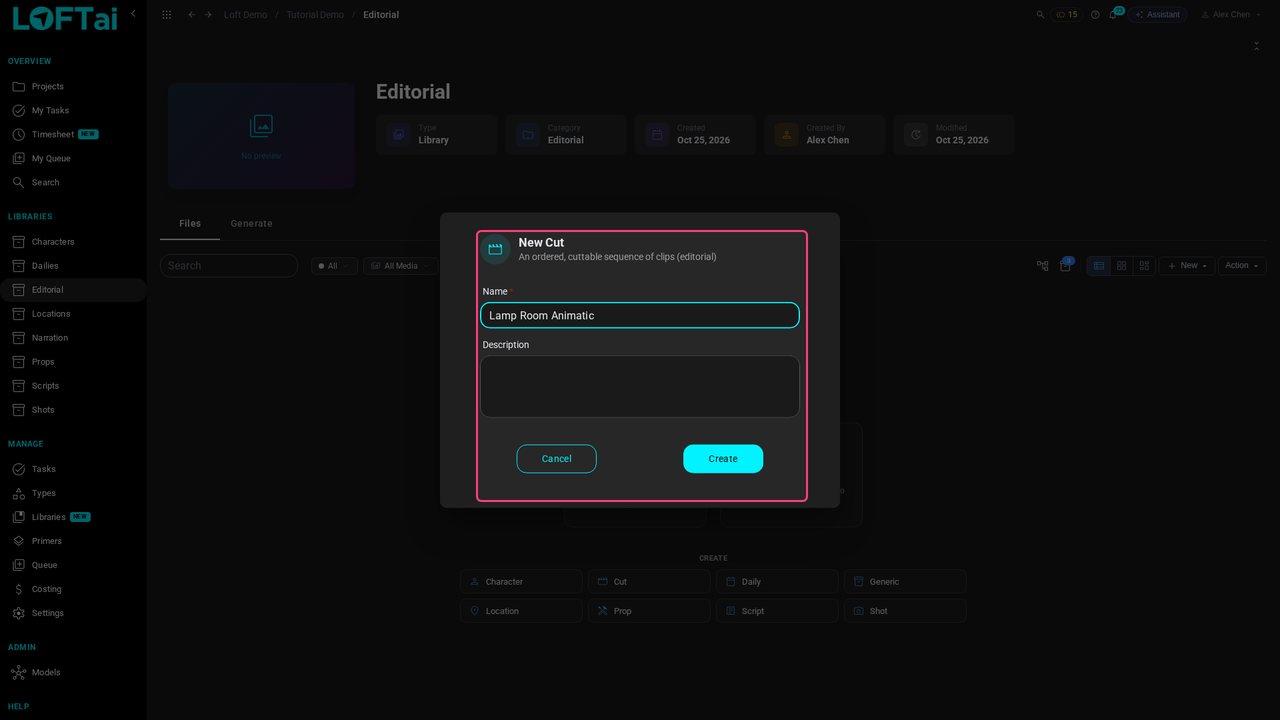
Open Editorial, click New and choose Cut. Name it Lamp Room Animatic.
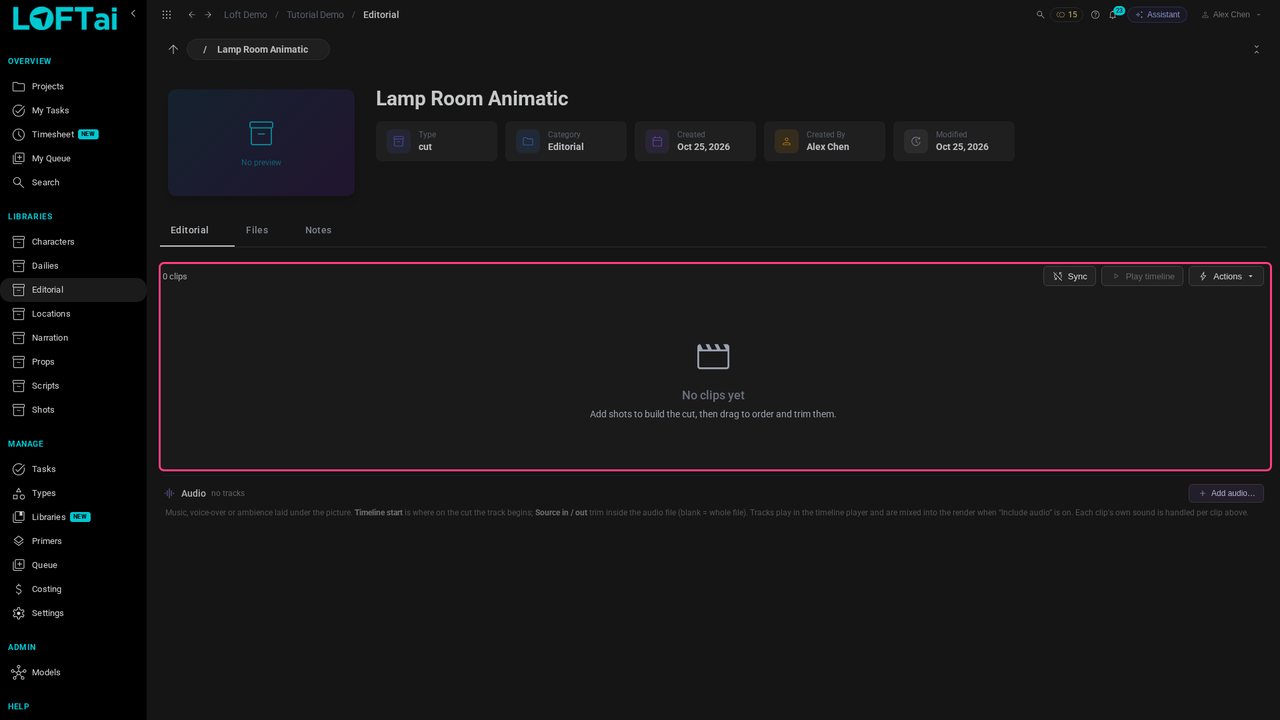
Click Create and open the cut. A cut is an ordered list of clips, and it starts empty.
Click Actions, then Add clips. Filter on Shots and tick all five, in story order.
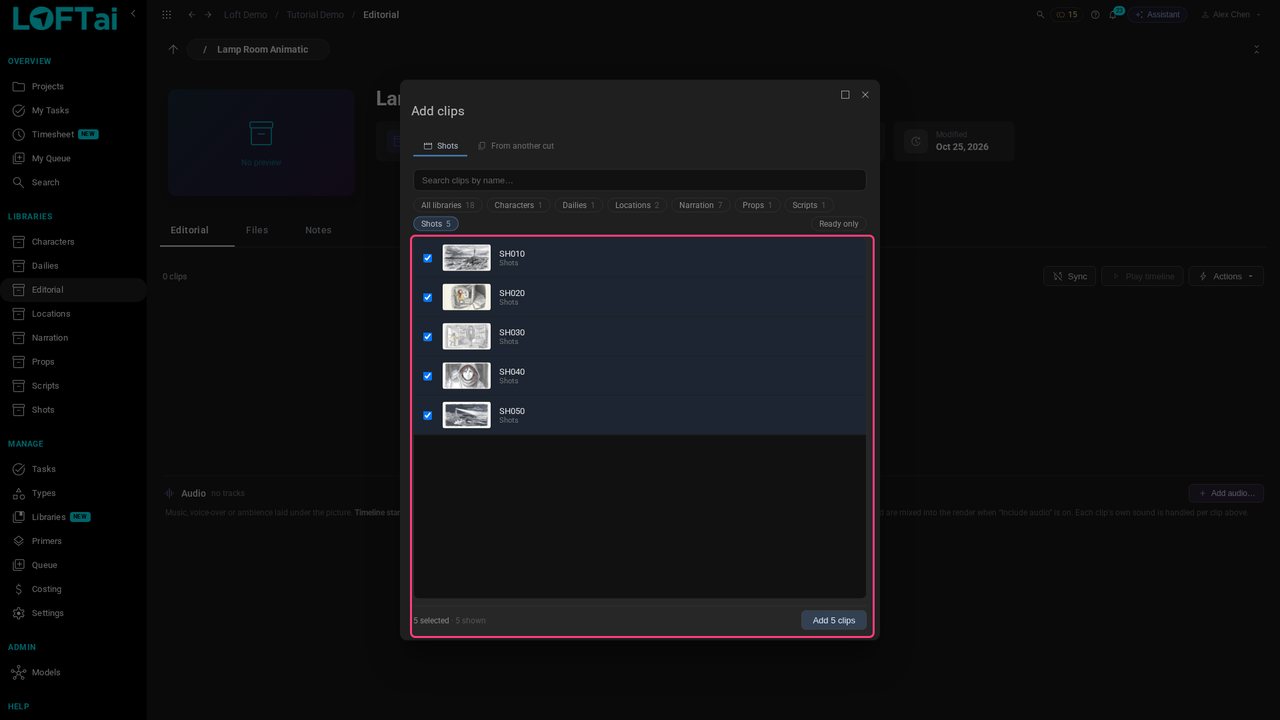
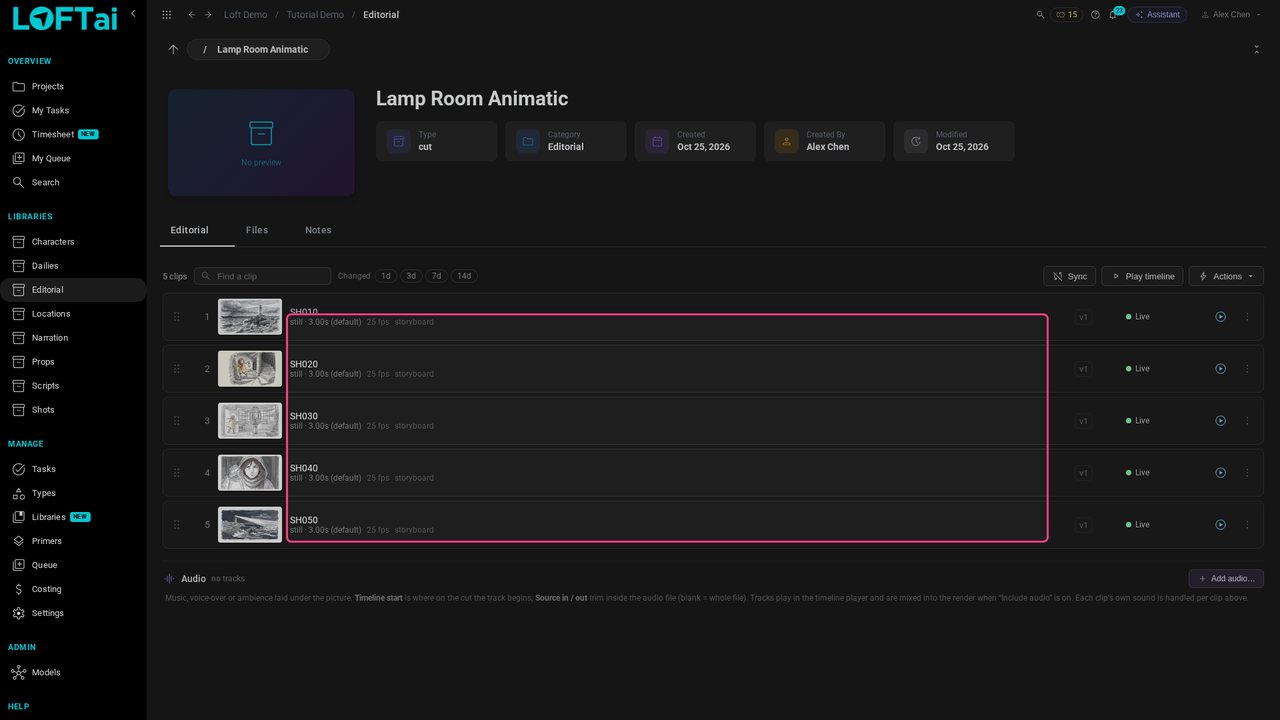
Click Add 5 clips. Each clip follows its shot's latest published take, so for now the cut is the storyboard. Stills start at three seconds each.
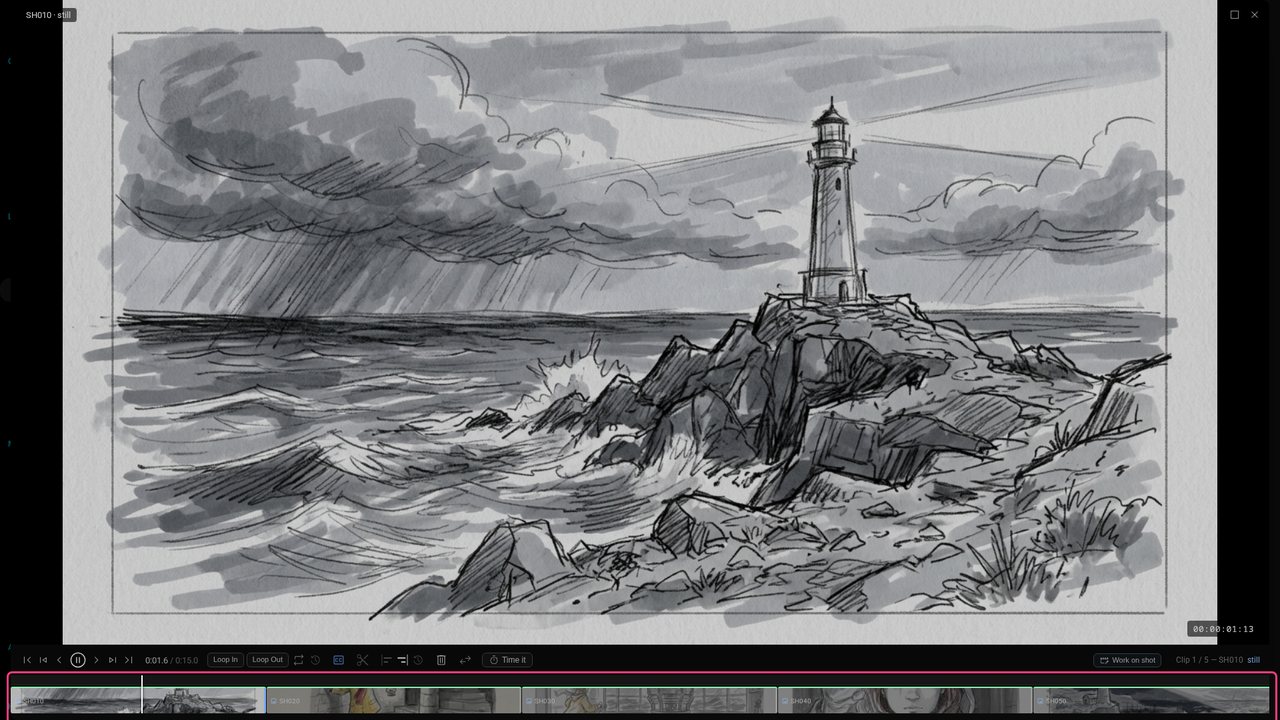
Click Play timeline. The cut plays as one sequence, with the frames laid out along the timeline at the bottom, each as wide as it is long.
The opening wide shot needs longer. Drag its right edge: the badge shows the new length as you go, snapped to frames.
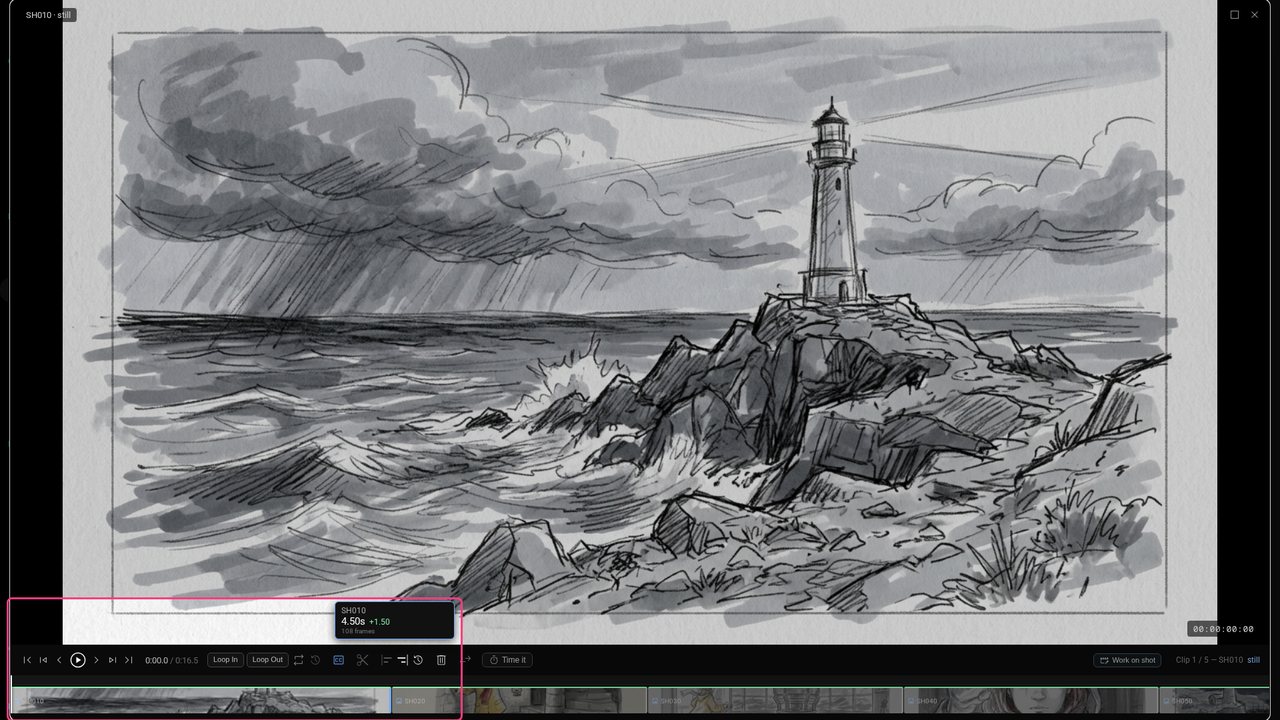
Let go and it's saved: 4.5 seconds. The shots after it slide along, so the cut never has gaps.
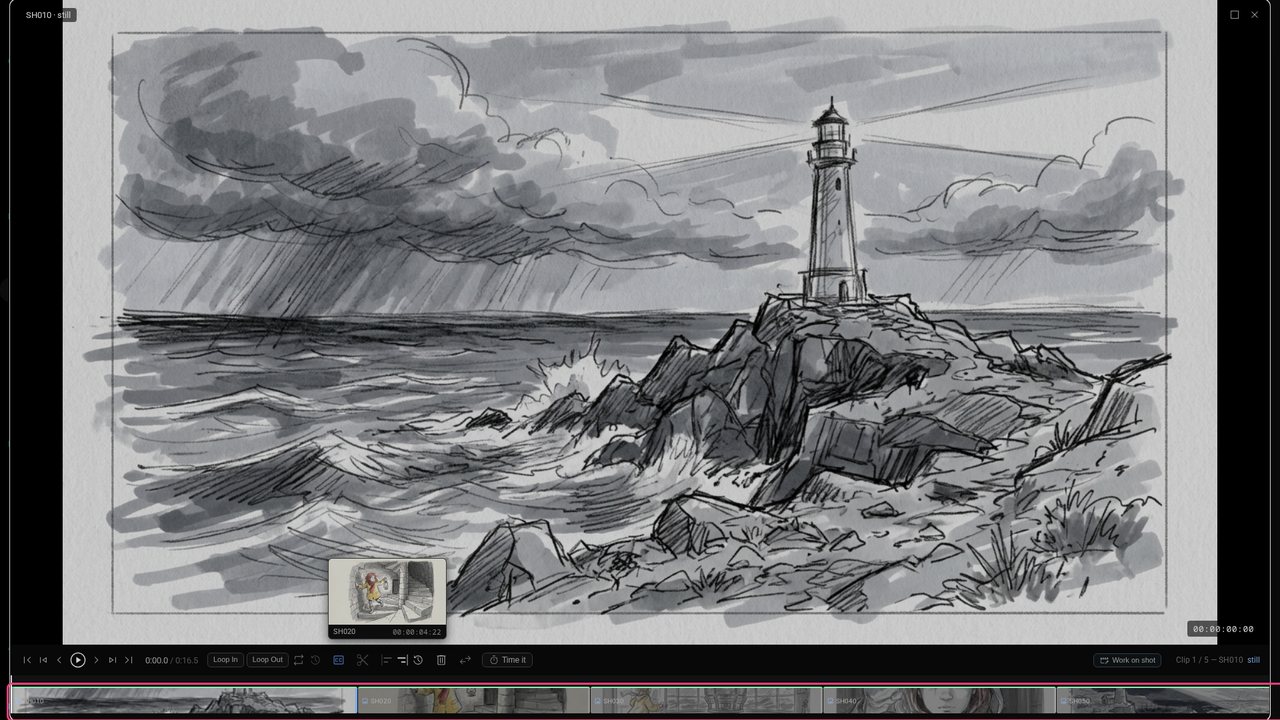
For the rest, time it by feel. Go to the next shot and click Time it.
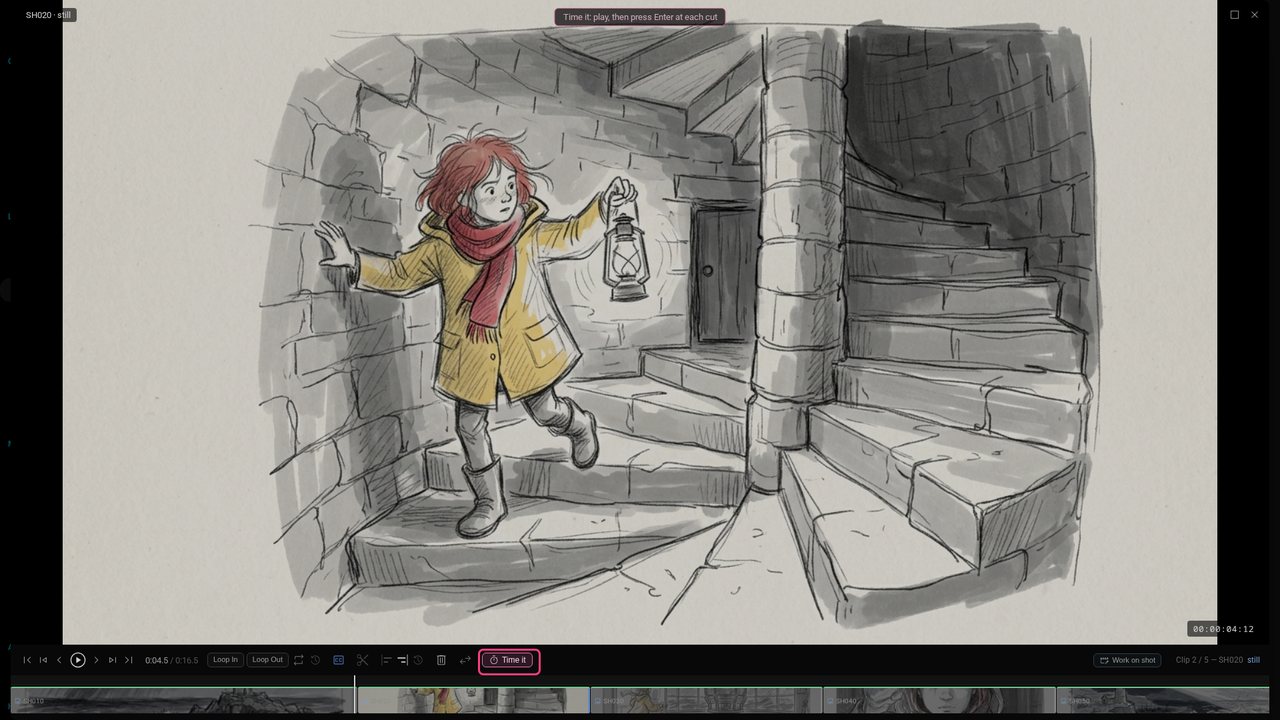
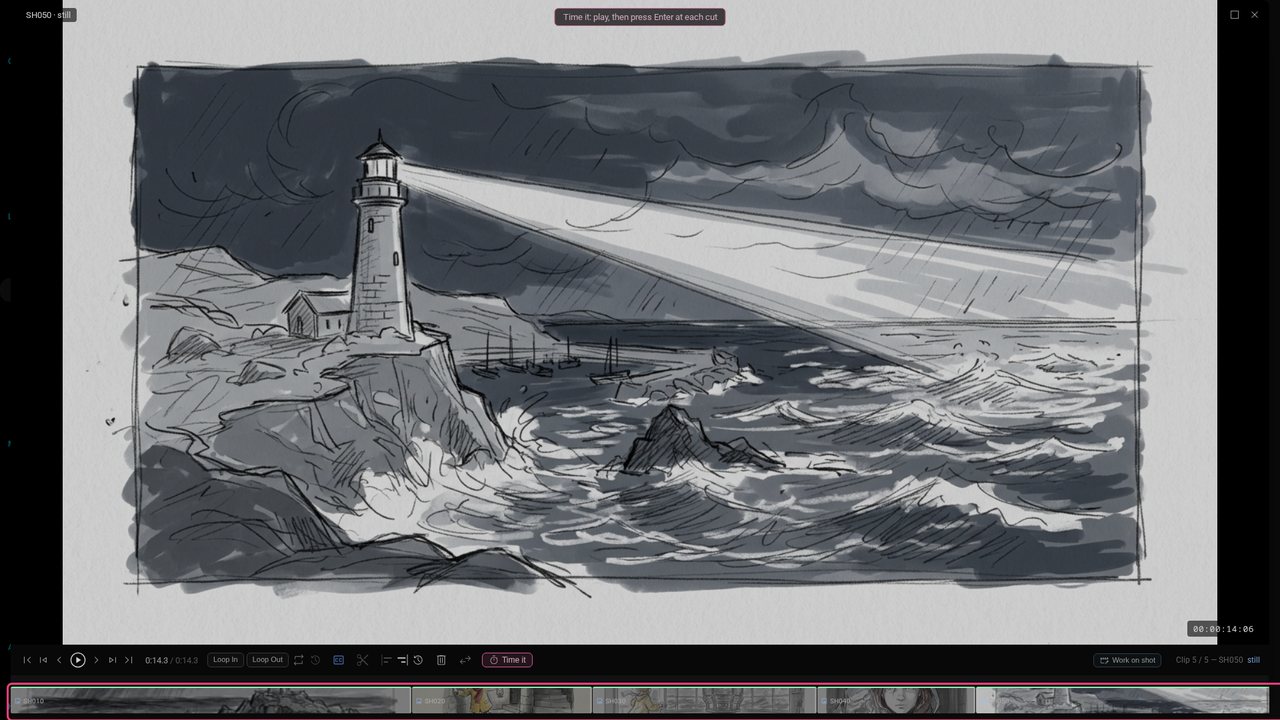
Play, and press Enter (or click Cut) where each shot should end. A still holds until you tap, so you set the timing by watching, not by typing numbers. When playback stops, the taps are saved.
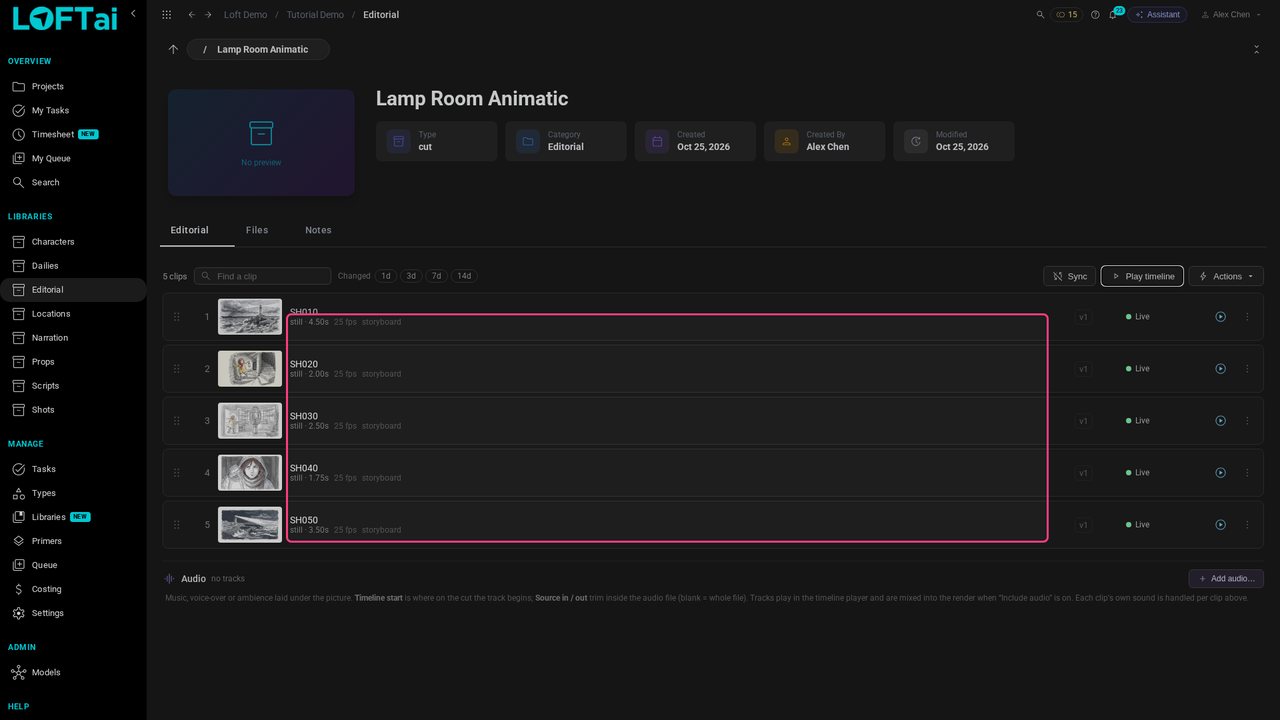
Close the player. Each clip shows its own length now. To type an exact length instead, use the clip's menu and Trim.
Now take the close-up further. In the player, go to SH040 and click Work on shot. The shot opens with a Back to button that returns to this cut.
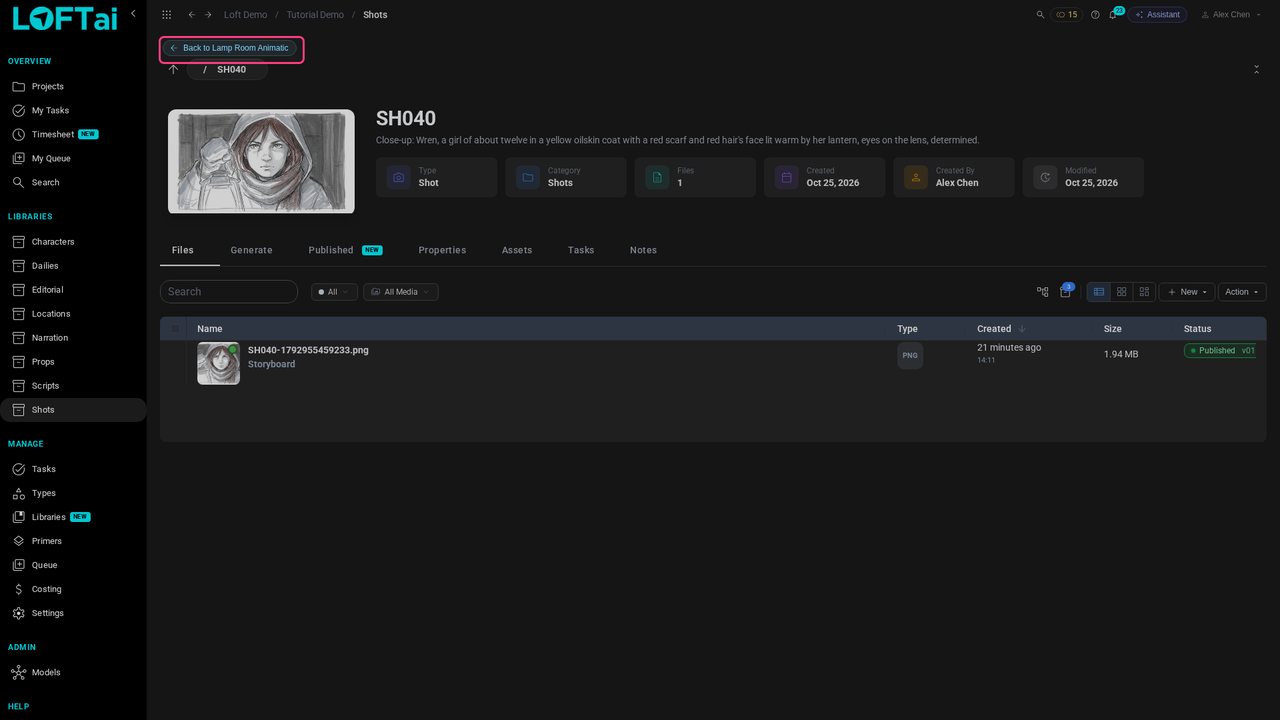
Open Generate, filter on Image to Image and choose Nano Banana 2 Edit. Click Input Images: the shot's published storyboard is right there.
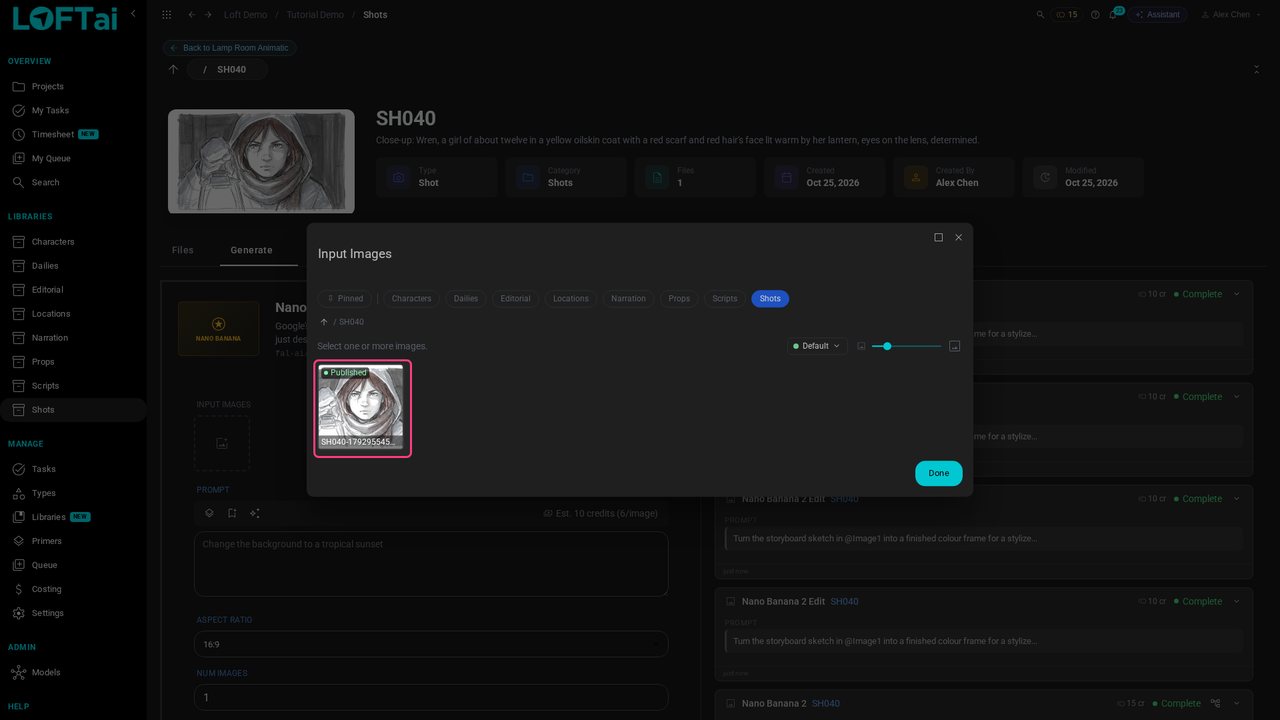
Pick it, click Done, and ask for a finished colour frame with the same framing and pose.
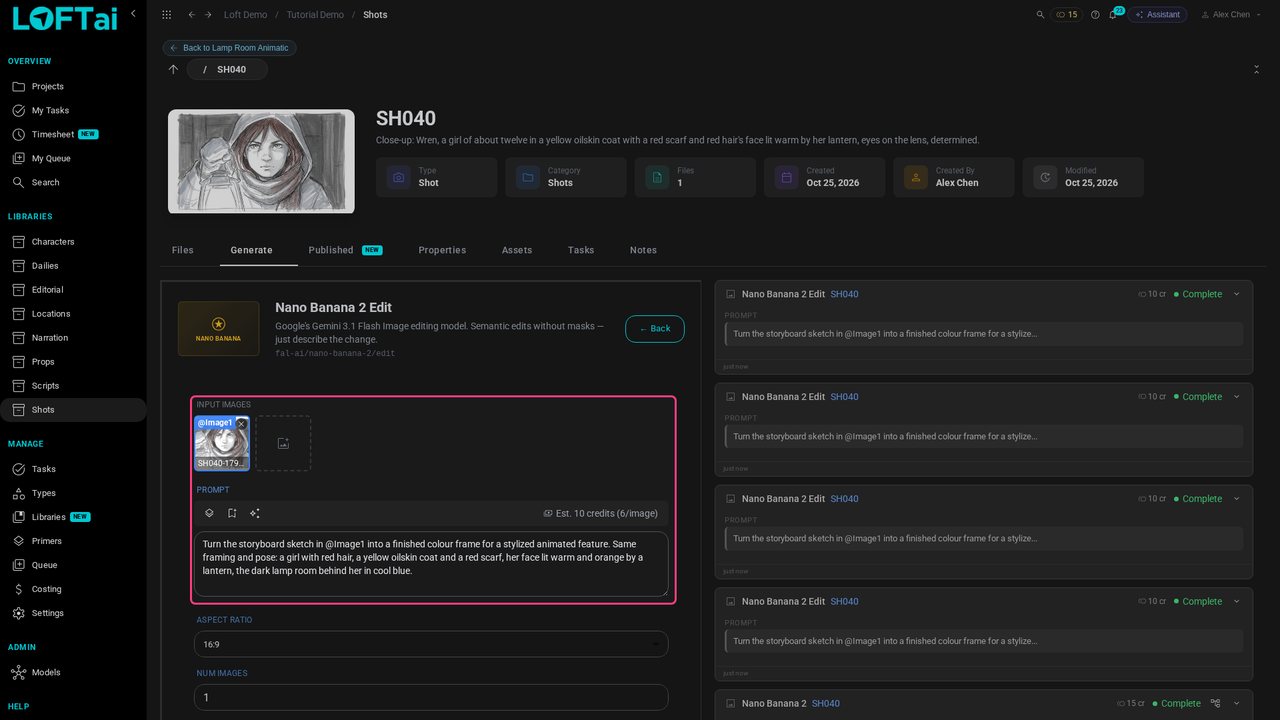
Click Generate. A few seconds later the frame is in.
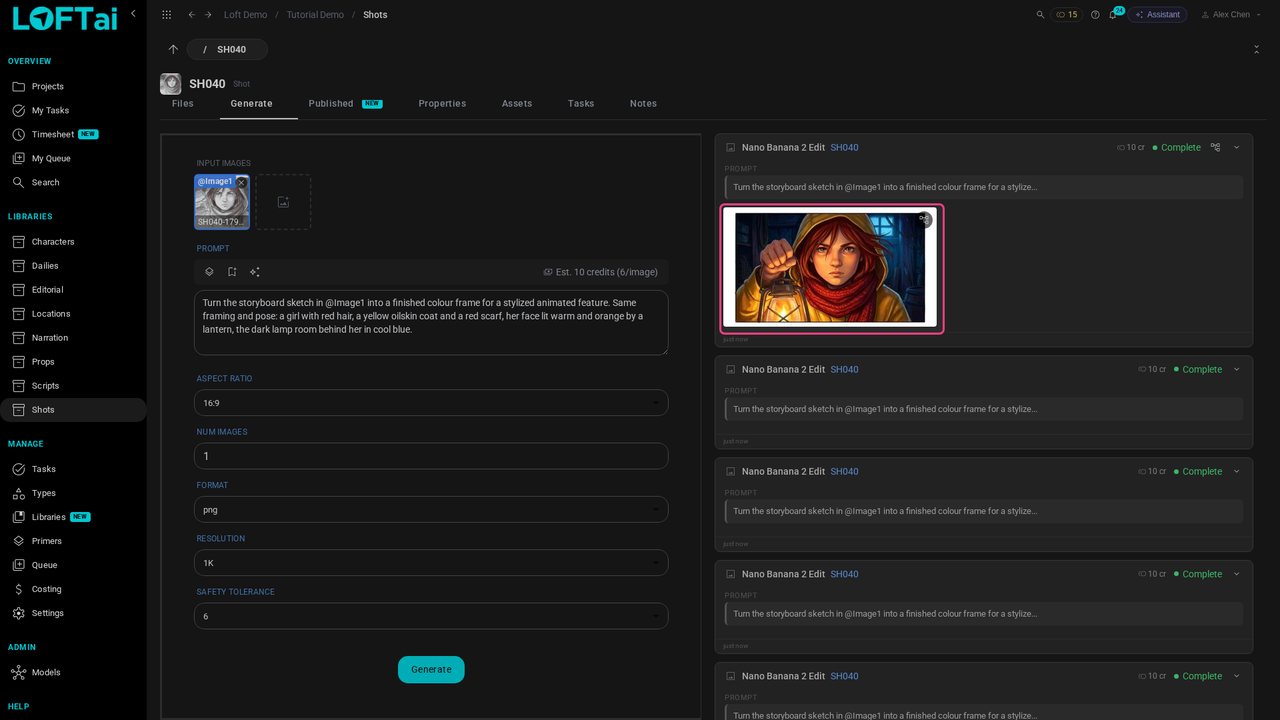
Open Files. Work on shot shows what the cut can use, the published files, so set the filter to Show All to see the new take.
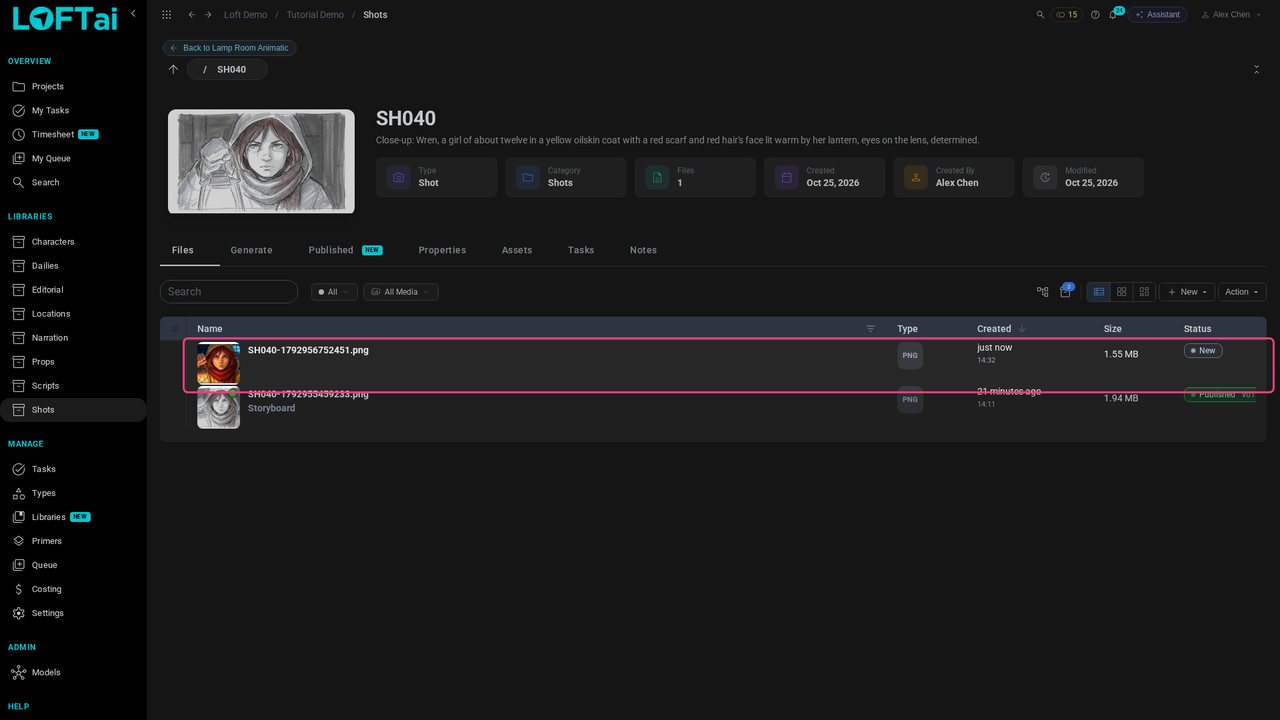
Open it and press 3 to publish. Choose the step it belongs to, layout, and add a note.
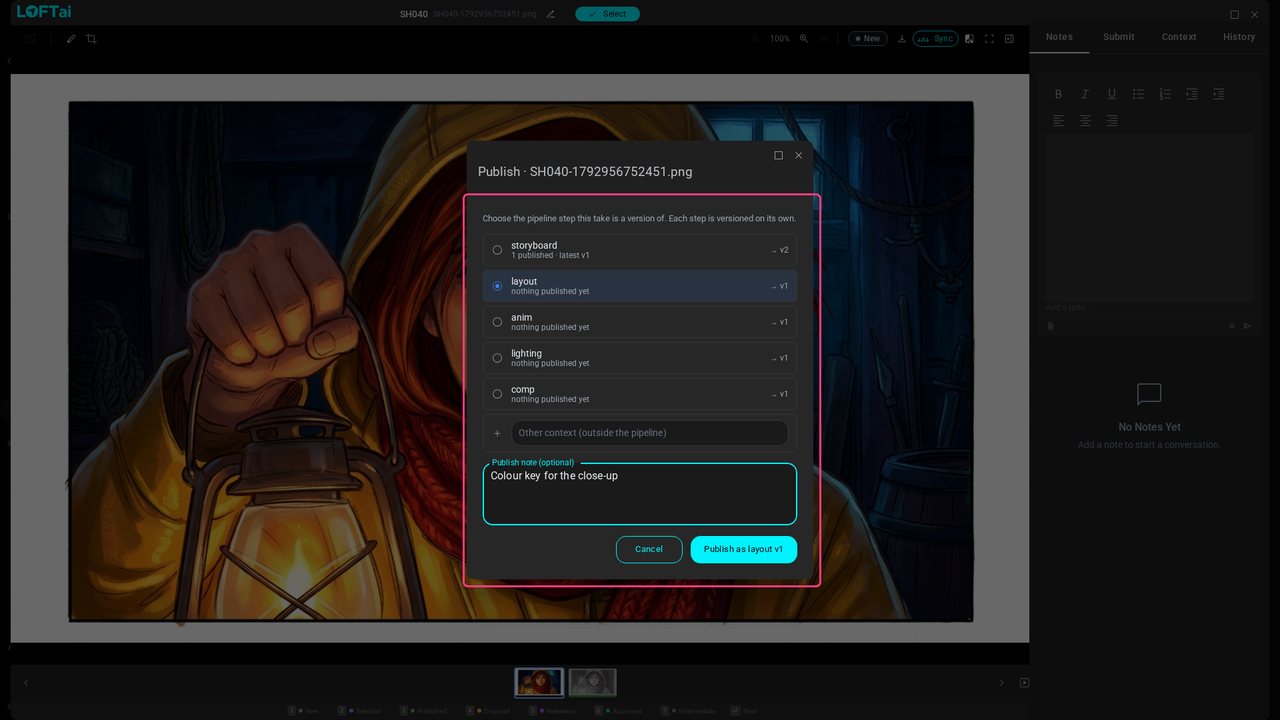
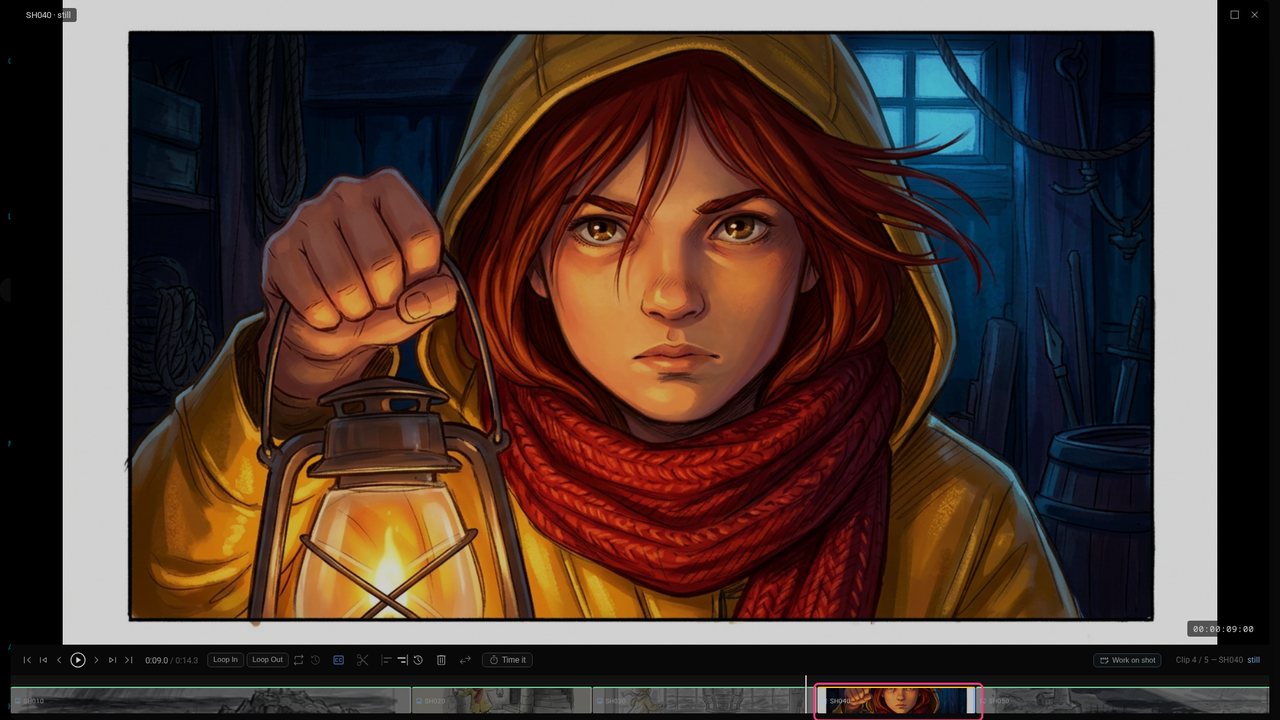
Click Publish, close the viewer and click Back to Lamp Room Animatic. The player opens where you left it, and the close-up is already the new frame: the clip follows the shot's latest publish. Its amber edge says it has been updated.
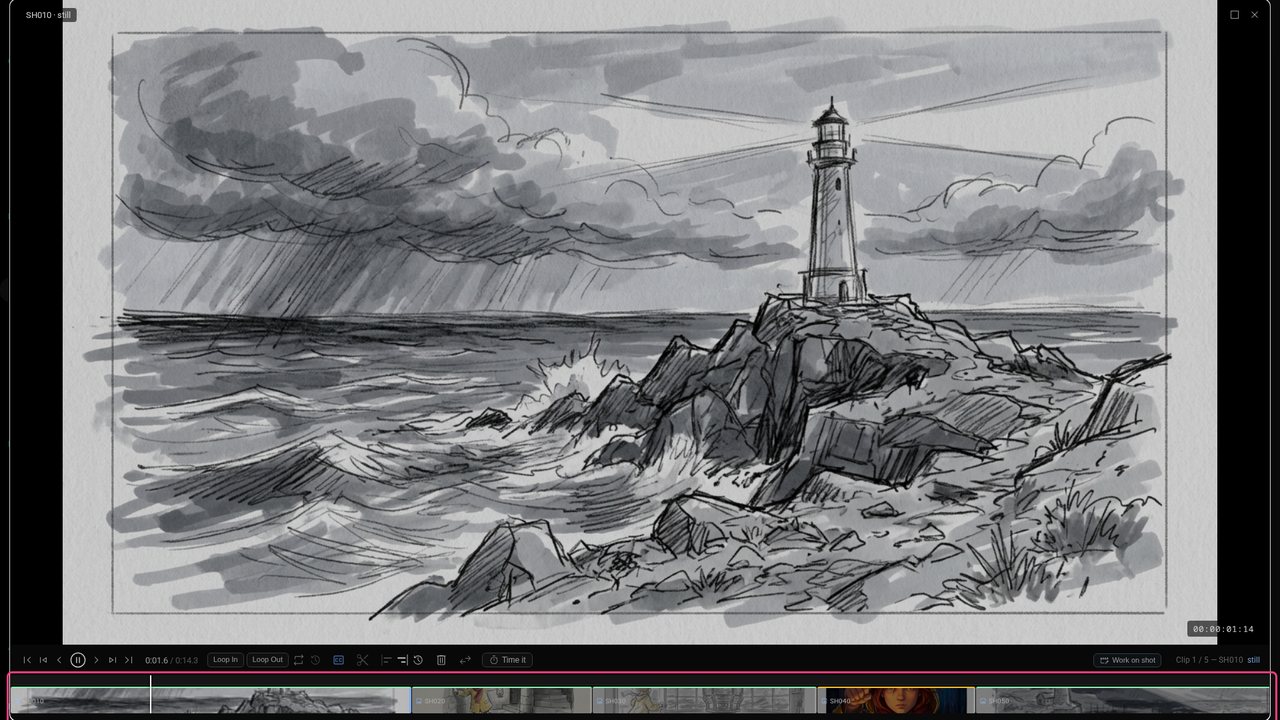
Play it from the top: storyboard and finished frames side by side, at the timing you chose. As each shot gets animation, it drops into the cut the same way.
Up next in Make and review the work
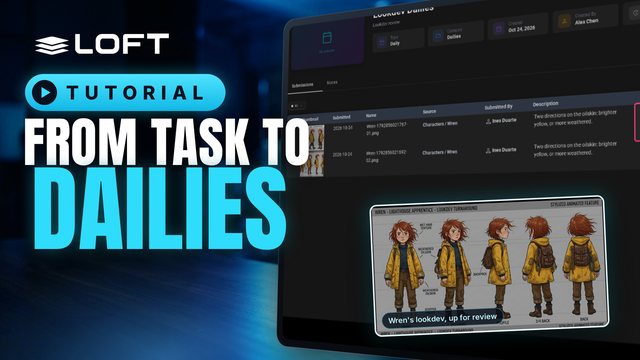
An artist works a task, generates takes, and sends the best ones to dailies. A supervisor reviews them there and gives each one a verdict. Approving in dailies doesn't publish anything: the artist publishes the approved take afterwards, and that is what the rest of the production sees.
In the playlists Make and review the work.