STEP 01
Open My Tasks
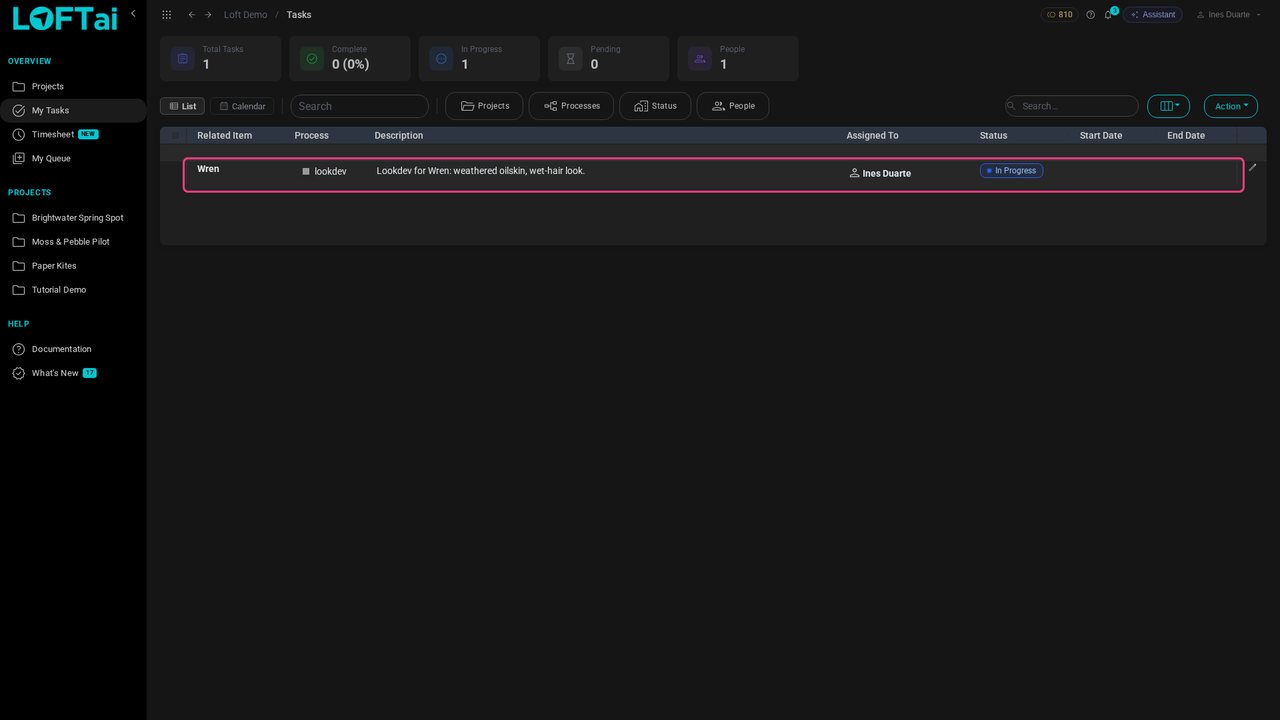
Ines is a lookdev artist. My Tasks in the sidebar lists the tasks assigned to her across every project. Today it's the lookdev for Wren, a new character.
Tutorials/Make and review the work
An artist works a task, generates takes, and sends the best ones to dailies. A supervisor reviews them there and gives each one a verdict. Approving in dailies doesn't publish anything: the artist publishes the approved take afterwards, and that is what the rest of the production sees.
Follow along
Ines is a lookdev artist. My Tasks in the sidebar lists the tasks assigned to her across every project. Today it's the lookdev for Wren, a new character.
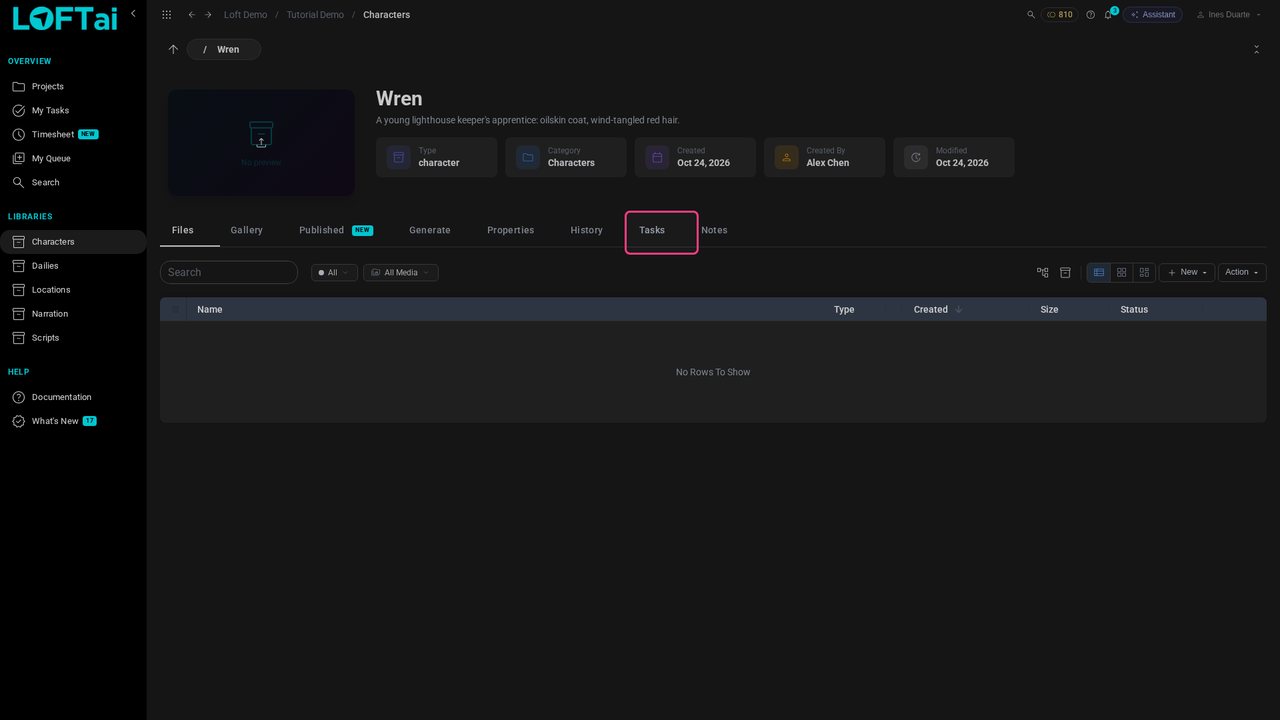
Click the character's name to open it. Its page holds everything about Wren: files, generations, notes, and the Tasks tab with this same task.
Open Generate and pick a model. We'll use Nano Banana 2, a fast image model.
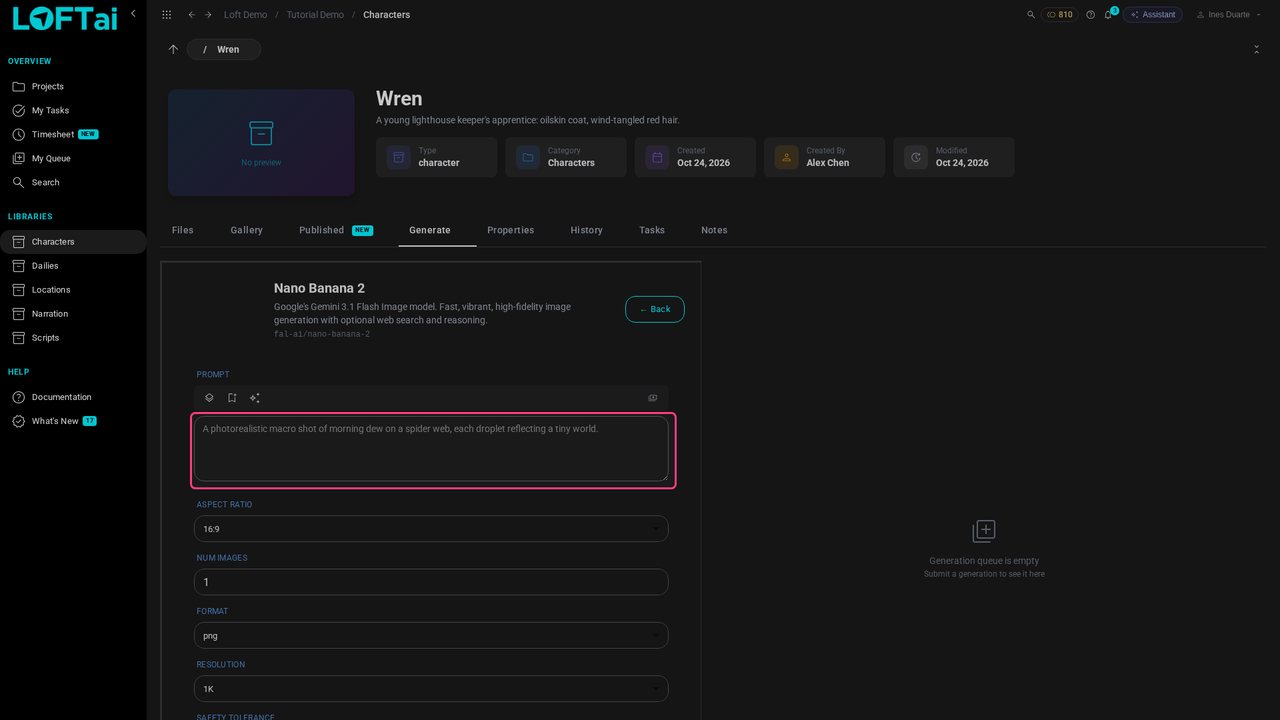
Describe the look, ask for 3 images and click Generate. The request goes to the queue on the right, and you can keep working while it runs.
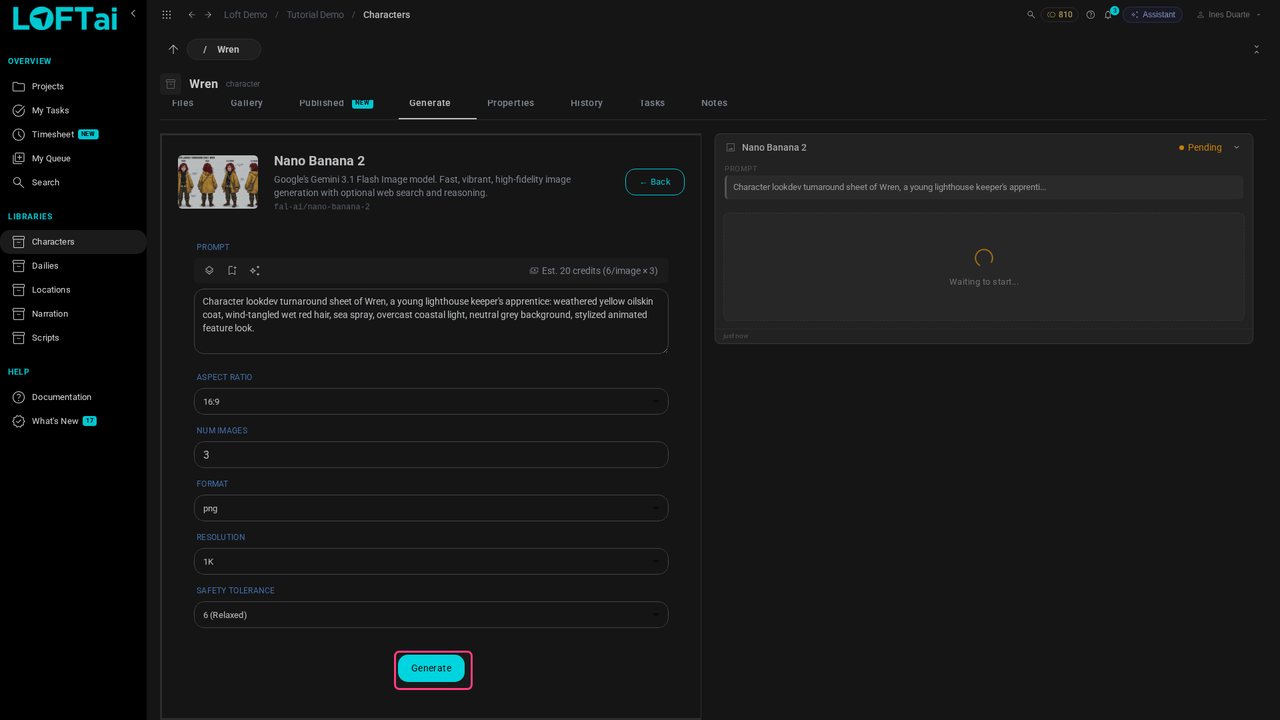
When the generation finishes, the takes show up in the queue and in Wren's files.
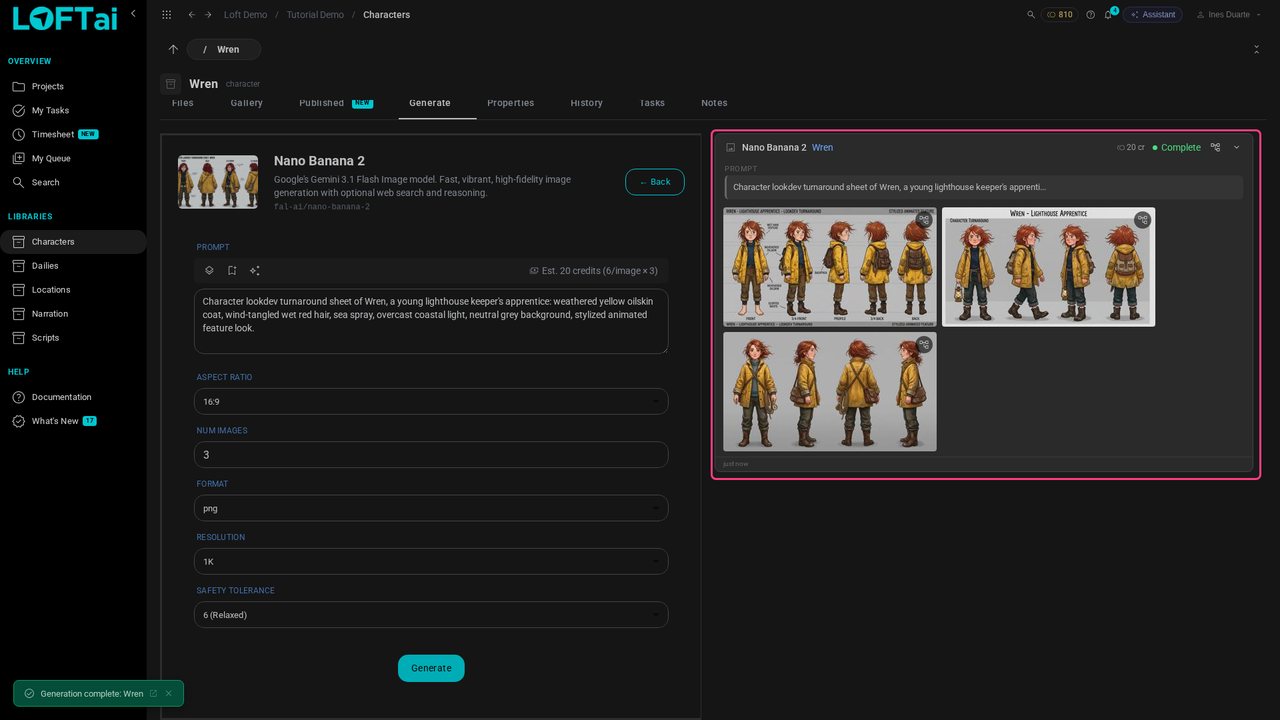
Open Files and click a take to see it full size. The strip at the bottom steps through the others.
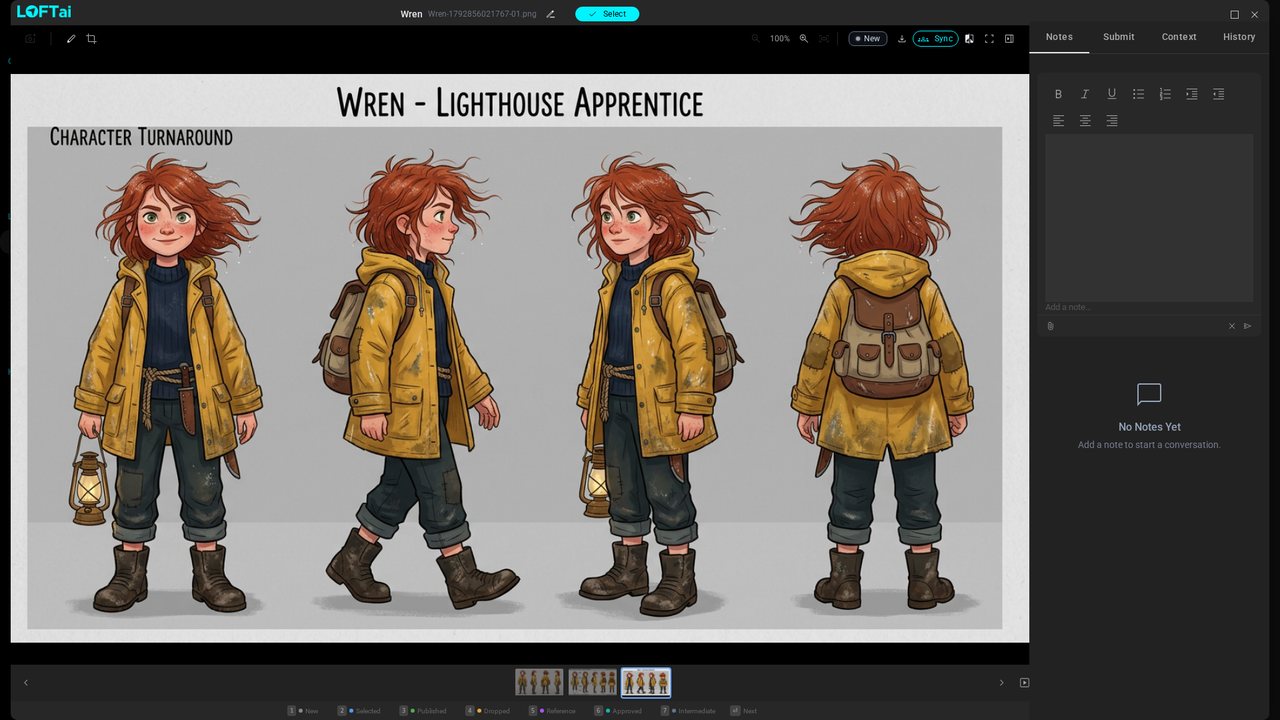
Press 2 to mark a take Selected. Selected is just for you: it has no version and nobody downstream sees it. Mark one more with the arrow key and 2 again.
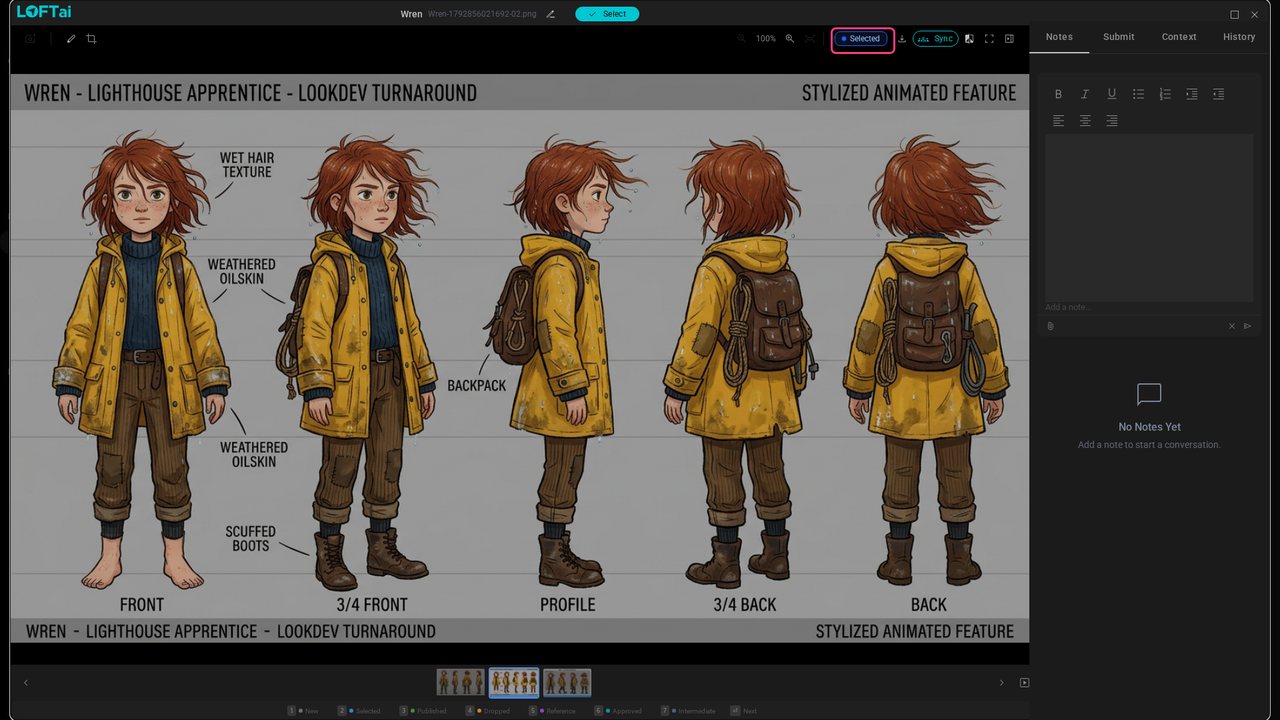
Back in the list, tick the two selected takes, then Action > Submit to Dailies.
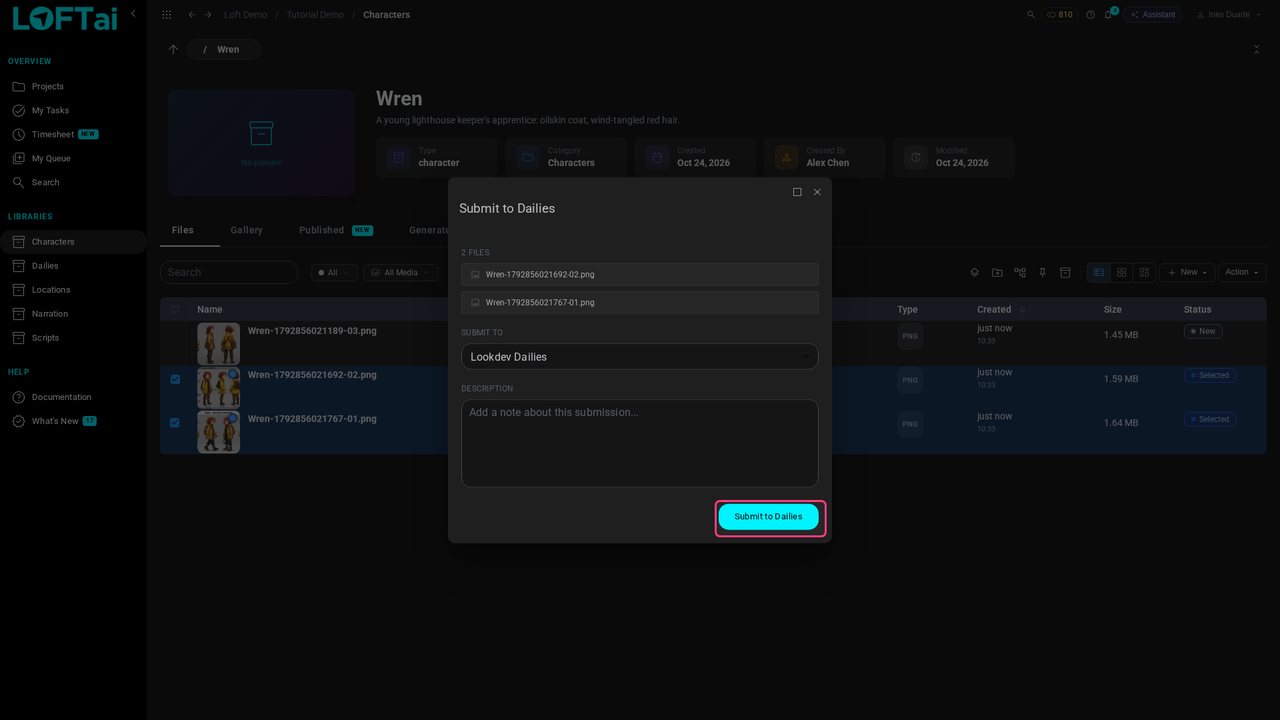
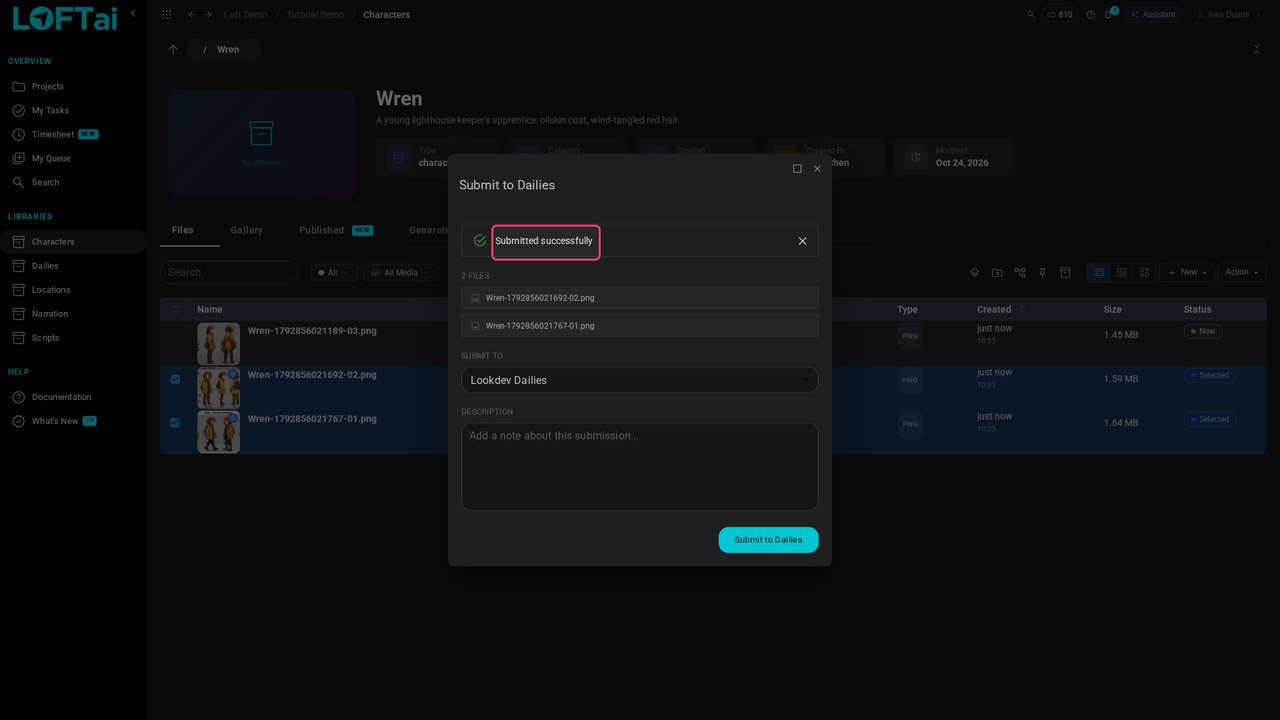
Choose the daily, here Lookdev Dailies, say what you're showing, and submit.
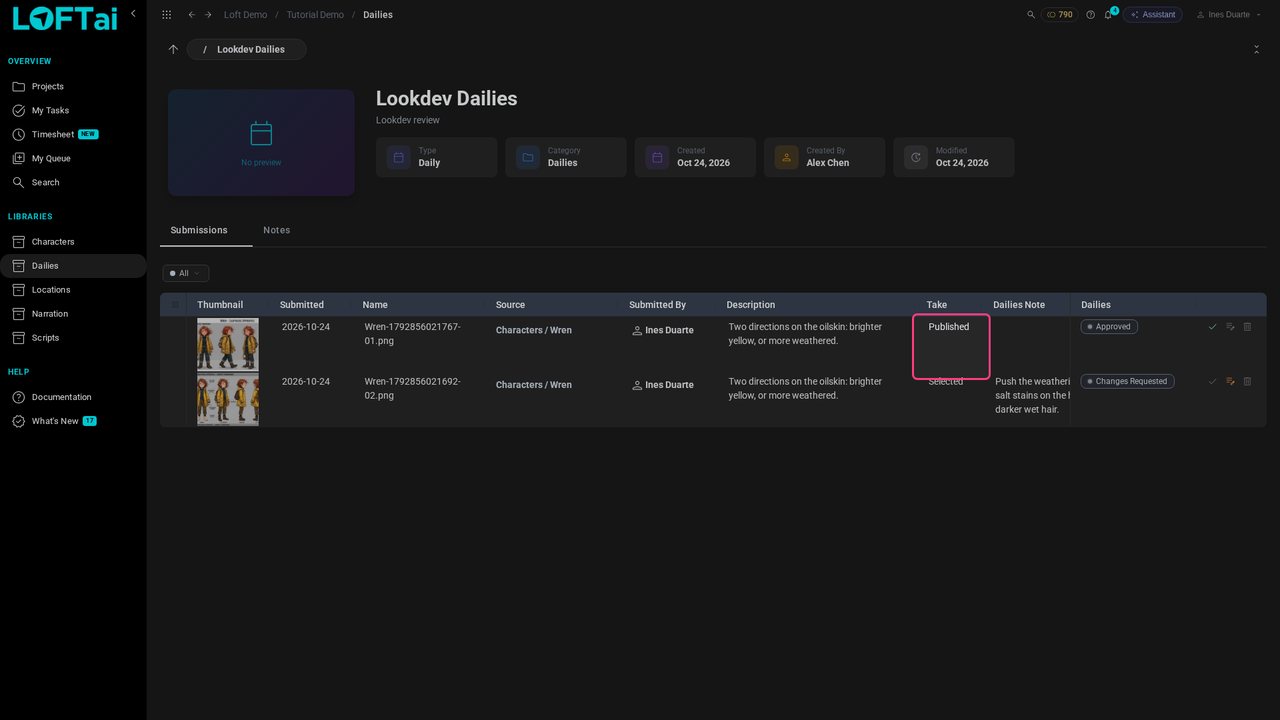
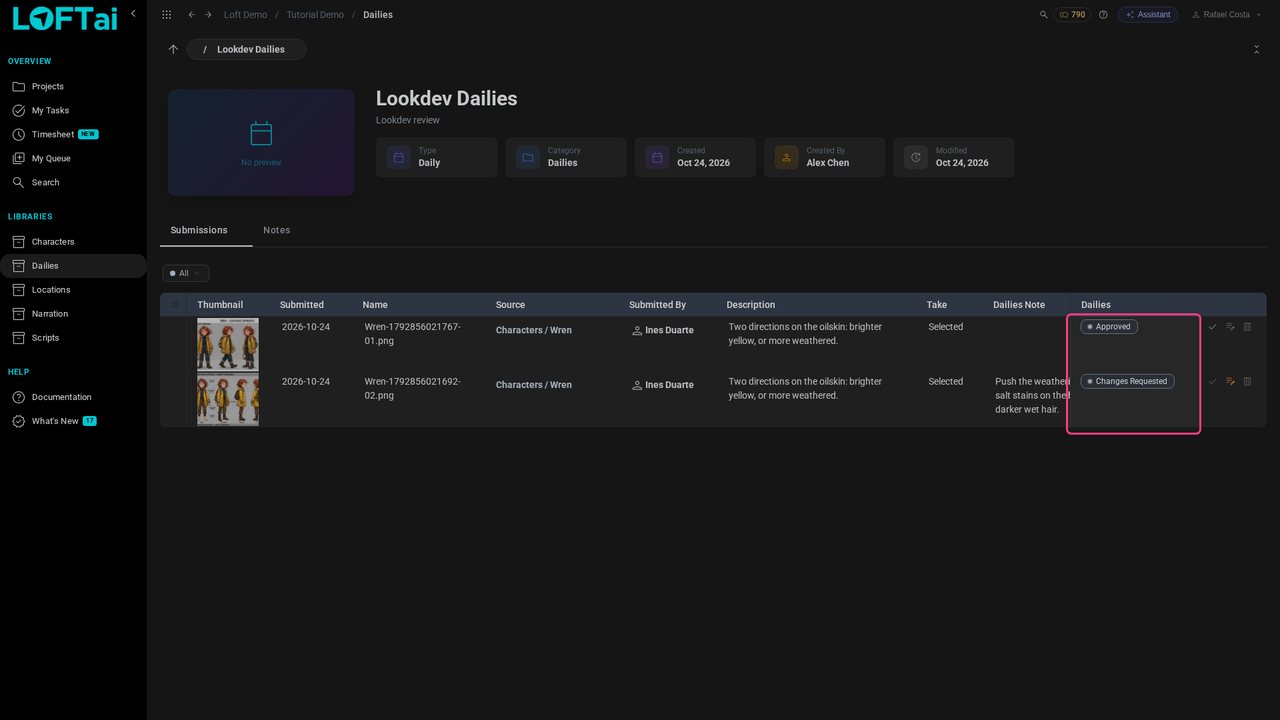
Rafael is the CG supervisor. A daily is an asset in the project's Dailies library; its Submissions tab lists what was sent in, who sent it, and the note.
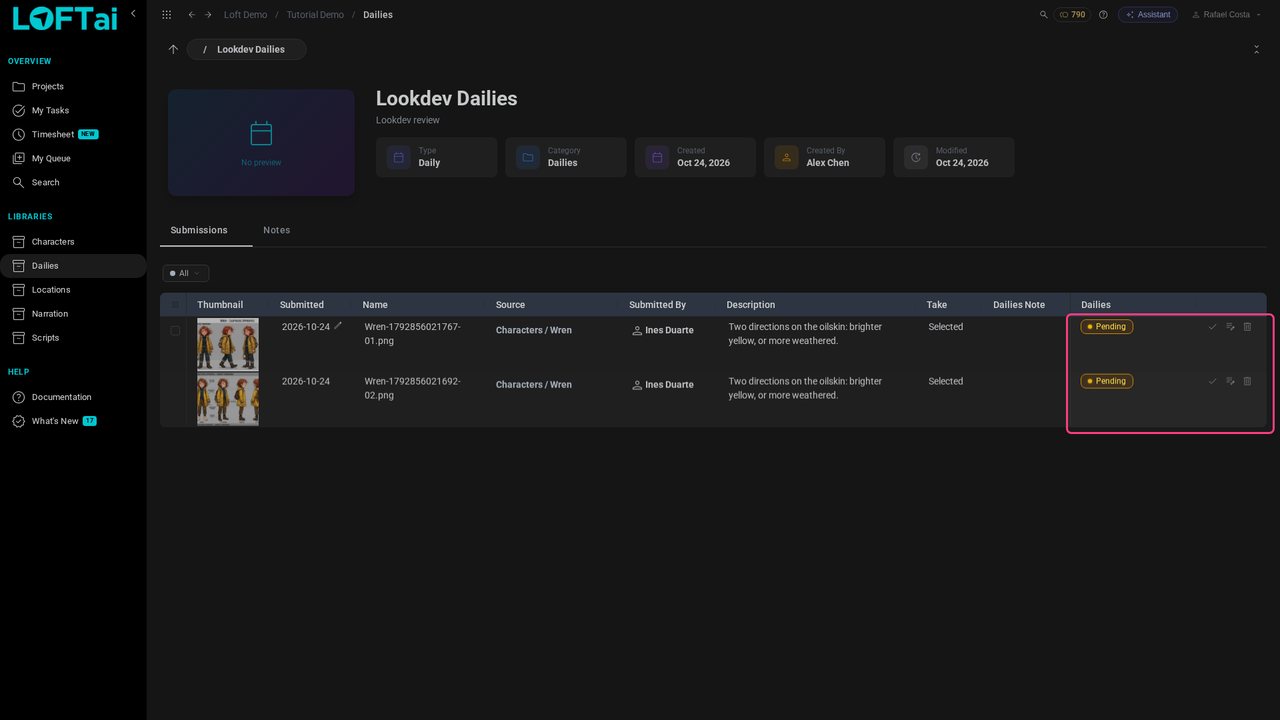
Take is the take's own status: still Selected. Dailies is this session's verdict, Pending for now. Click a thumbnail to review it full size.
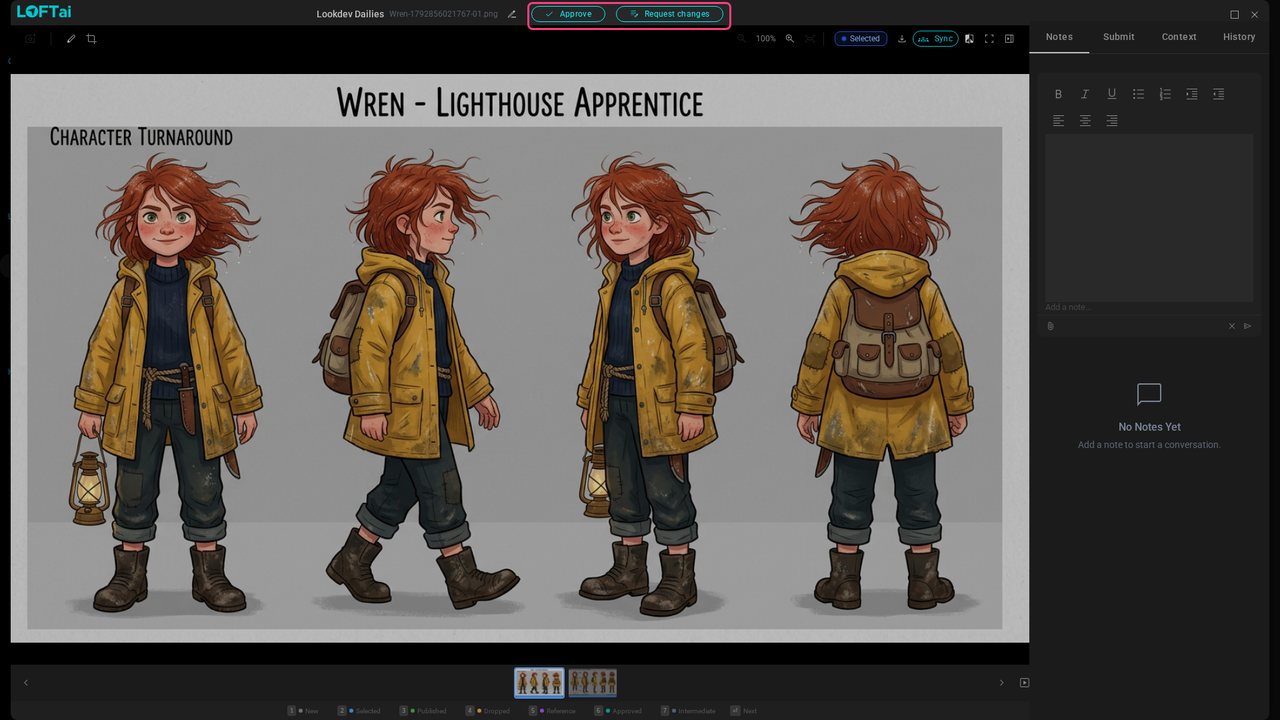
Click Approve. That's the verdict for this session only: the take isn't published, and nothing downstream changes.
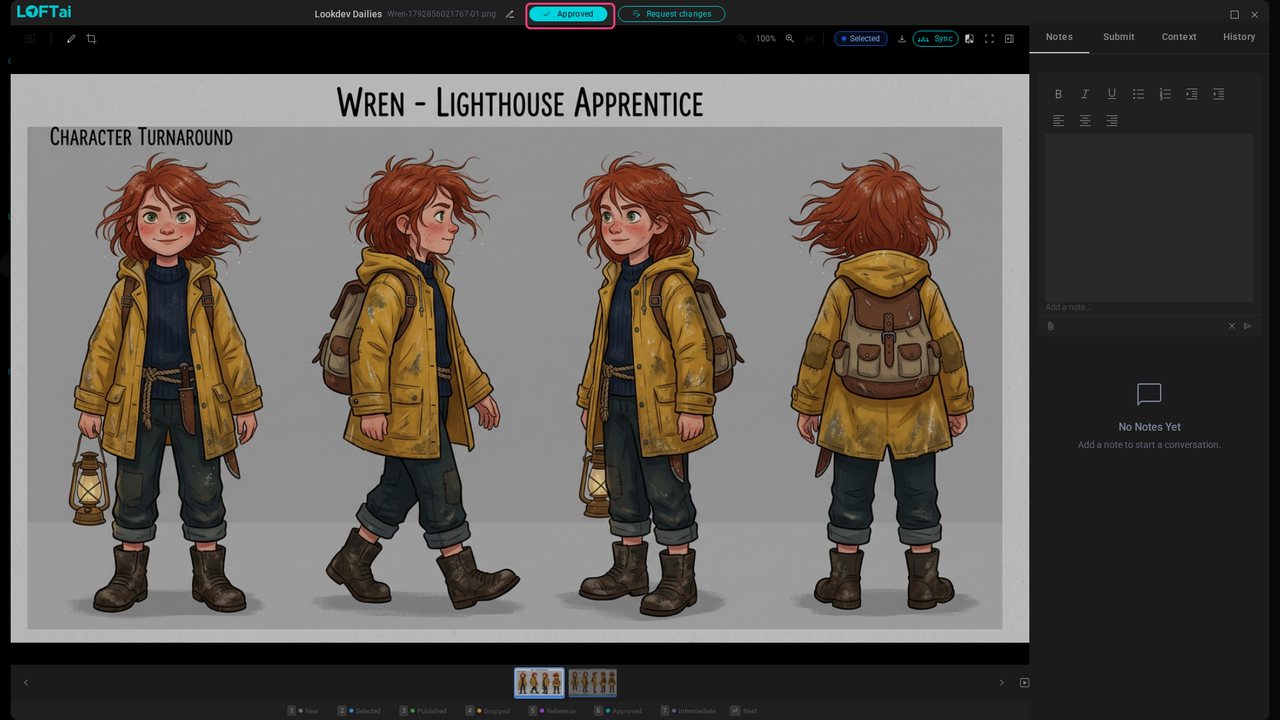
Step to the next take and click Request changes. Say what should change; the note also lands on the take, so Ines finds it there.
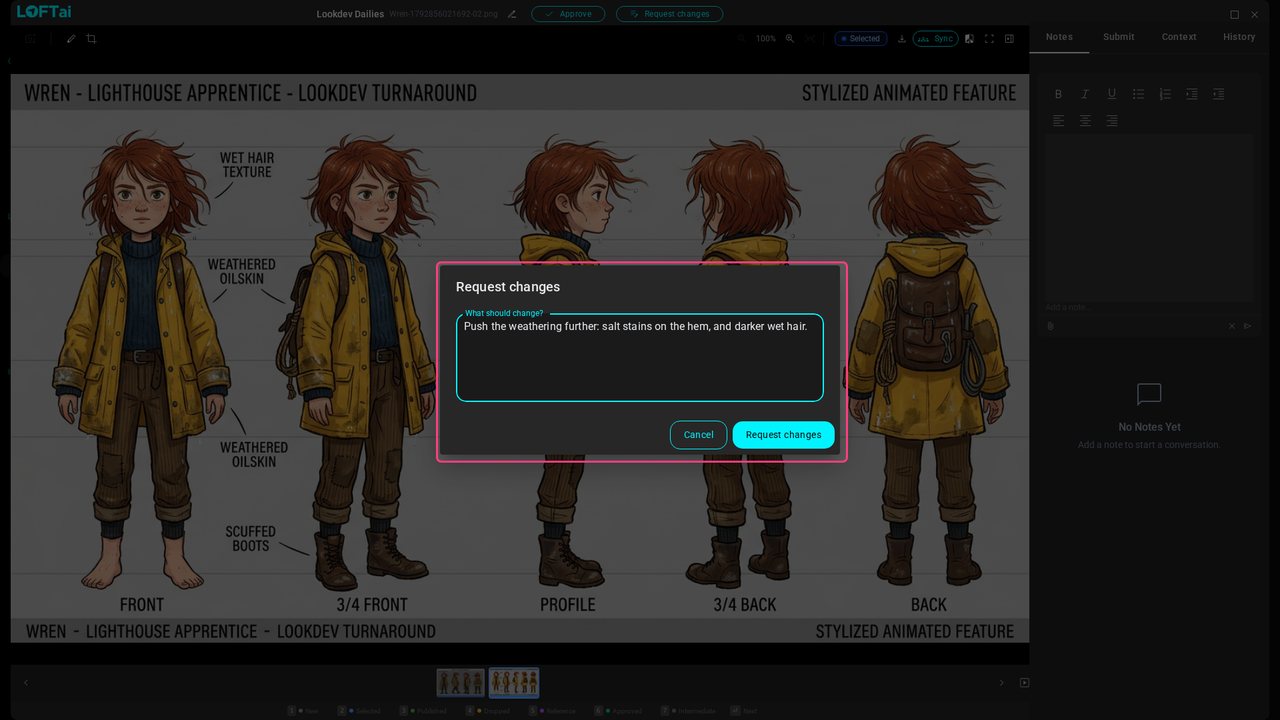
Back in the list, each submission shows its verdict and note.
Ines opens the same daily: one take approved, one with notes.
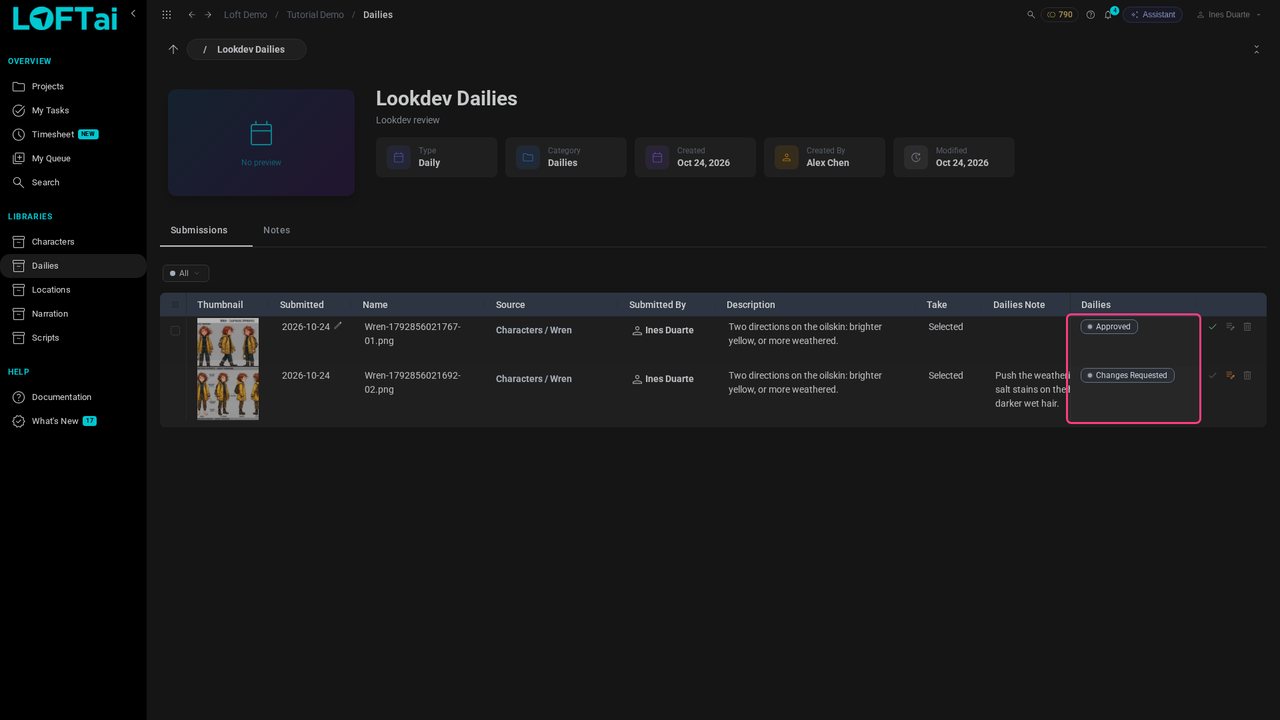
She opens the approved take and presses 3 to publish it. Publishing asks which pipeline step this is a version of: lookdev, the step her task is for.
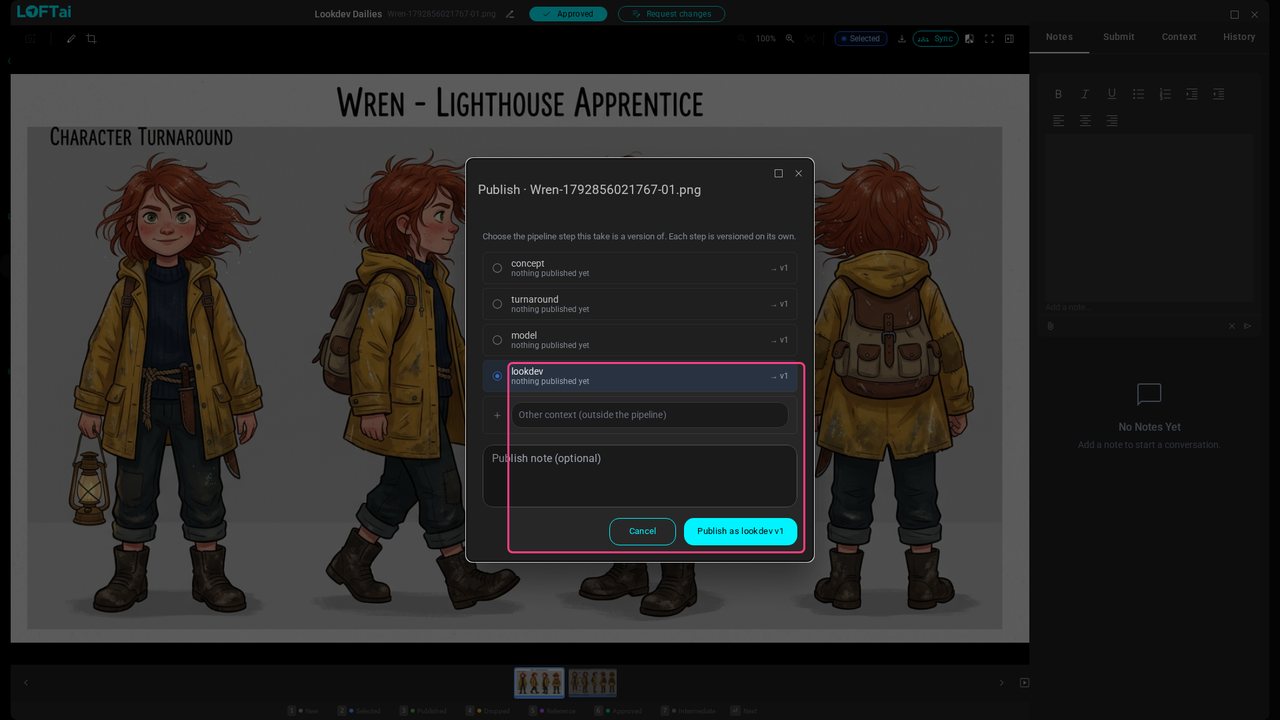
Click Publish as lookdev v1. The take is now Wren's lookdev, version 1, and that's what the rest of the production sees.