
STEP 01
Start from Projects
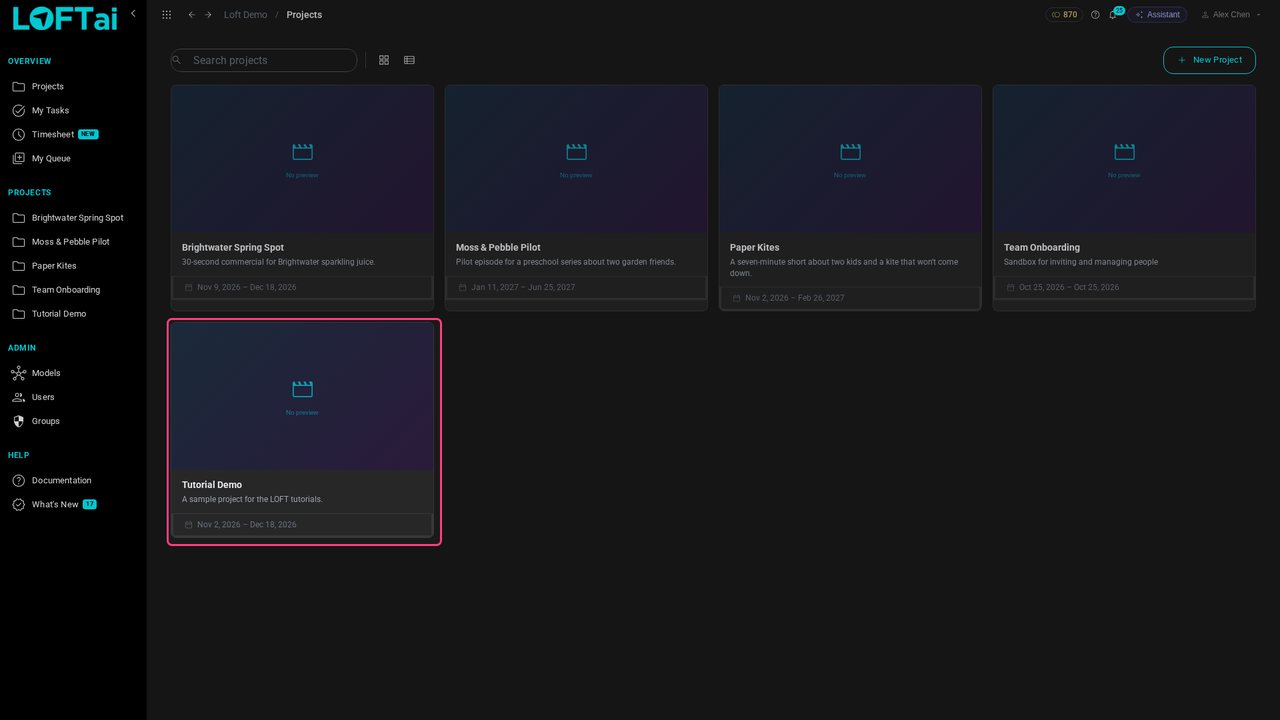
Everything in Loft belongs to a project: one production, such as a short film, an episode or a commercial. Projects are listed under Projects. We'll open Tutorial Demo.
Tutorials/Start here
Before you make anything, it helps to know where things go. This tutorial tours a project's sidebar and explains what libraries, asset types, folders and assets are each for, and when to reach for which. Then it makes two folders and a first asset to show it in practice.
Follow along
Everything in Loft belongs to a project: one production, such as a short film, an episode or a commercial. Projects are listed under Projects. We'll open Tutorial Demo.
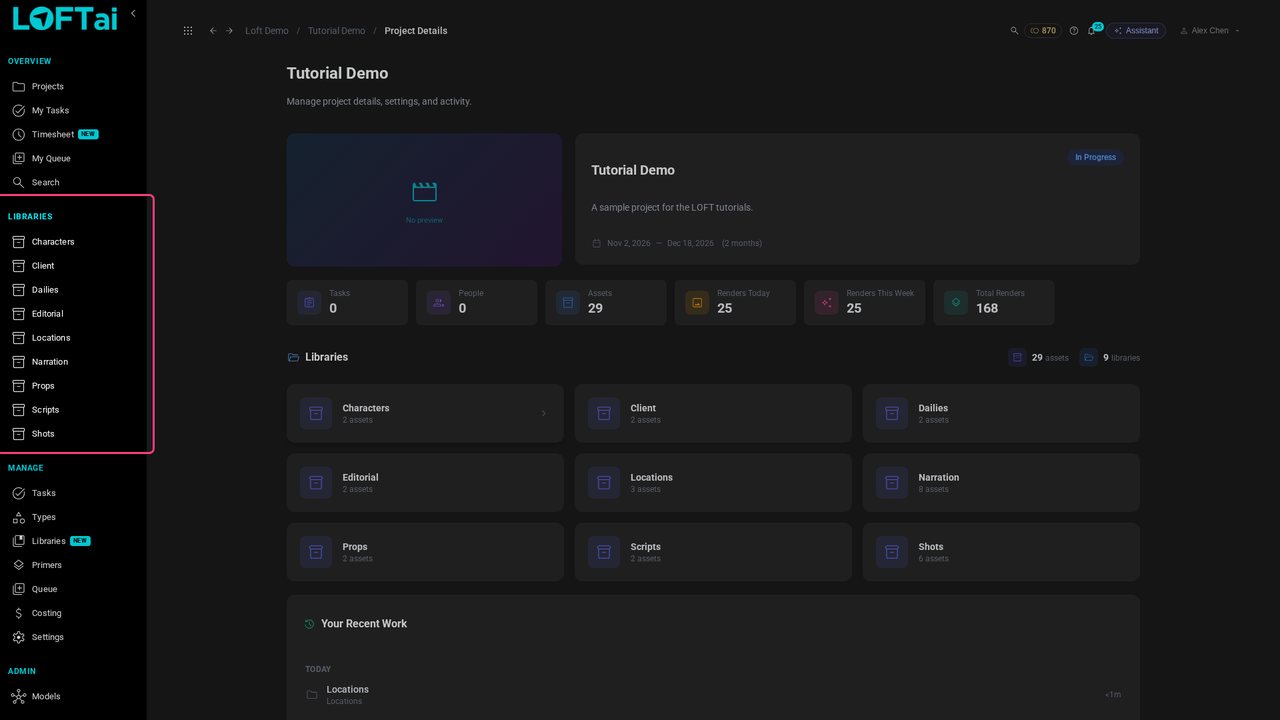
Inside a project the sidebar has three parts. Overview is your own work: your tasks, your queue, search. Libraries holds the project's content. Manage is how the project is set up, for whoever runs it.
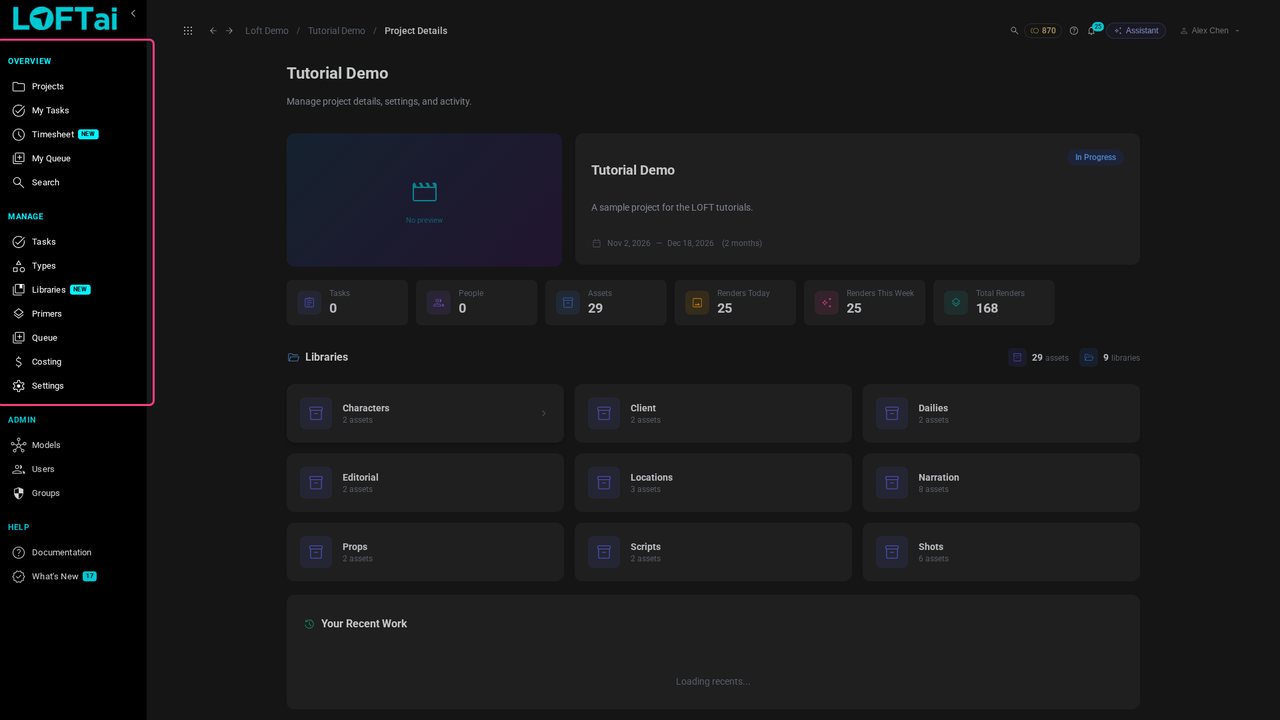
Work is kept in four levels: the project, its libraries, the assets in each library, and the files in each asset. A project has a handful of libraries; a library can hold hundreds of assets.
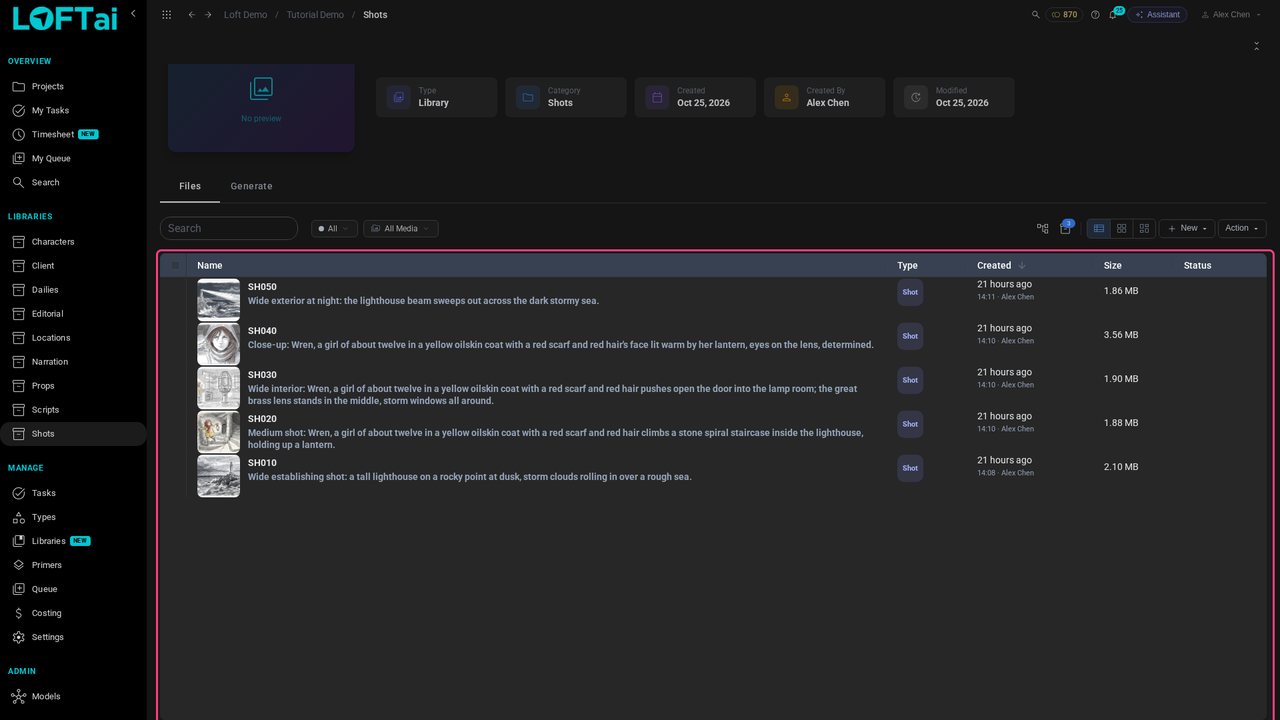
Open Shots. Every shot is here, and nothing else. That is what a library is for: one kind of work, made the same way by the same people. Characters, Locations, Props and Shots are separate because they are made differently, often by different teams.
Some libraries hold the work of one tool. Open Editorial: its assets are cuts. Scripts holds screenplays and Dailies review sessions the same way. Keeping each apart keeps every list short and to the point.
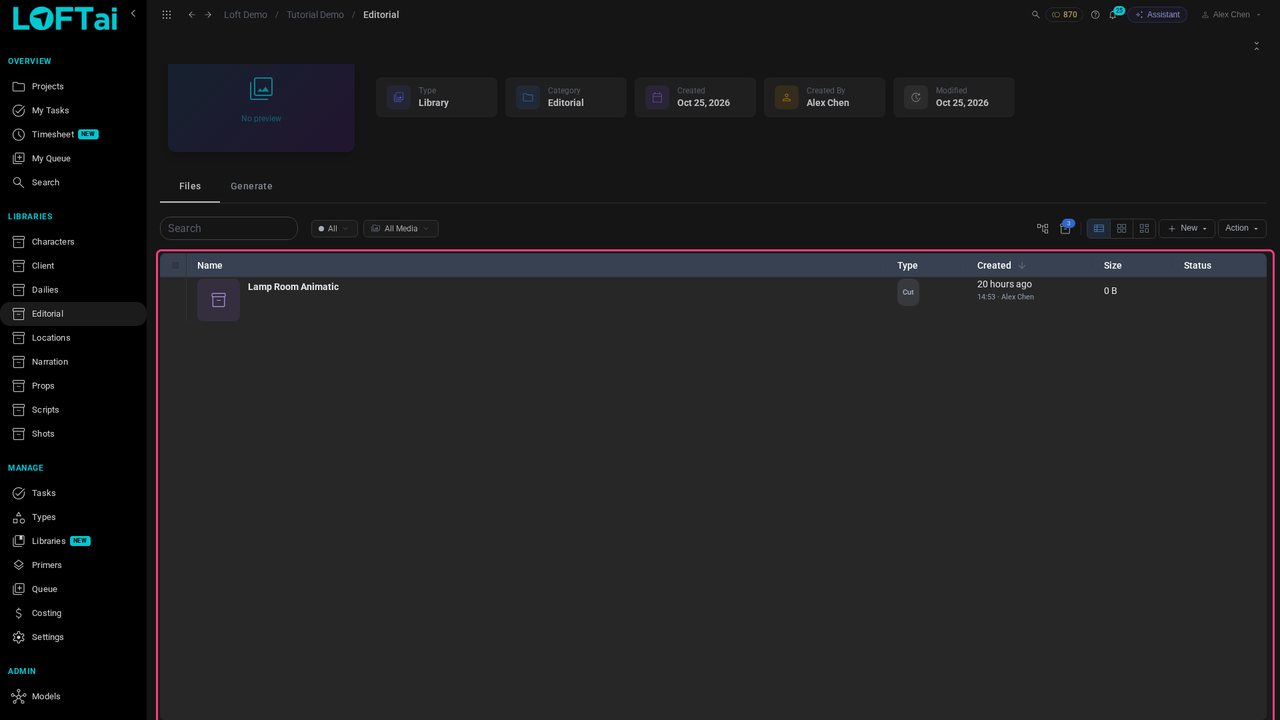
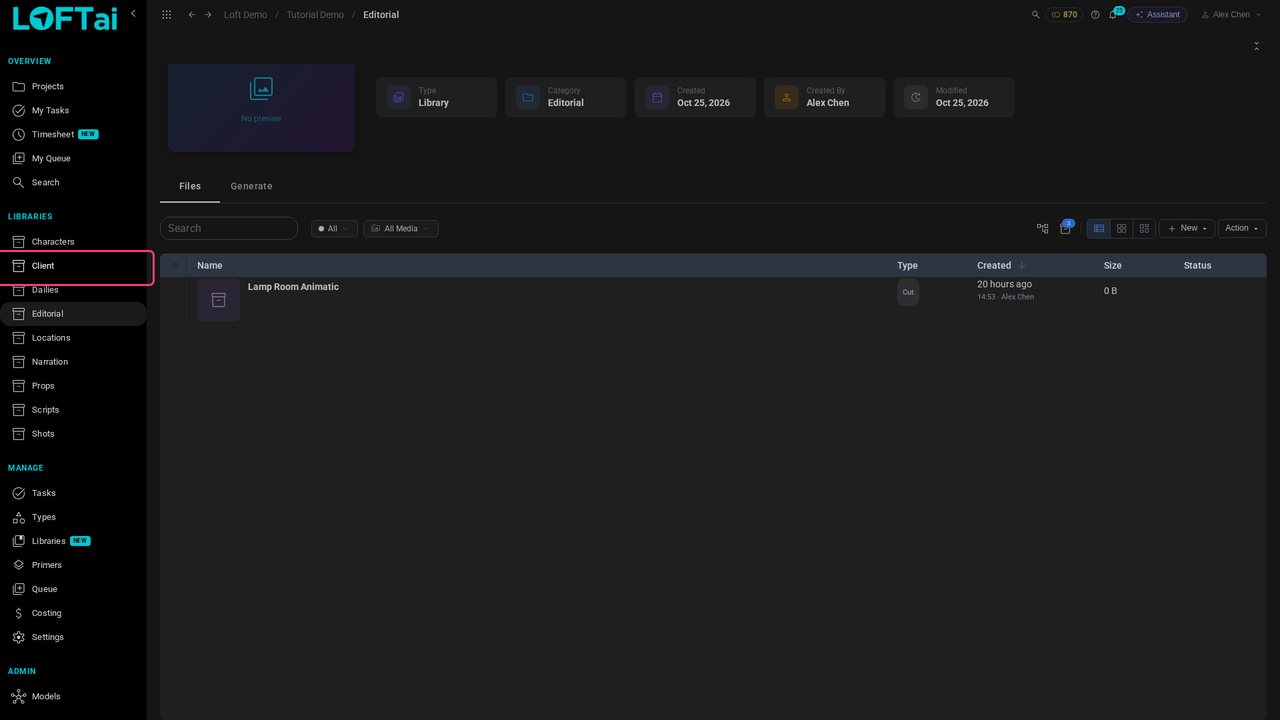
Who can see work is set per library, never per folder. Client is shared with the client's group, and no other library is. So when work needs a different audience, it goes in a different library.
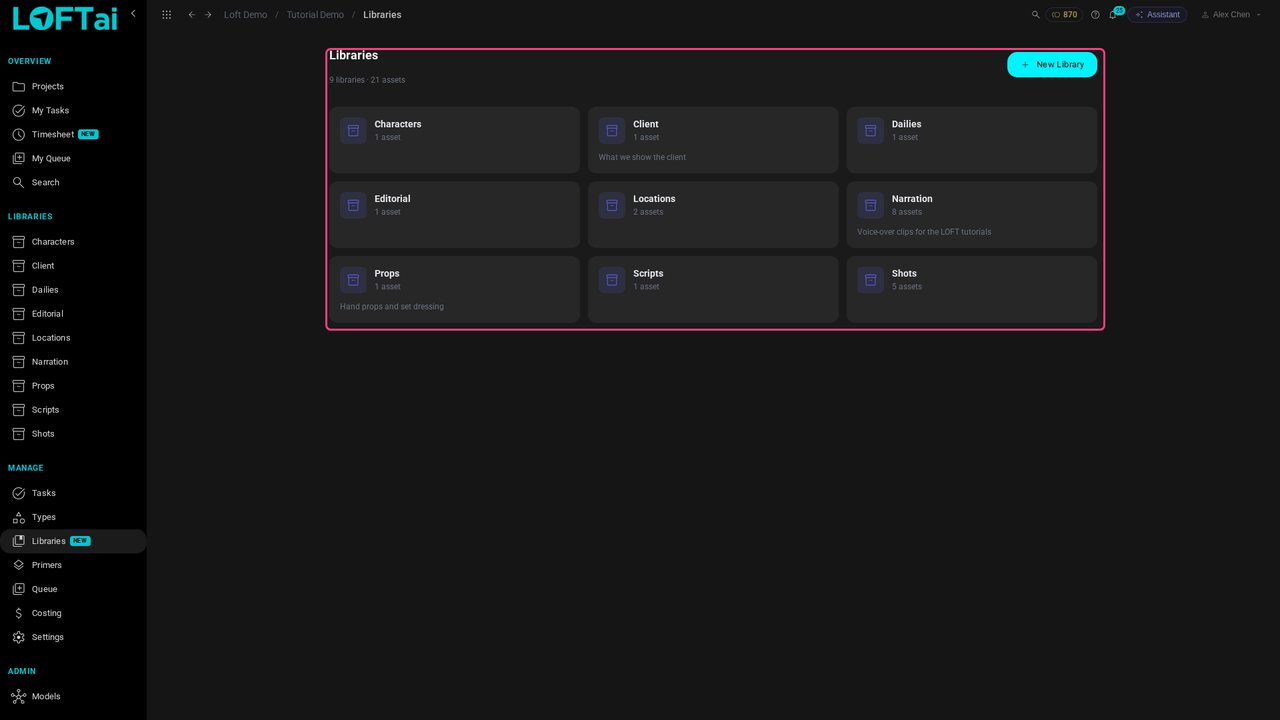
Libraries are added, renamed and described under Manage > Libraries. A new project starts with its project type's set. Add one when a new kind of work, or a new audience, comes along, and give it a line saying what belongs there.
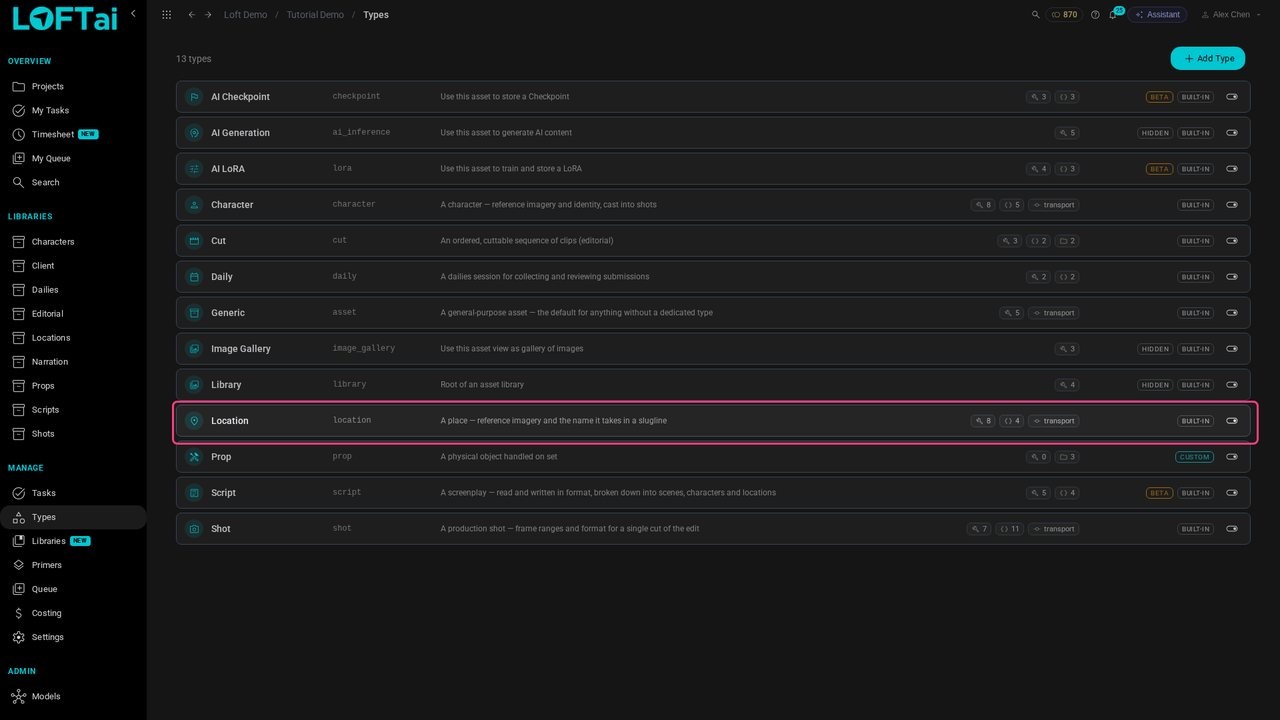
A library says where an asset lives; its type says what it is. Under Manage > Types, each type lists the tools, properties and starting folders its assets get. A Location is a place, with the name it takes in a script's slugline; a character or a shot gets something else.
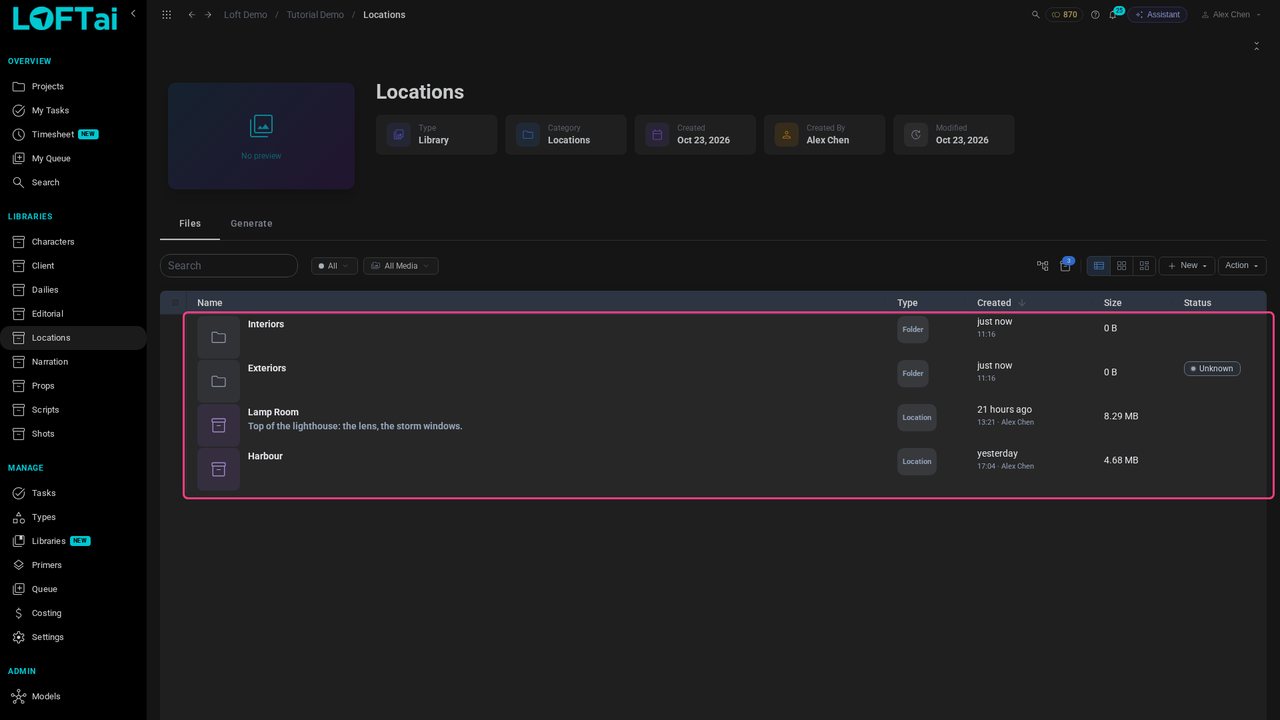
Inside a library, folders group assets of the same kind: locations into interiors and exteriors, shots into sequences, characters into leads and supporting. Open Locations: two locations, no folders yet.
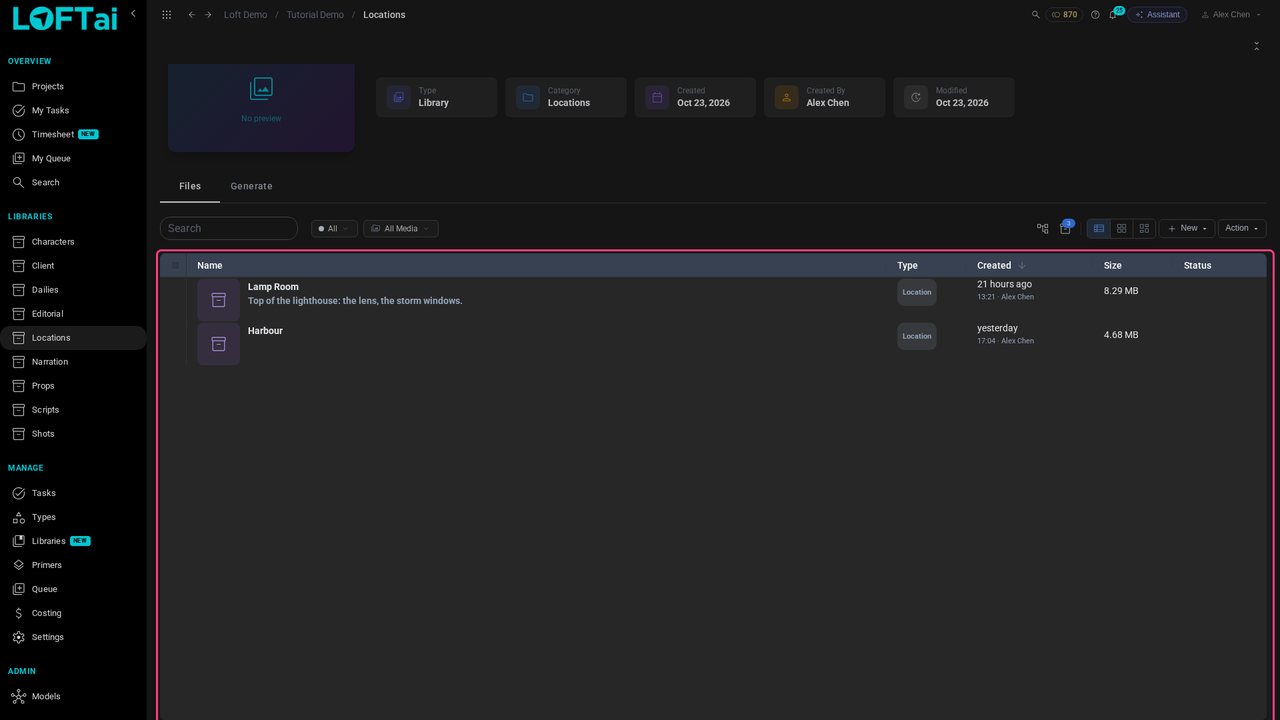
Click New, then Folder. Type one folder per line: Interiors and Exteriors.
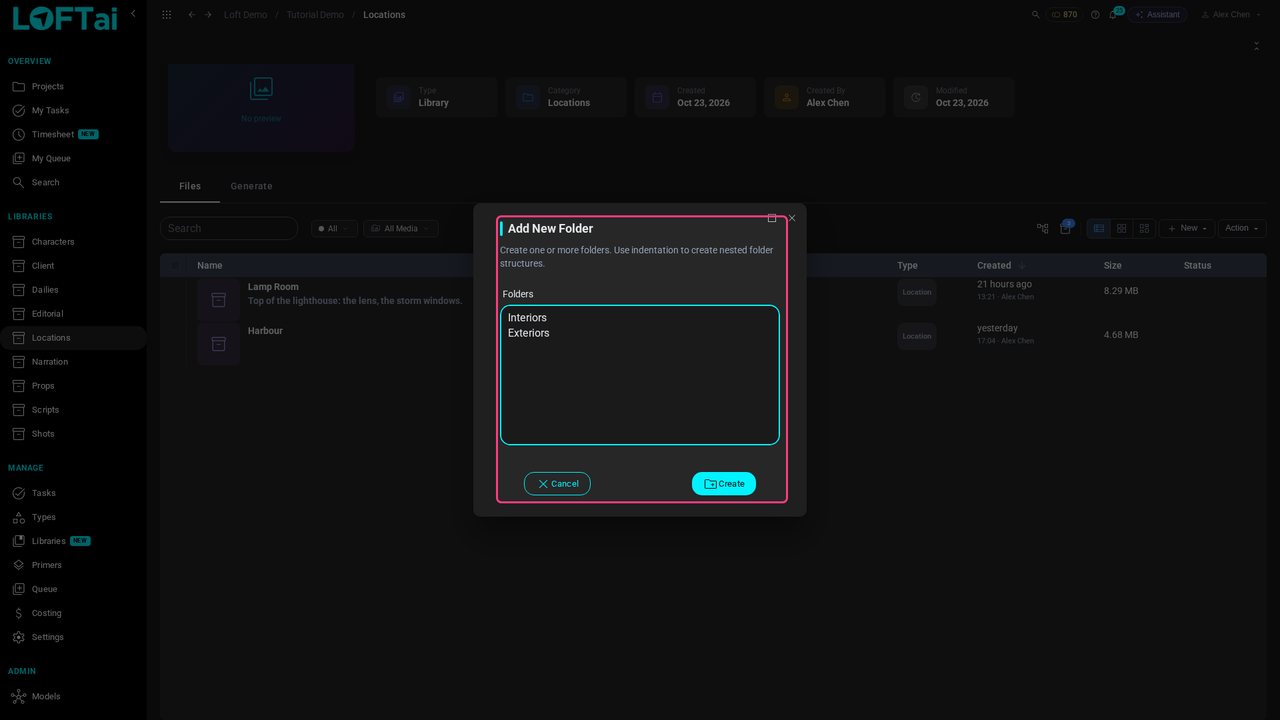
Click Create and open Interiors. The breadcrumb shows where you are, and anything you create now lands in this folder.
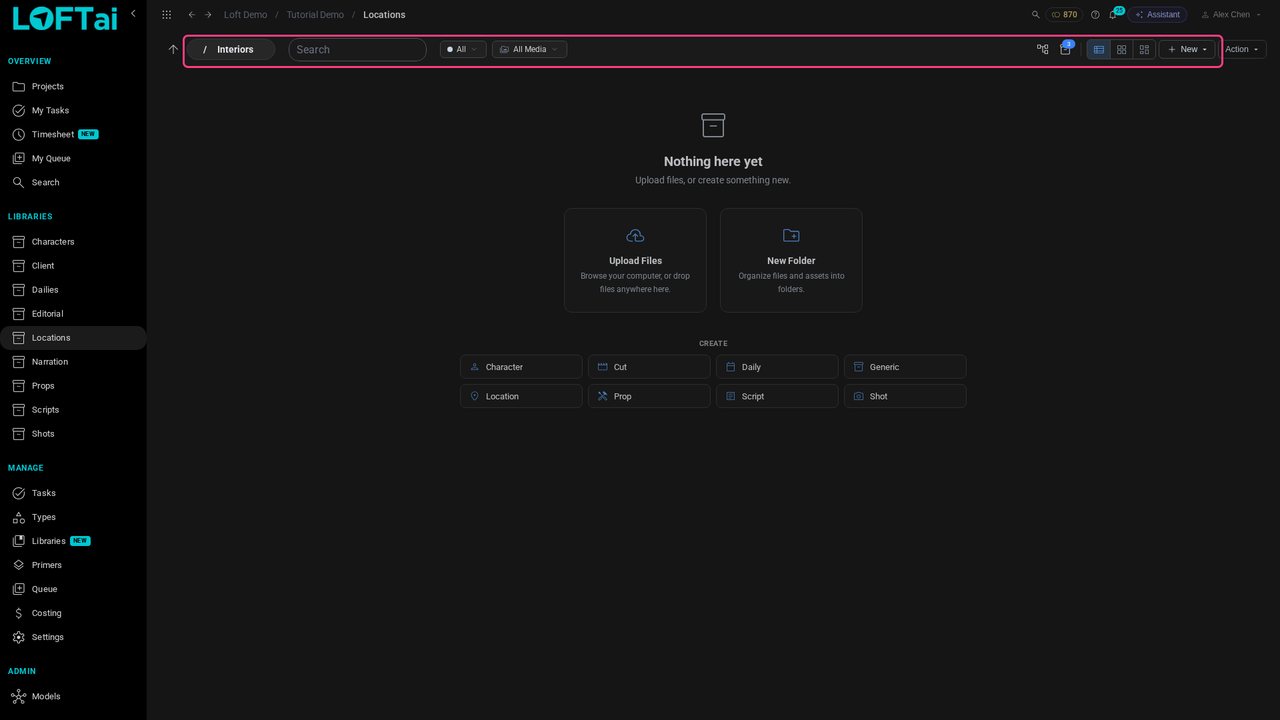
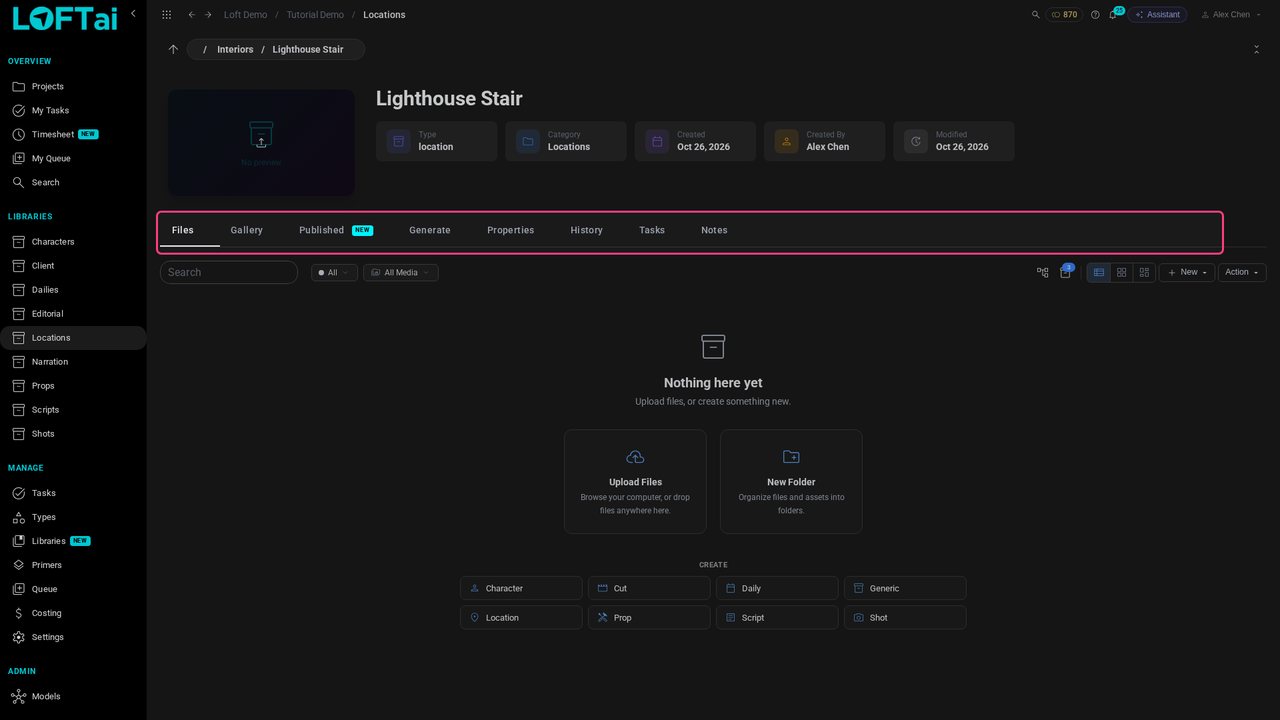
Click New and choose Location, the type. Name it Lighthouse Stair.
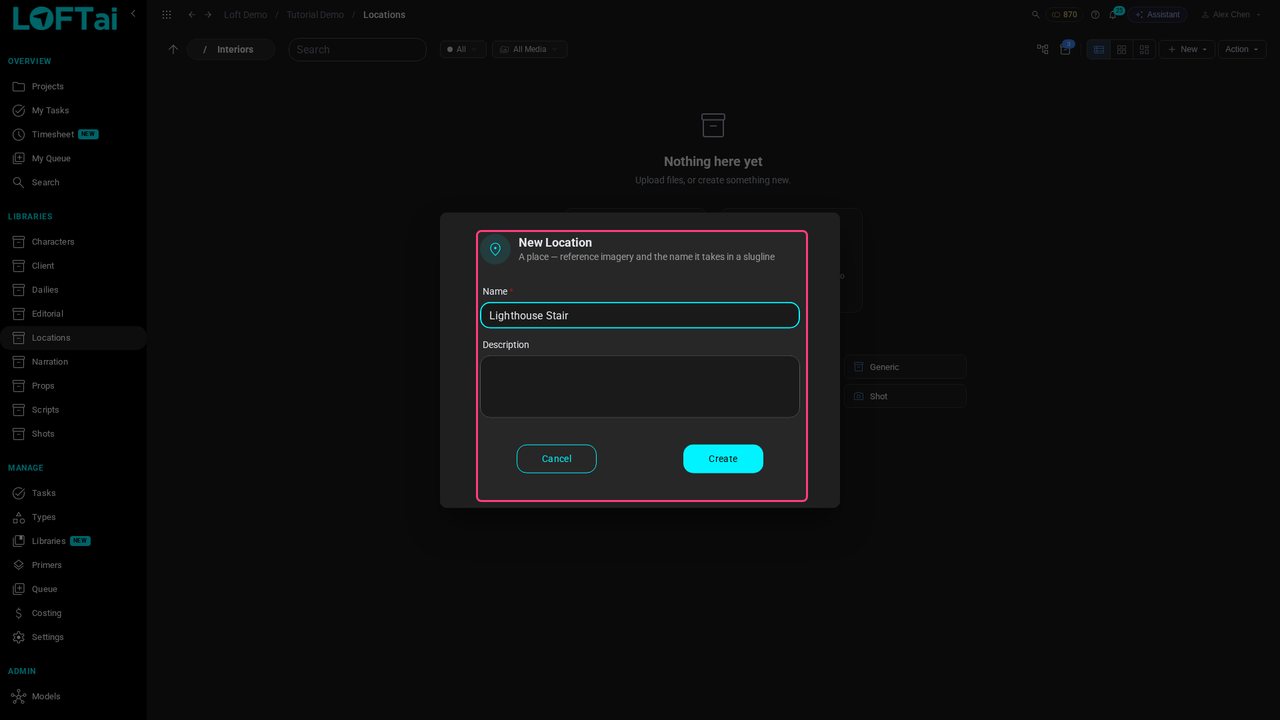
Click Create and open it. An asset is one thing you are making, and everything for it collects inside: references, takes, notes, tasks. Make one for each character, location or shot, rather than a folder for each.
Back in Locations, drag an asset onto a folder to file it, or onto the breadcrumb to move it back up. Keep folders to one or two levels. If a folder needs different people, or a different audience, it wants to be a library.
Up next in Start here
This tutorial follows one shot all the way through. An artist makes the shot in its sequence, links the character and location it needs, generates a keyframe from them and animates it with Kling 3.0. The director reviews it in dailies and asks for a change; the artist revises it, the director approves, and the published shot plays in the cut, between its neighbours.
In the playlists Start here.