
STEP 01
Open the project
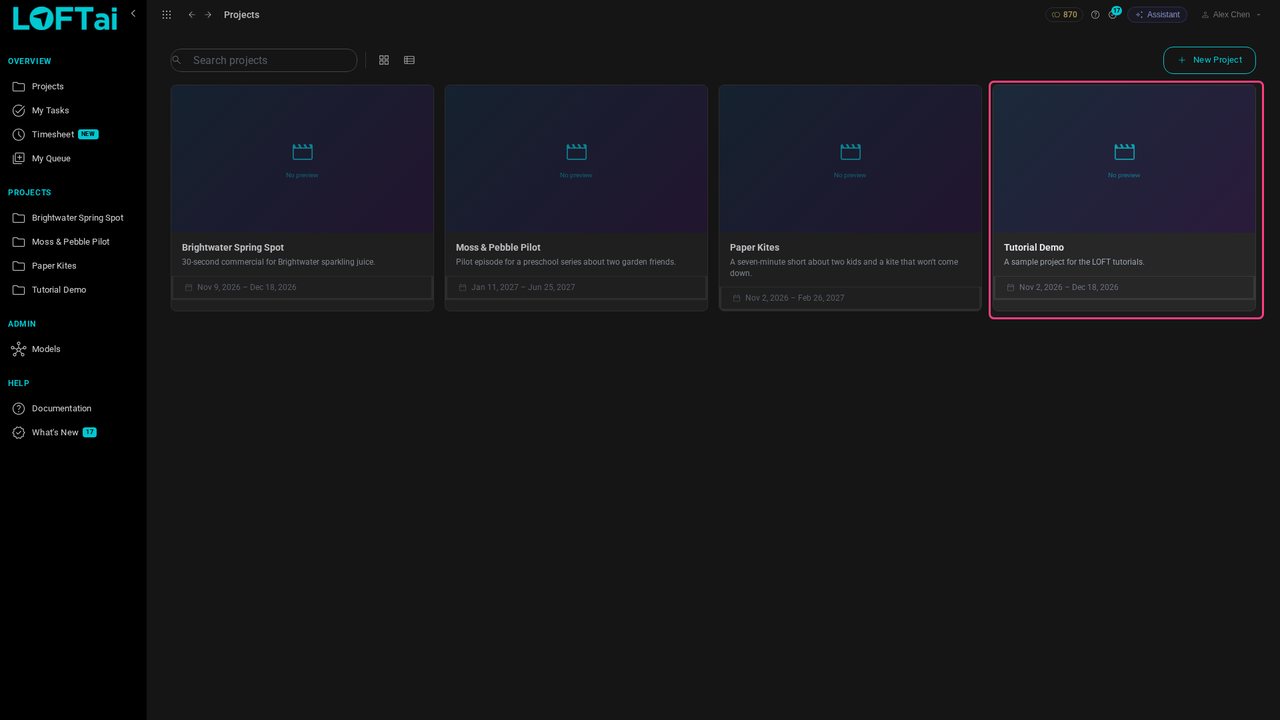
Open the project your script belongs to. We'll use Tutorial Demo, a project with nothing in it yet.
Tutorials/Make and review the work
A script in Loft is a screenplay you write in industry format. As you write, Loft breaks it down into scenes, characters and locations. This tutorial writes a short script, then creates assets for its characters and locations and links them to the script.
Follow along
Open the project your script belongs to. We'll use Tutorial Demo, a project with nothing in it yet.
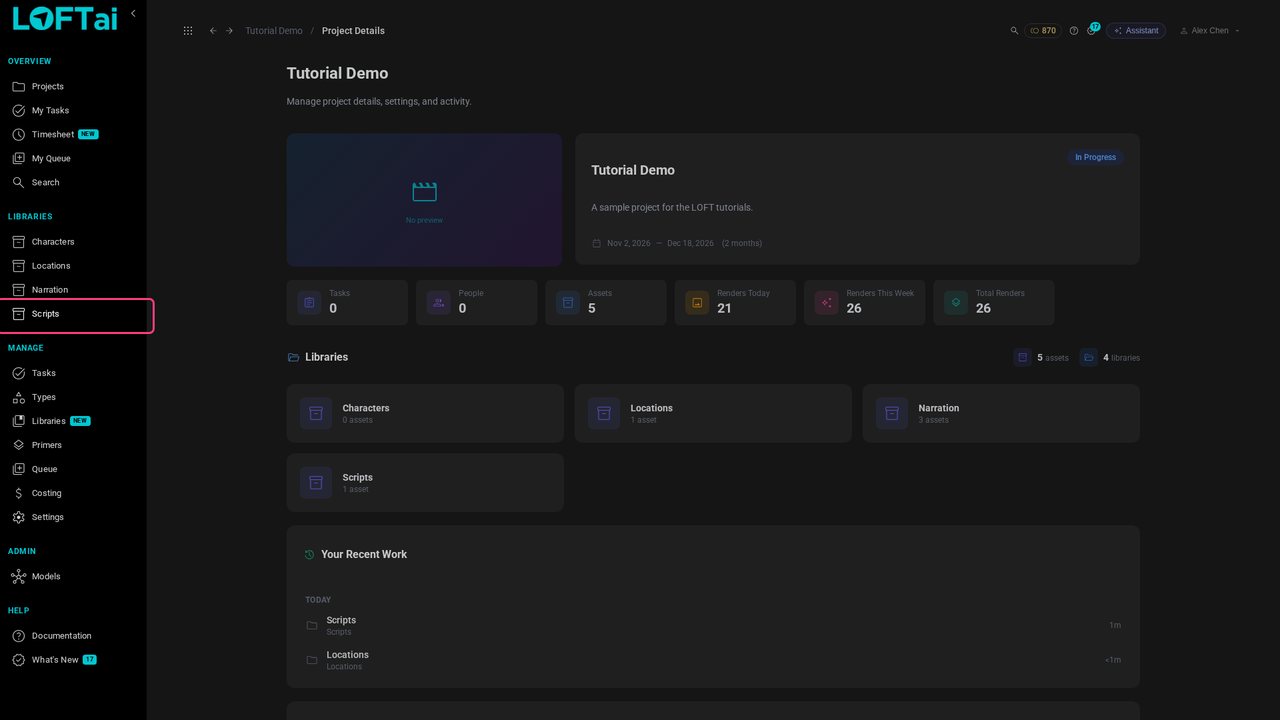
Everything in a project lives in a library, listed in the sidebar. Open Scripts.
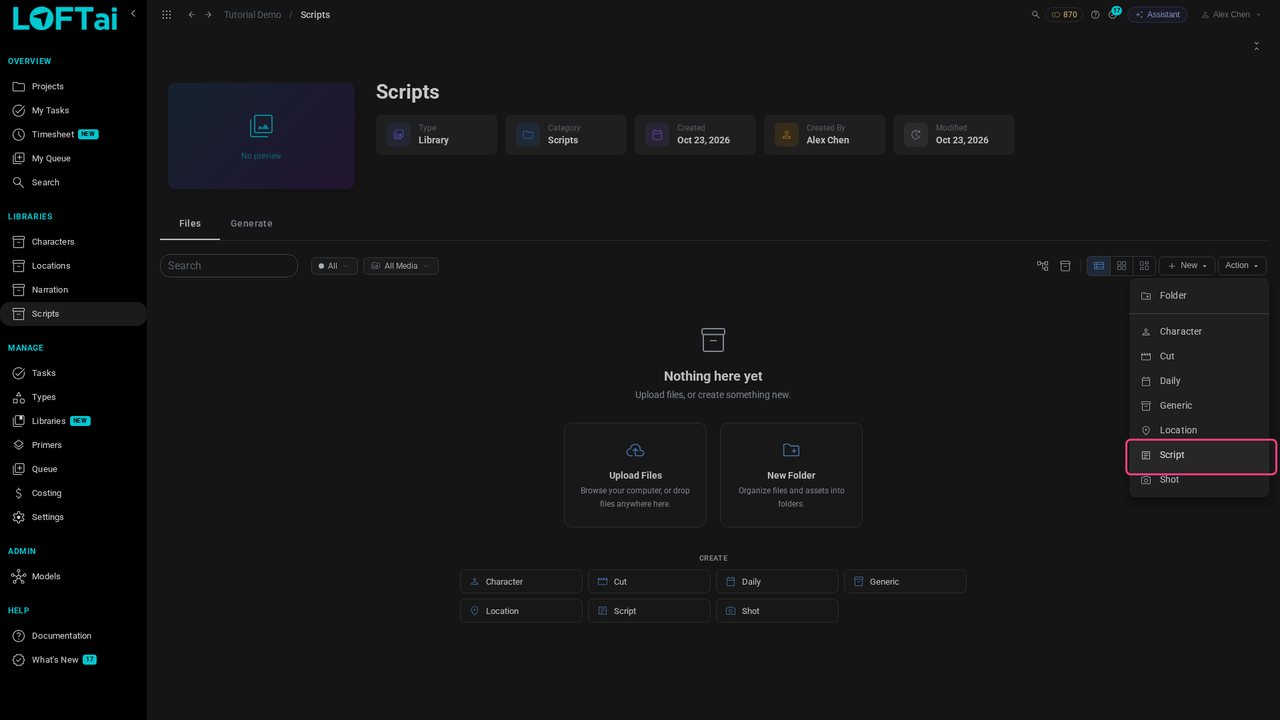
Click New and choose Script. A script is an asset like any other, so it gets a library, notes and a history.
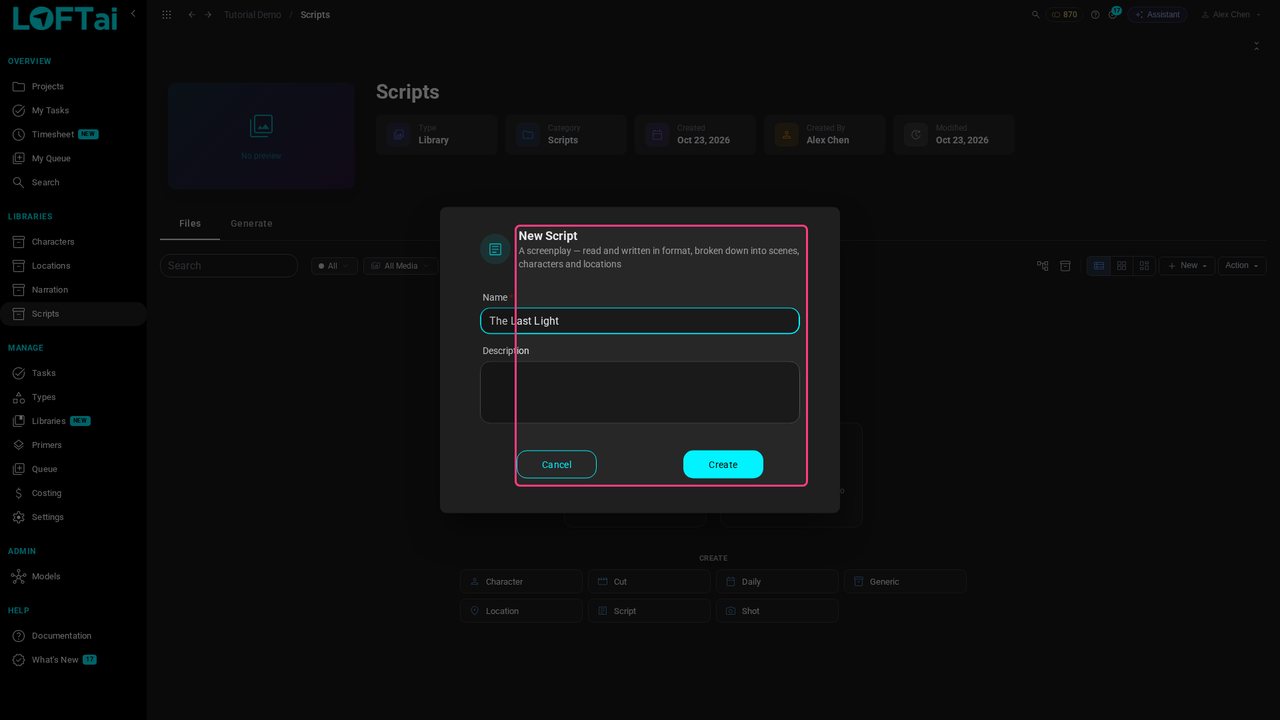
Give the script a name, here The Last Light, and click Create.
The script appears in the library. Click it to open the Script tab: the page on the left, the breakdown on the right.
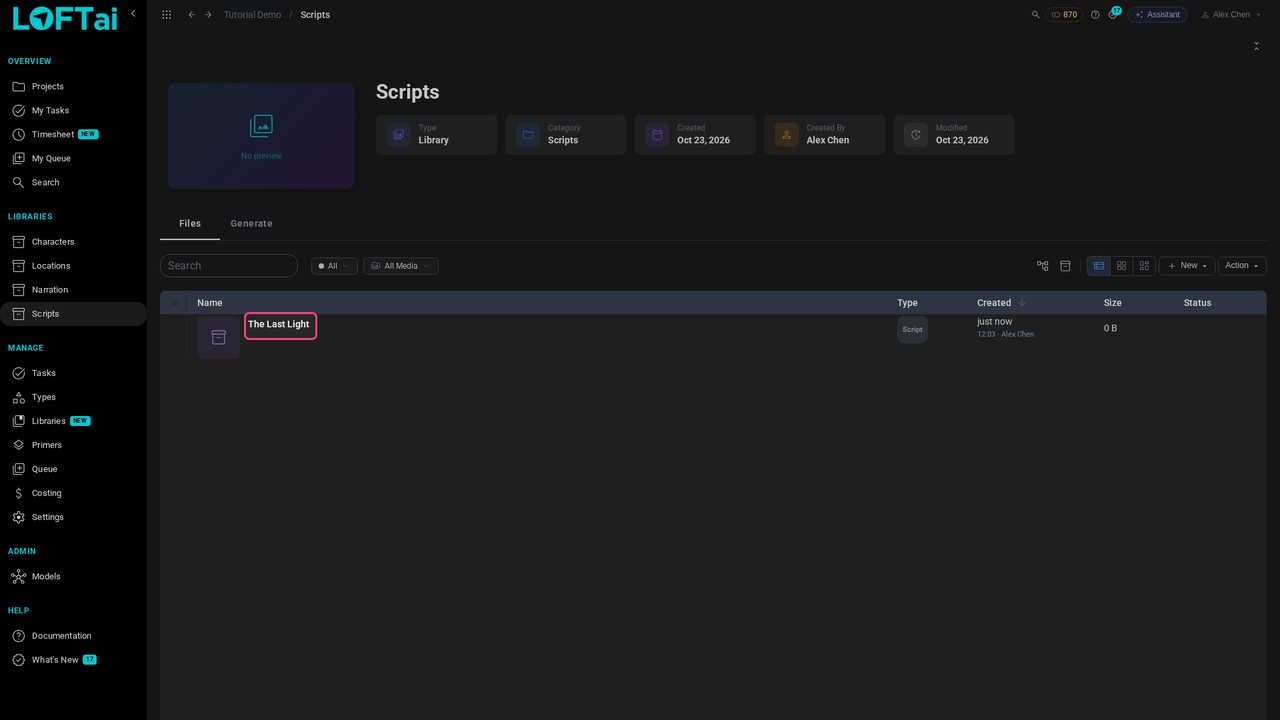
Click into the page and type INT. and a space: Loft turns the line into a scene heading. Finish it with the place and time of day, LAMP ROOM - NIGHT.
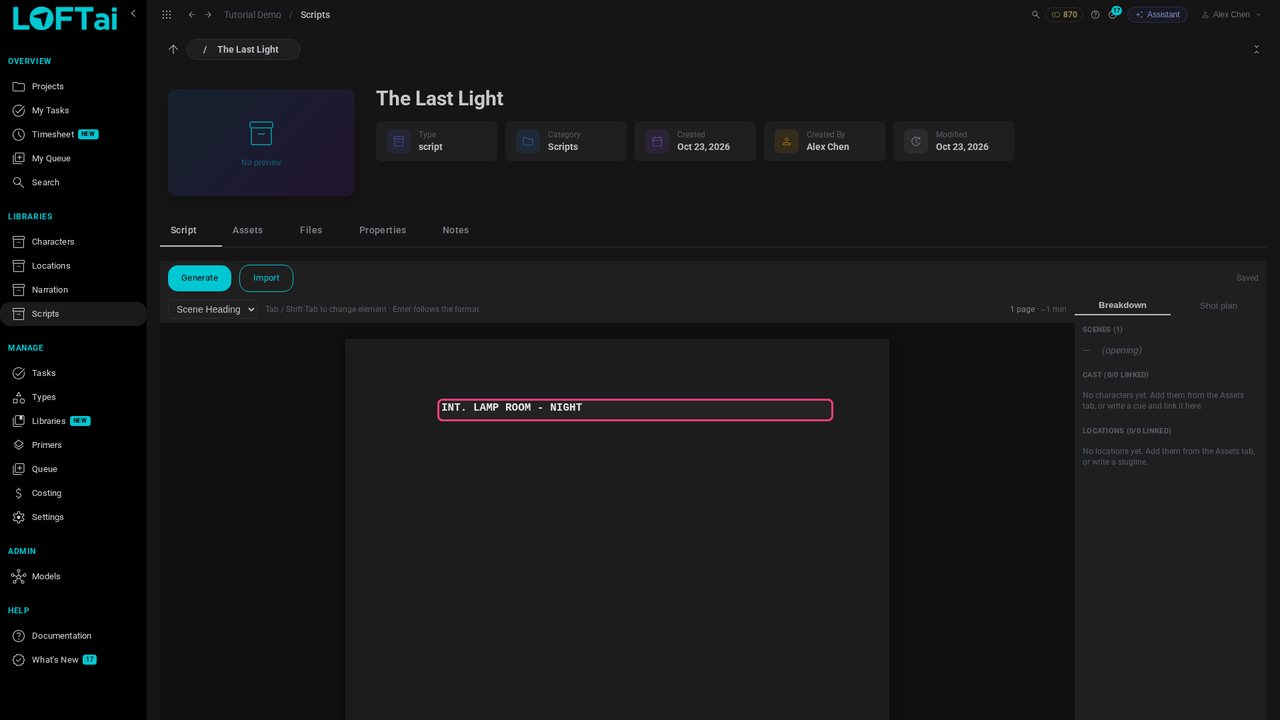
Press Enter. The next line is action, because action is what follows a scene heading. Describe what we see.
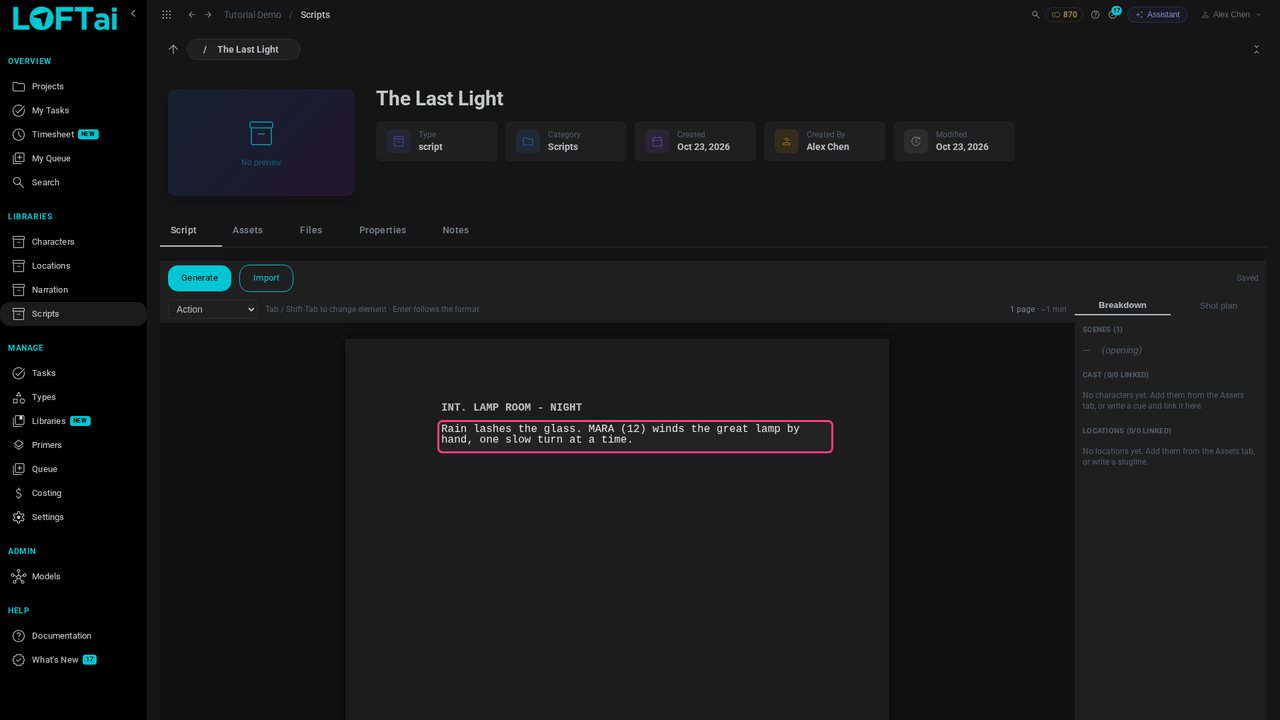
Press Enter, then Tab to change the empty line into a character cue. Type the name, press Enter, and you're writing their dialogue. The element picker in the toolbar shows where you are.
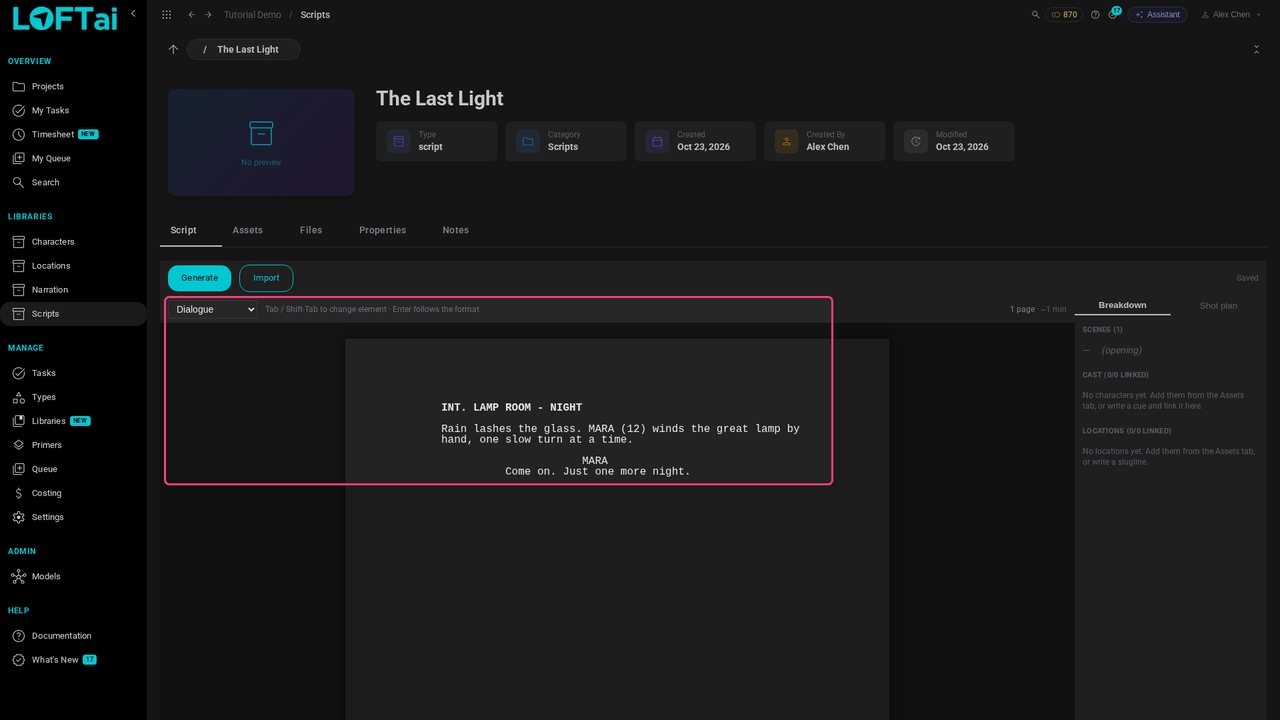
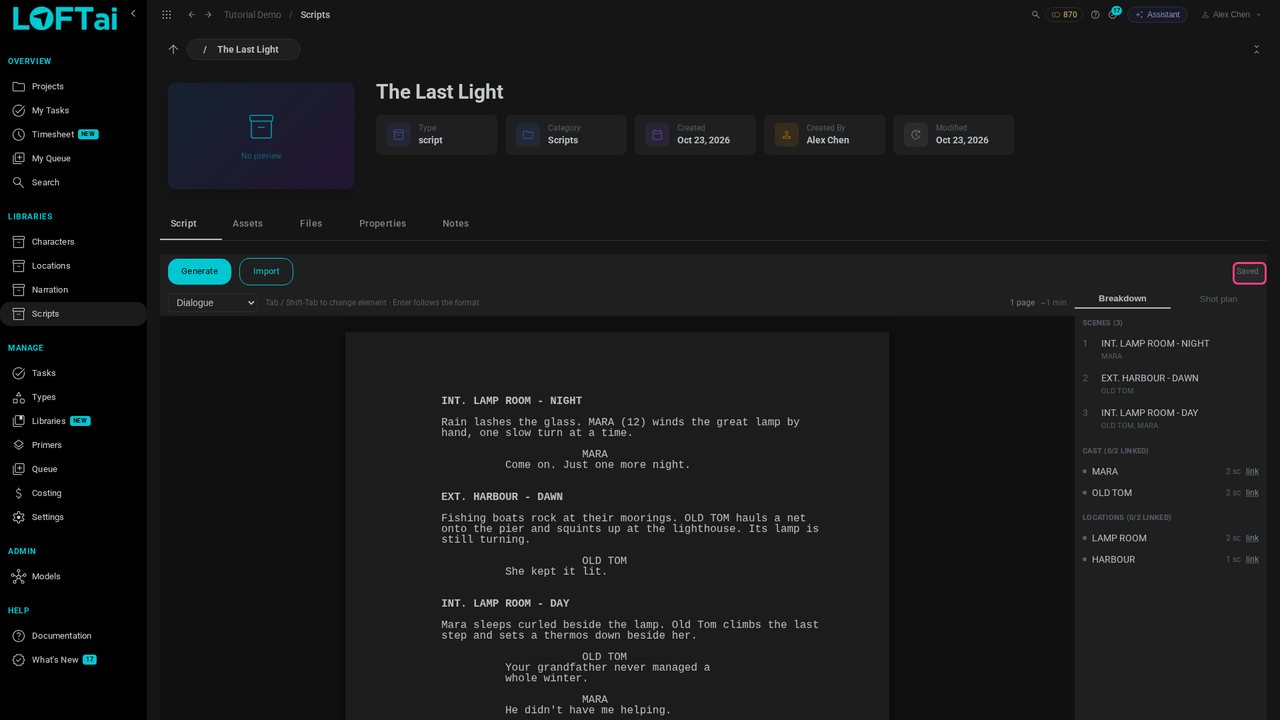
Write the rest the same way. There is no Save button: the script saves a moment after you stop typing, and the corner reads Saved.
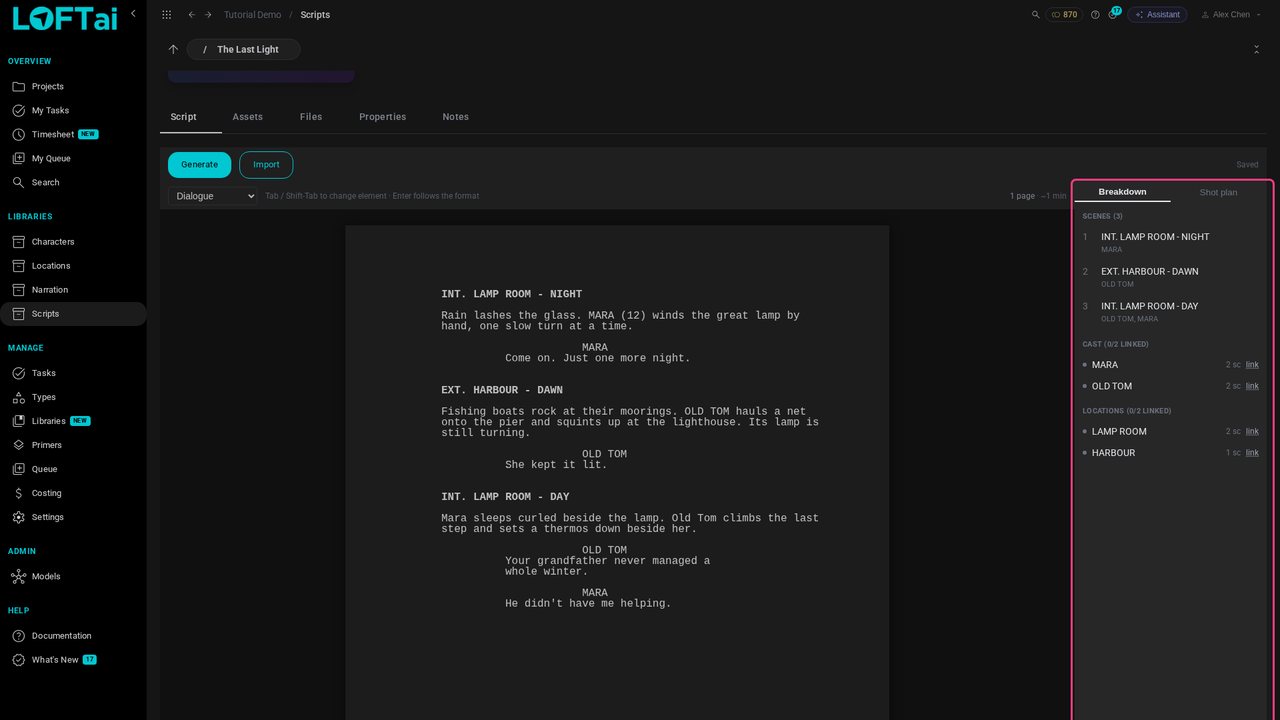
The Breakdown rail updates as you write: three Scenes, the Cast from the character cues, and the Locations from the scene headings. Click a name to jump to where it appears.
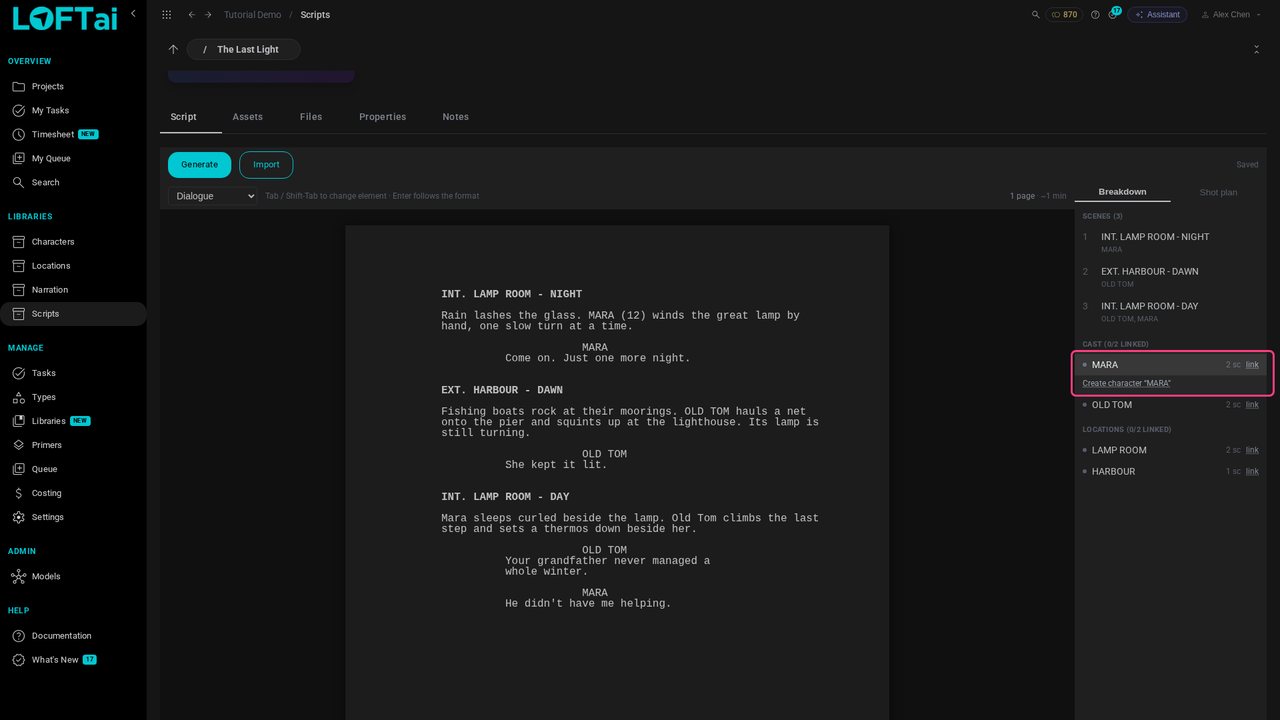
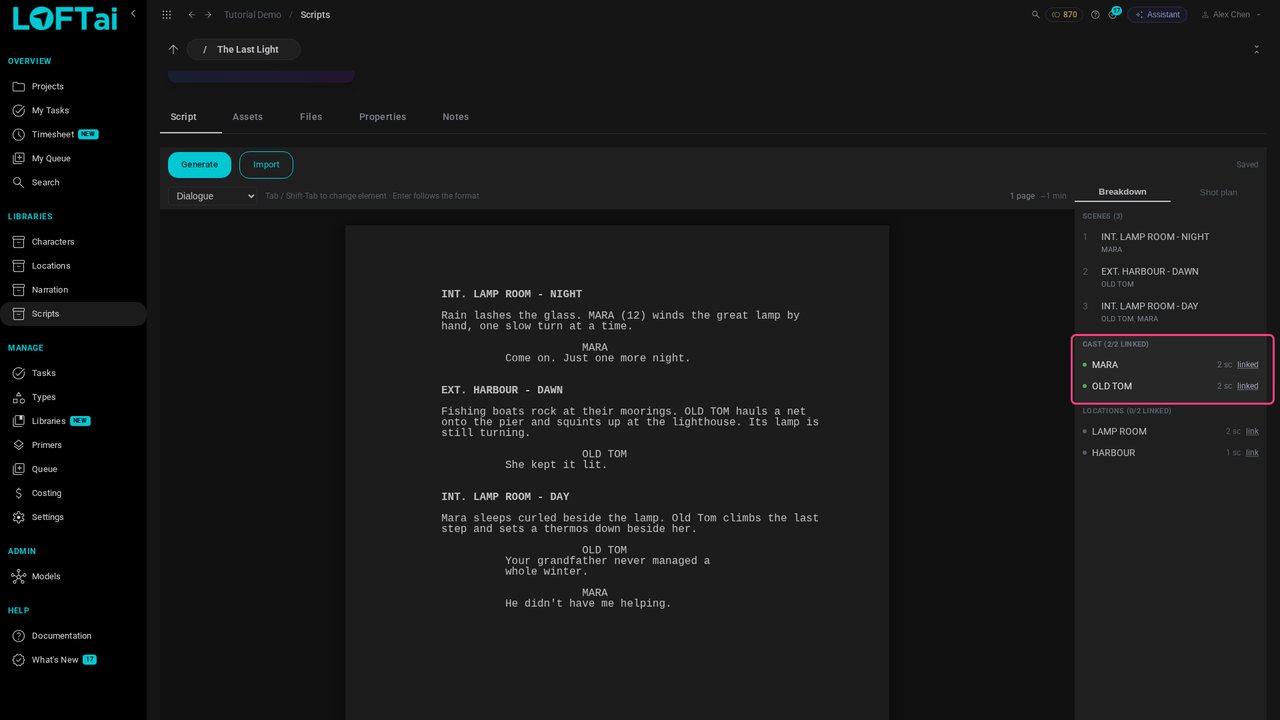
Nothing is linked yet: 0/2 linked. Click link next to MARA and choose Create character.
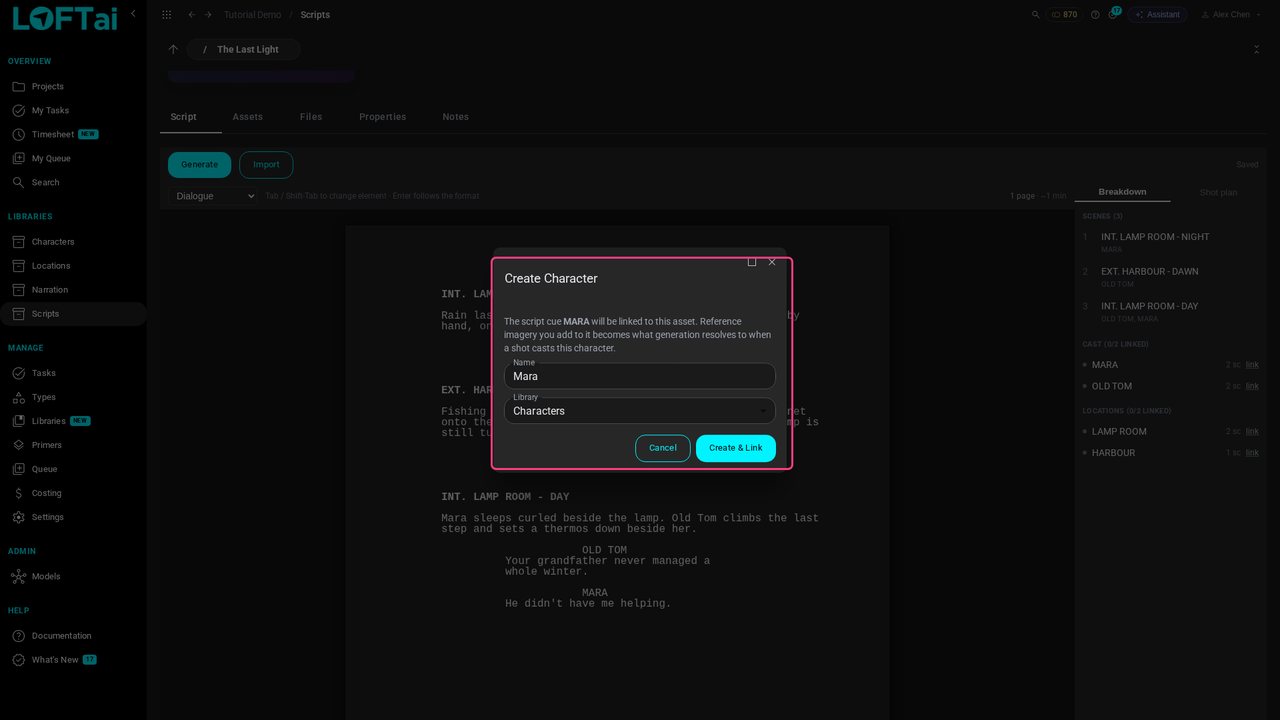
Loft fills in the name and picks the Characters library. Click Create & Link. The character asset is where her reference images go, so generated shots know what she looks like.
Do the same for OLD TOM. A green dot means the cue is linked, and the heading now reads 2/2 linked.
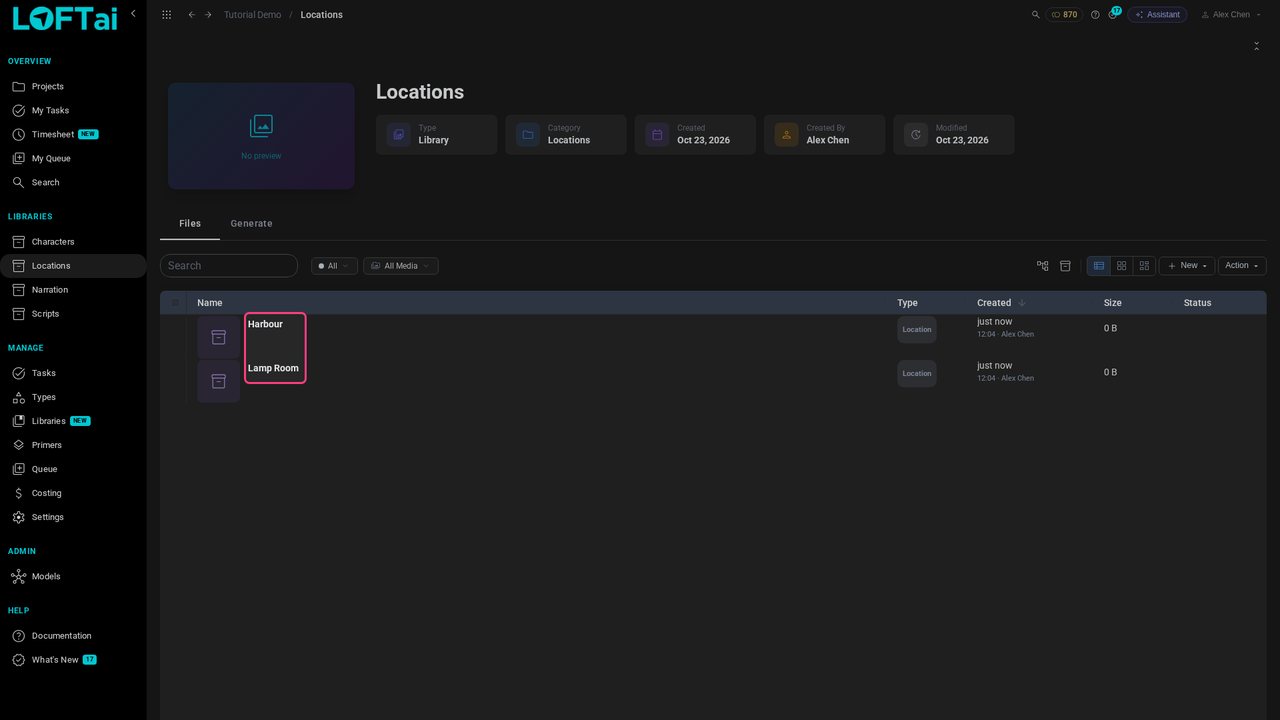
Locations are made in their own library. Open Locations, click New, choose Location, and name it as the scene heading does: Lamp Room, then Harbour.
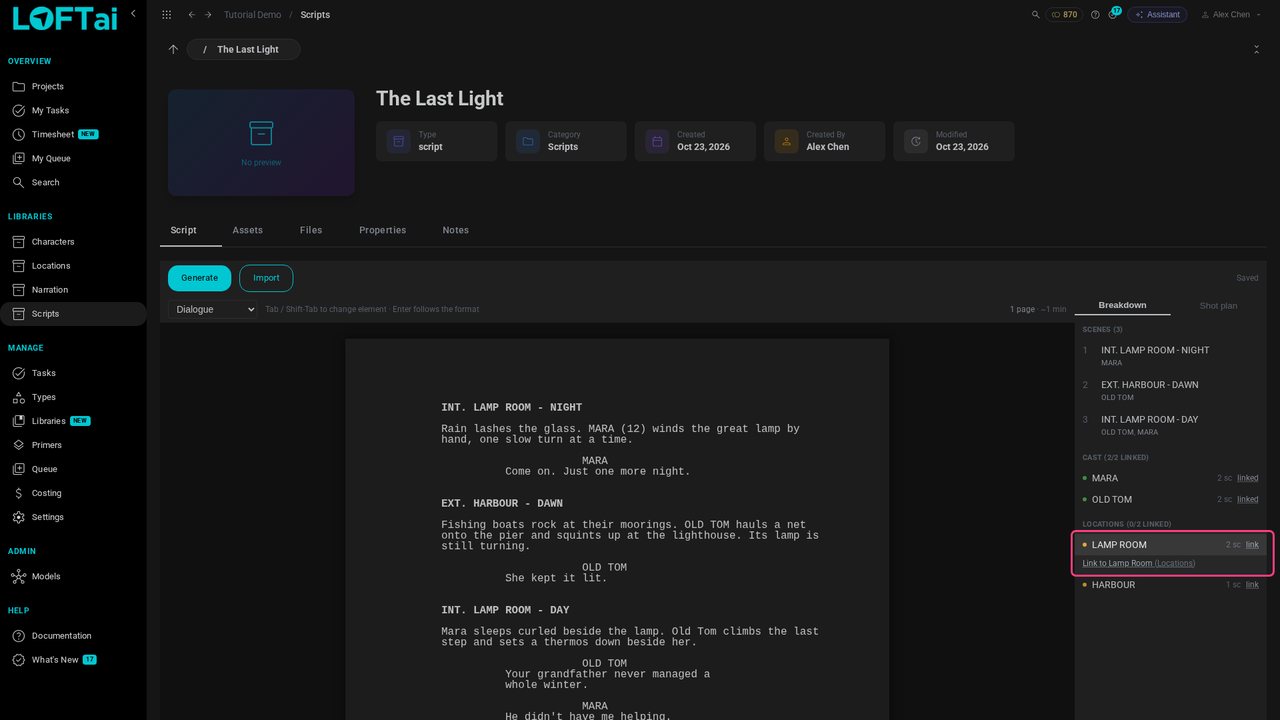
Back in the script, the locations show a yellow dot: an asset with a matching name exists. Click link and choose Link to Lamp Room.
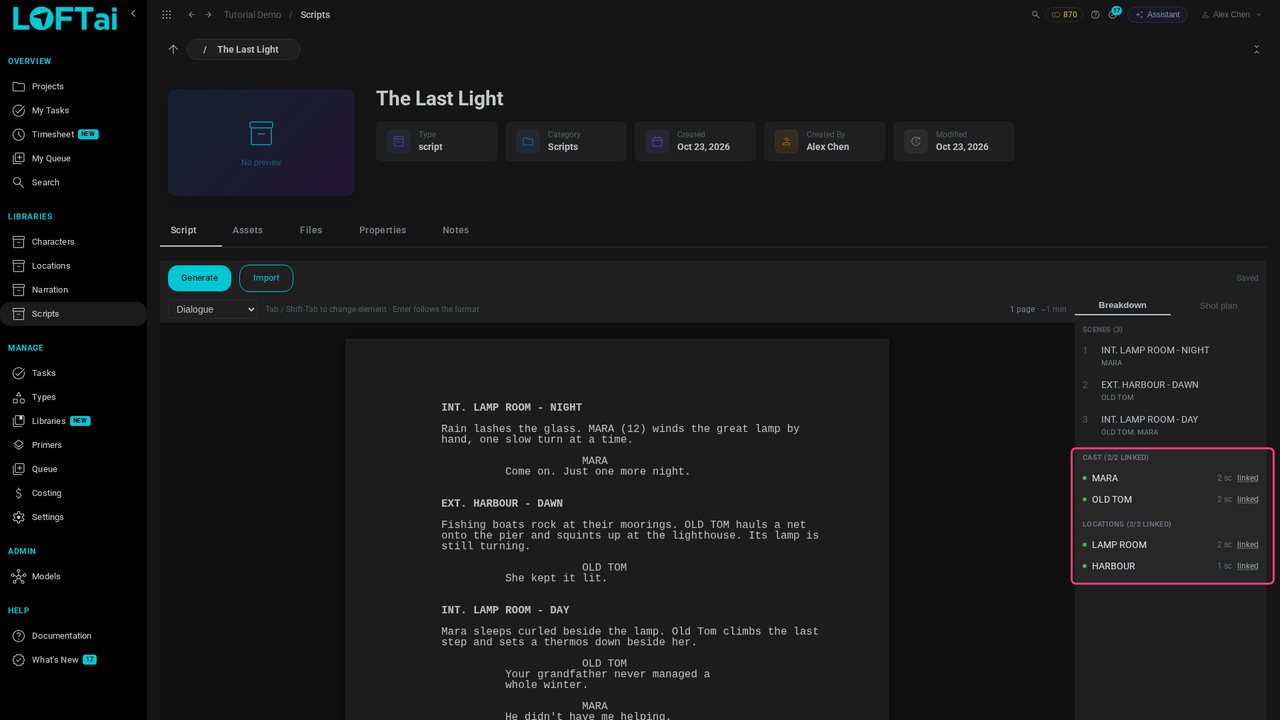
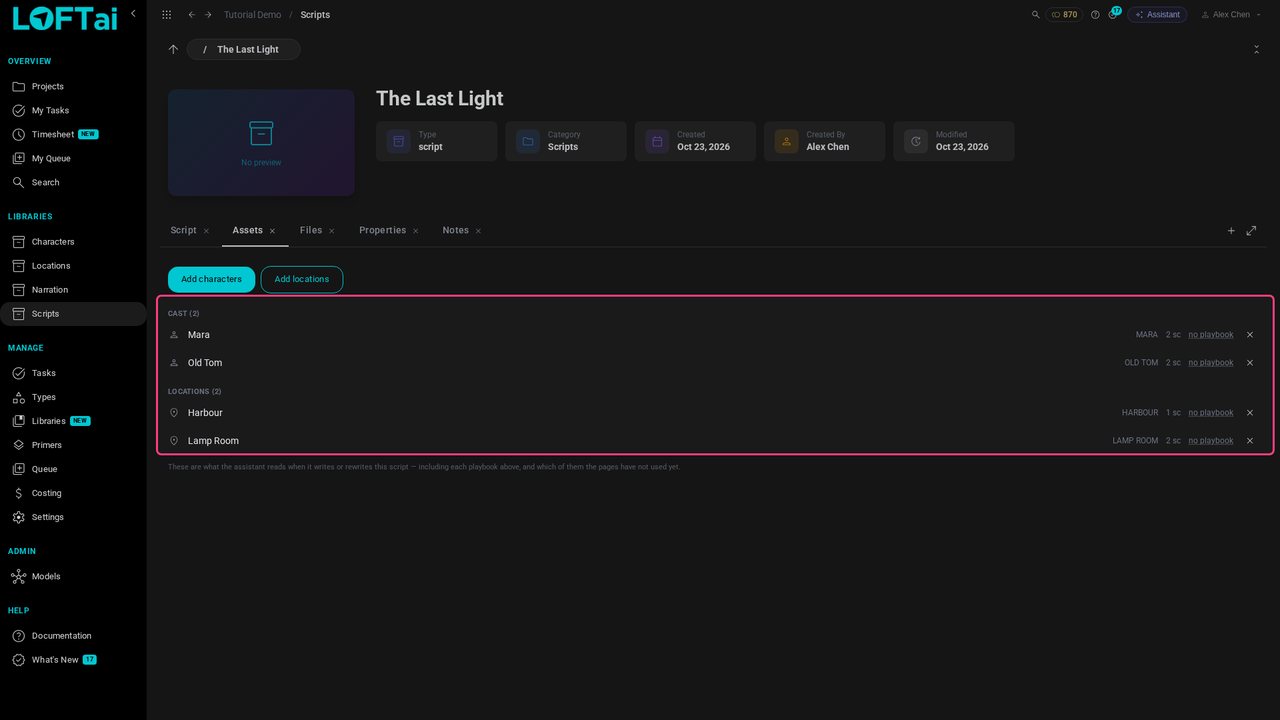
Link HARBOUR too. Every character and location in the script is now an asset, and the breakdown shows 2/2 linked for both.
The Assets tab lists everything linked to the script. From here, add reference images to each character and location, or open Shot plan to turn scenes into shots. Rewrite a name in the script and the breakdown flags the link that no longer matches.
Up next in Make and review the work
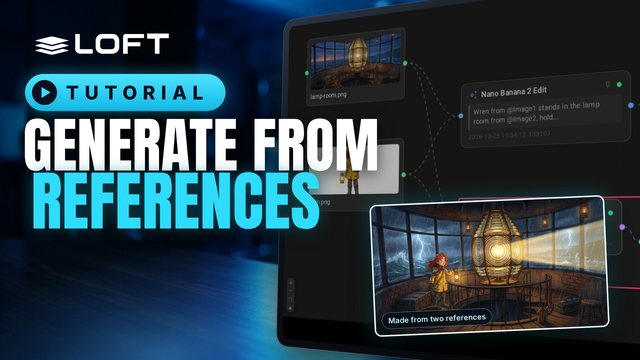
Most images start from references: a character, a place, a colour key. This tutorial uploads references into a folder, pins them, generates a new image from two of them in another folder, and then opens the image's flow to see exactly what made it, and to make a variation on a different model.
In the playlists Make and review the work.