
STEP 01
Open the project
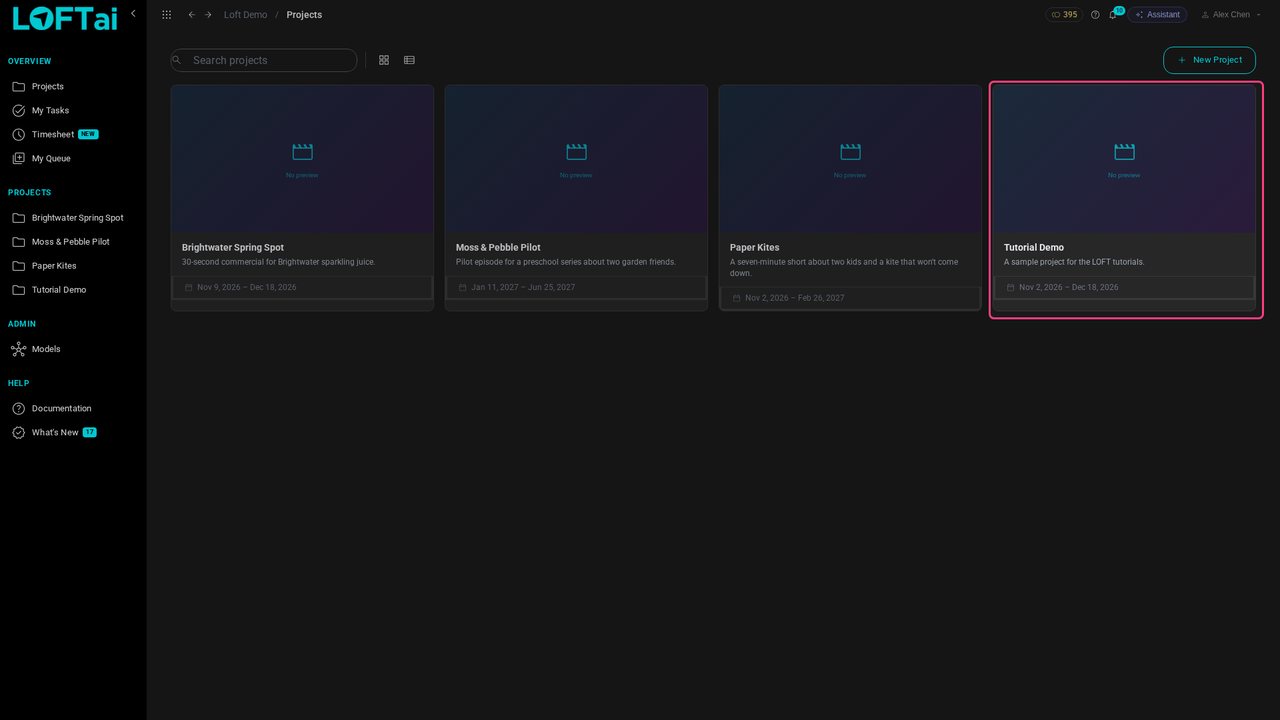
Open the project to work in. We'll use Tutorial Demo.
Tutorials/Make and review the work
Most images start from references: a character, a place, a colour key. This tutorial uploads references into a folder, pins them, generates a new image from two of them in another folder, and then opens the image's flow to see exactly what made it, and to make a variation on a different model.
Follow along
Open the project to work in. We'll use Tutorial Demo.
Open Locations and the Lamp Room. Generated images belong to an asset like any other file, so start from the one you are working on.
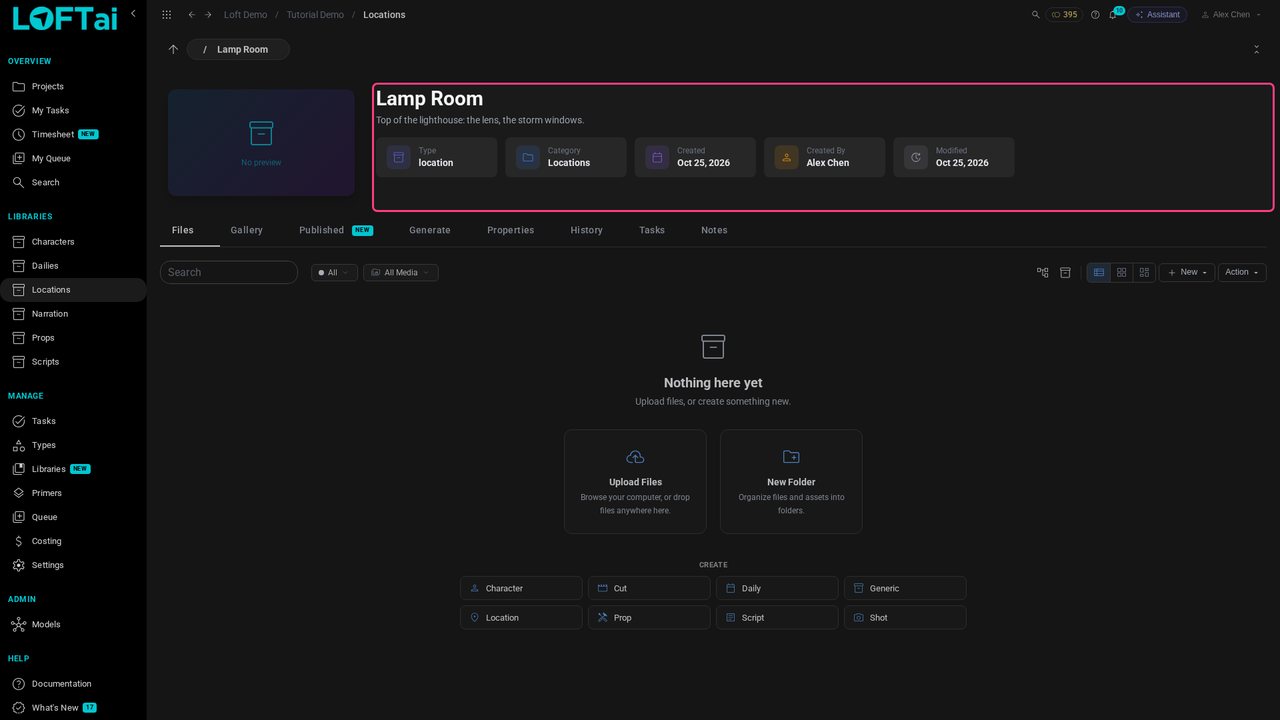
Click New, then Folder, and make two: reference for the images you start from, and keyframes for what you generate.
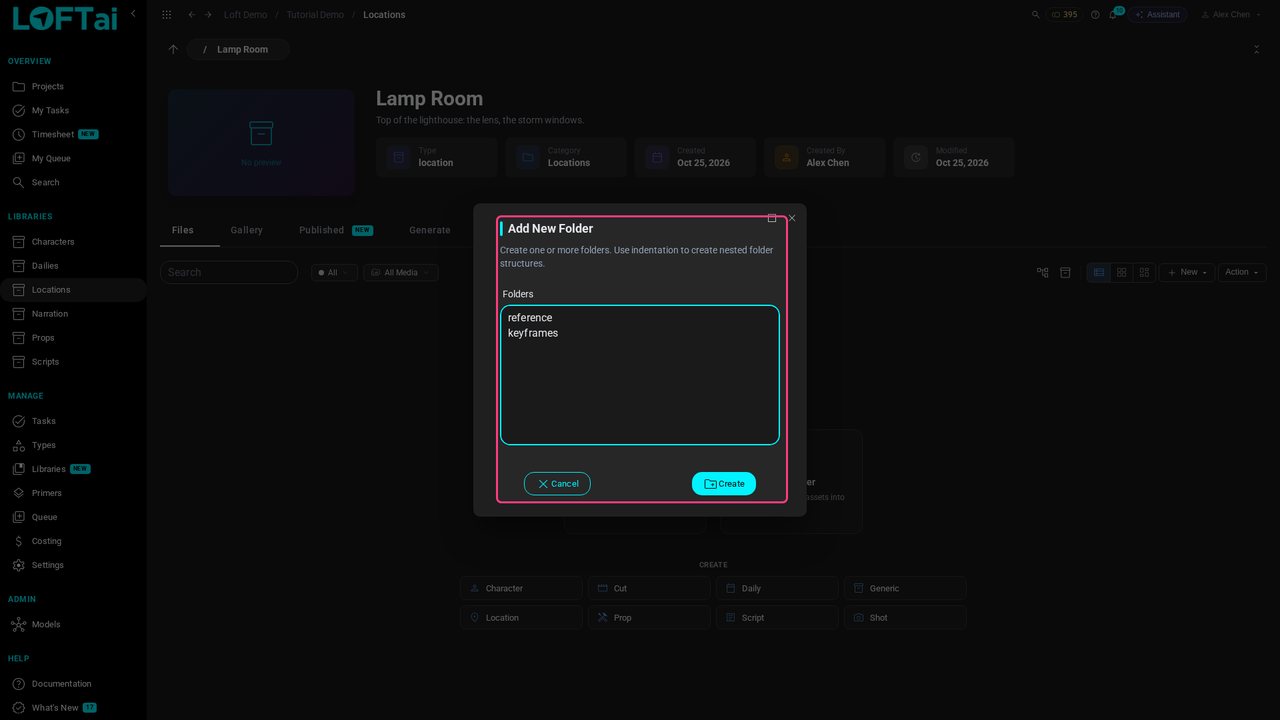
Click Create and open reference. It is empty, so it offers Upload Files; you can also drop files anywhere on the list.
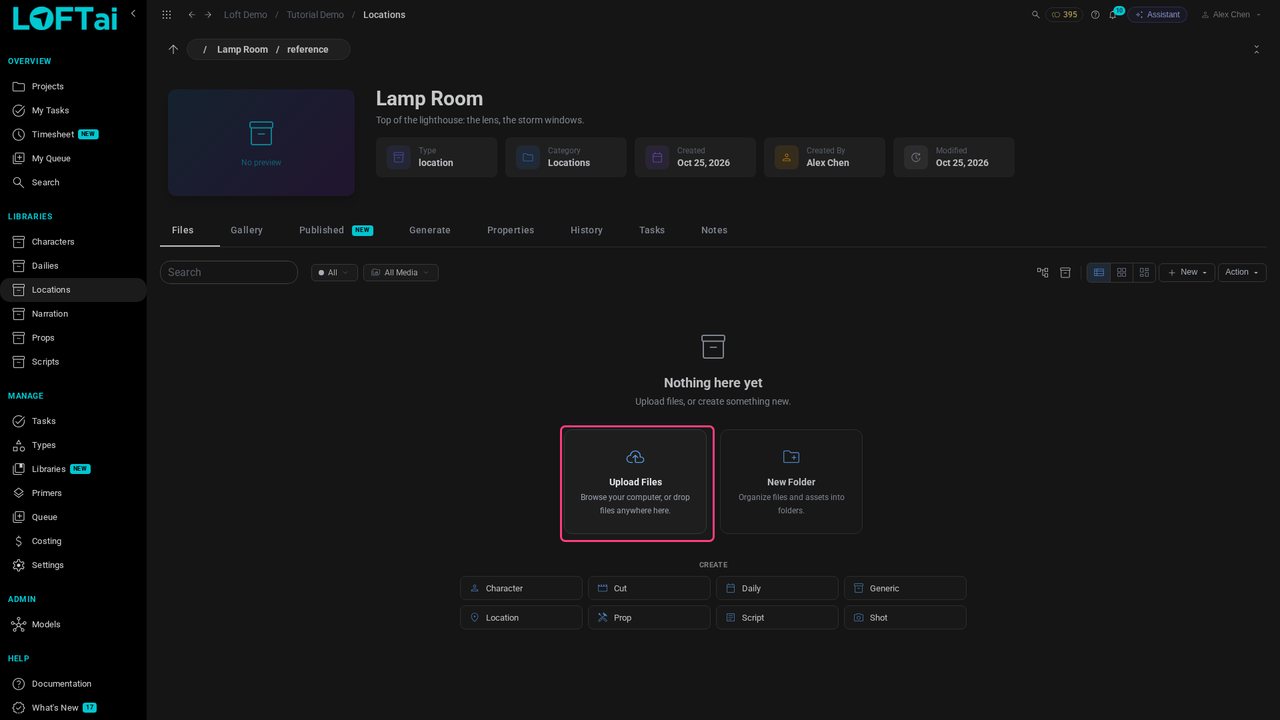
Upload three references: Wren, our character; the lamp room she stands in; and a colour key for the film.
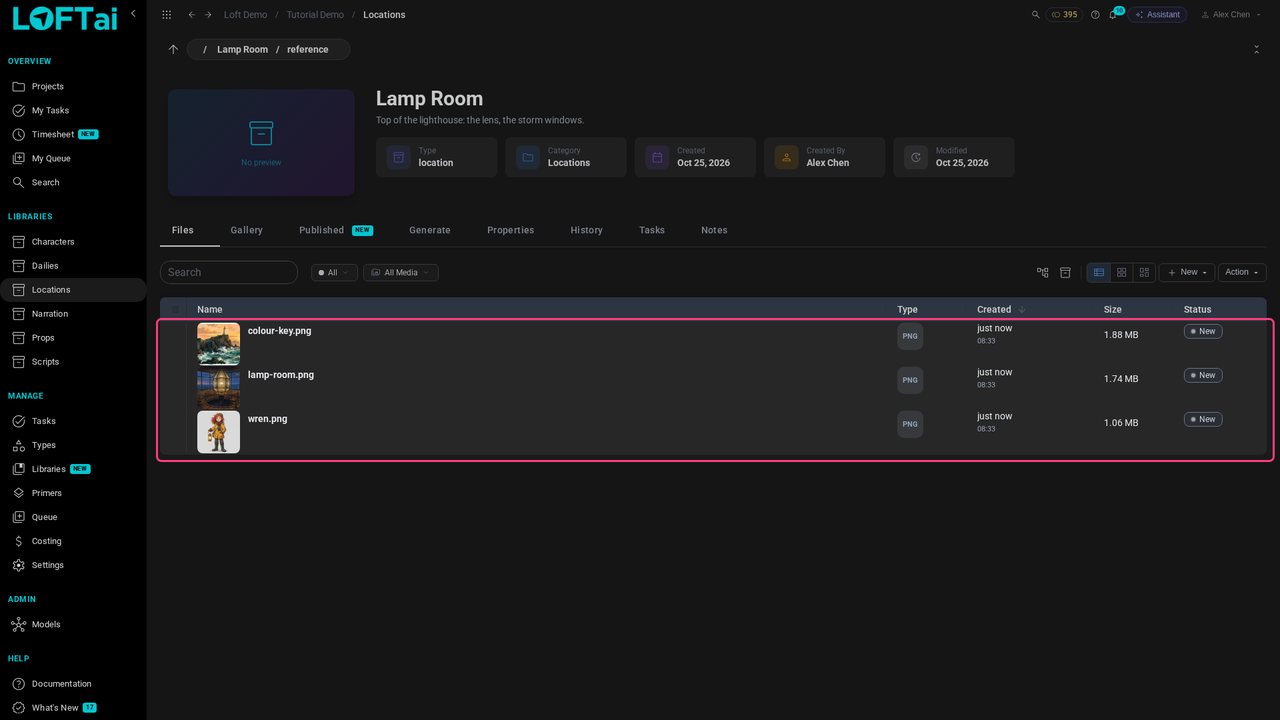
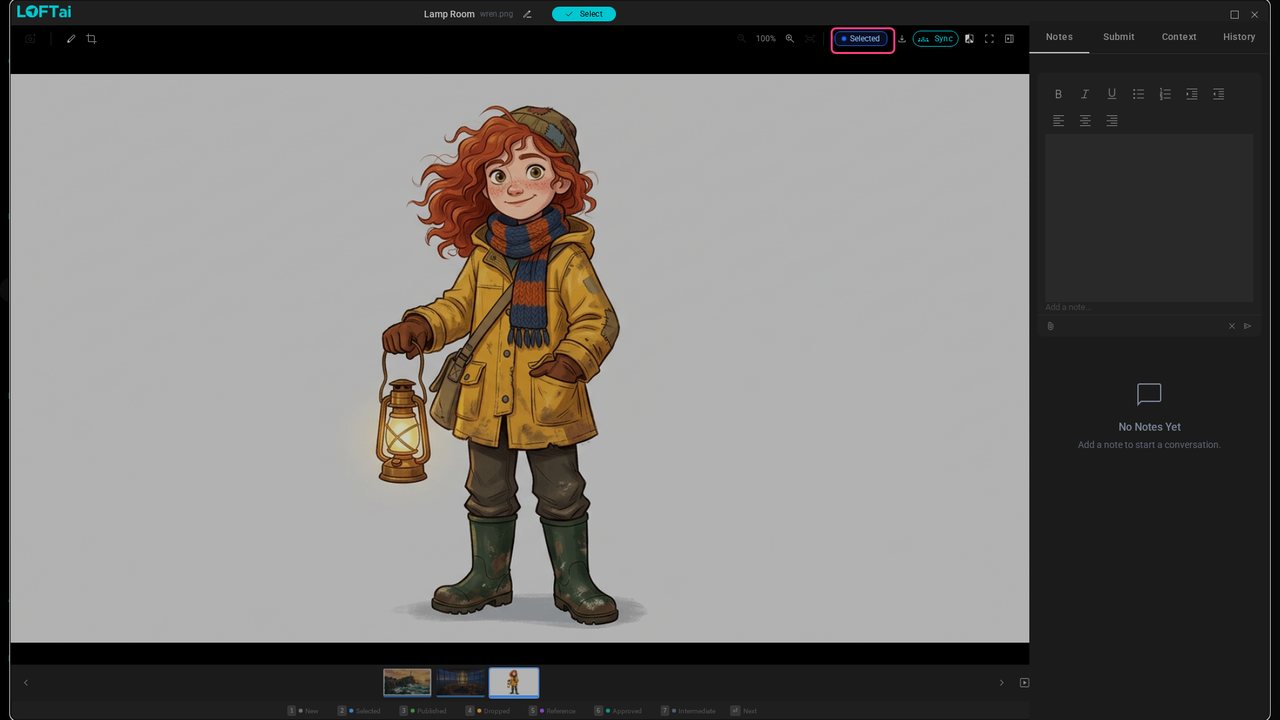
New uploads are New. Open one full size and press 2 to mark it Selected, then the arrow key and 2 for the others. Generation offers your own Selected files and anything Published as inputs.
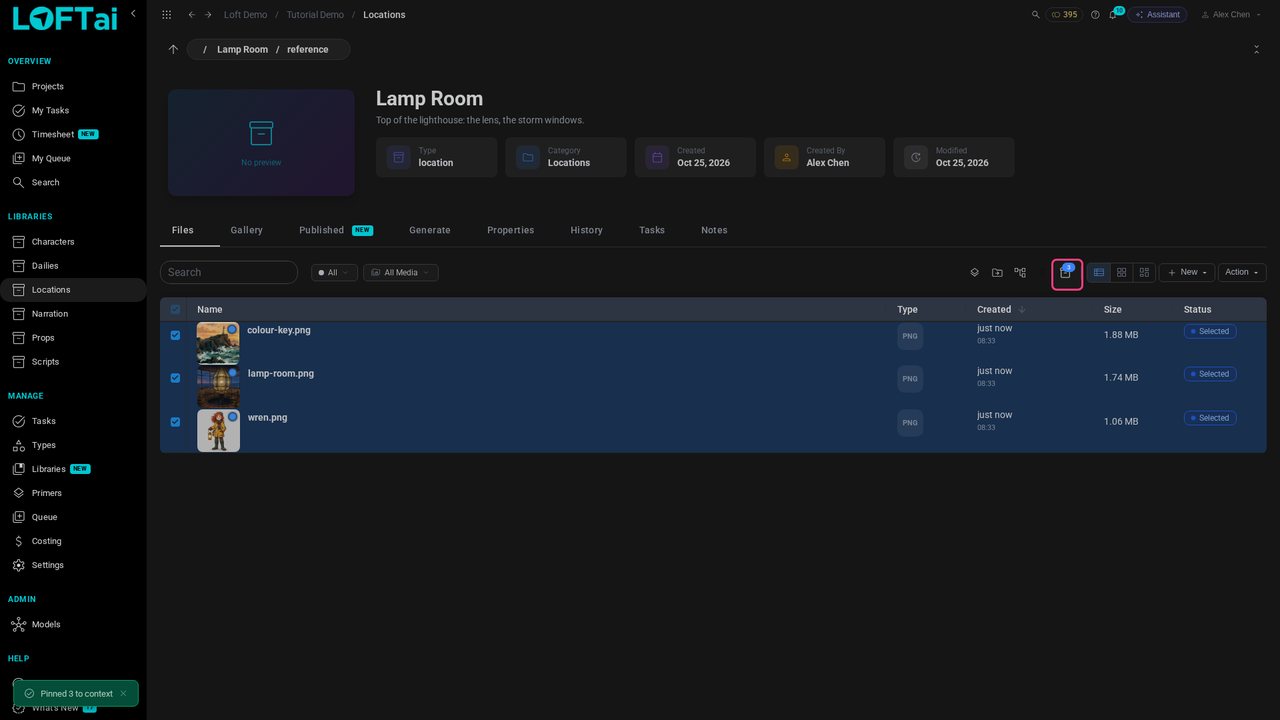
Close the viewer, select all three and click the pin button. Pins are your working set for the project: the box next to it counts them, and they are one click away whenever you pick inputs.
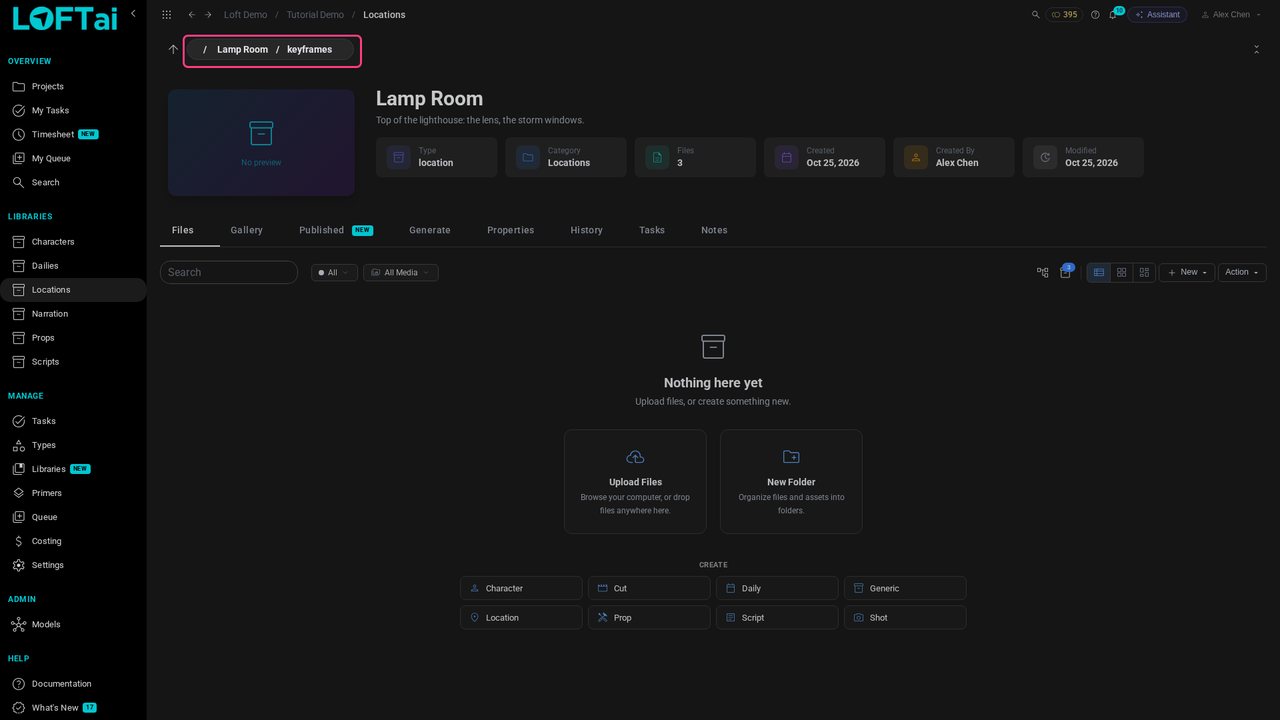
Now go to where the new image should land: click Lamp Room in the breadcrumb and open keyframes. Whatever you generate from here is saved in this folder.
Open Generate and filter on Image to Image: these models take images as well as a prompt. Choose Nano Banana 2 Edit.
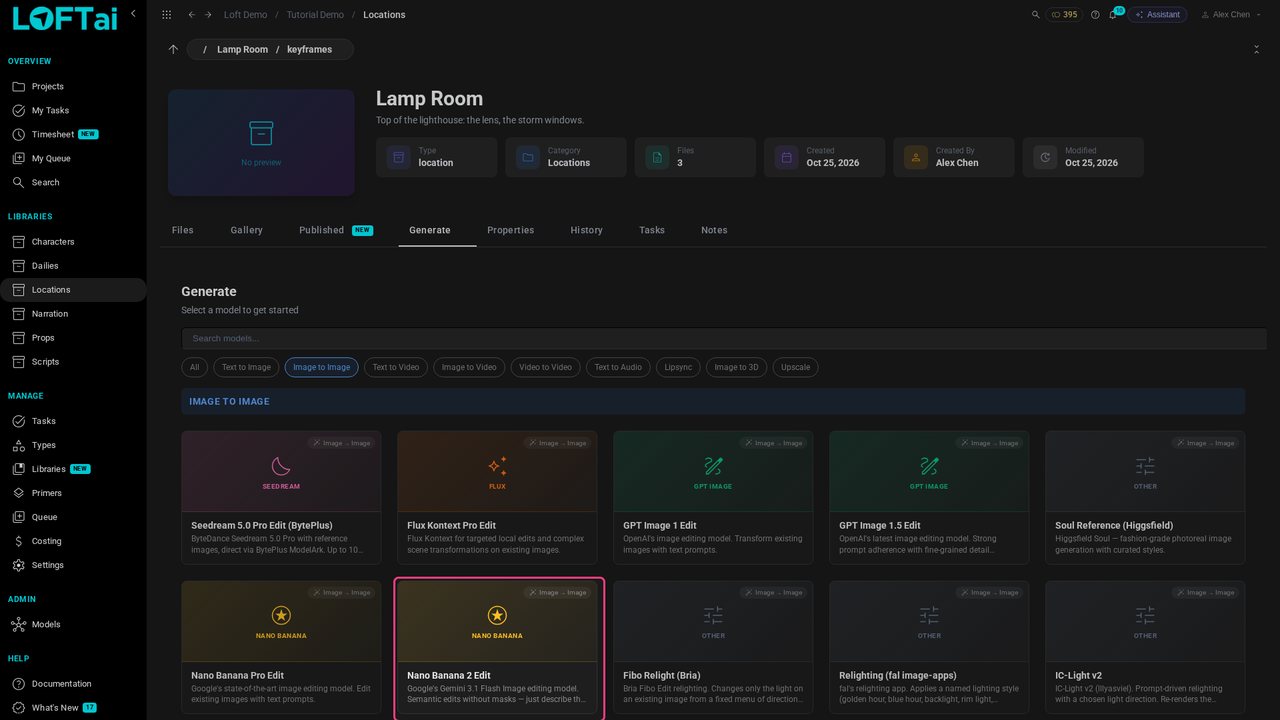
The model's form opens with a slot for Input Images. Click it to choose them.
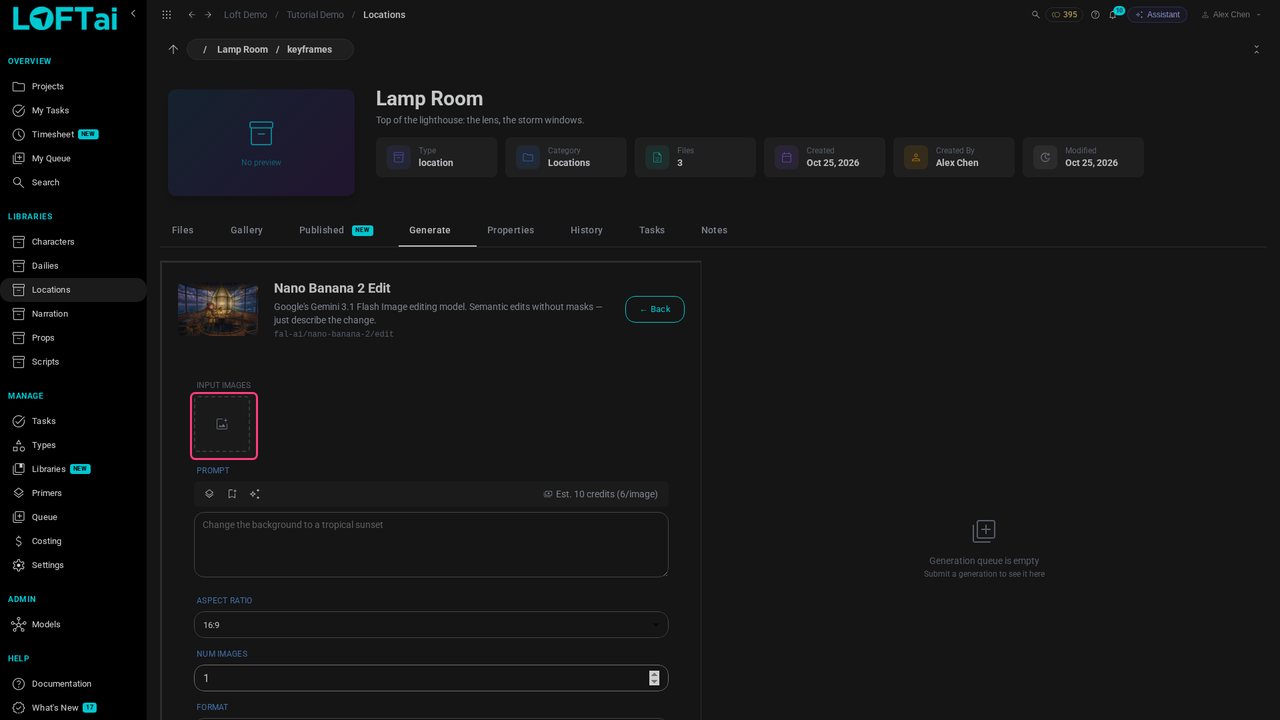
Click Pinned: there are the three references. The library pills next to it browse anywhere else in the project instead.
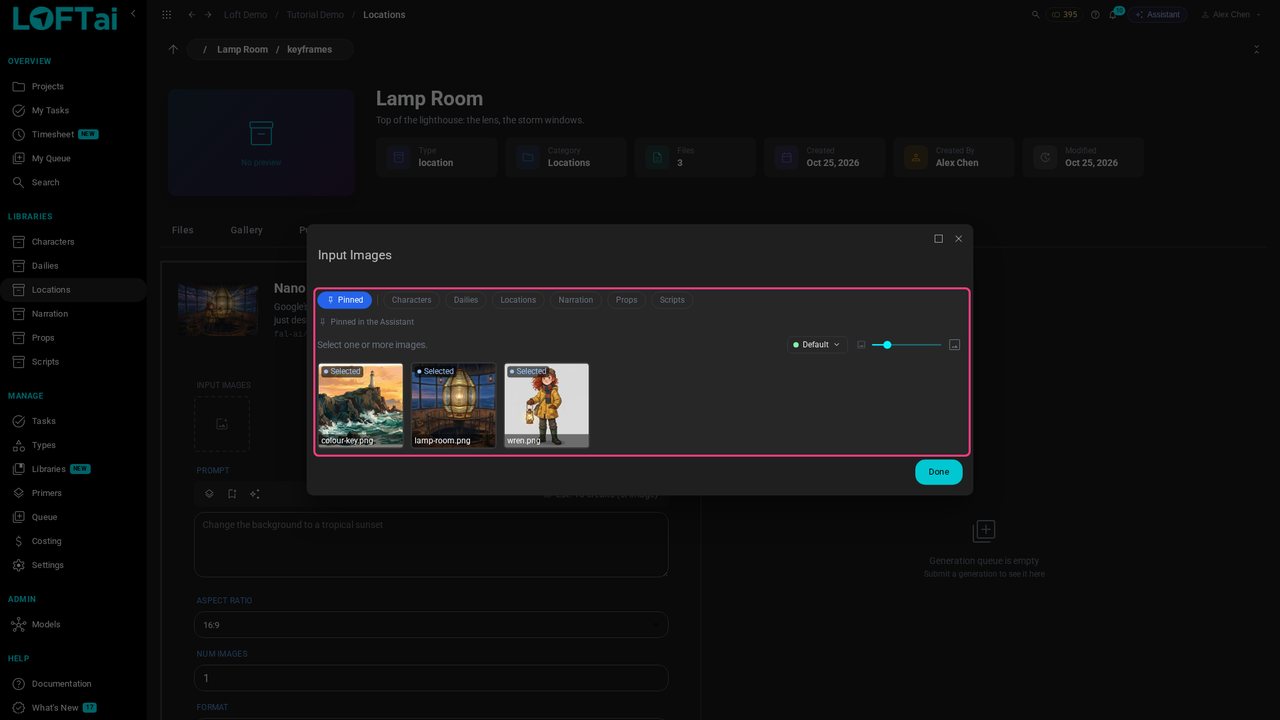
Click Wren and the lamp room. Each gets a badge in the order you picked: @Image1, @Image2.
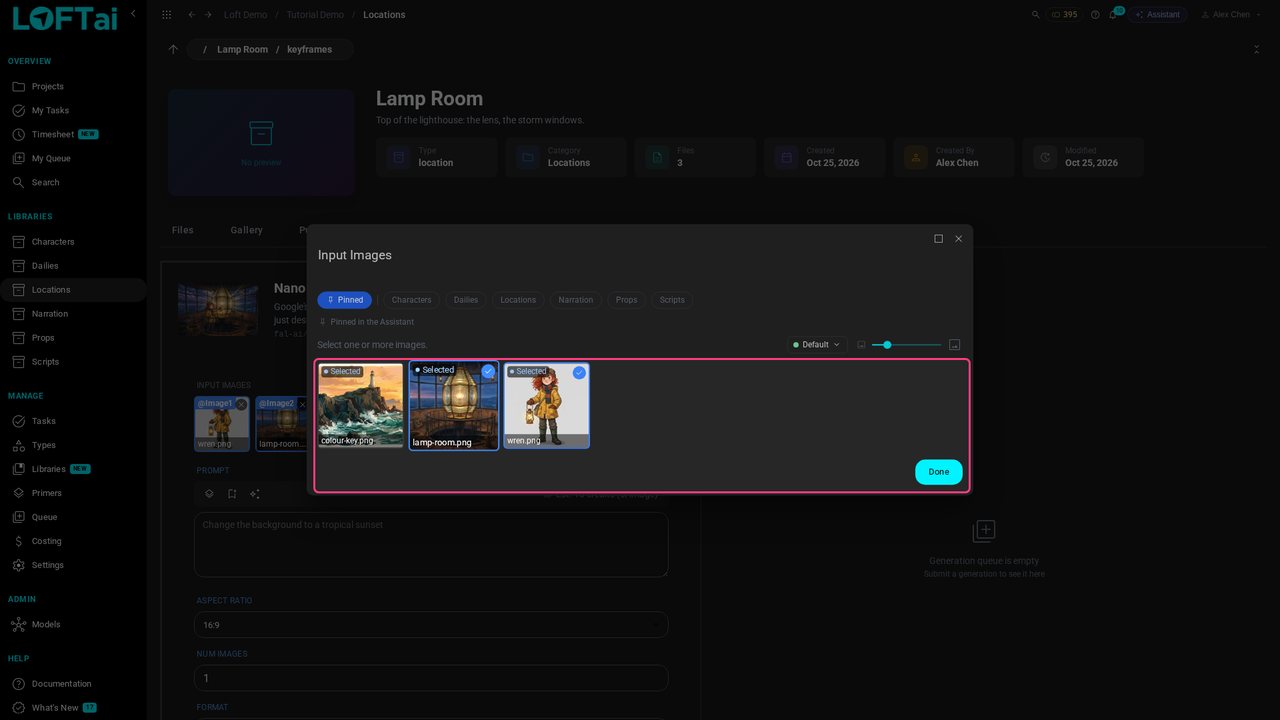
Click Done. In the prompt, name each badge to say what it is for: Wren from @Image1 stands in the lamp room from @Image2.
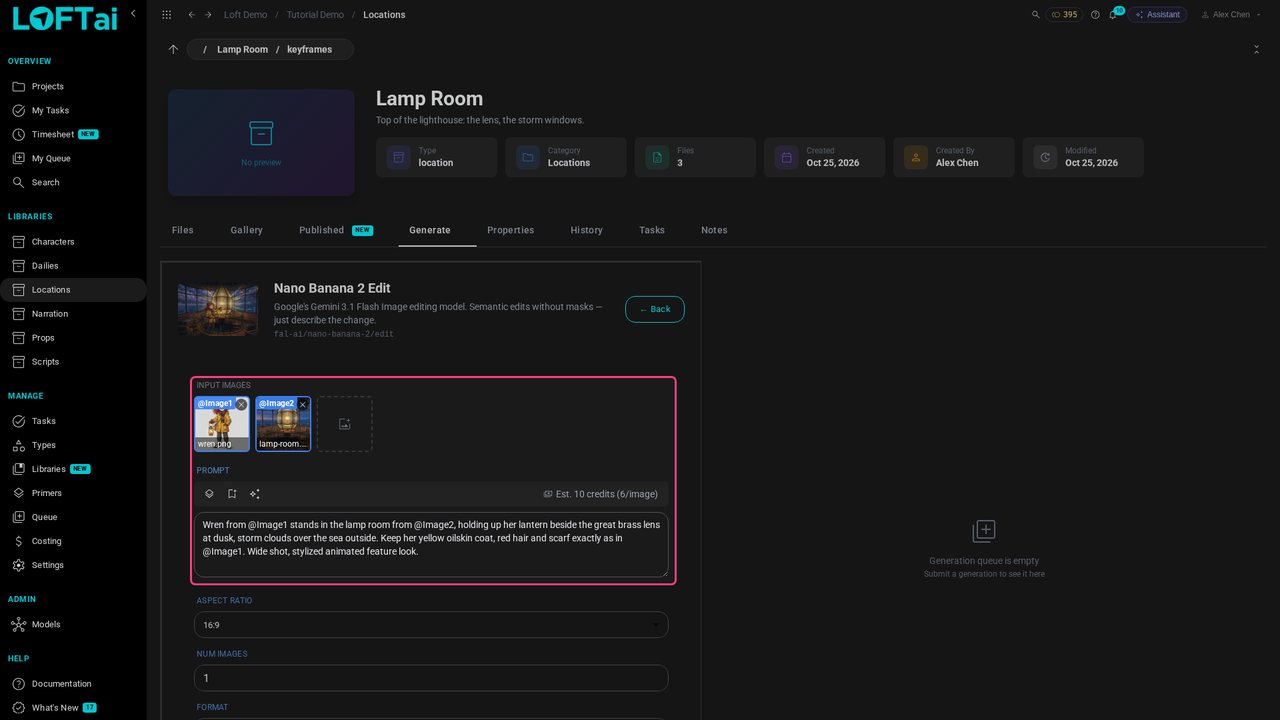
Click Generate. The request joins the queue on the right; you can keep working while it runs.
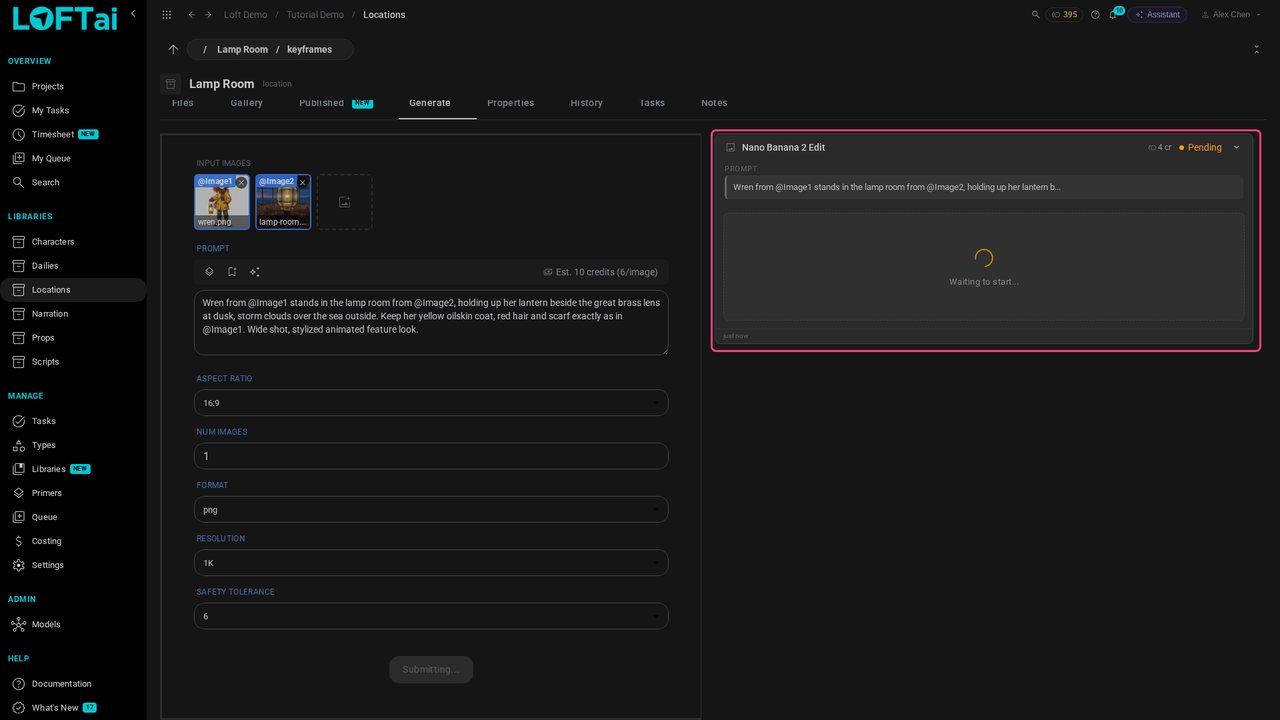
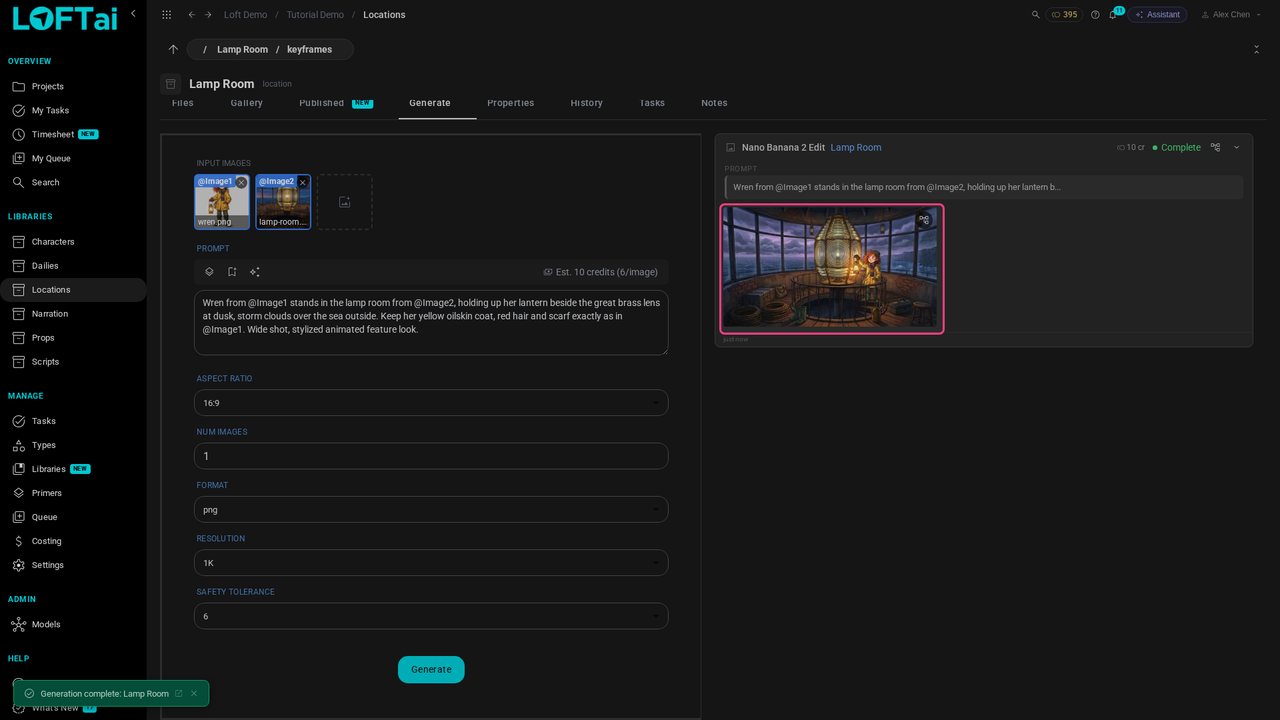
A few seconds later the image is in. Wren, in her coat, in the lamp room, from two references and one line of prompt.
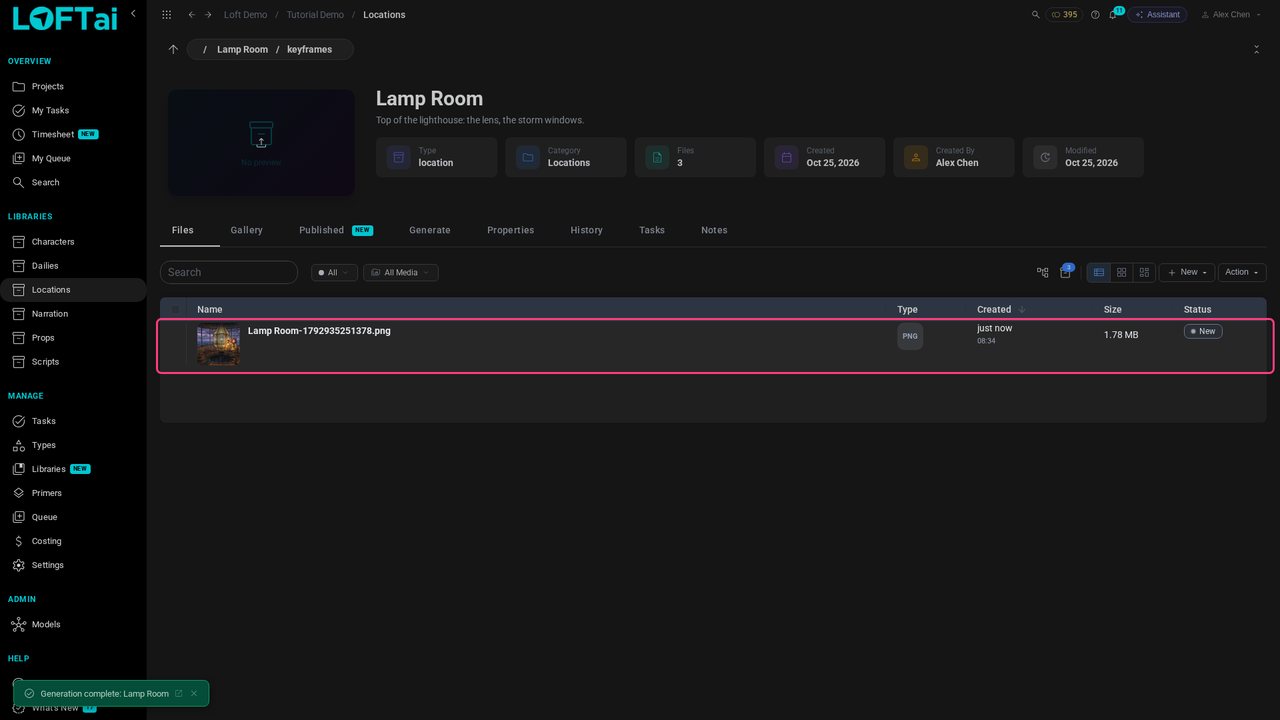
Open Files: the image is in keyframes, the folder you generated from.
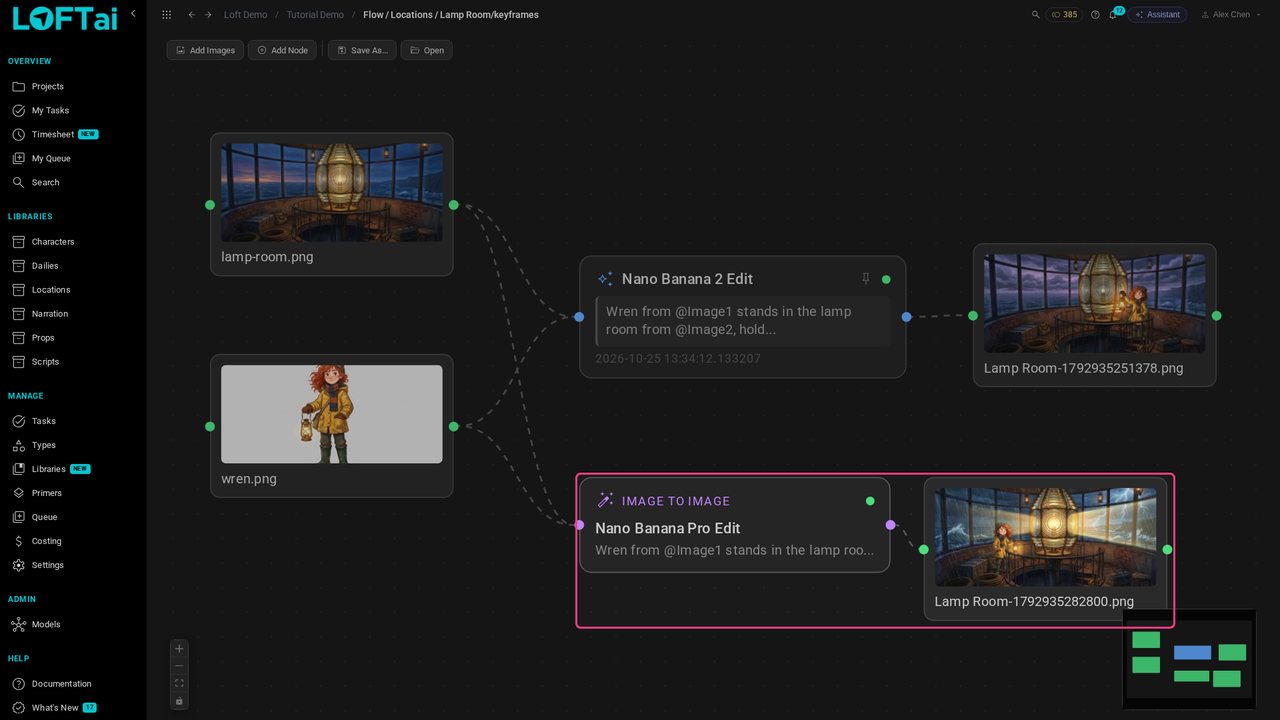
Select the image and click View generation flow. The flow is the image's history as a graph: the references on the left, the generation in the middle, the result on the right.
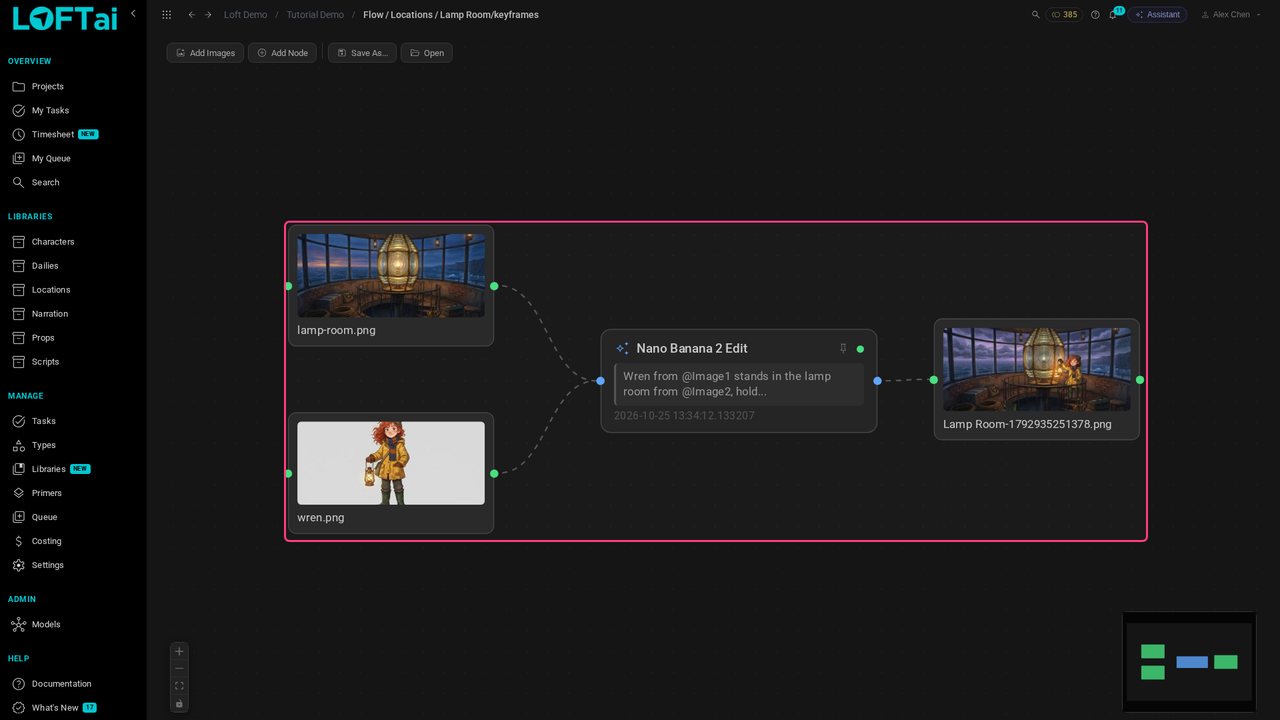
Click the action node. It records exactly what was used: the model, every input and the full prompt. Any image made in Loft can be traced this way.
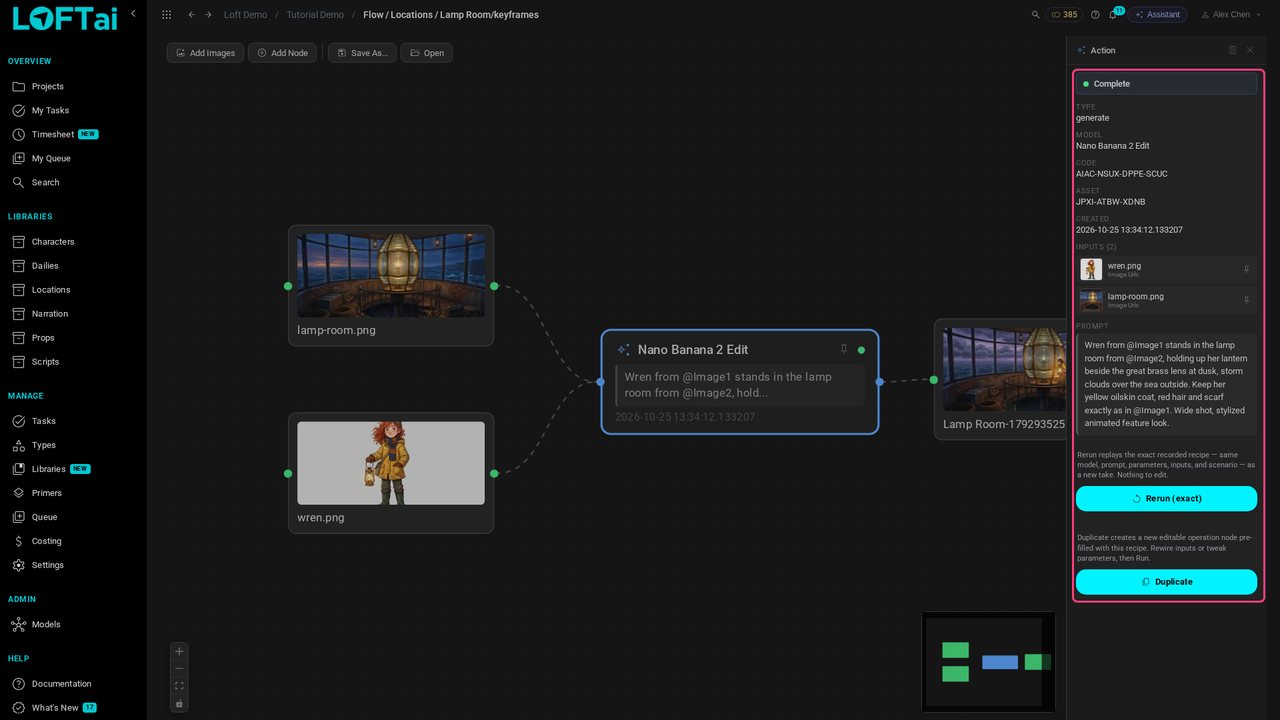
Rerun makes the same image again. Duplicate instead adds an editable copy, wired to the same references, so you can change it before it runs.
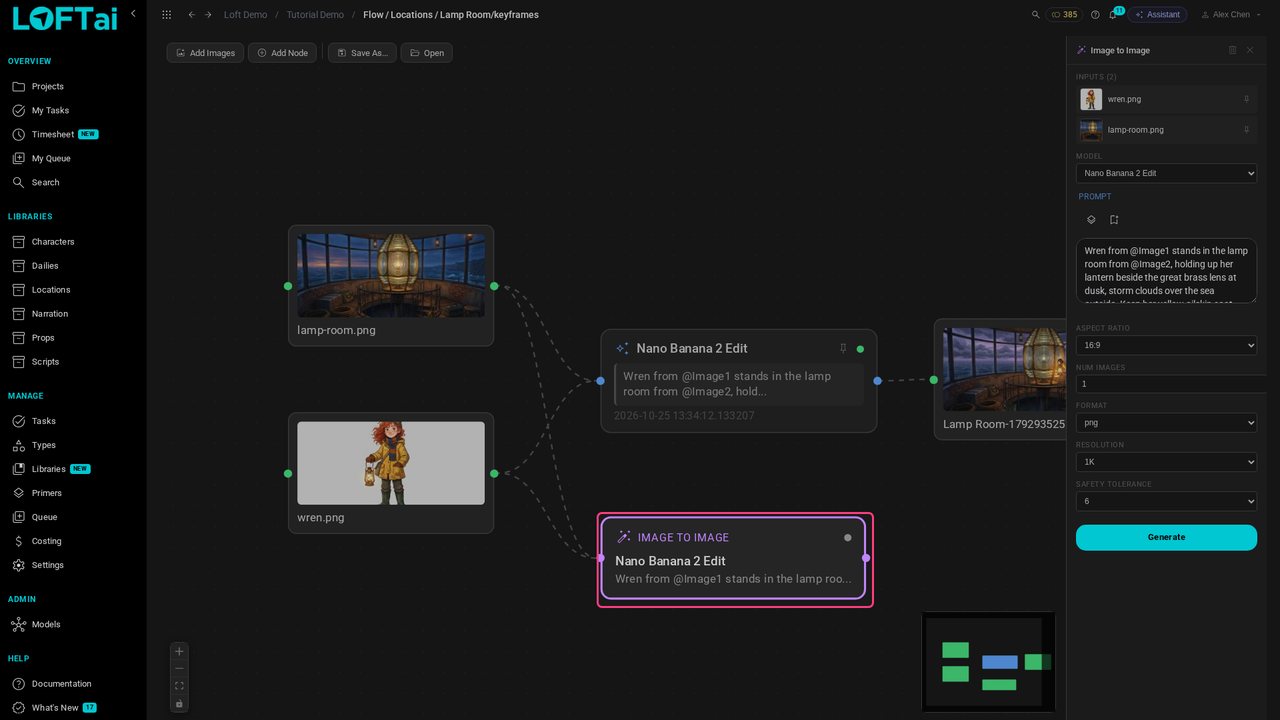
Pick another model, Nano Banana Pro Edit, and adjust the prompt: the same scene at night, in a storm.
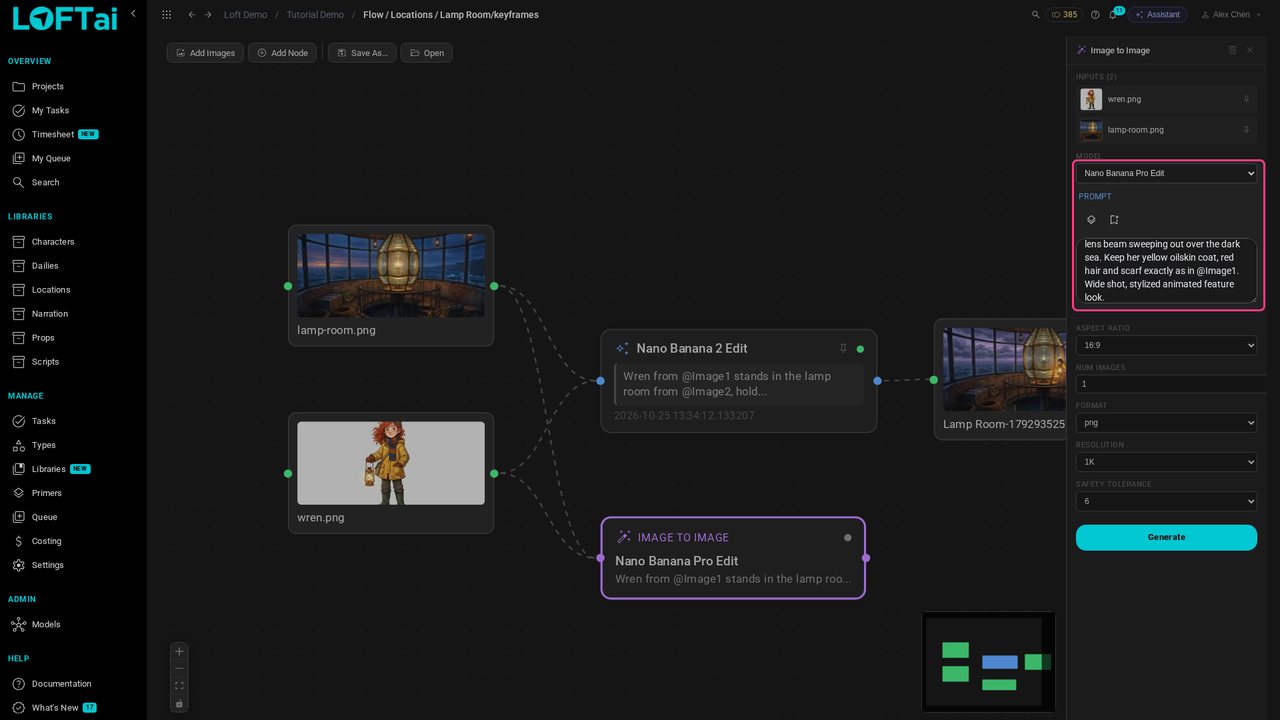
Click Generate. The new image hangs off the copy, so the flow shows both versions and what each came from. It is saved in keyframes too.
Up next in Make and review the work
The Assistant is how you direct work in Loft: say what you want in plain language, and it picks the model, uses the right references, and files the result on the shot. The project's and the shot's playbooks hold the intent, so a short request is enough. This tutorial follows one shot from keyframe to video, with a correction and a character reference on the way.
In the playlists Make and review the work.