
STEP 01
A project in production
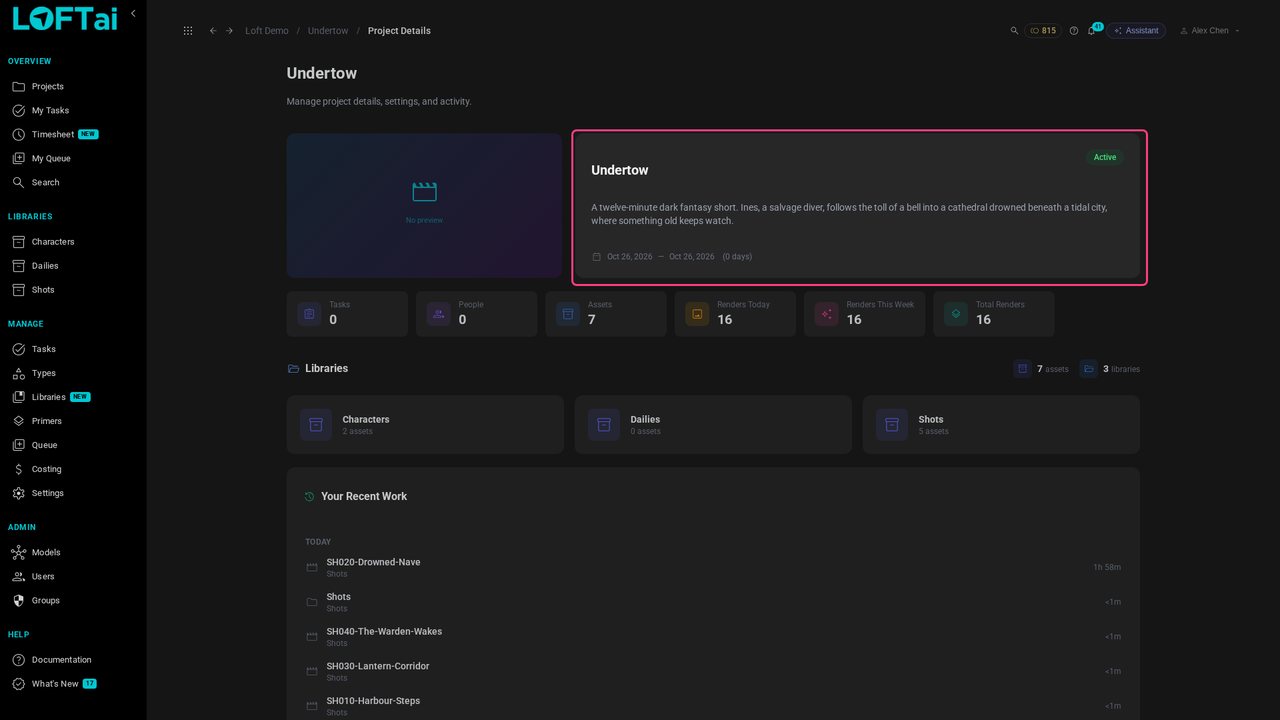
Undertow is a short in production: shots, characters, and a keyframe for each shot. Everything in this tutorial is done by asking the Assistant, the way a director works with a crew.
Tutorials/Make and review the work
The Assistant is how you direct work in Loft: say what you want in plain language, and it picks the model, uses the right references, and files the result on the shot. The project's and the shot's playbooks hold the intent, so a short request is enough. This tutorial follows one shot from keyframe to video, with a correction and a character reference on the way.
Follow along
Undertow is a short in production: shots, characters, and a keyframe for each shot. Everything in this tutorial is done by asking the Assistant, the way a director works with a crew.
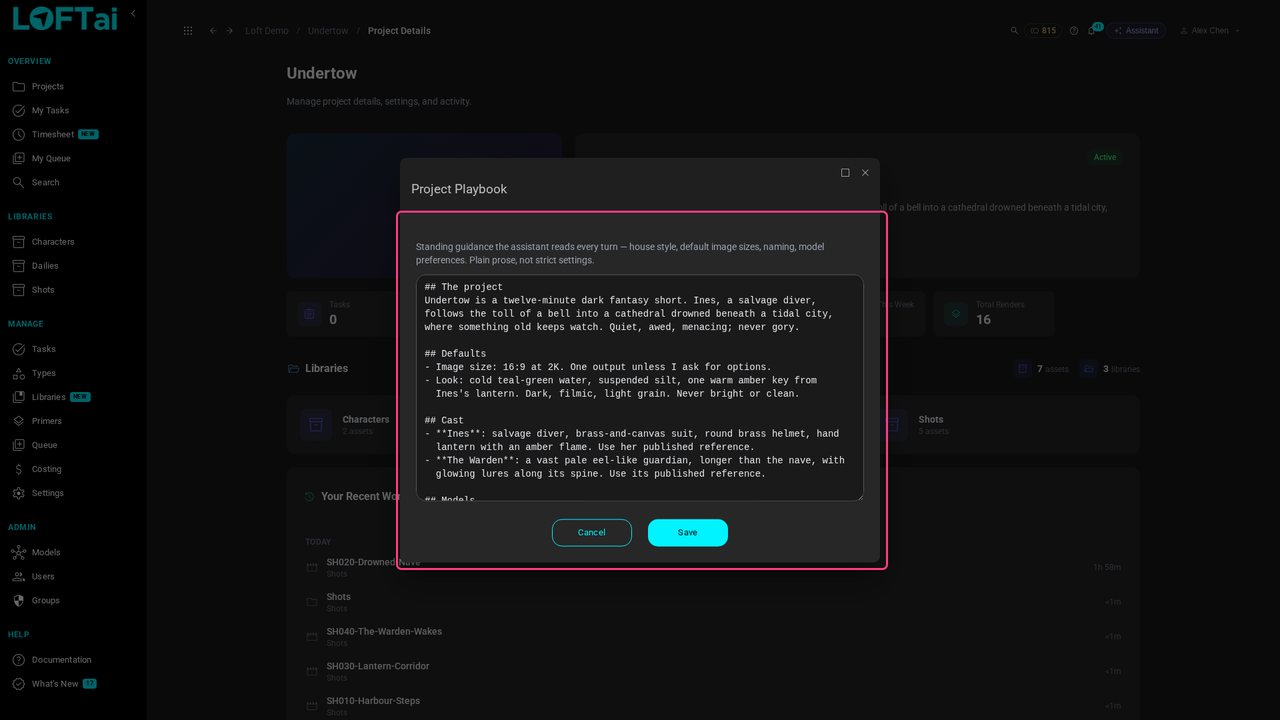
The Project Playbook is the house style the Assistant reads before every request: the look, the cast, which model to use for what. Write it once, and you never have to repeat it.
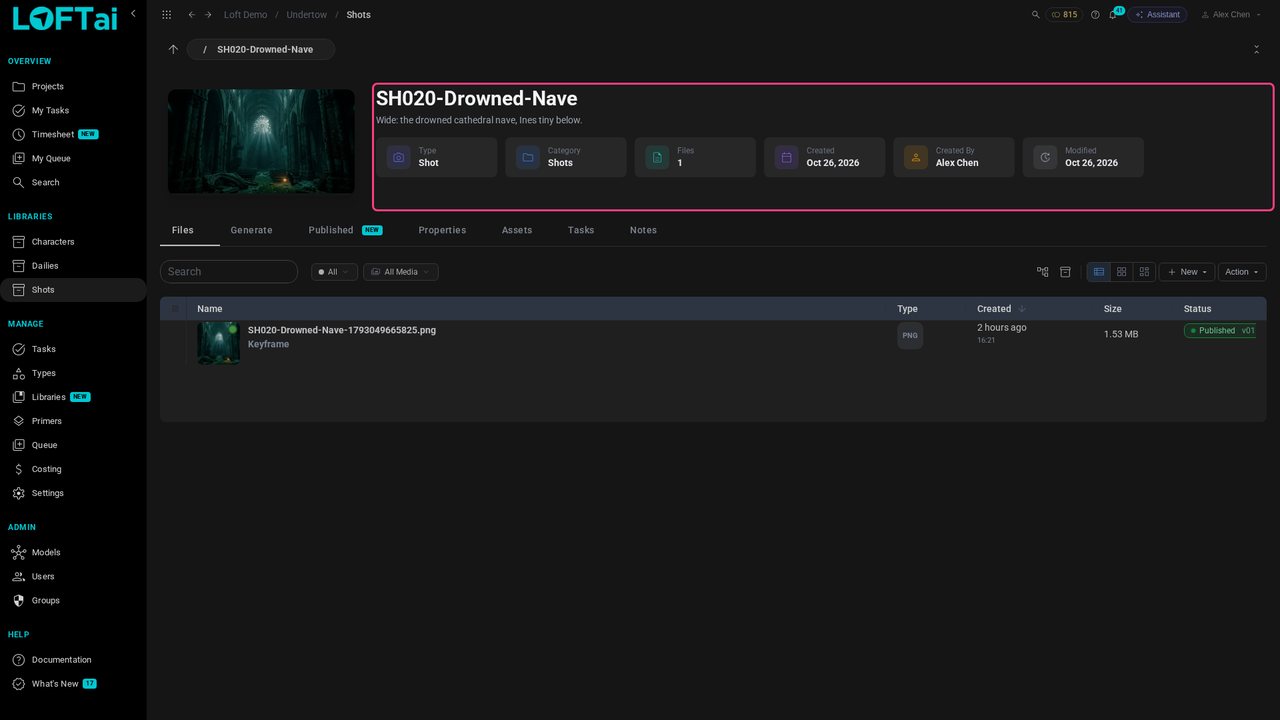
Open the shot to work on: SH020-Drowned-Nave. Its keyframe is already published.
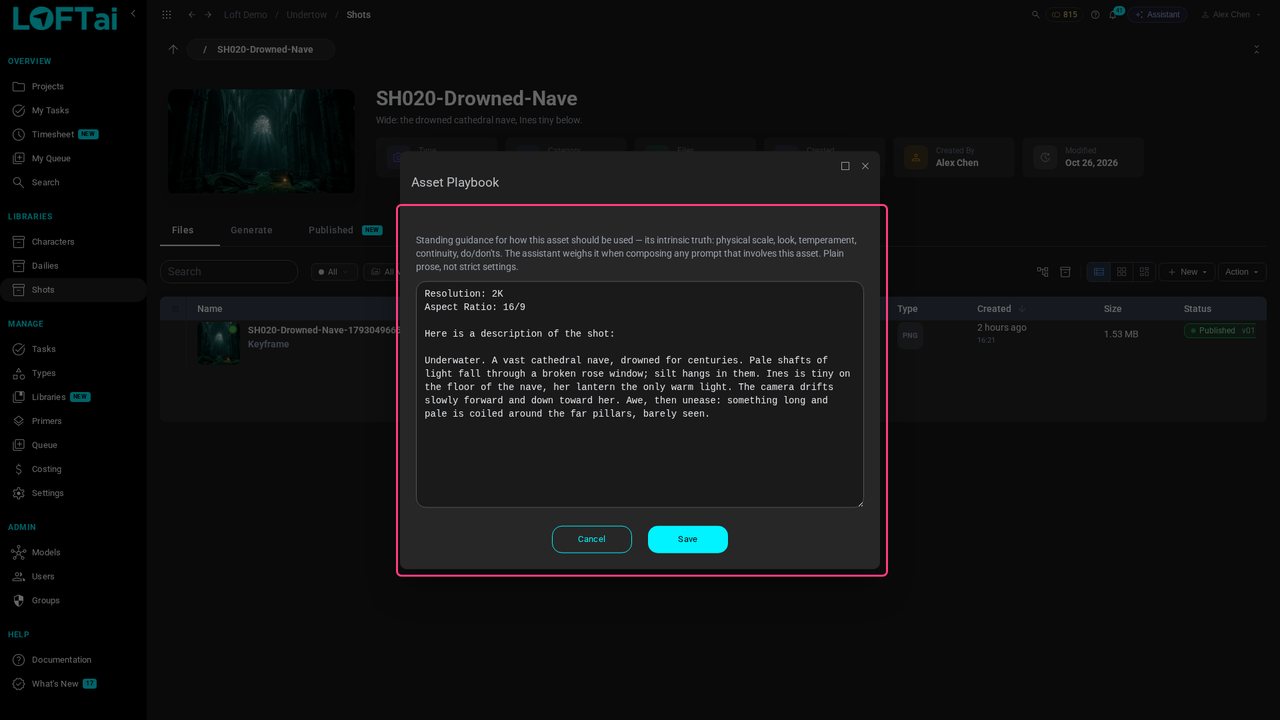
Each shot has a playbook too: resolution, aspect ratio, and what happens in the shot. This is the intent. When you say this shot, this is what the Assistant works from.
Click Assistant. It knows which project and shot you're on, and which files you have selected.
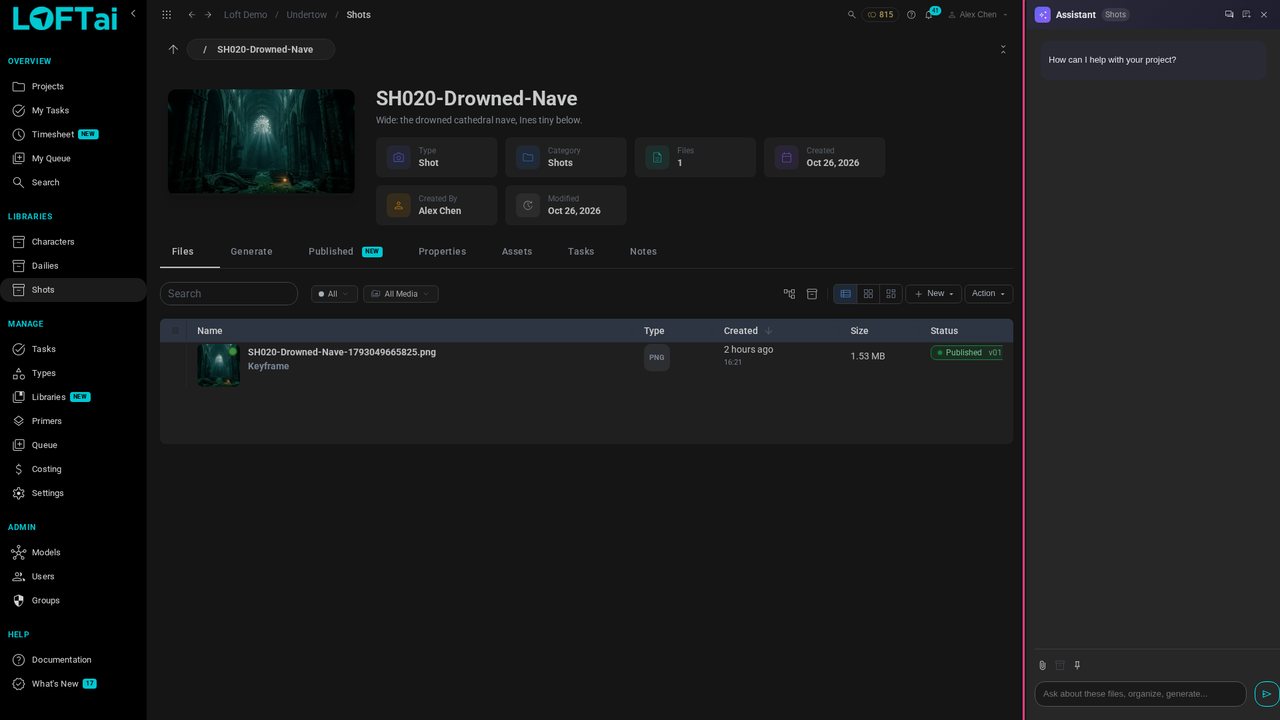
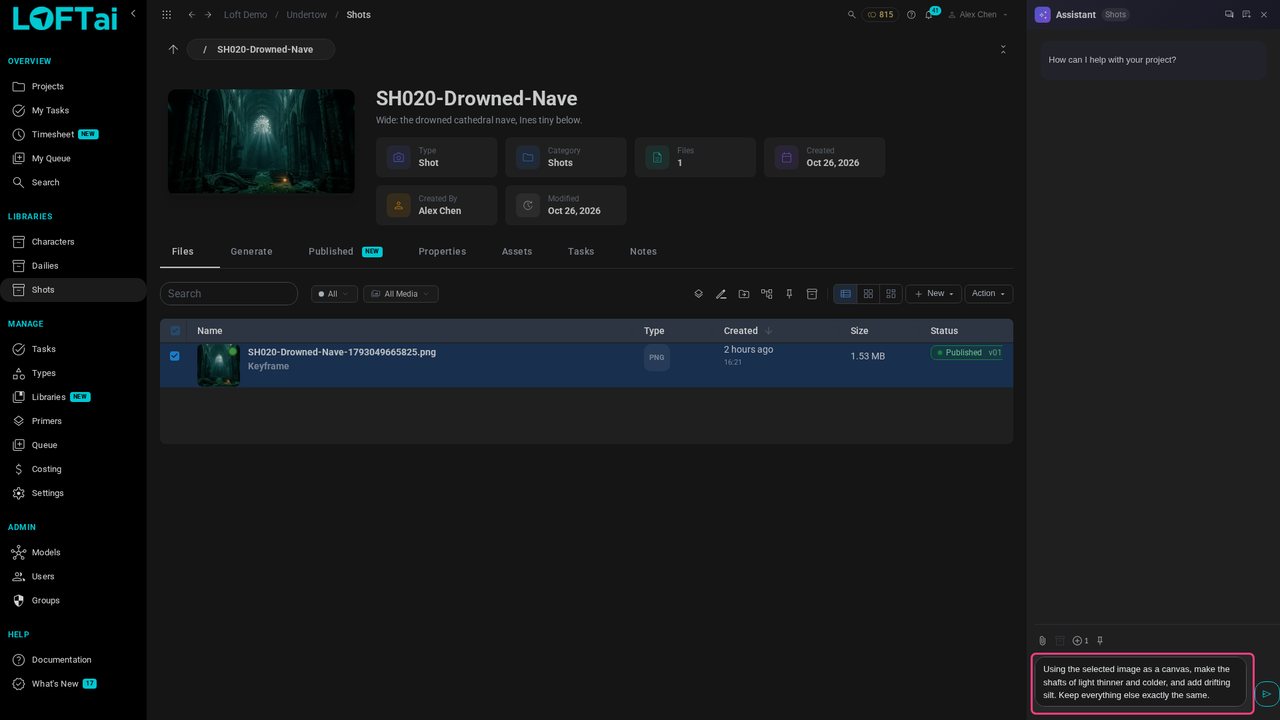
Select the keyframe and say what to change. Using the selected image as a canvas means: edit this frame, don't start over.
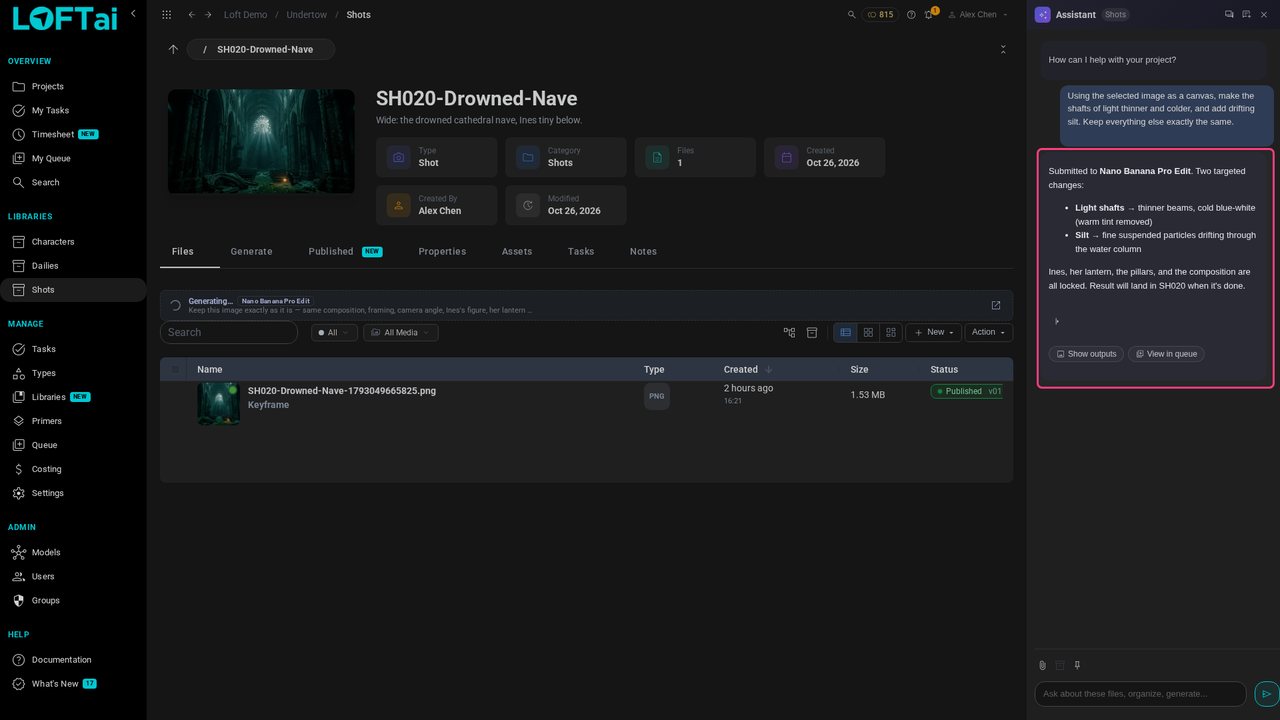
The Assistant chose Nano Banana Pro Edit, because the playbook says so, and says what it kept locked.
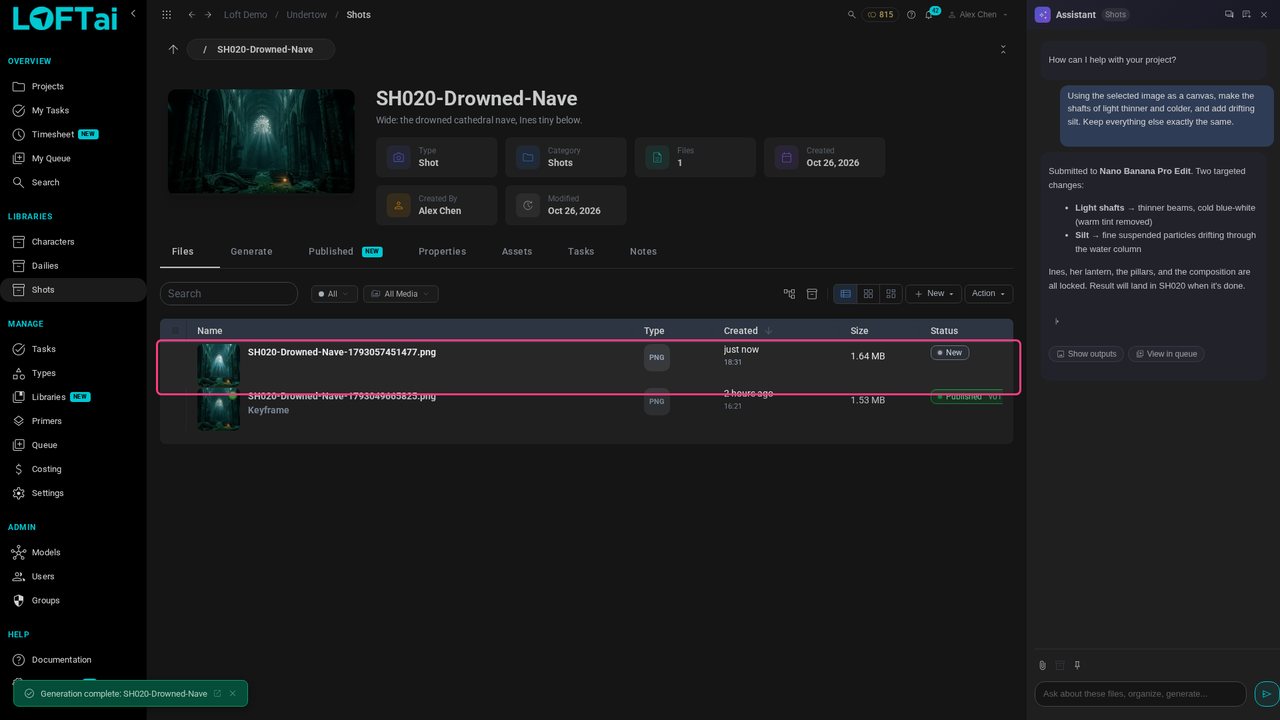
The new image is filed on the shot, next to the keyframe. No downloads, no renaming.
Not quite right? Say so. The Assistant remembers what you asked for, so a correction can be one line.
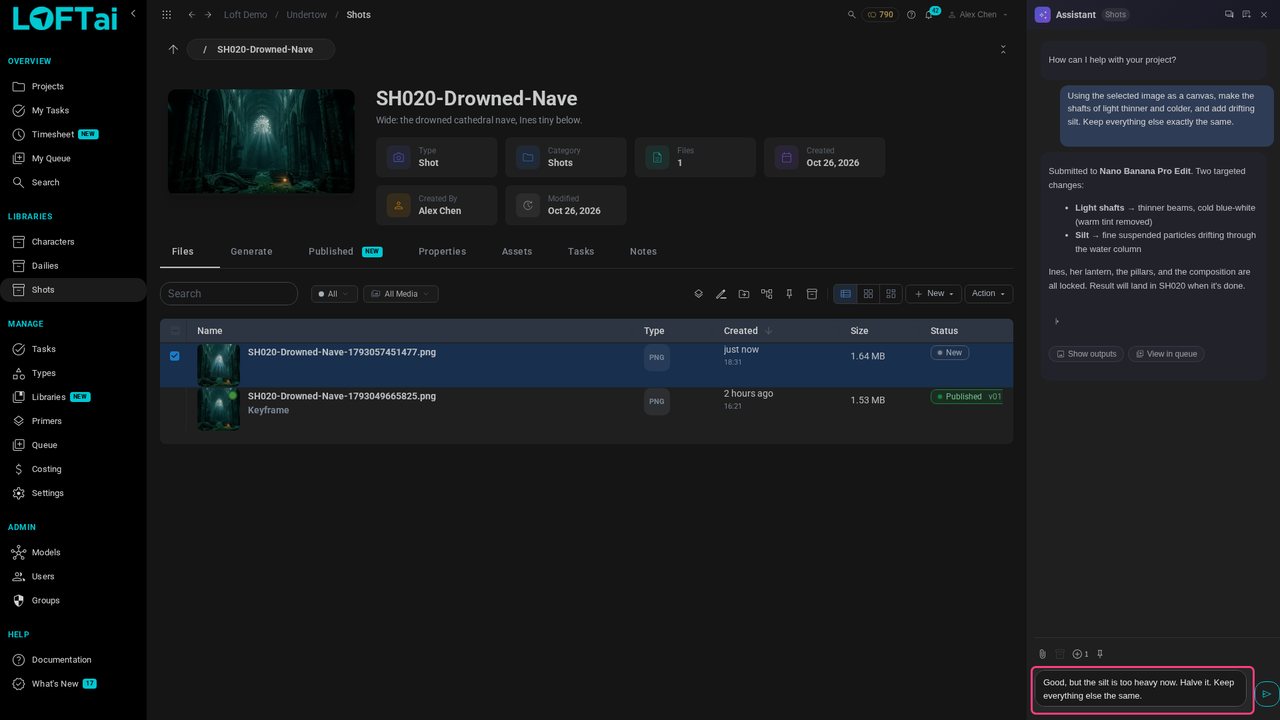
The corrected take lands on top. Every take stays, so you can go back to any of them.
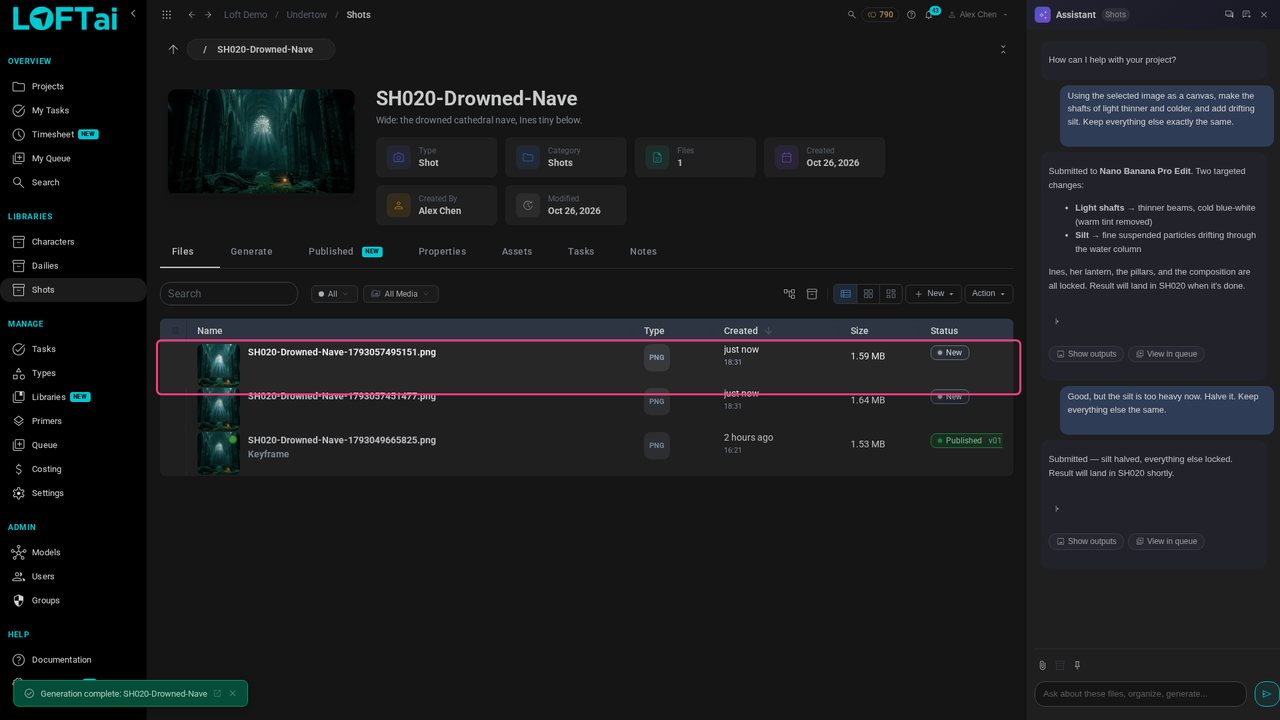
Ines is in this shot's cast, so name her and the Assistant uses her published reference from the Characters library. She looks the same in every shot.
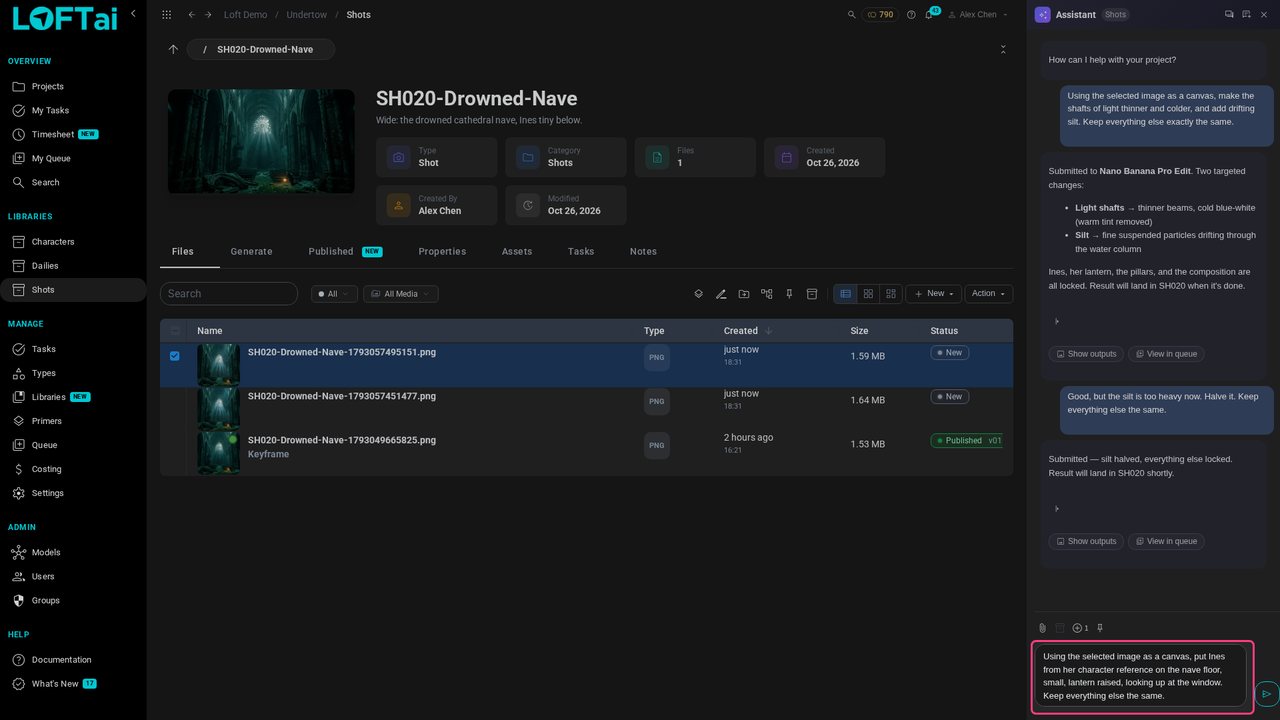
Ines is placed in the frame from her reference, and nothing else has moved.
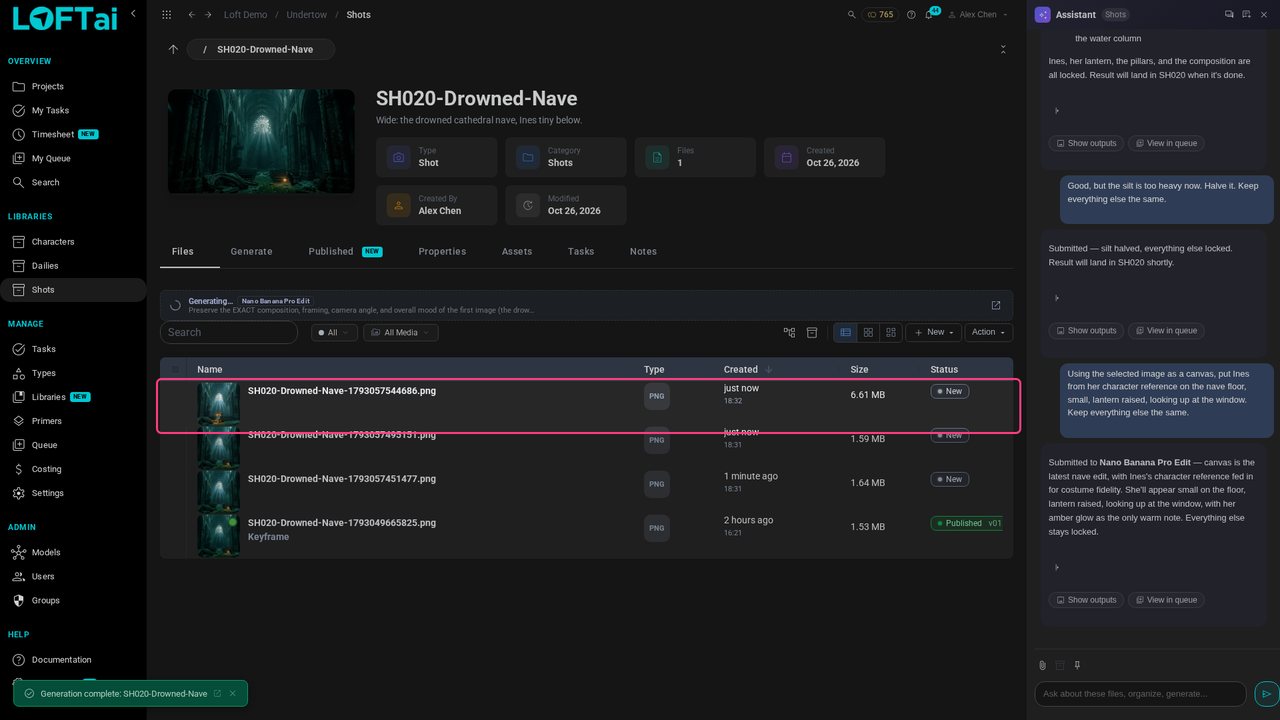
Ask for a description and it's written onto the file, where search and the rest of the team can find it.
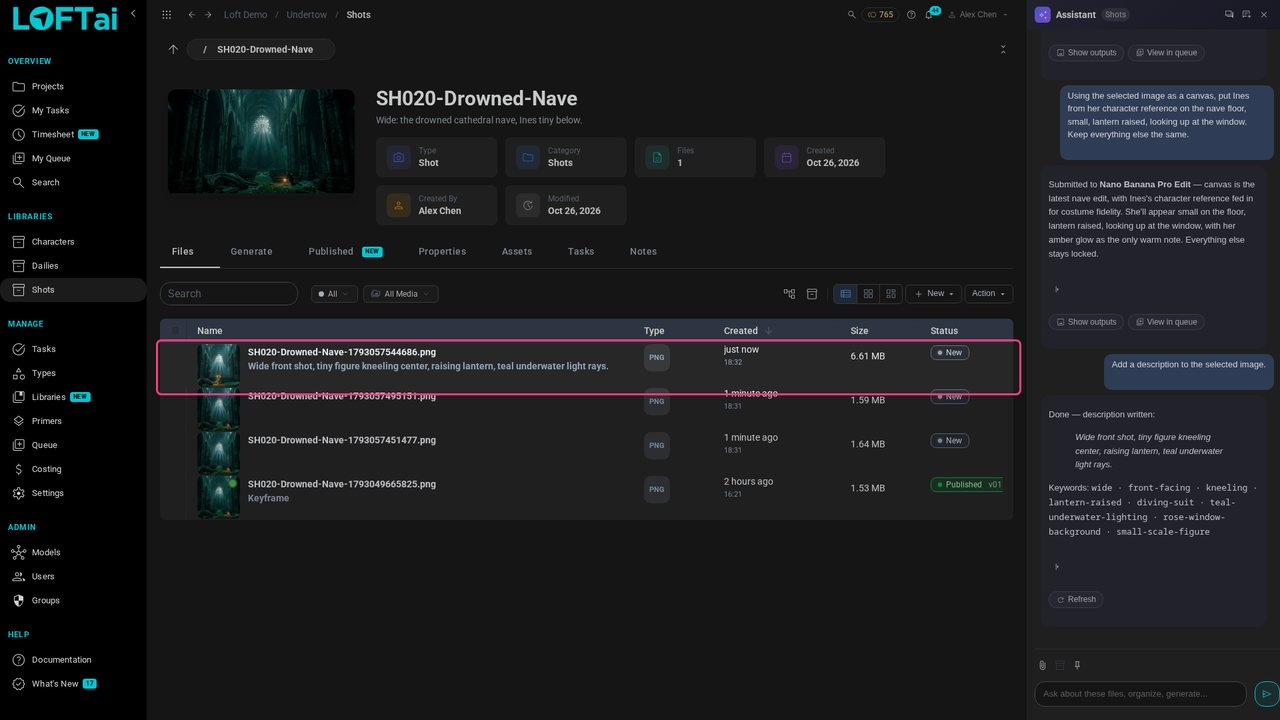
Now ask for a video for this shot. The selected frame is the first frame; the camera move comes from the shot's playbook, and the model from the project's.
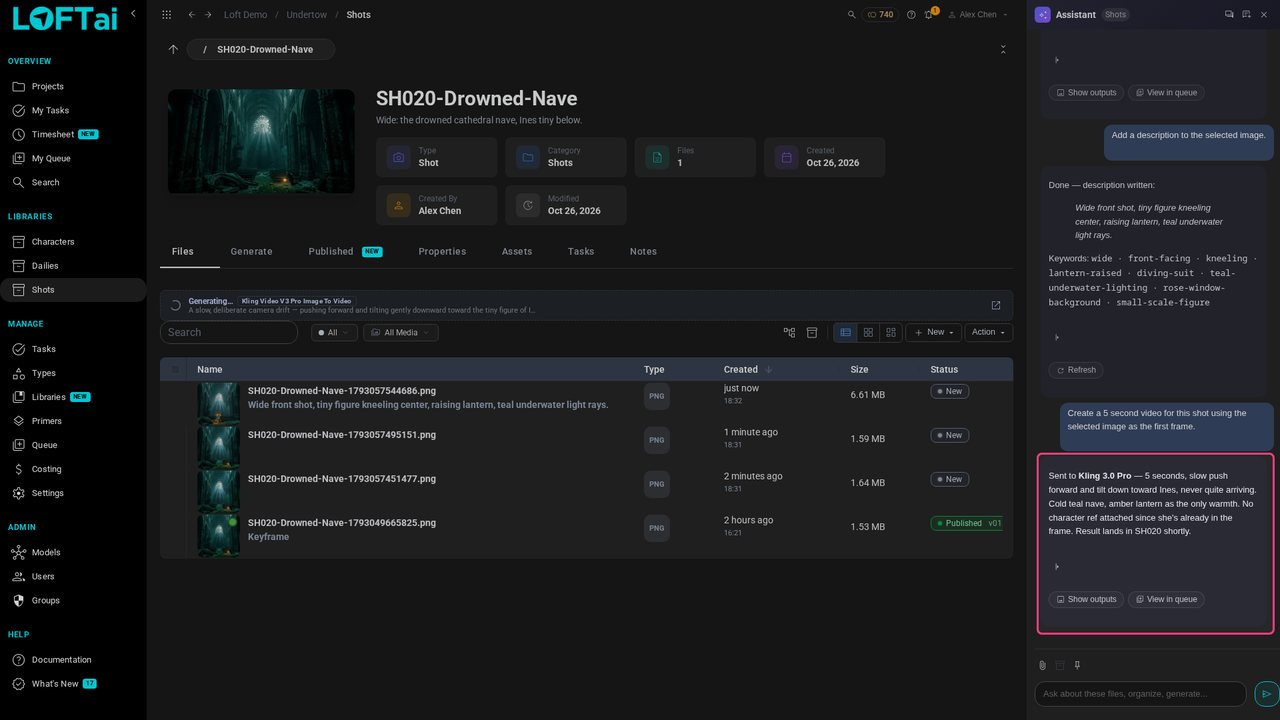
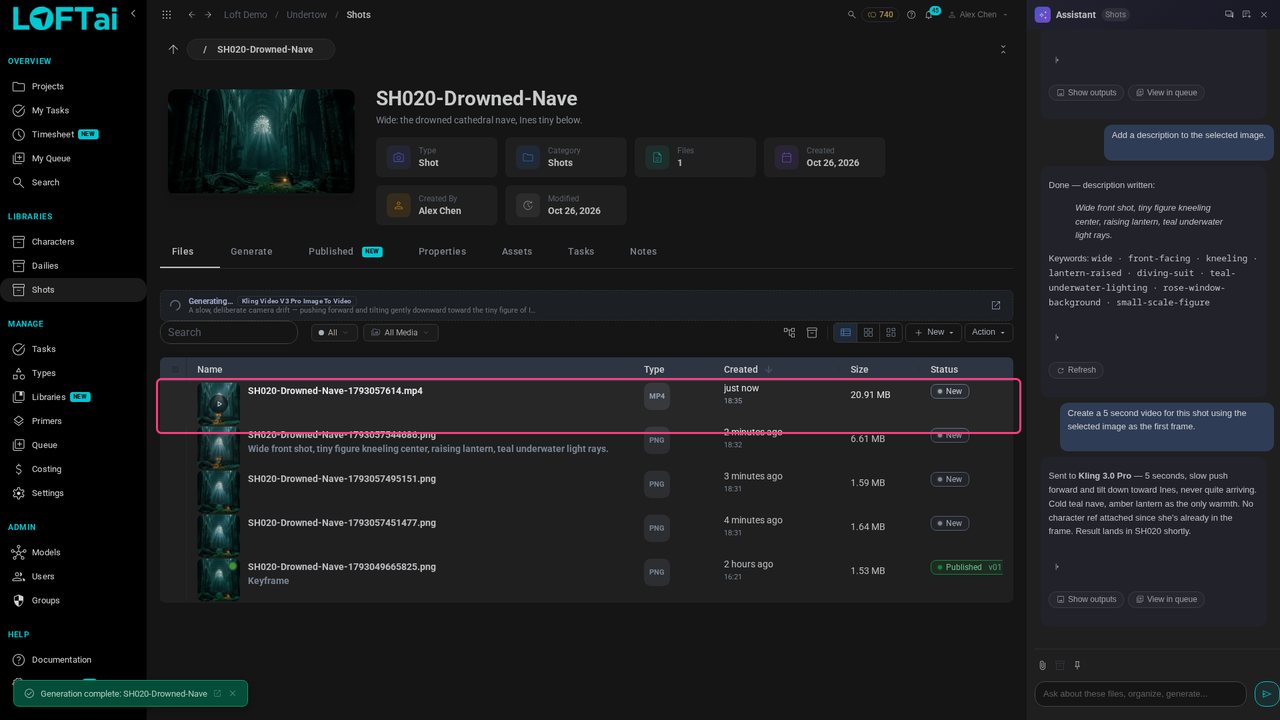
A few minutes later the video lands on the shot like everything else.
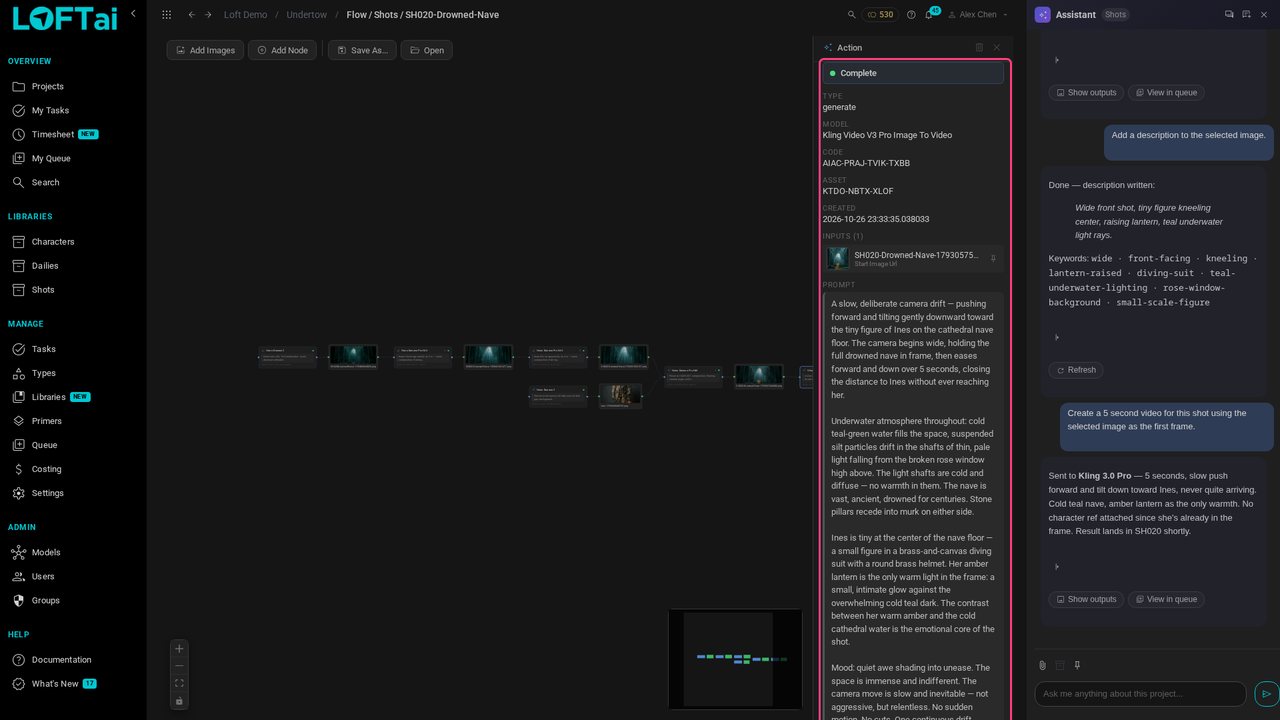
Select the video and click View generation flow. The prompt the Assistant wrote is on file, with the model and the frame it started from. Anyone can see how it was made, or rework it.
Up next in Make and review the work
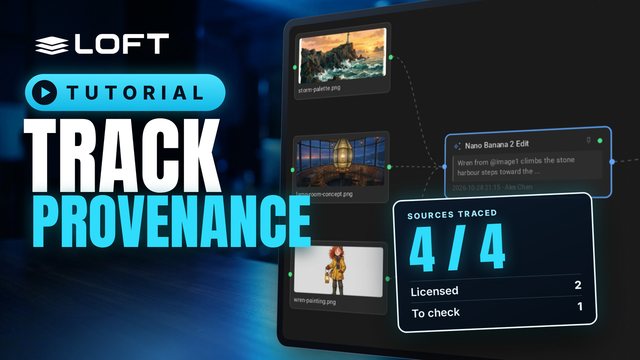
Studios, guilds, insurers and regulators now ask the same question of AI-assisted work: what is it made from, who made it, and were you allowed to use it? Loft keeps that record as you work. This tutorial brings in three sources, generates and publishes a keyframe from them, and then follows the record: every action, every input, and every licence, with nothing typed in by hand.
In the playlists Make and review the work.