
STEP 01
Open the project
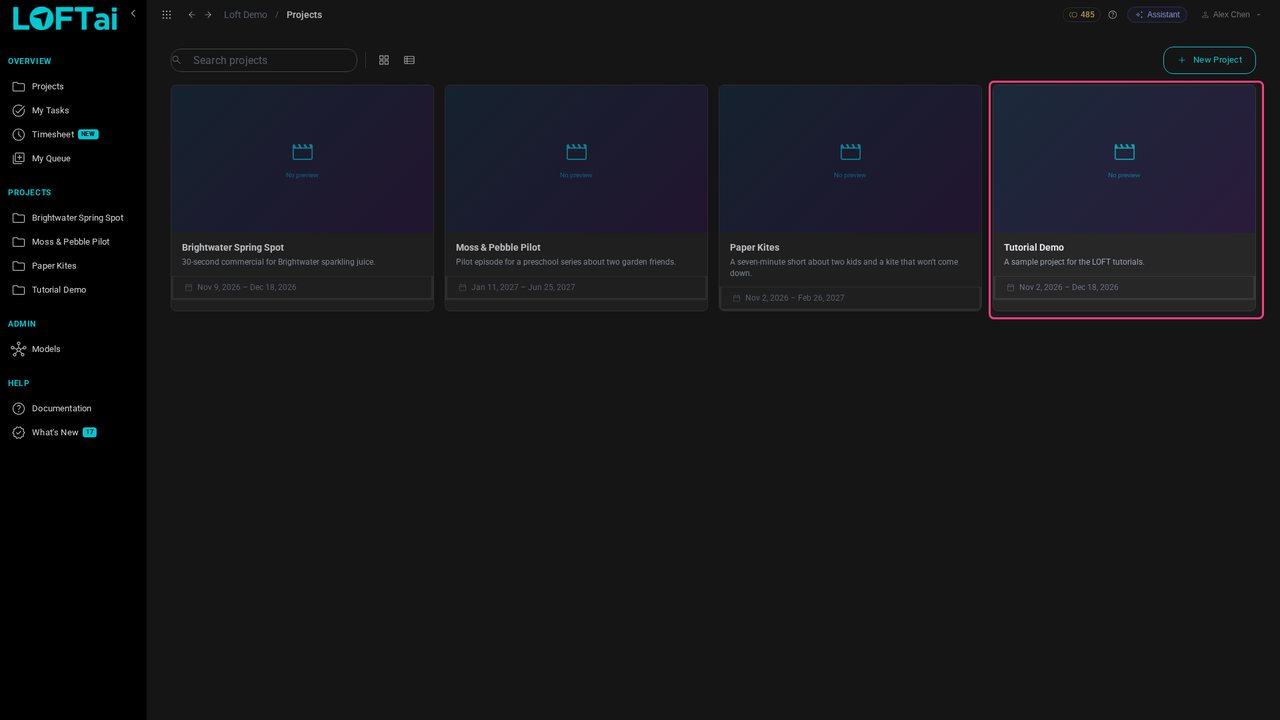
Open the project whose assets you want to organise. We'll use Tutorial Demo.
Tutorials/Make and review the work
Everything in a Loft project is an asset, and every asset lives in a library. Folders keep a library tidy; the asset type decides what an asset gets. This tutorial makes folders, creates a character and a location, adds a library of its own, and defines a new asset type with the folders it should start with.
Follow along
Open the project whose assets you want to organise. We'll use Tutorial Demo.
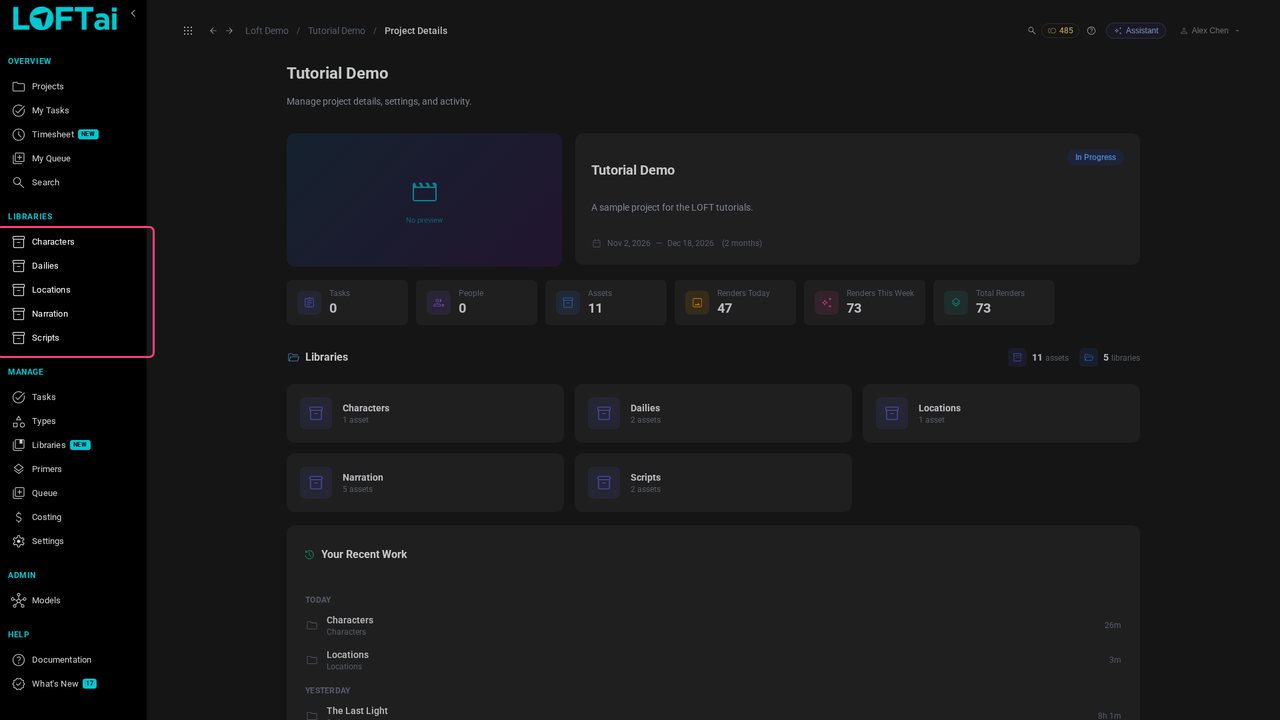
A project keeps its assets in libraries, listed in the sidebar: Characters, Locations, Scripts and the rest. A library can hold any kind of asset; the names are yours to choose.
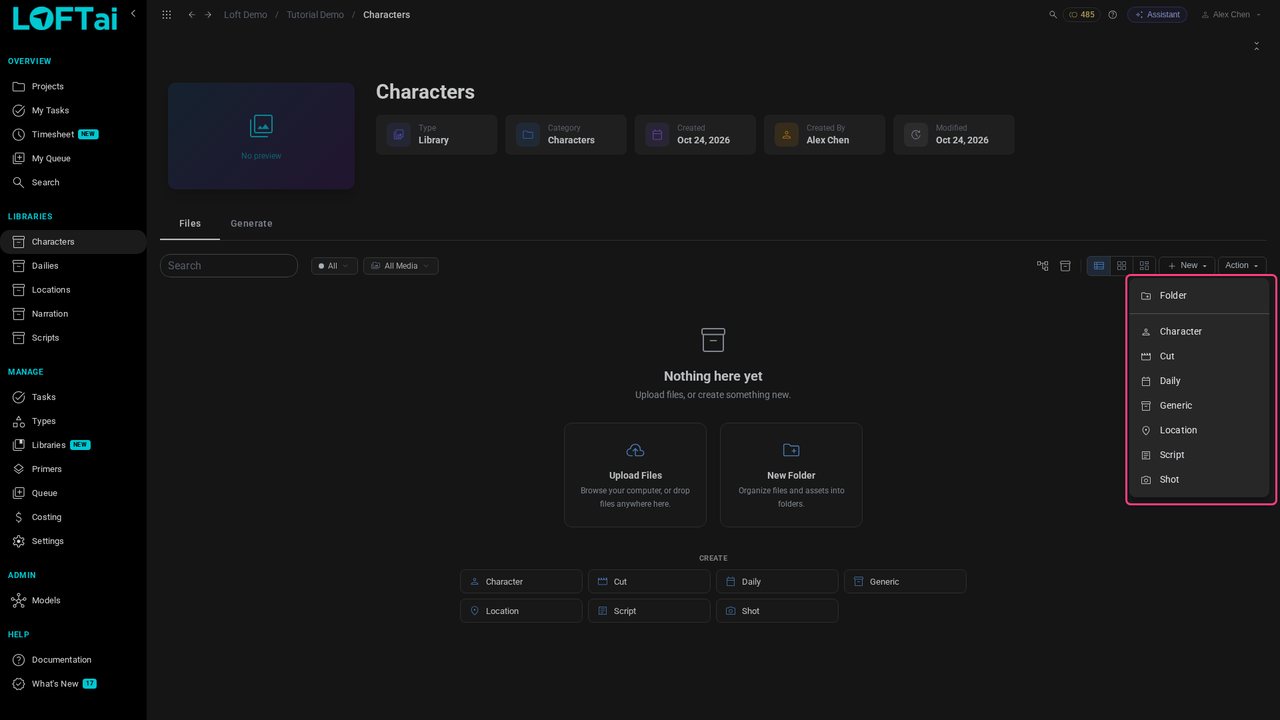
Open Characters and click New. The menu offers a Folder, then one entry per asset type: Character, Location, Script, Shot and the rest.
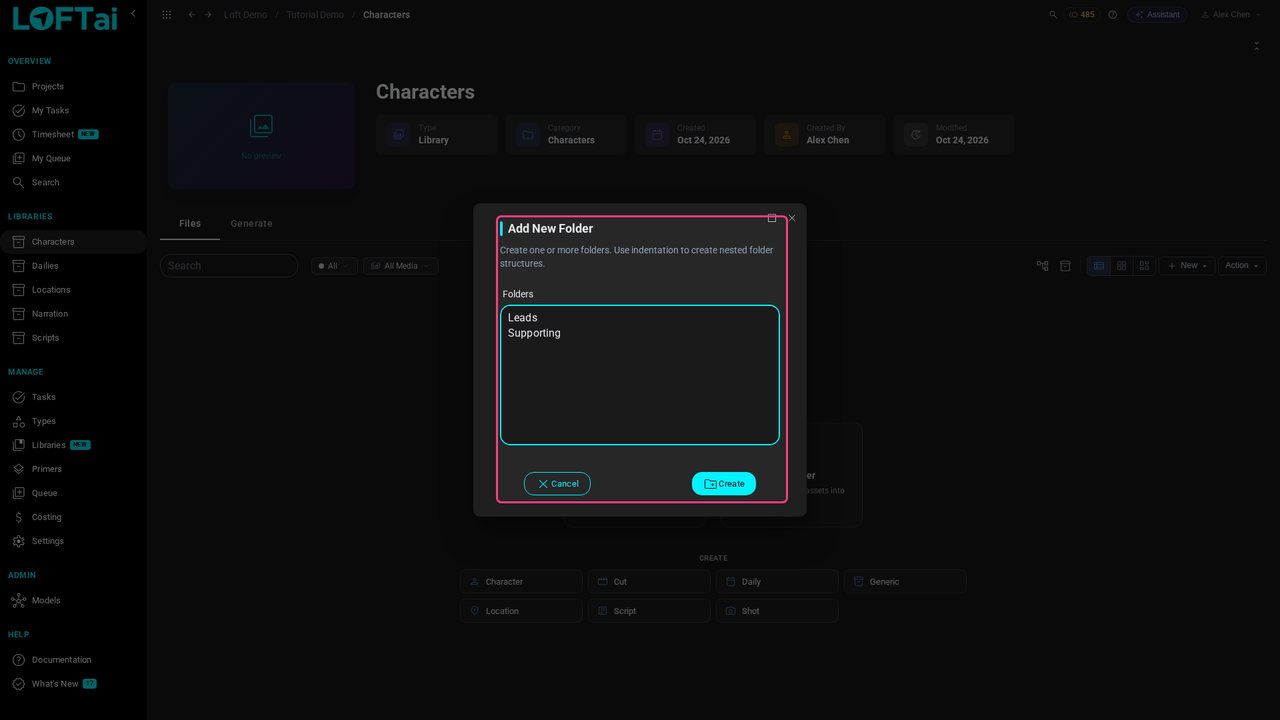
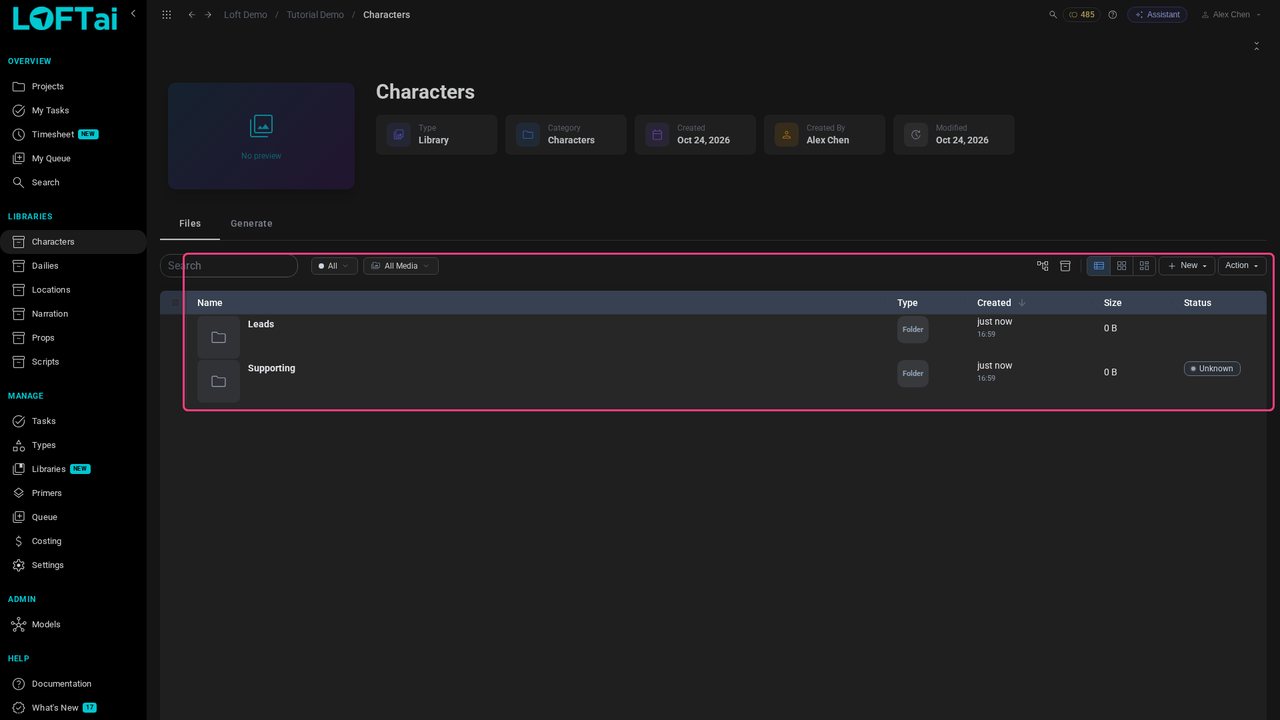
Choose Folder. Type one folder per line; indent a line to nest it under the one above. Here Leads and Supporting.
Click Create. The folders appear in the list. Open Leads: the breadcrumb shows where you are, and New now creates inside this folder.
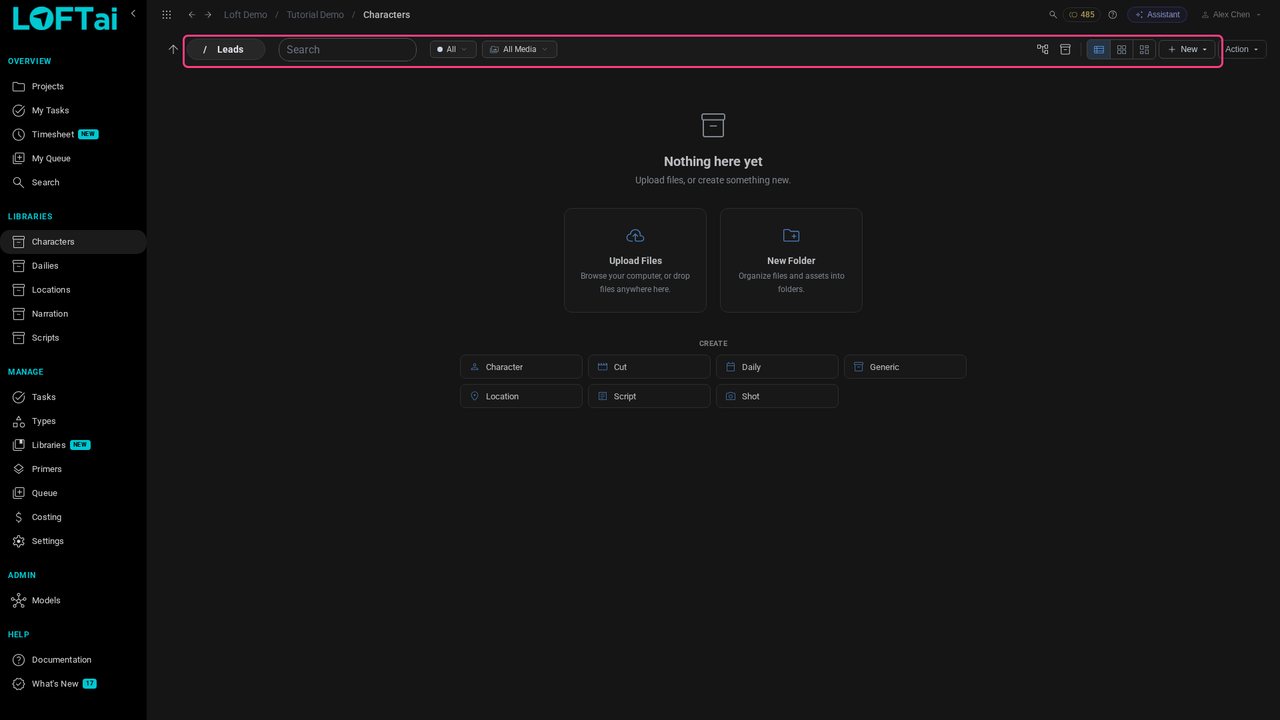
Click New and choose Character. The type decides what the asset gets: its tabs, its properties and the folders it starts with. Name her Mara.
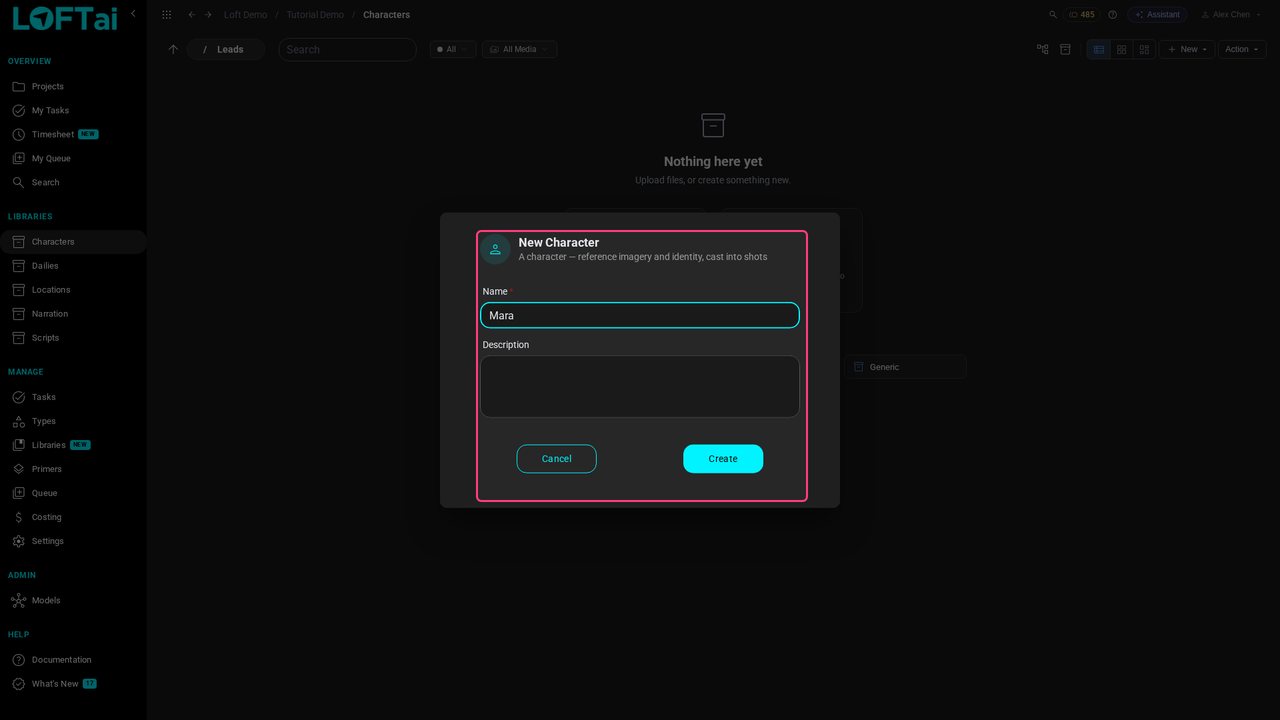
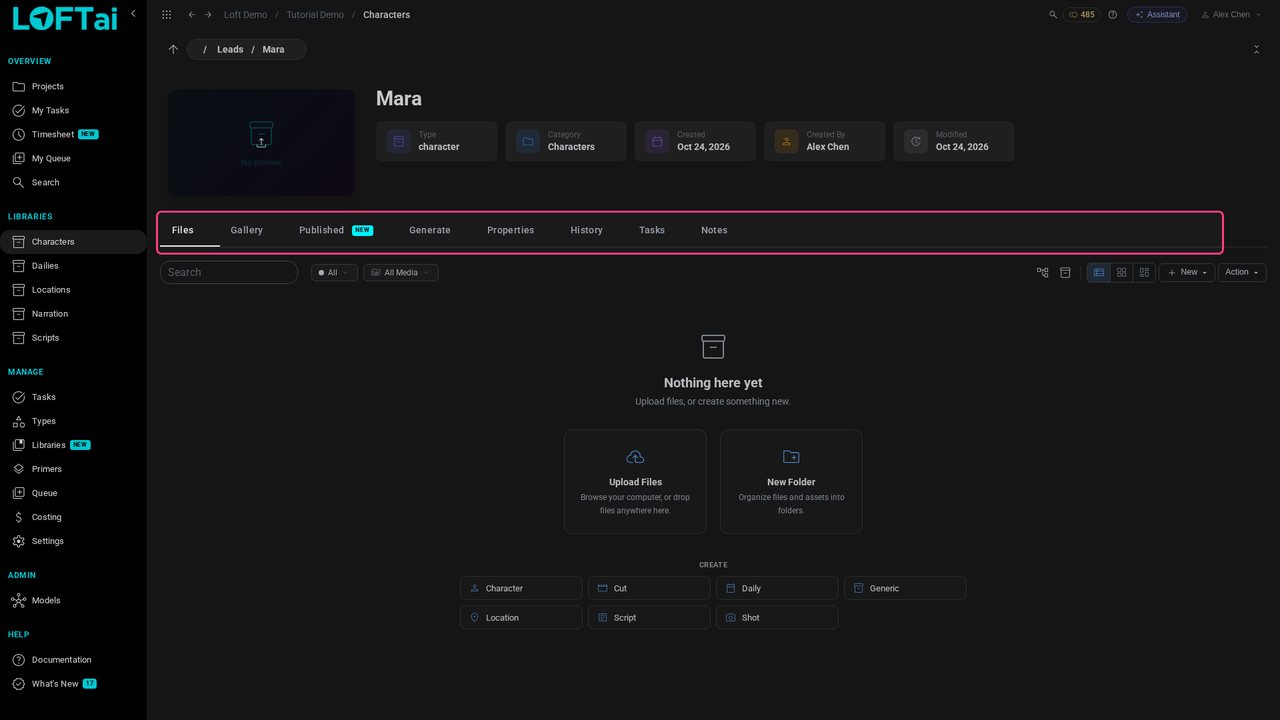
Click Create and open her. A character has Files, a Gallery for reference images, Generate, Properties, a history, tasks and notes: the tools the Character type turns on.
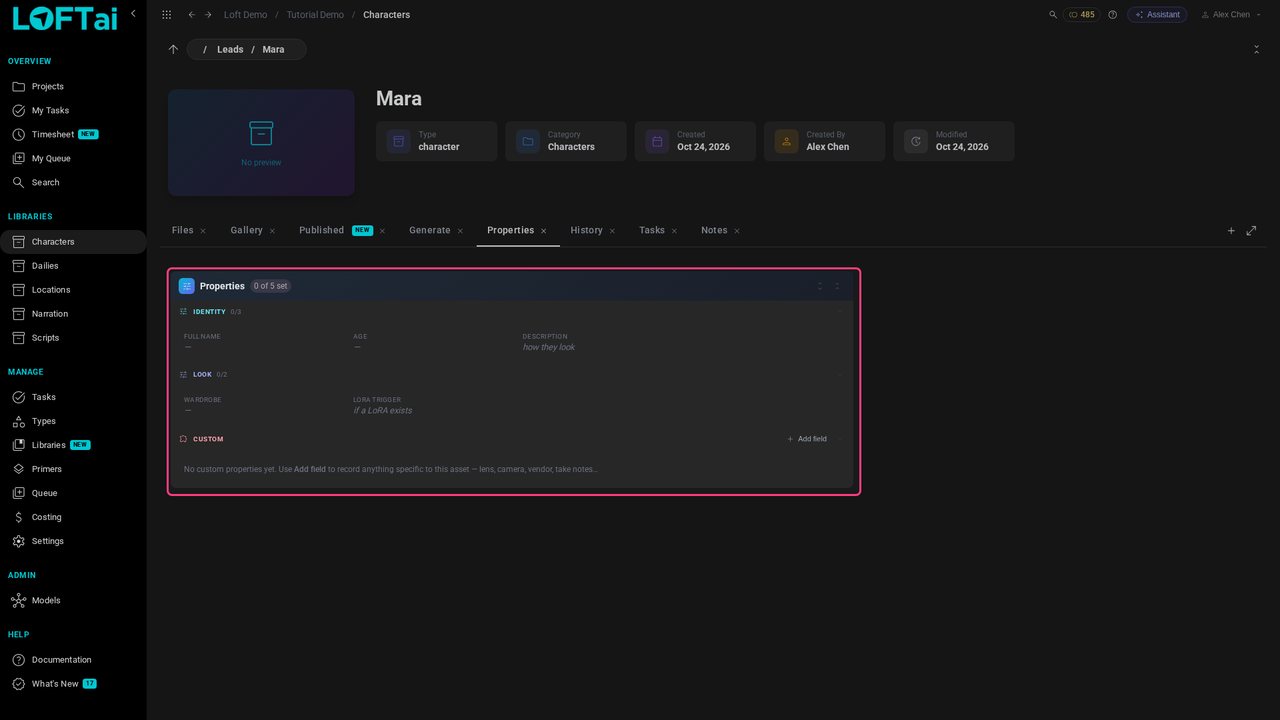
Open Properties. A character asks for a full name, age, description and wardrobe, because that is what the Character type defines.
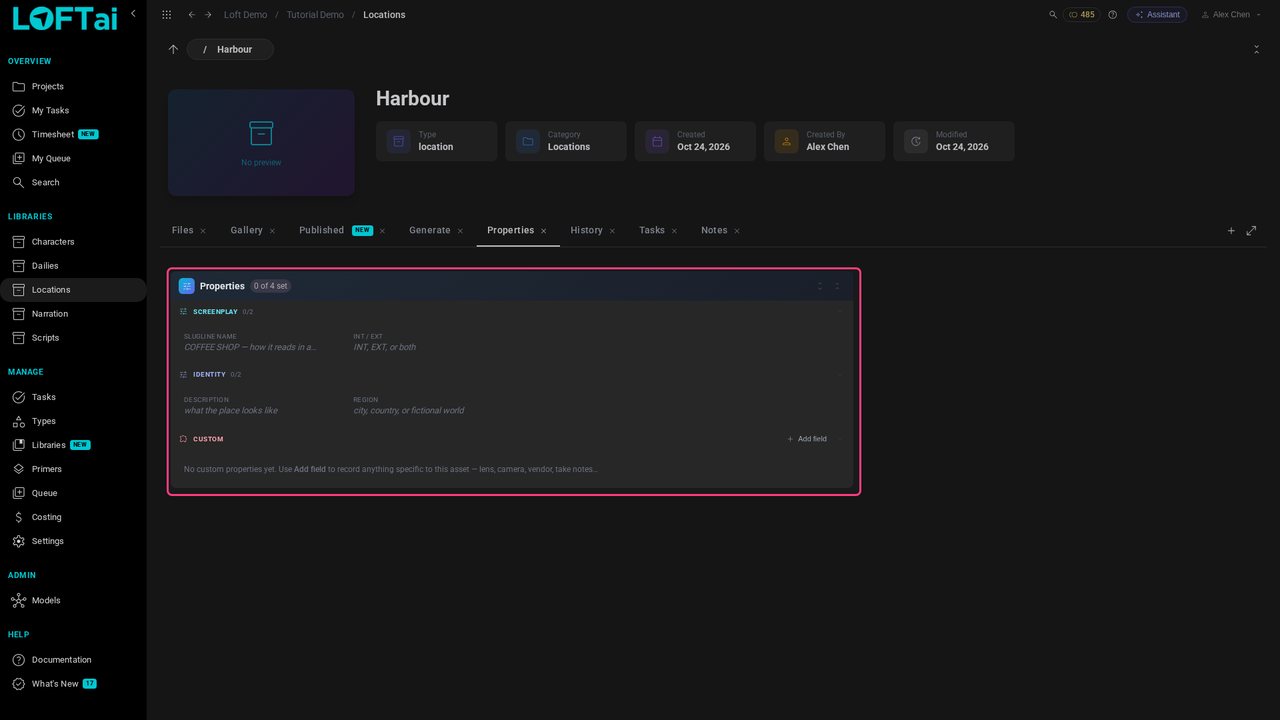
Open Locations and create a Location the same way, Harbour. Its properties are a location's: the slugline name it takes in a script, and whether it is interior or exterior.
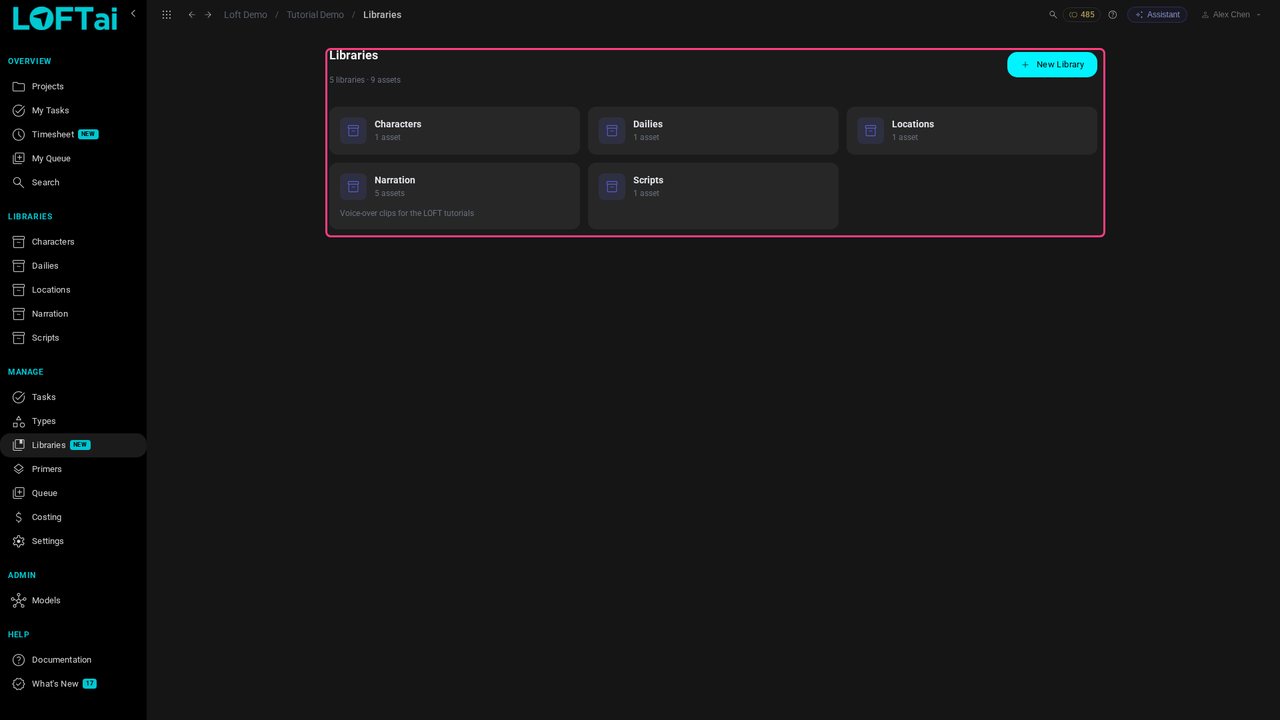
To add or change libraries, open Libraries under Manage. Each card is a library and how many assets it holds.
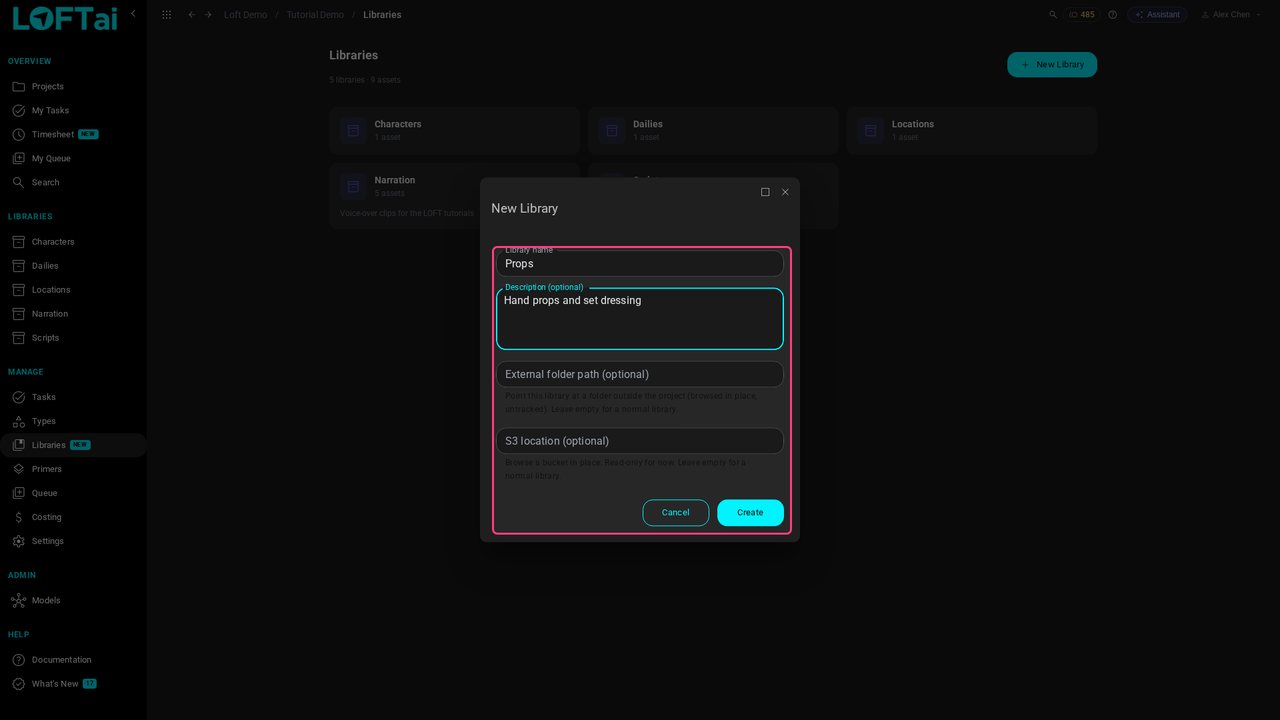
Click New Library. Give it a name and, if you like, a description: Props, for hand props and set dressing.
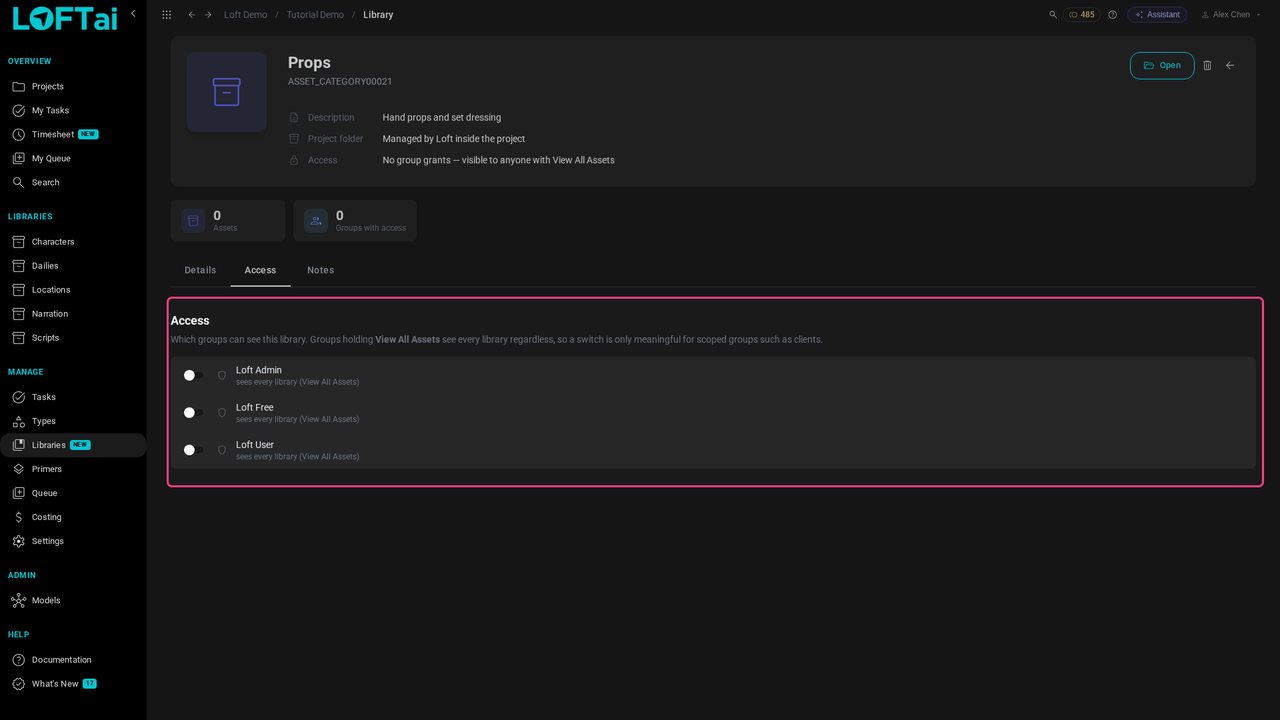
Click Create: Props joins the cards and the sidebar. The settings icon on a card opens its details, where you can rename it and, under Access, choose which groups can see it, useful for a library meant for a client.
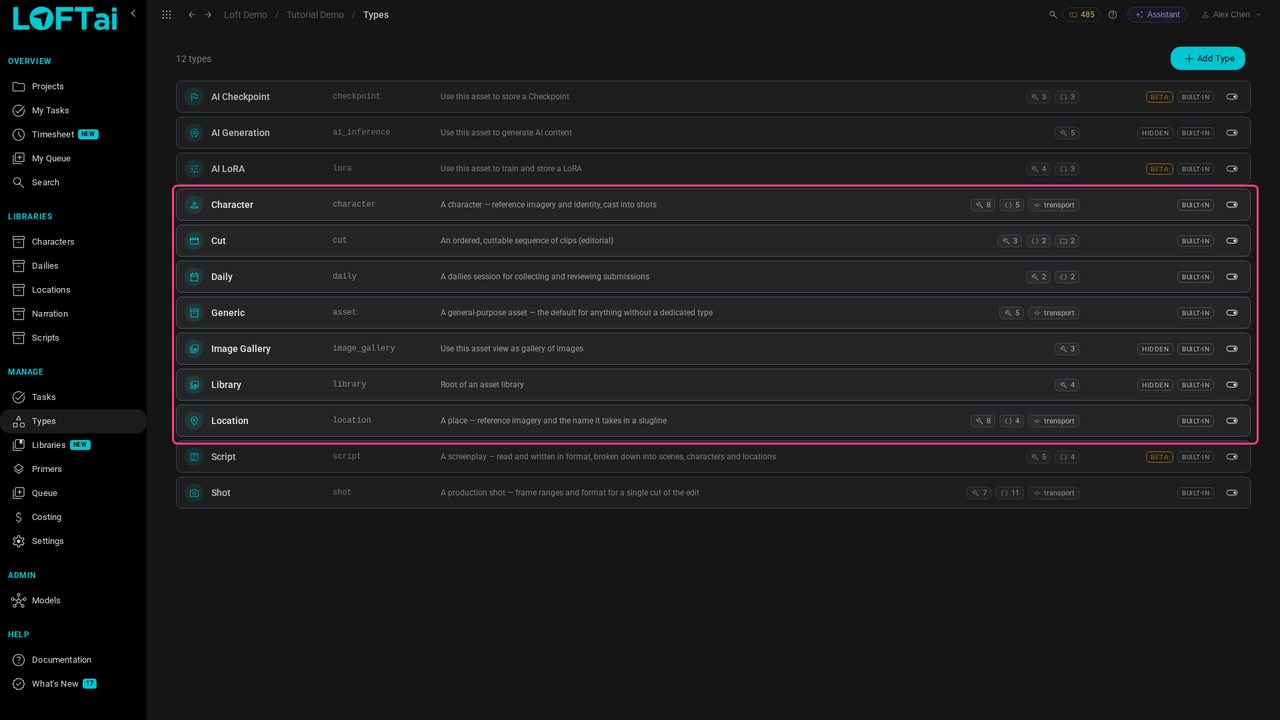
The types themselves are managed under Types. The built-in ones come with every project. Each row shows a type's tools, metadata fields and starting folders; the switch turns a type off for this project.
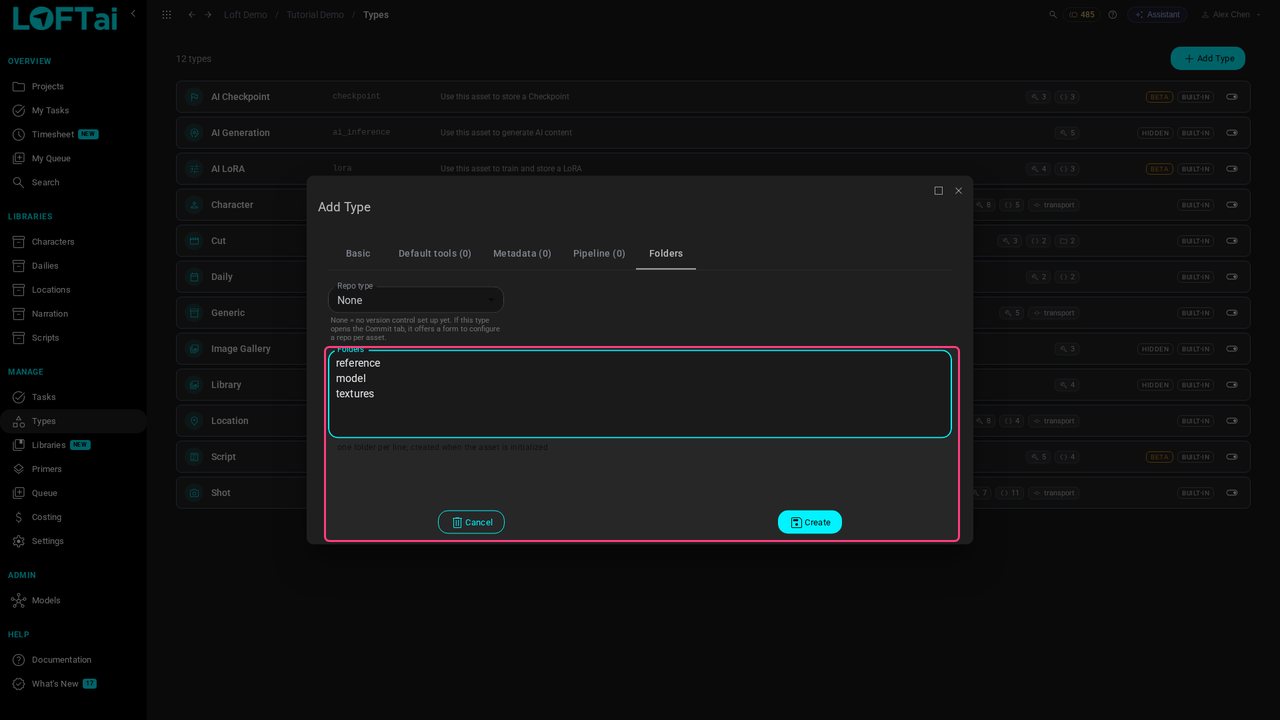
Add Type makes one of your own. Name it Prop, give it an icon, and under Folders list the folders every prop should start with: reference, model, textures.
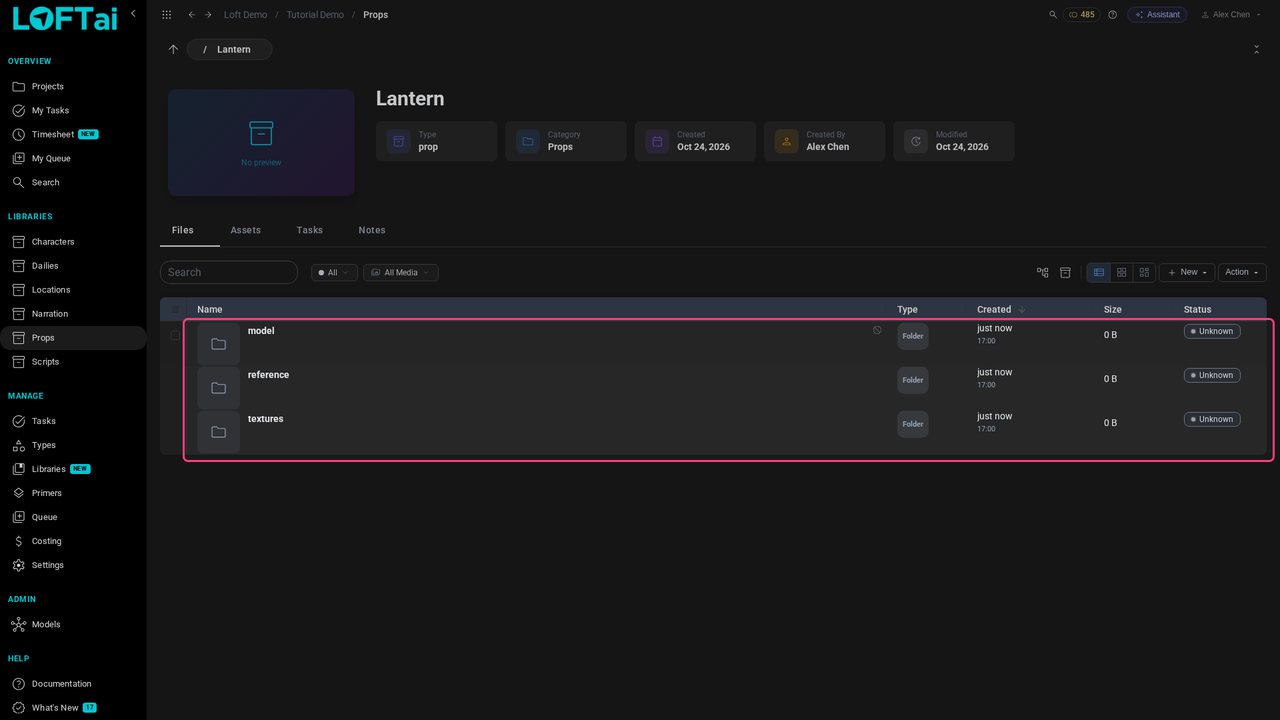
Click Create. Back in Props, New now offers Prop. Create Lantern: it opens with the folders the type promised, ready for files.
To move something, drag it onto a folder, or onto a step of the breadcrumb to move it up. Select a row to rename or delete it from the toolbar. A library you no longer need is deleted from the Libraries page, which warns if it still holds assets.
Up next in Make and review the work
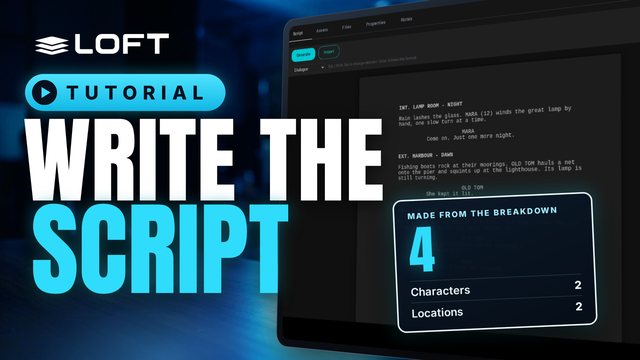
A script in Loft is a screenplay you write in industry format. As you write, Loft breaks it down into scenes, characters and locations. This tutorial writes a short script, then creates assets for its characters and locations and links them to the script.
In the playlists Make and review the work.