STEP 01
Open the project
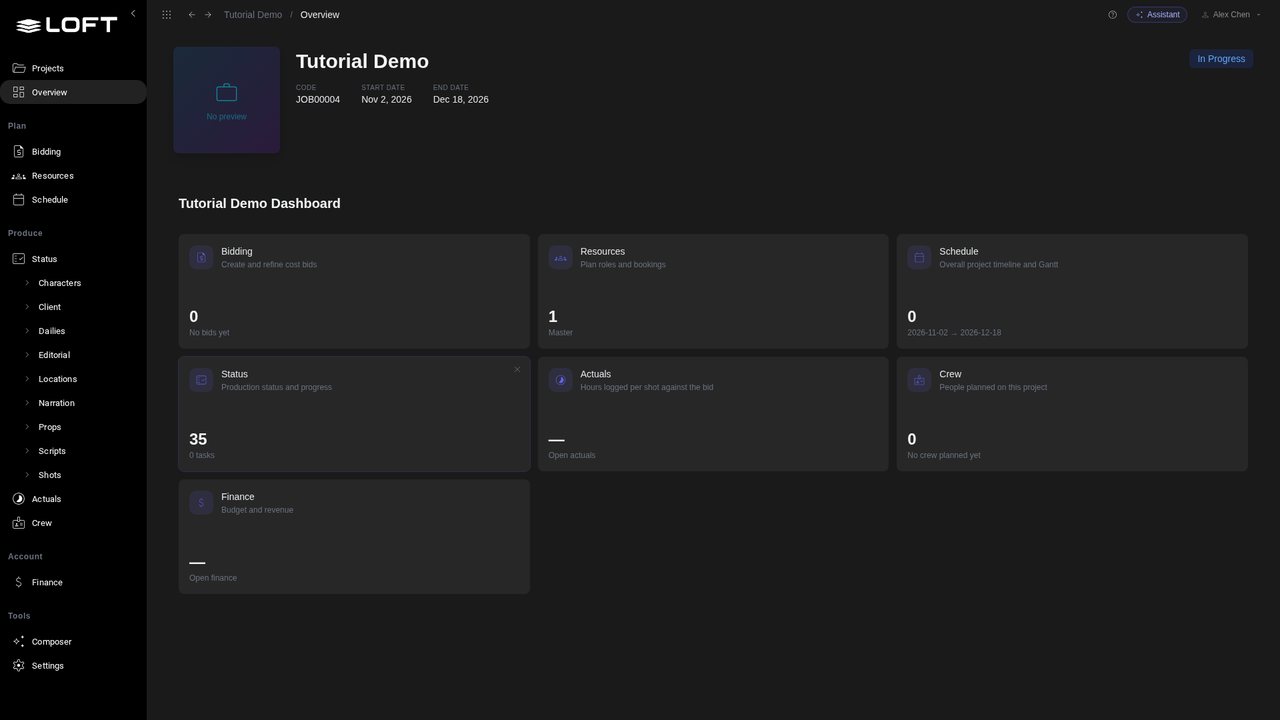
Open the project from the Projects page. We'll use Tutorial Demo, which has five shots in its Shots library but no bid yet.
Tutorials/Plan and run a production
A bid estimates the days each shot needs in each department. This tutorial builds a small bid, turns it into a schedule and the roles to staff it, publishes it as the project's working plan, and reads the preliminary profit and loss: what the bid is worth against what the plan will cost.
Follow along
Open the project from the Projects page. We'll use Tutorial Demo, which has five shots in its Shots library but no bid yet.
In the sidebar's Plan group, click Bidding.
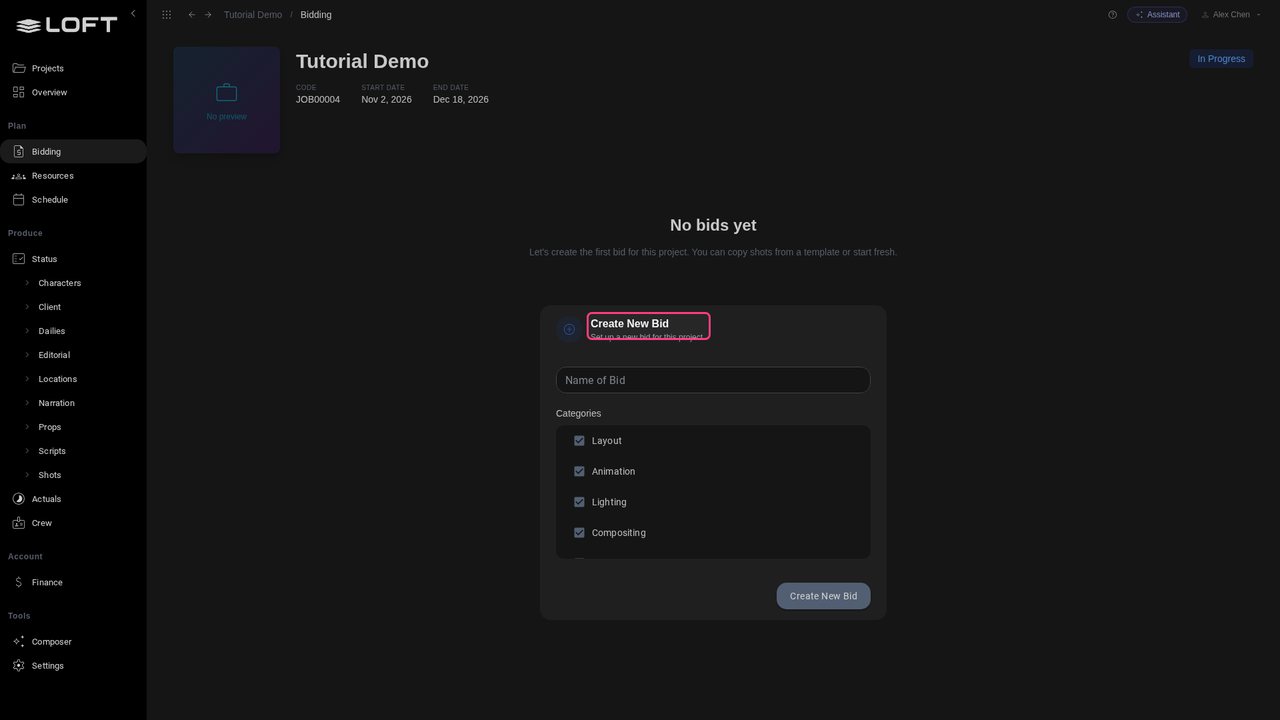
A project with no bids opens on Create New Bid. Give the bid a name: Lamp Room Teaser. Its Categories are the departments the bid estimates, taken from the studio's departments.
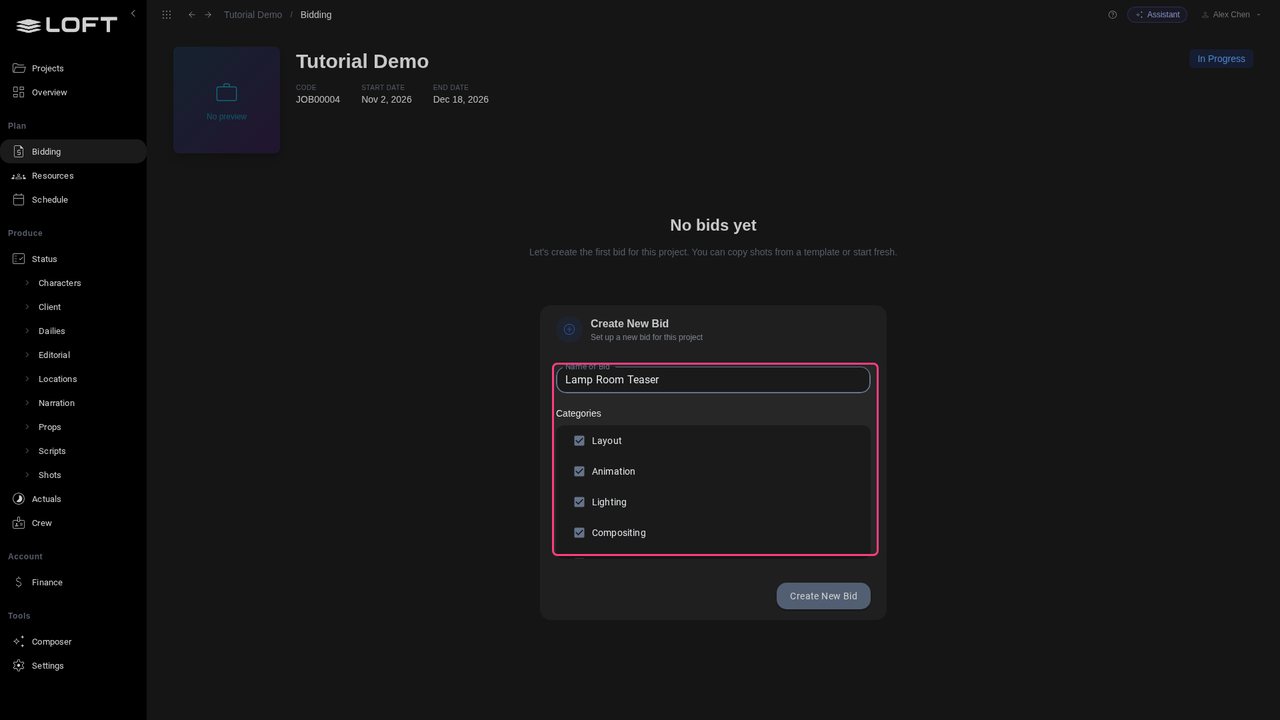
Untick the departments this job doesn't need. This teaser has no lookdev or rendering, so it keeps Layout, Animation, Lighting and Compositing.
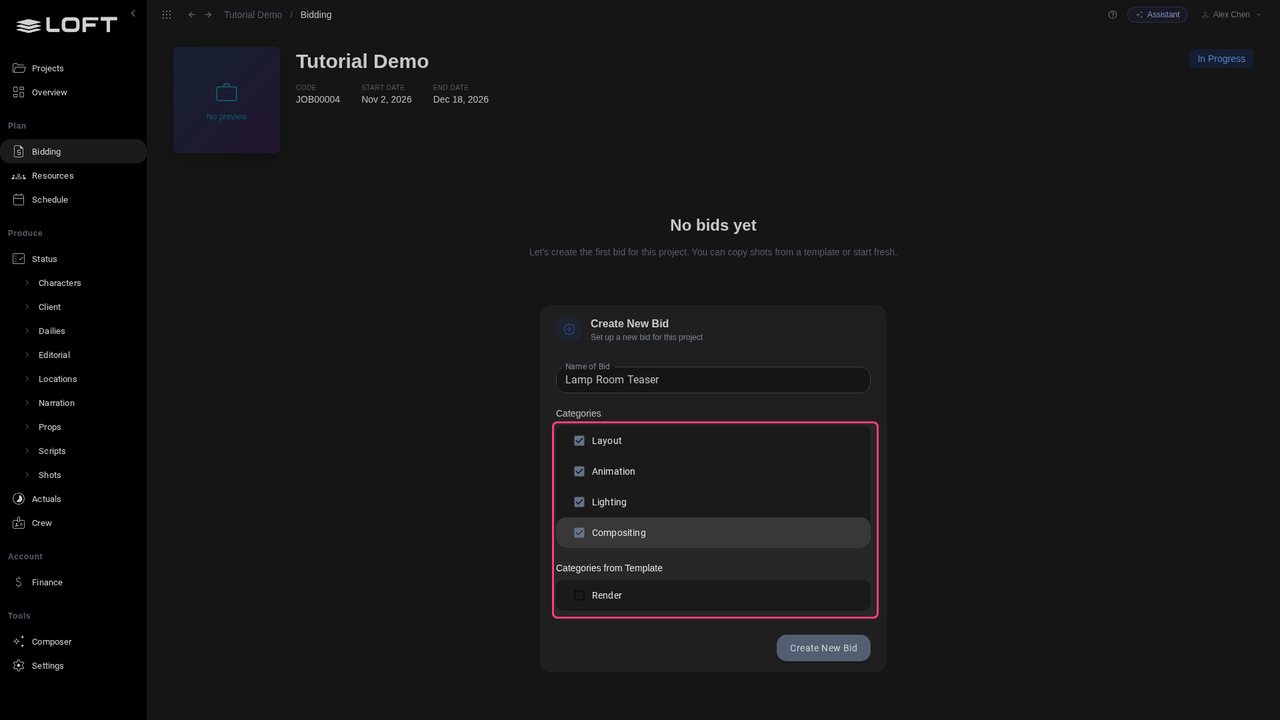
Click Create New Bid. The breakdown starts empty: add shots from the project's library, import a spreadsheet, or hand the assistant a script or breakdown PDF.
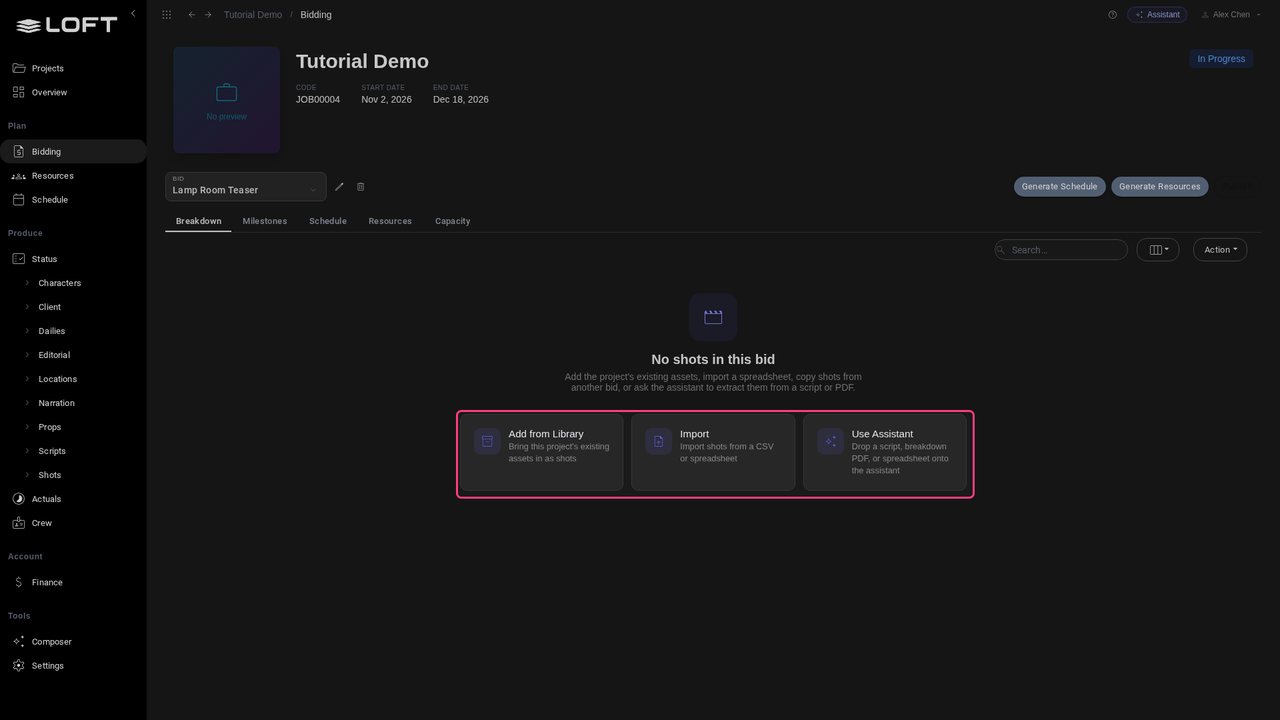
Click Add from Library and pick what to estimate. All next to Shots selects the five shots.
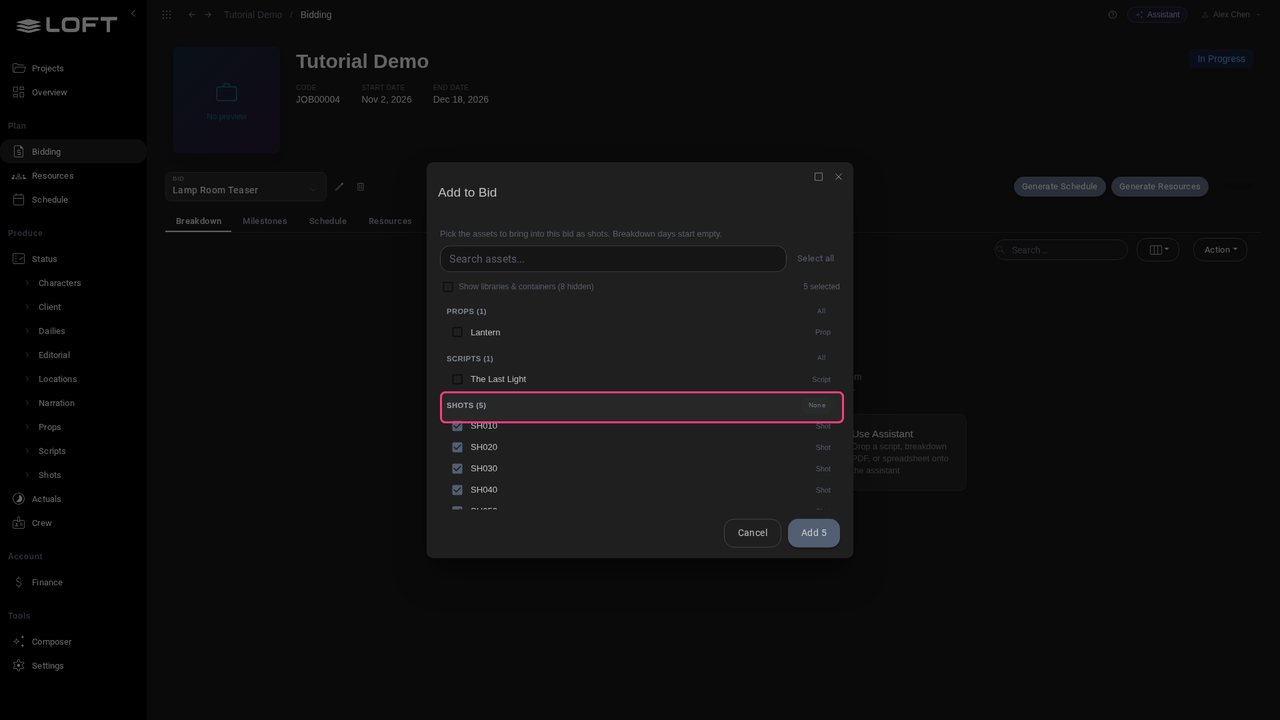
Click Add 5. Each shot becomes a row of the breakdown, with a column per department.
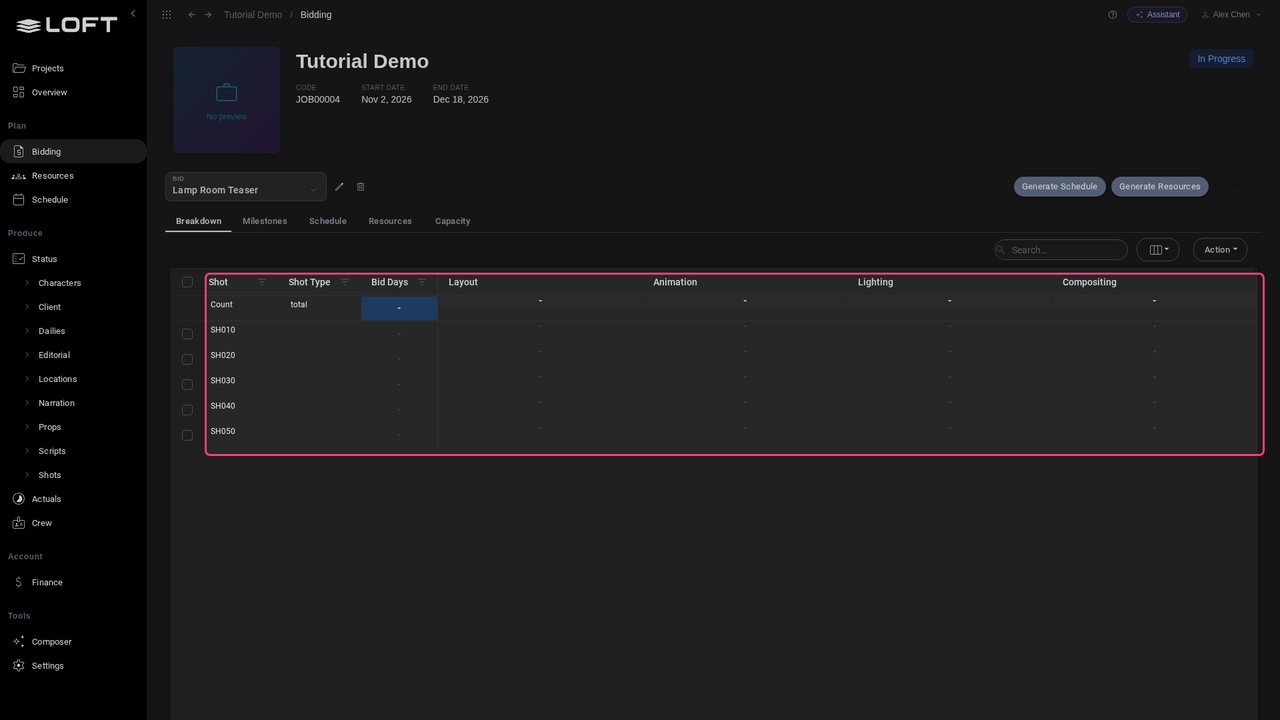
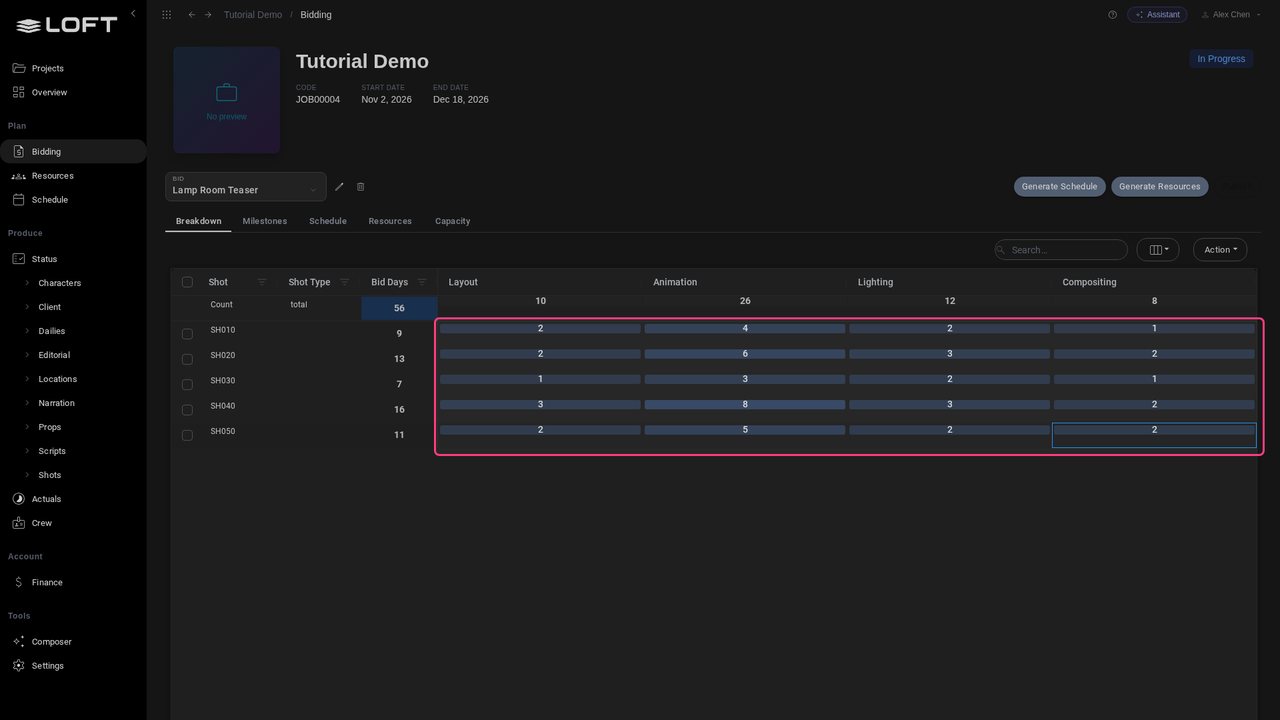
Double-click a cell and type the days that shot needs in that department. The Count row adds them up: 56 days, 26 of them animation.
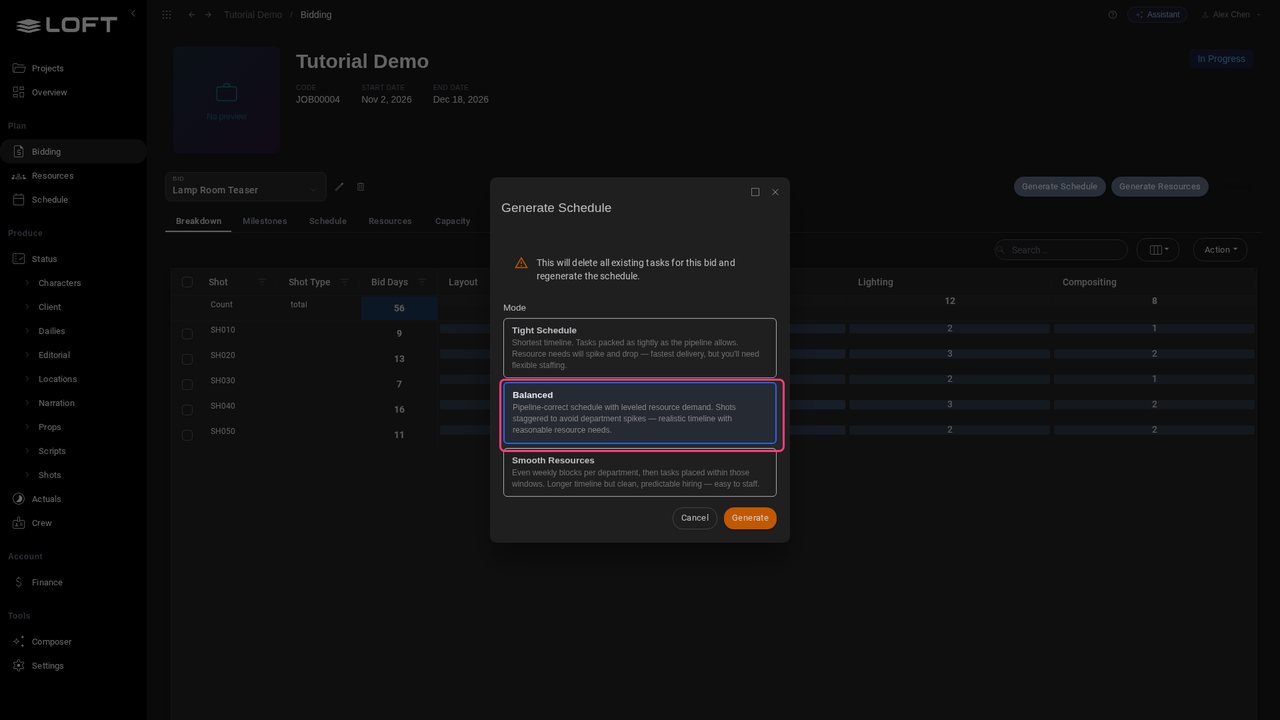
Click Generate Schedule and pick how to lay the work out. Balanced staggers the shots so no department spikes; Tight finishes soonest; Smooth Resources keeps headcount steady.
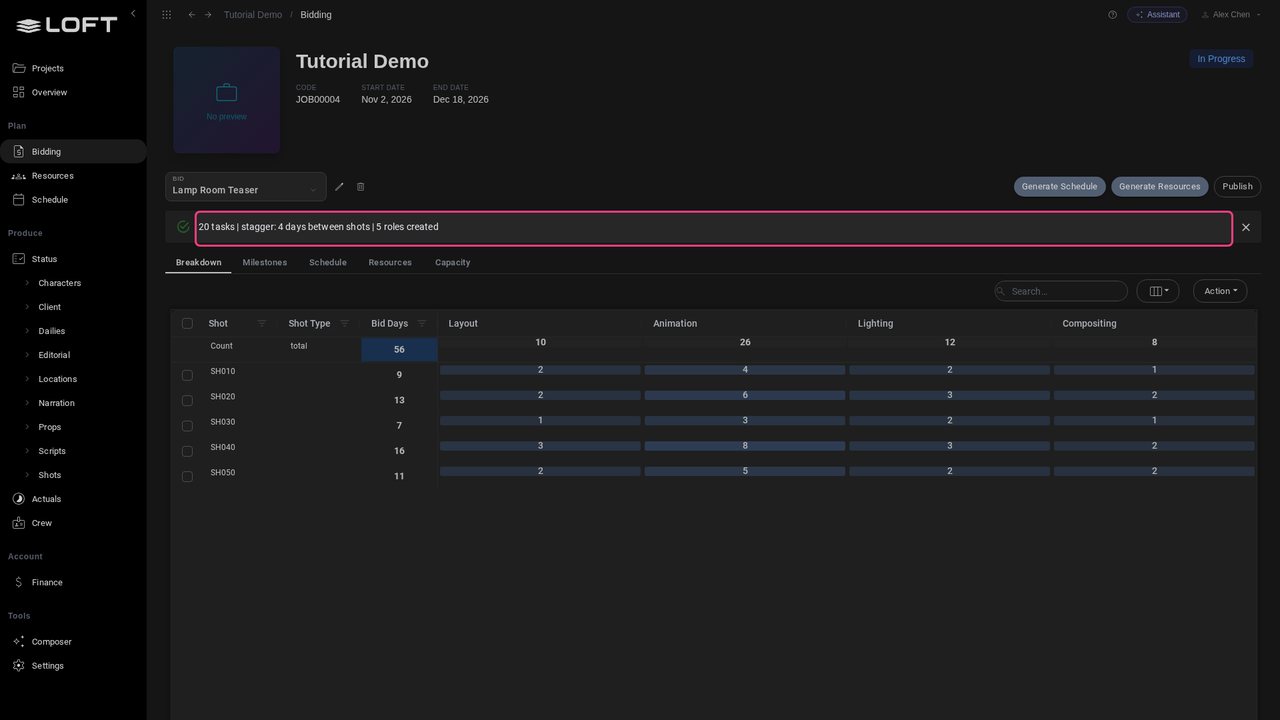
Click Generate. Each shot gets a task per department, and the bid works out the roles to staff them: here five.
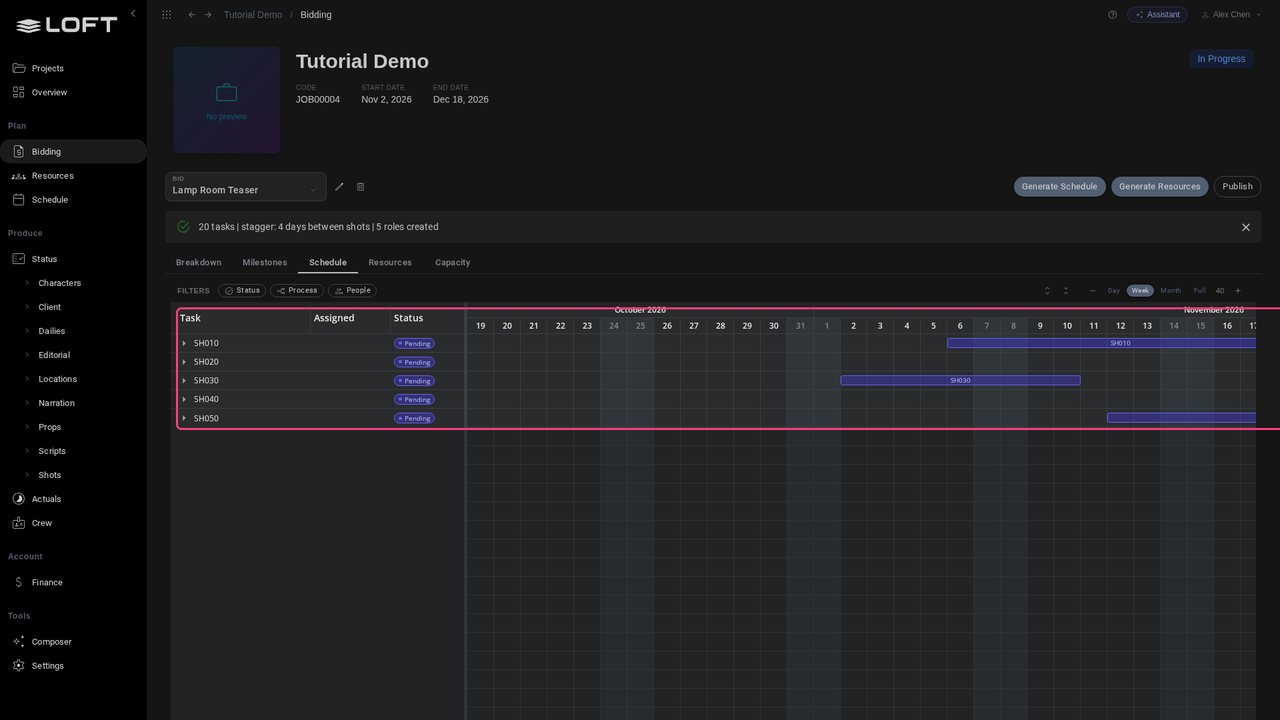
The Schedule tab lays the tasks out on a timeline, one row per shot.
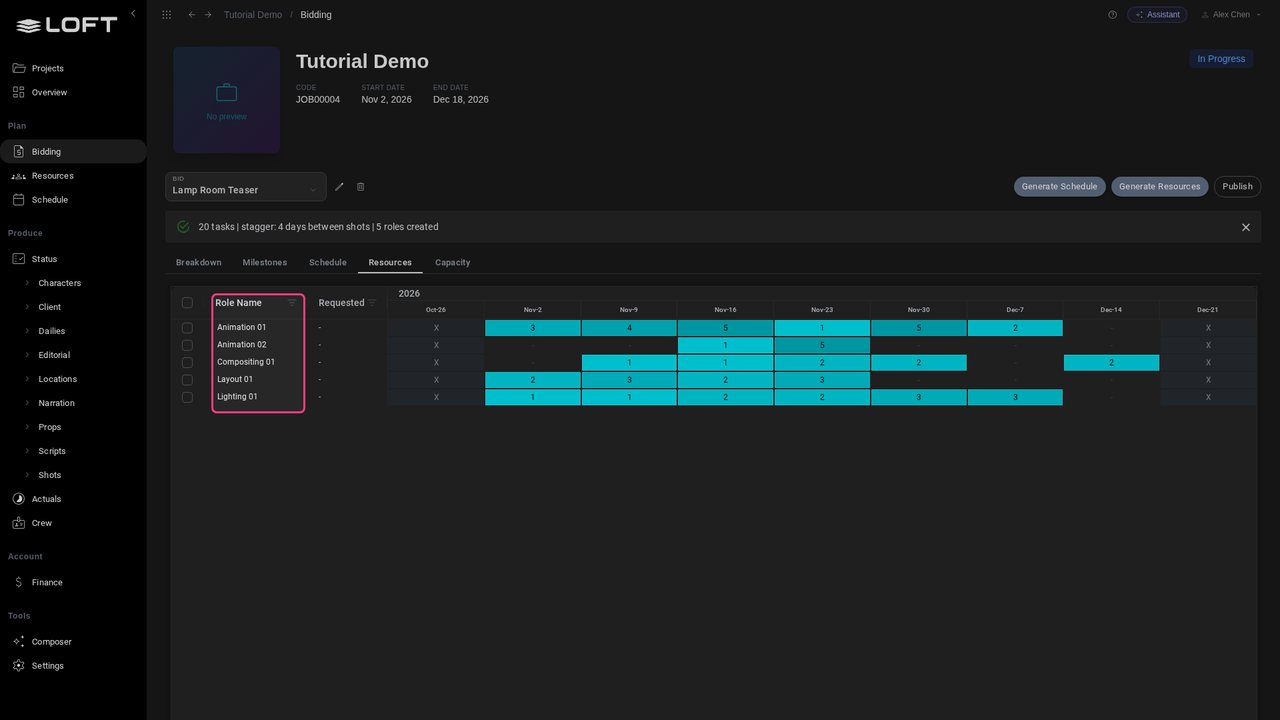
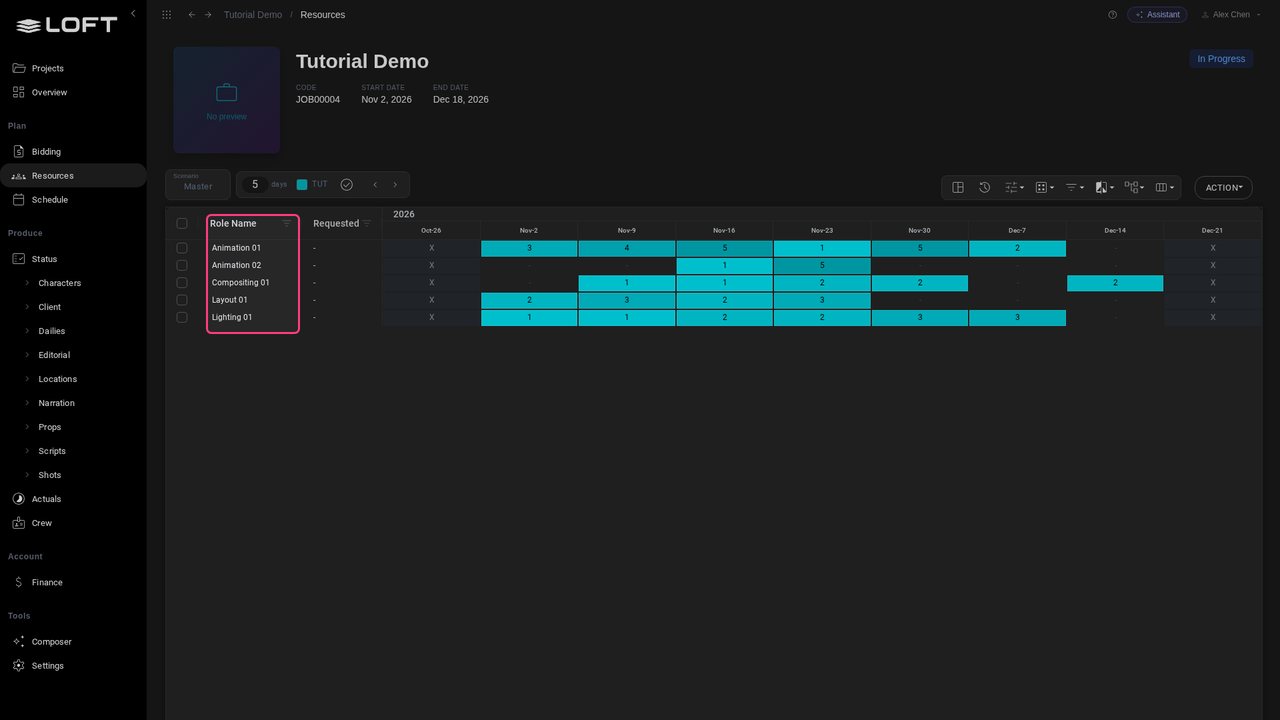
Resources shows the roles week by week: two animators and one each for layout, lighting and compositing, each booked when the schedule needs them. If you change the schedule, Generate Resources rebuilds them.
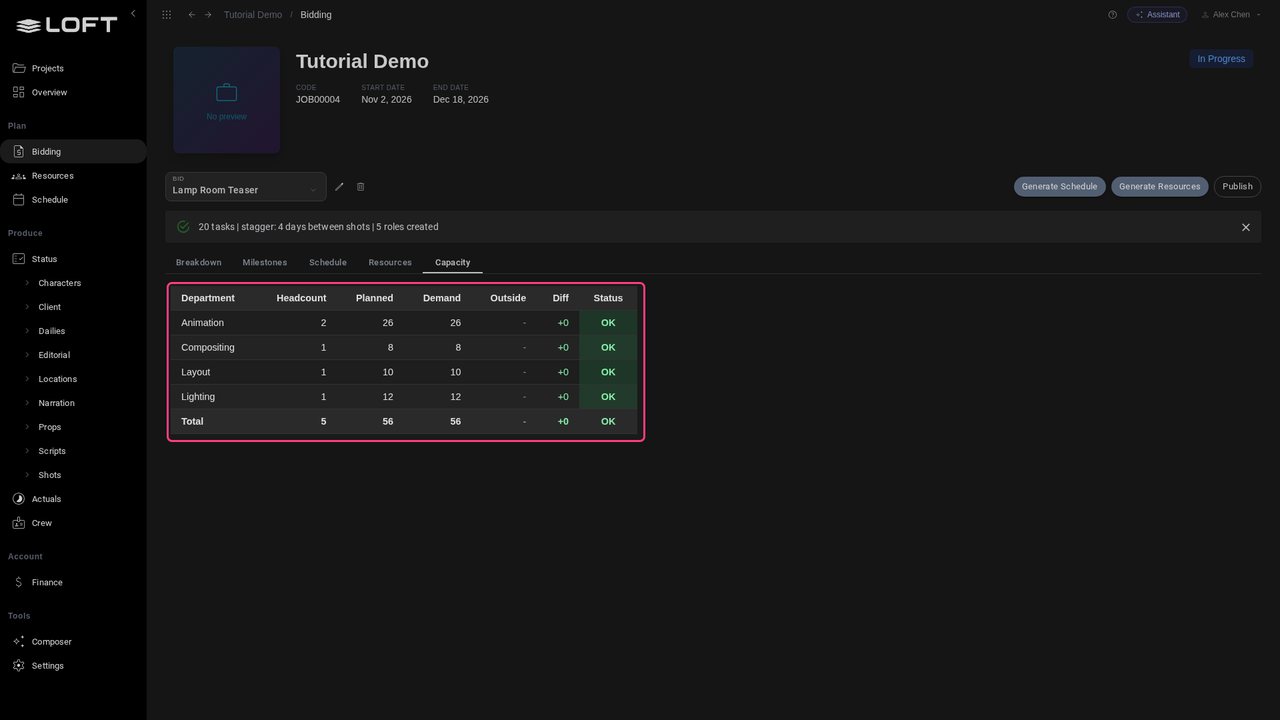
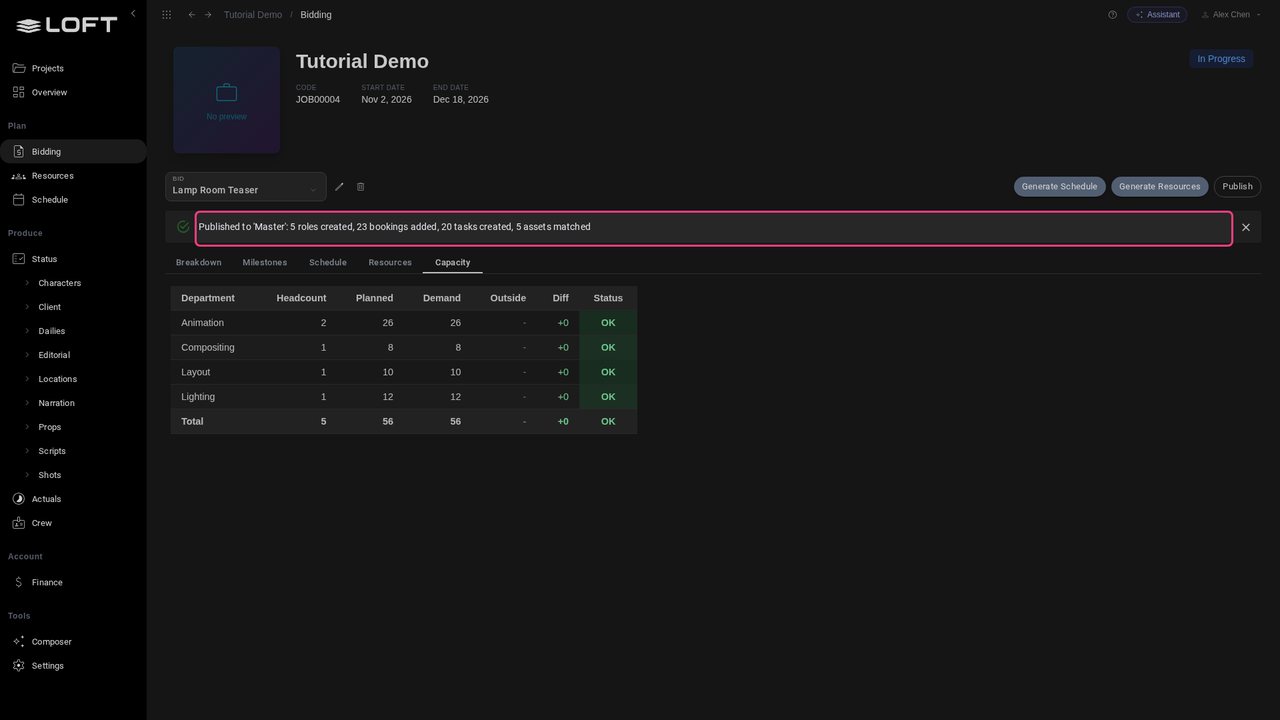
Capacity compares the days the roles cover with the days the bid demands. Every department reads OK: all 56 days are covered.
So far this is only an estimate. Publish copies it into a scenario of the project; Master is the working plan everyone schedules against. Publishing adds and never overwrites.
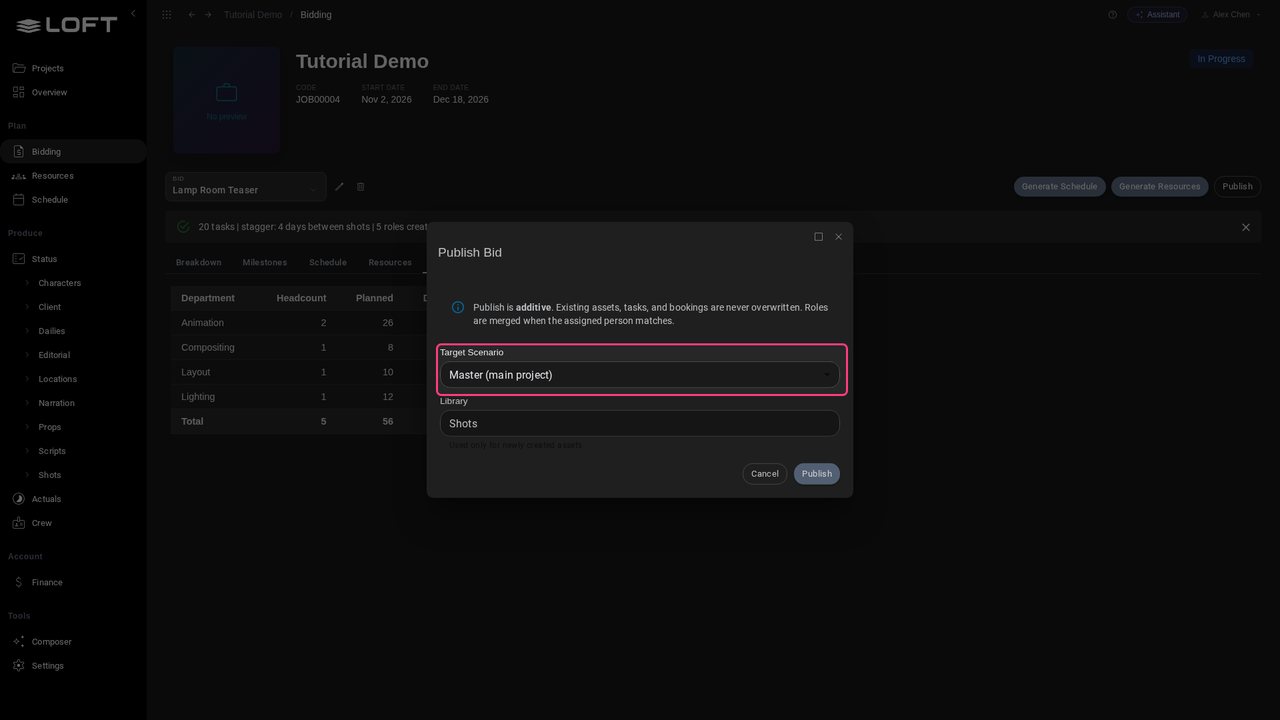
Click Publish. The roles, their bookings and the tasks are now in Master, and the shots in the library carry the tasks.
The project's Resources page now holds the bid's roles, ready to request and assign people.
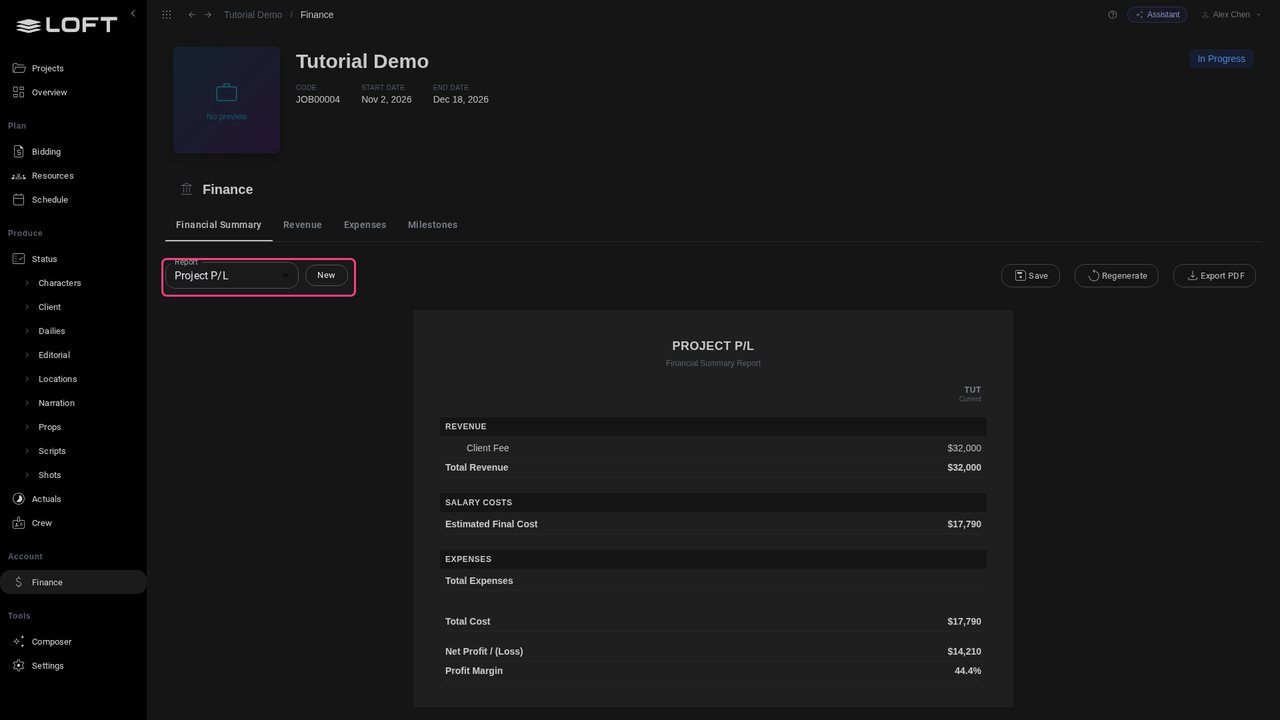
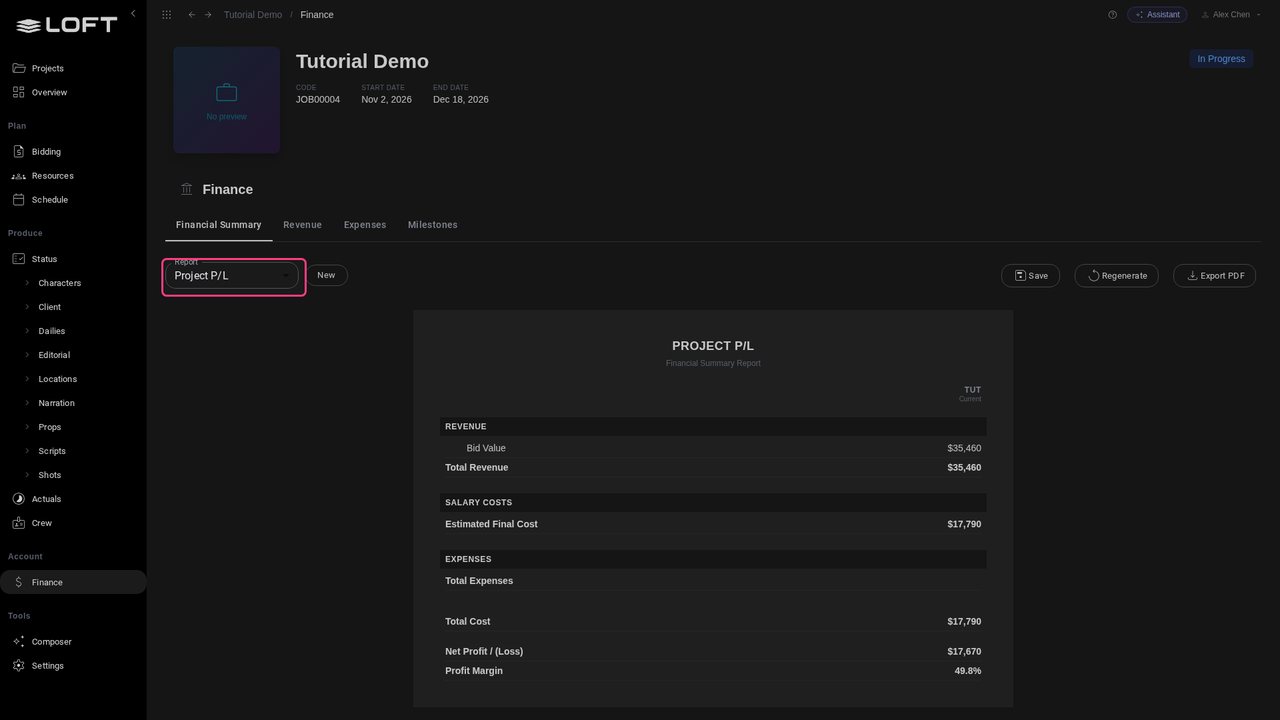
Under Account, click Finance. Every project opens on the built-in Project P/L; there is nothing to set up.
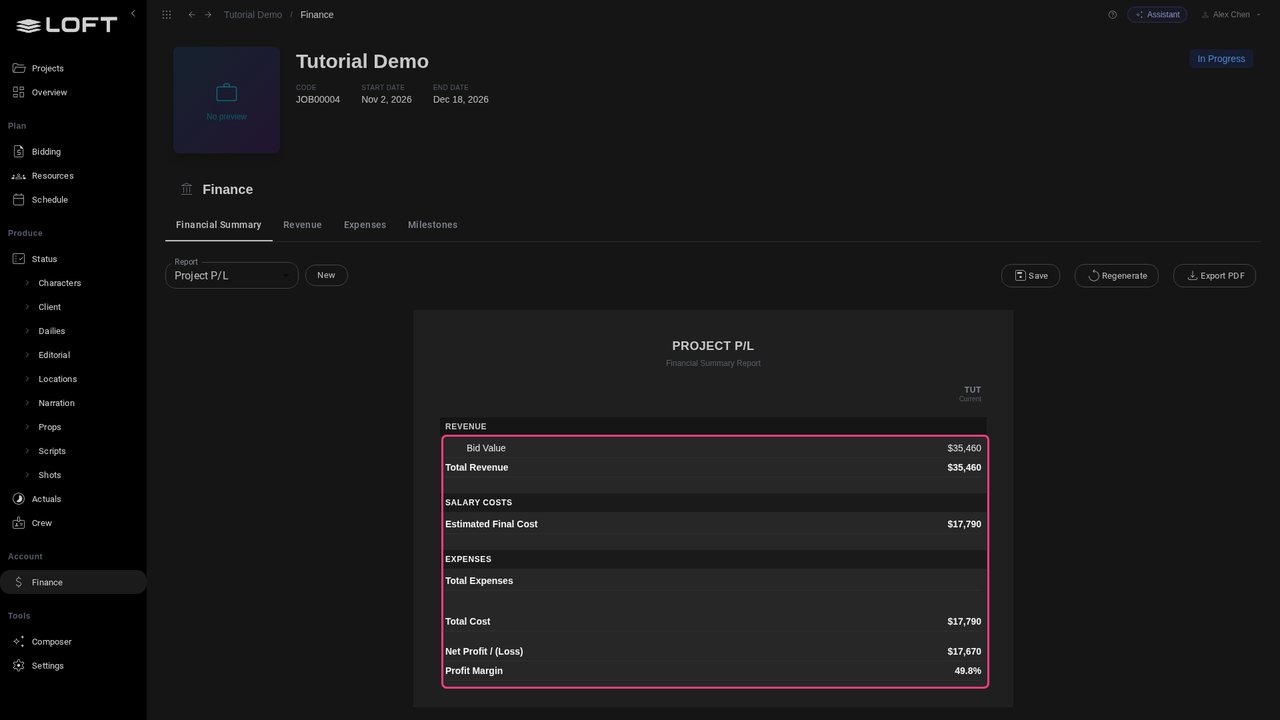
With no revenue entered yet, the P/L takes the Bid Value: the bid's days at each group's bid rate, $35,460. Labour is what the roles cost at salary rates, $17,790, so this bid would make a margin of about 50%.
Once the client agrees a fee, record it under Revenue: create a source such as Client fee, then Action > New to enter the amount. Here the client settled on $32,000.
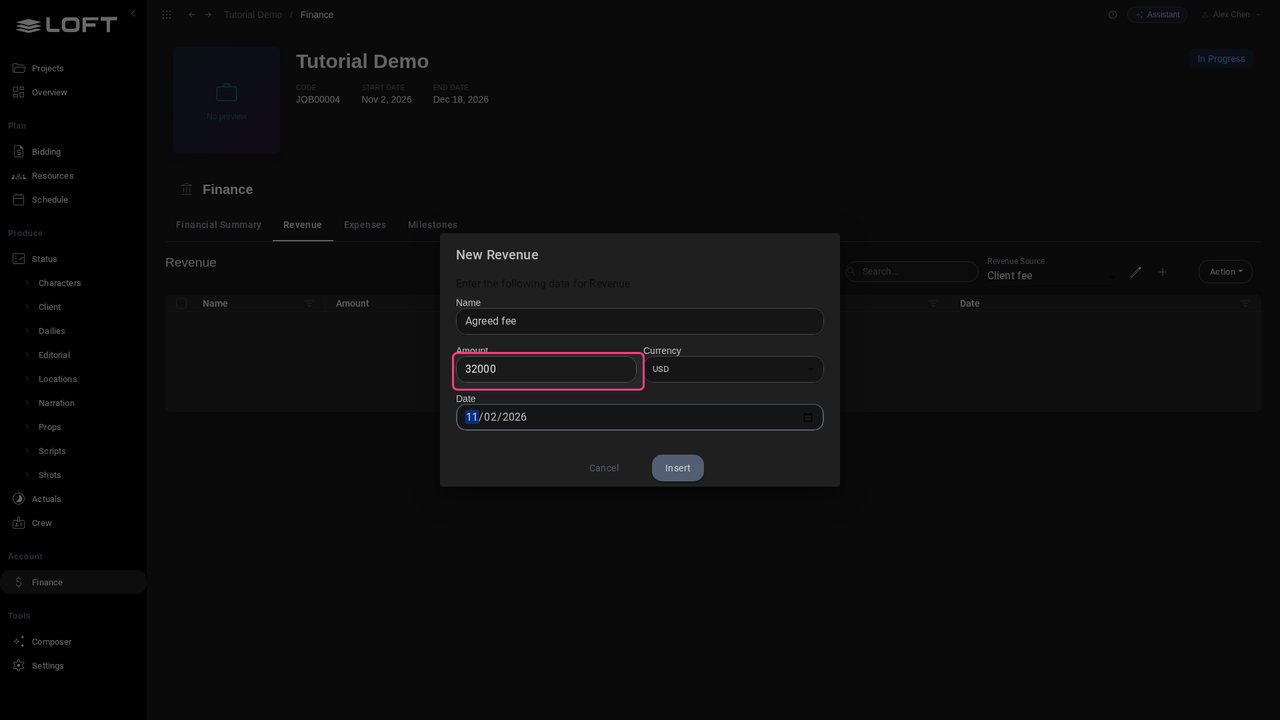
Click Insert and go back to Financial Summary. The fee replaces the bid value, and the margin at the agreed price is 44%. As people log time, labour switches from plan to actuals.
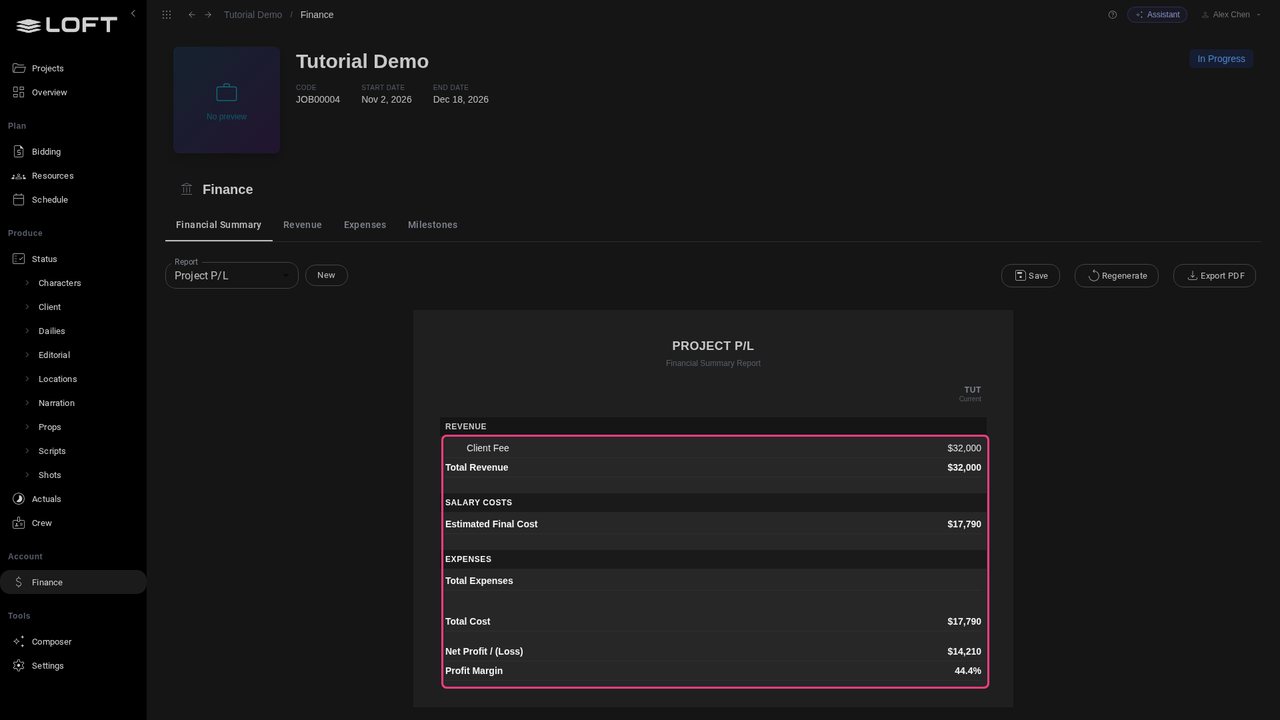
Save keeps a dated copy of the P/L to compare against later, and New builds a custom report if you need one. You can also ask the assistant what margin a project will make.