
STEP 01
Open the project
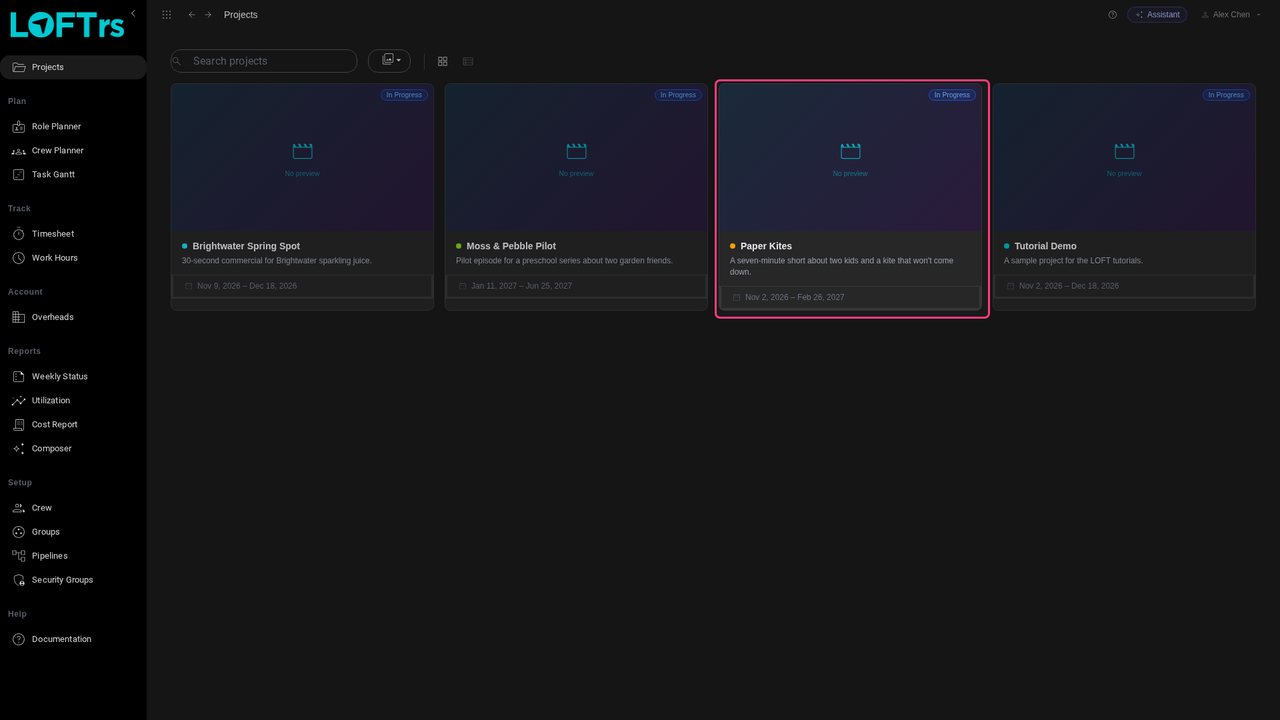
Every project in the studio is listed on the Projects page. Click a project's card to open it.
Tutorials/Plan and run a production
A bid is where you estimate a project: how many days each shot or asset needs in each department, and what that means for people and schedule. This tour opens an existing bid and walks through its tabs, from the breakdown through to capacity.
Follow along
Every project in the studio is listed on the Projects page. Click a project's card to open it.
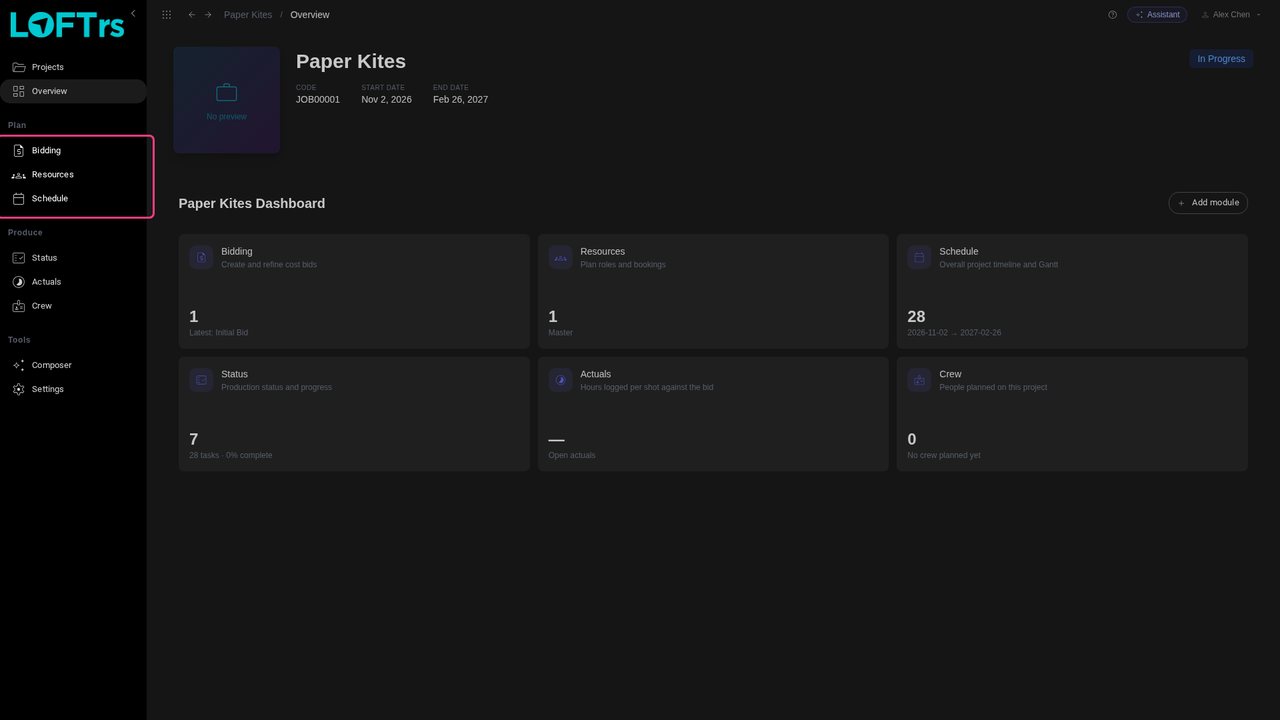
Inside a project the sidebar changes to that project's modules. The Plan group holds Bidding, Resources and Schedule. Click Bidding.
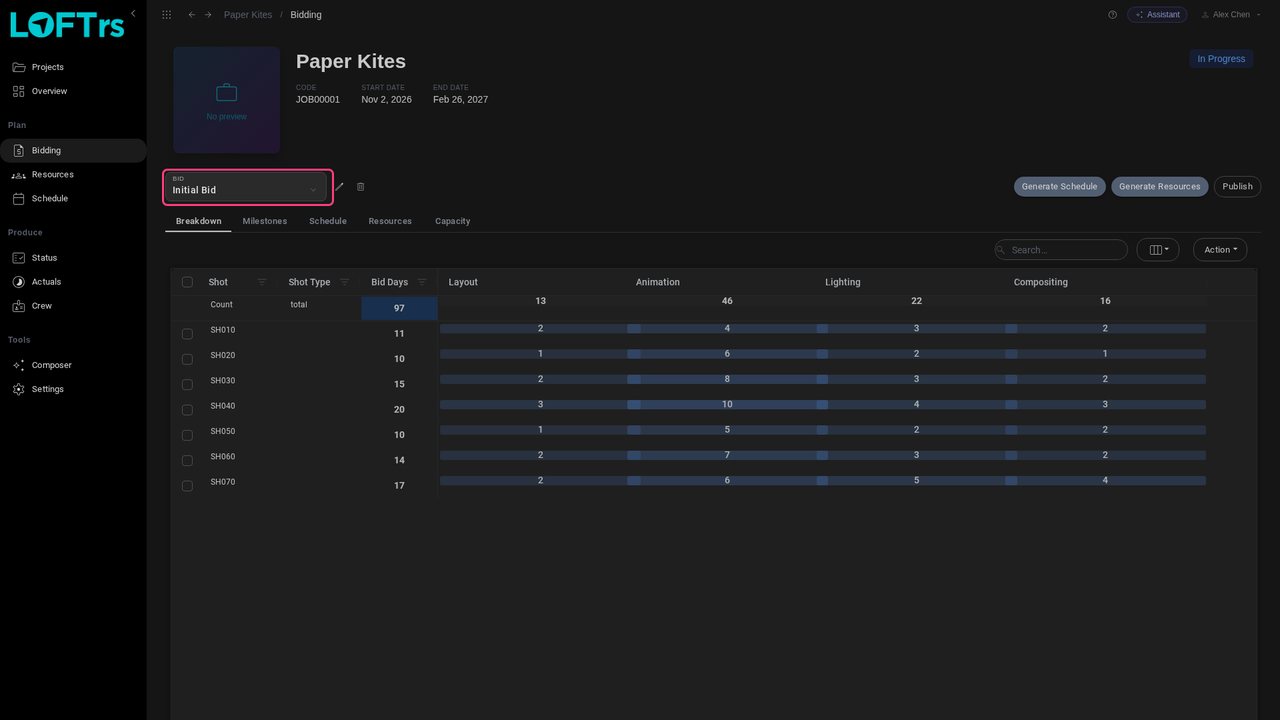
A project can carry several bids, for example an initial bid and a revised one. The Bid selector chooses which one you are looking at; the pencil icon next to it edits the bid.
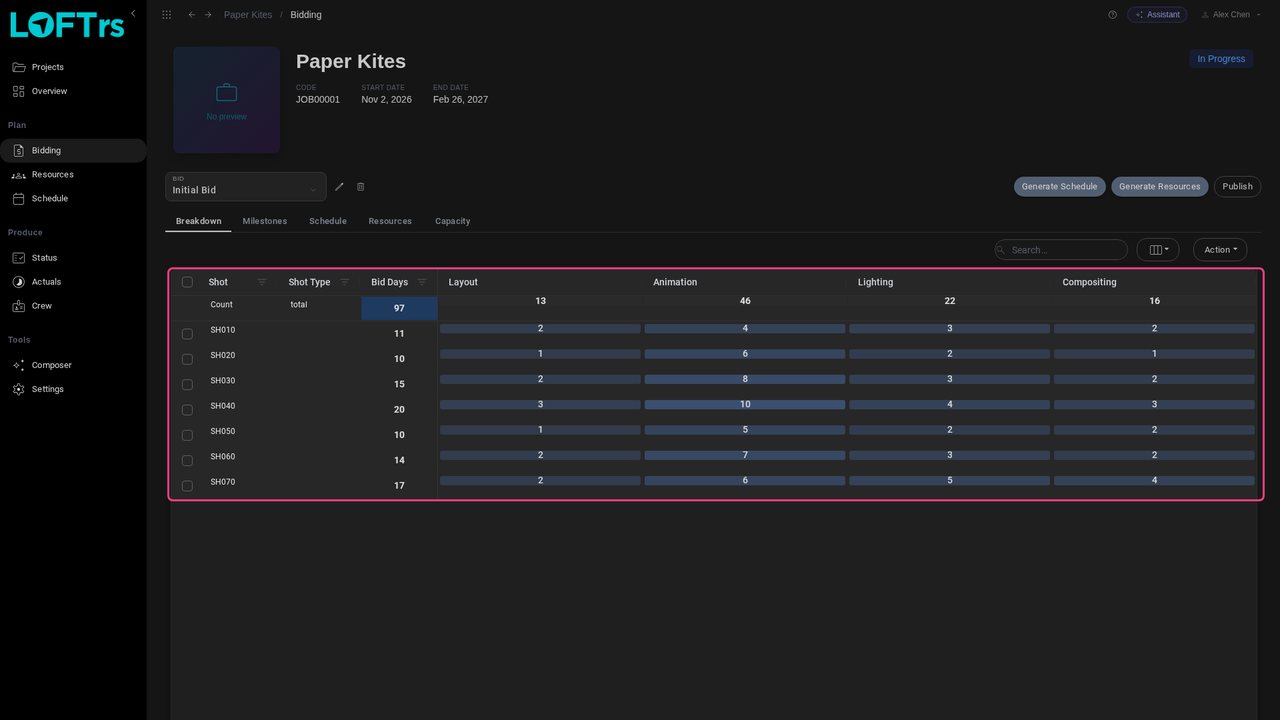
The Breakdown tab lists each shot or asset with the days bid per department. The Count row totals them: here 97 bid days across Layout, Animation, Lighting and Compositing, with Animation the largest at 46.
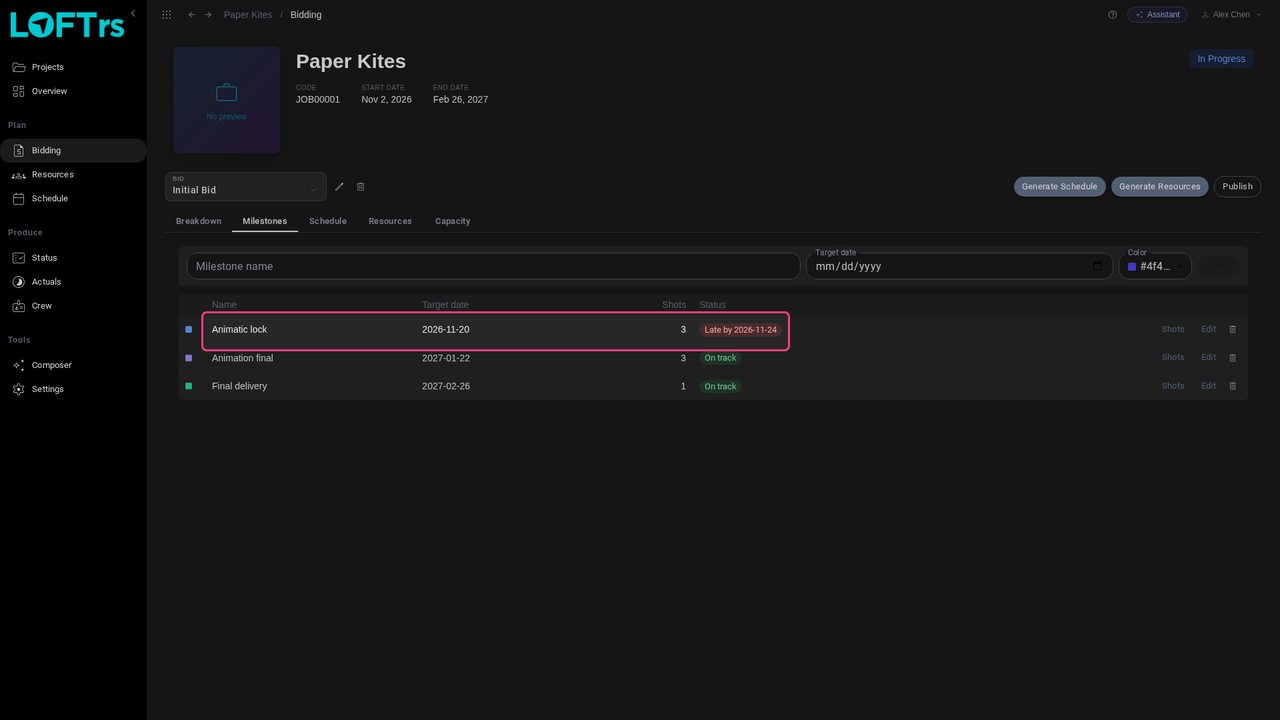
Milestones are the delivery dates the bid has to hit, each covering a set of shots. Their status checks the schedule against the date: here the animatic lock is already running late.
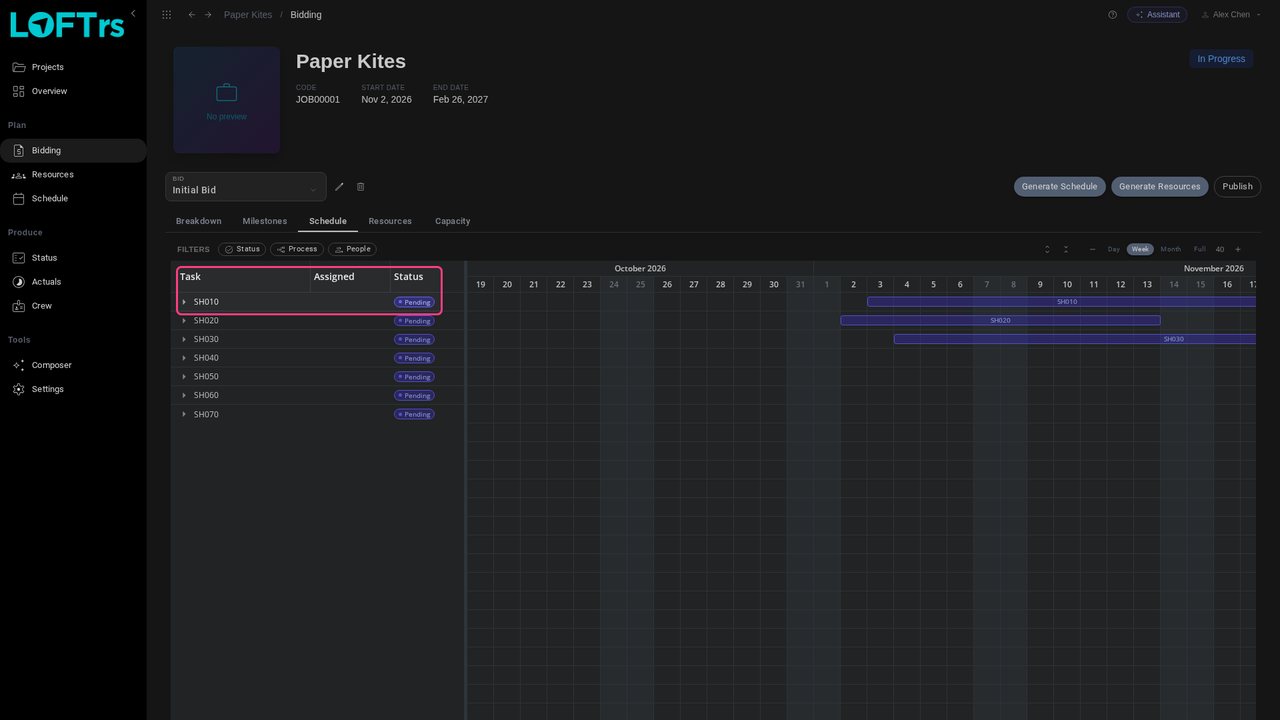
The Schedule tab lays the bid's work out on a timeline, one row per shot or asset, with its status.
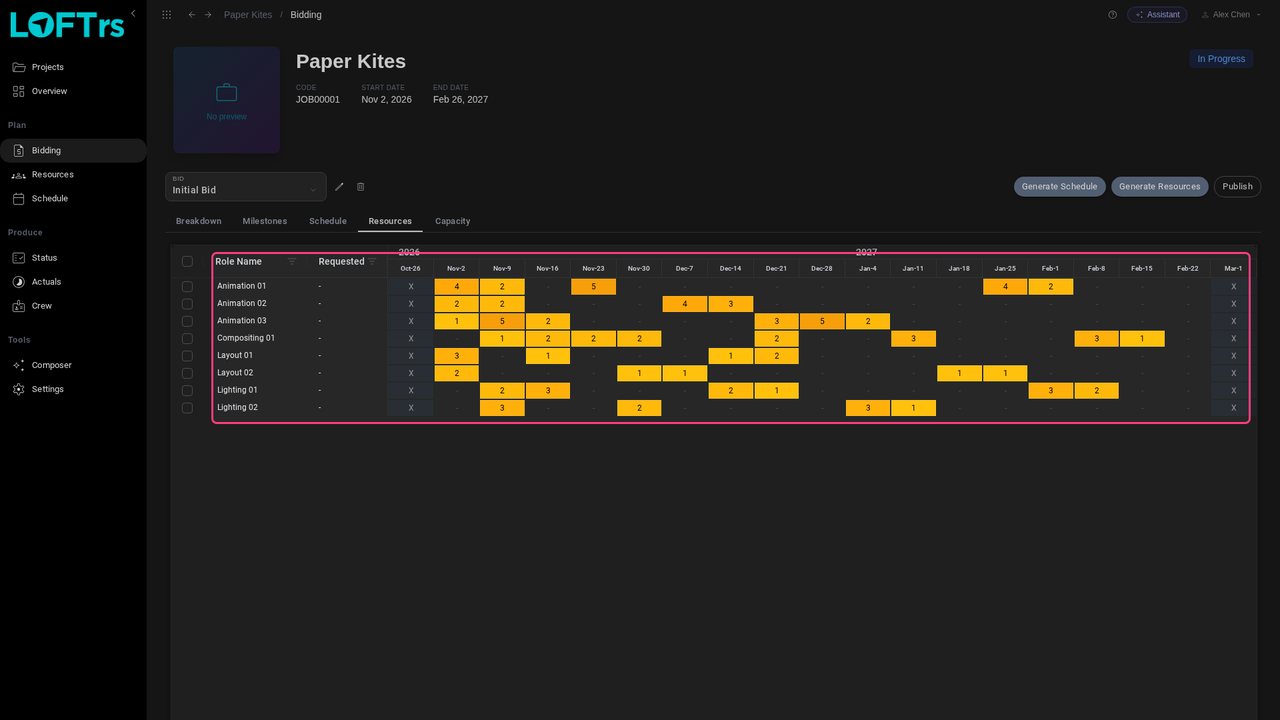
Resources turns the bid days into roles booked week by week: three animators, two layout artists, two lighters and a compositor, each working when the schedule needs them.
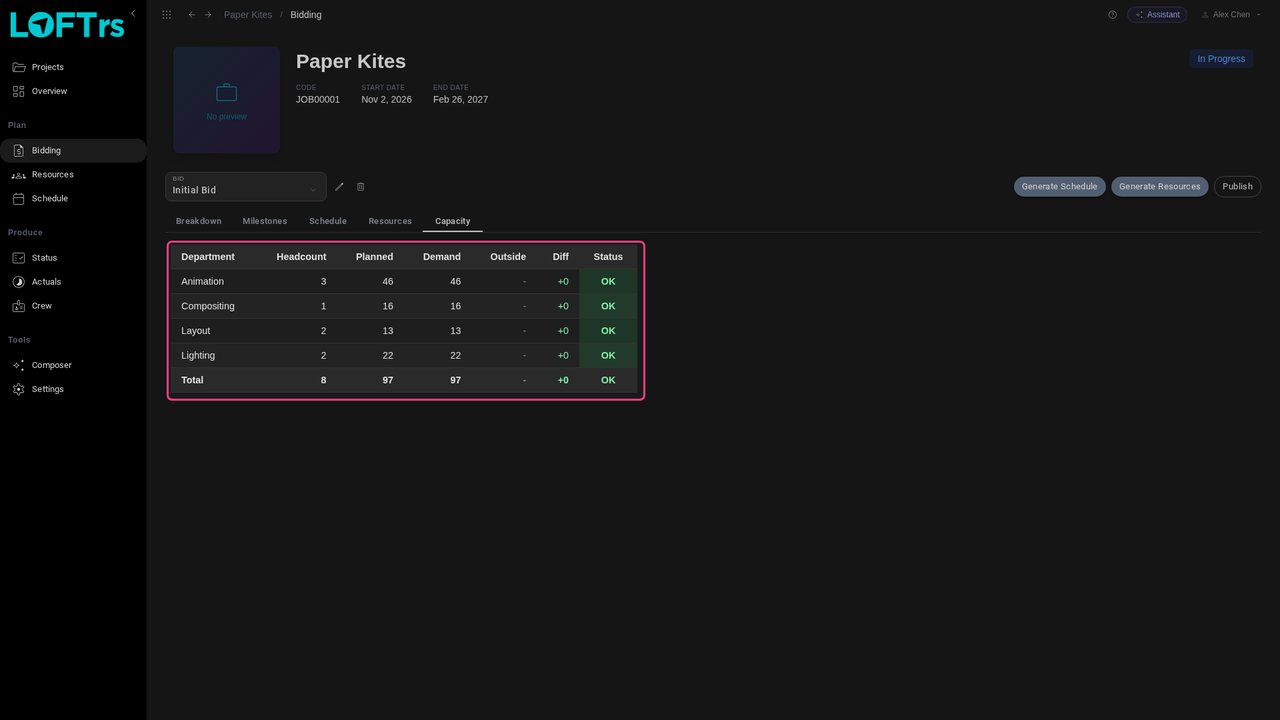
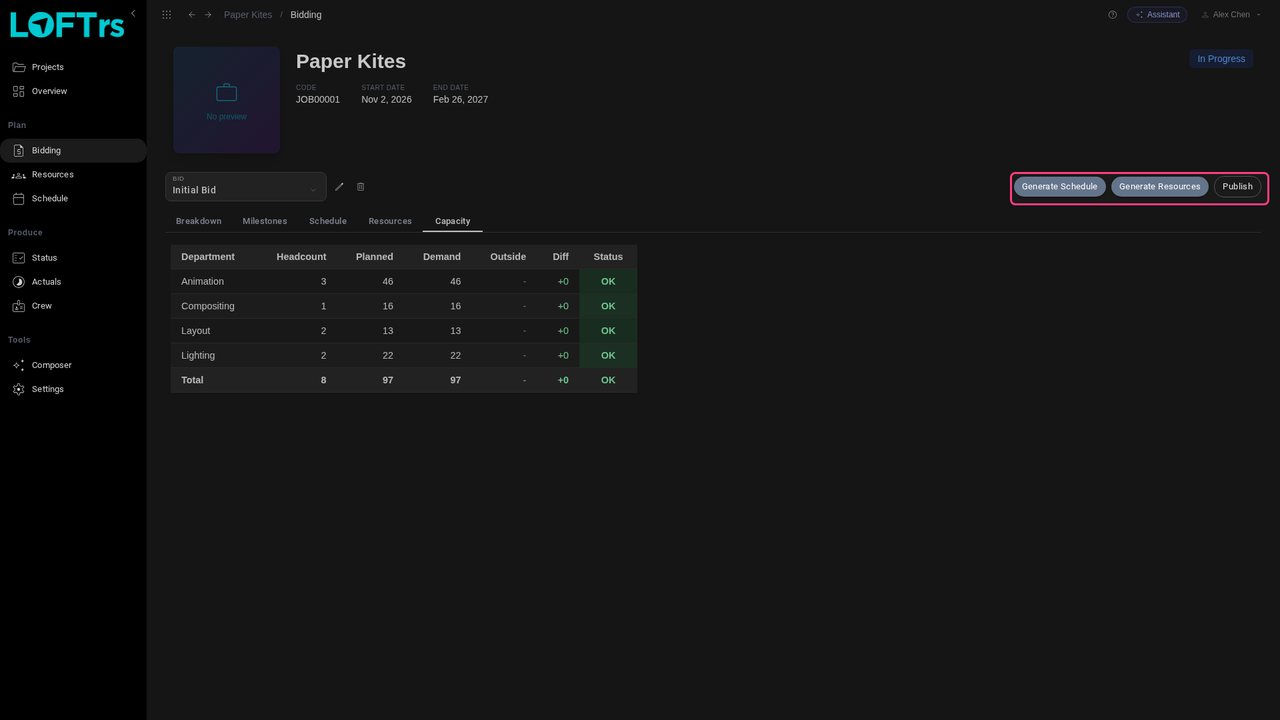
Capacity compares what the bid demands with what is planned, per department. A green OK means planned days cover demand; here all 97 days are covered.
These buttons rebuild the bid from its breakdown. Generate Schedule recreates the bid's tasks (it replaces existing ones, after a warning) and Generate Resources recreates the roles on the Resources tab. Publish then copies the bid into a project scenario, where it becomes the working plan. These change data, so this tour stops here.
Up next in Plan and run a production
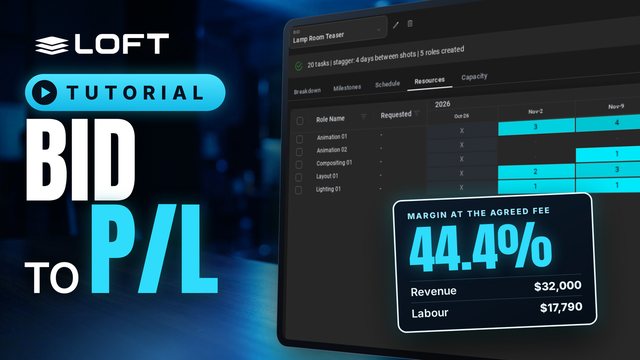
A bid estimates the days each shot needs in each department. This tutorial builds a small bid, turns it into a schedule and the roles to staff it, publishes it as the project's working plan, and reads the preliminary profit and loss: what the bid is worth against what the plan will cost.
In the playlists Plan and run a production.