
STEP 01
Open the project
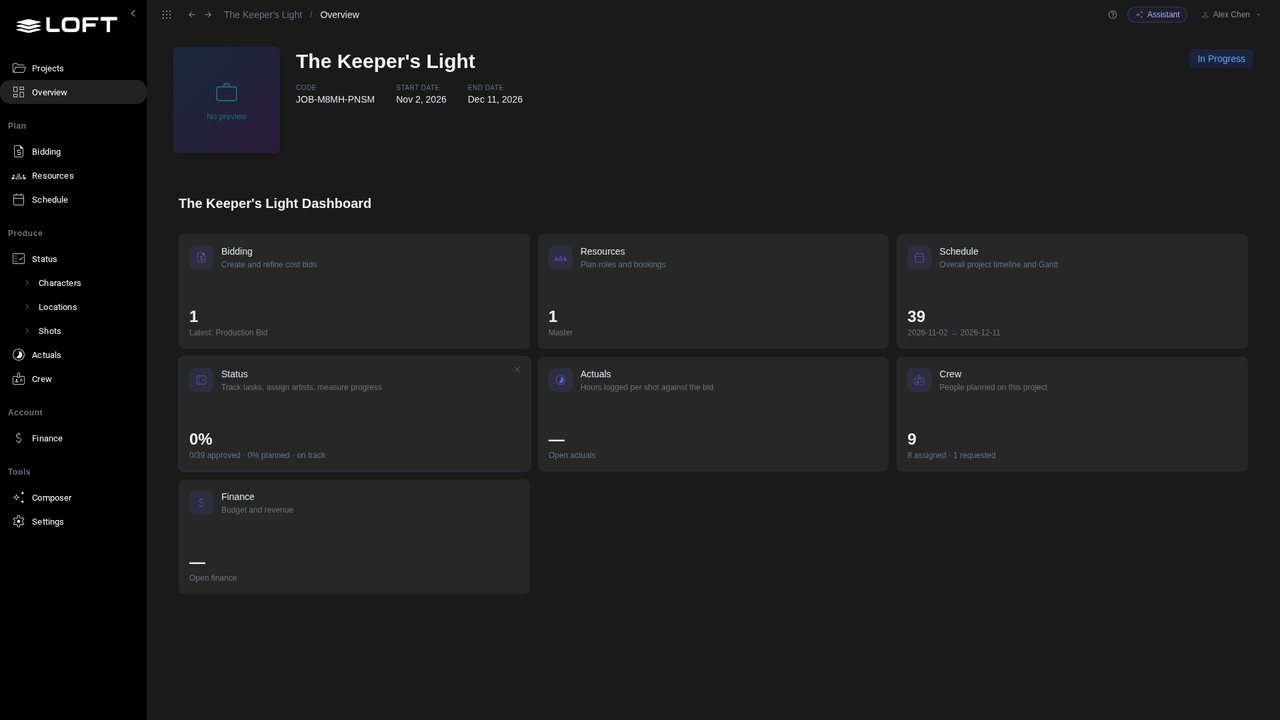
Open The Keeper's Light from the Projects page. It is a six-week AI short whose bid has just been published: the schedule is made and the crew is booked, but nobody has any work yet.
Tutorials/Plan and run a production
After the bid, the schedule exists but nobody is on it yet. This tutorial is the production manager's side of an AI short: assign the storyboard, layout, video, compositing and lookdev work from the tracking grid, check the schedule by artist, then come back three weeks later and measure the show: what is approved against the plan, what is late, what is waiting for review, and what to do about it.
Follow along
Open The Keeper's Light from the Projects page. It is a six-week AI short whose bid has just been published: the schedule is made and the crew is booked, but nobody has any work yet.
In the sidebar's Produce group, click Status. This is the production manager's home for the rest of the show.
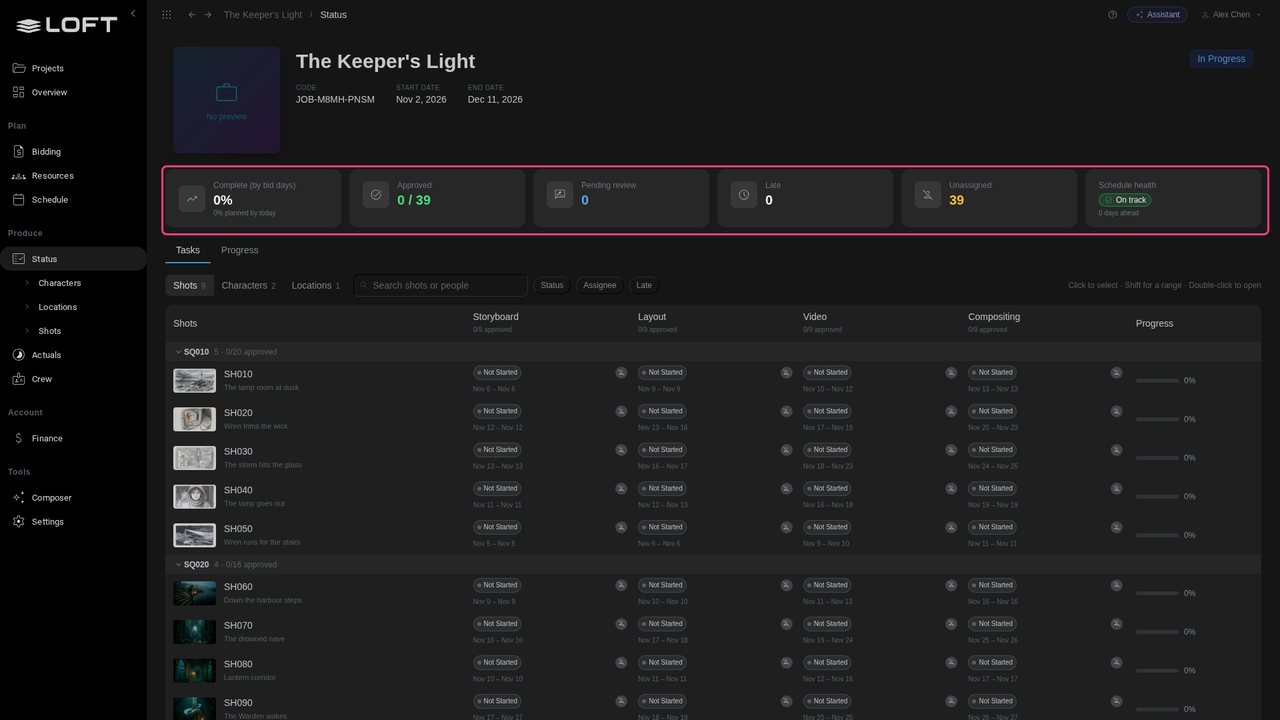
Each row is a shot, grouped by sequence, with its storyboard as the thumbnail. Each column is a step of the pipeline: Storyboard, Layout, Video and Compositing. A cell is one task: its status, who has it, and its dates from the schedule. All 39 tasks are unassigned.
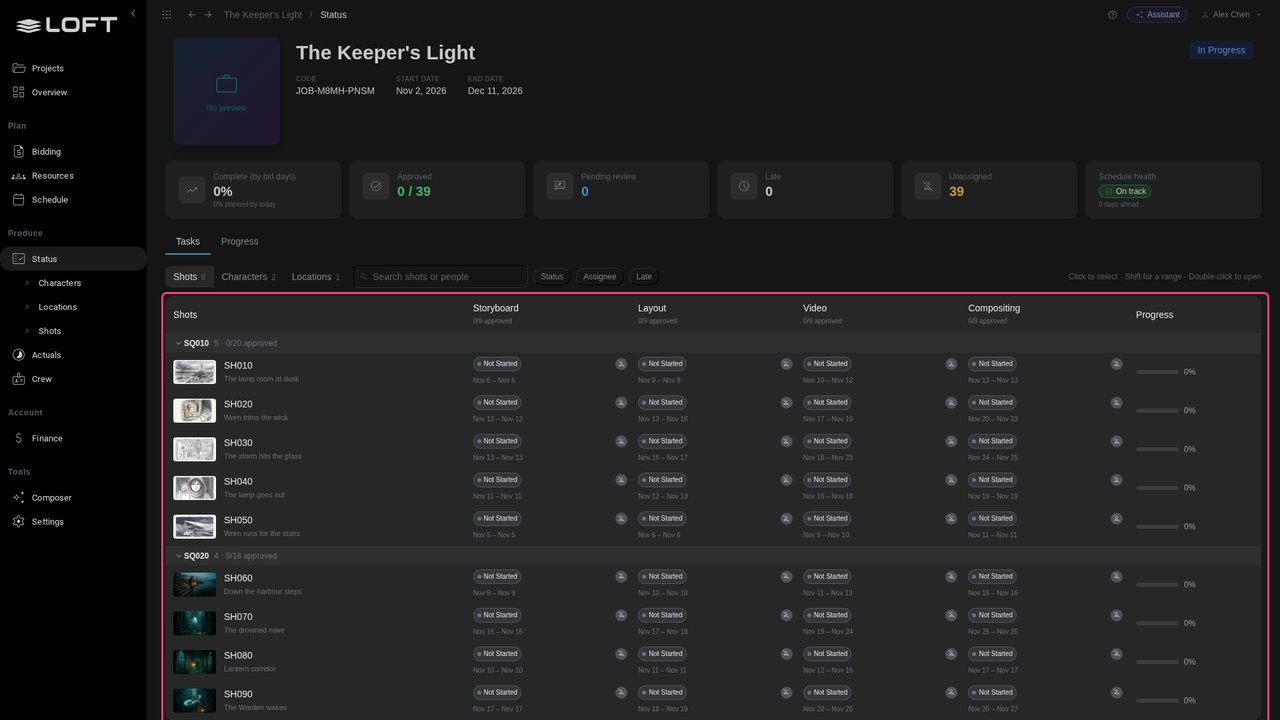
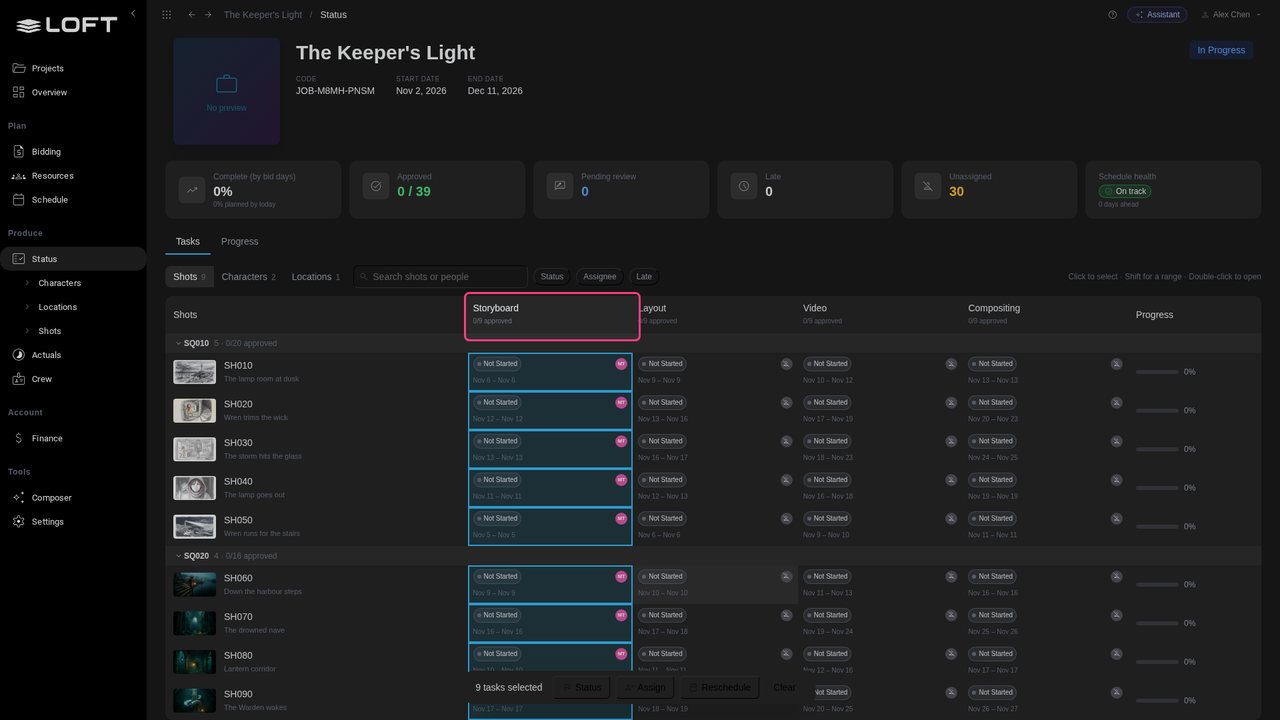
Click the Storyboard column header. Every storyboard task is selected, and a bar appears at the bottom for changing them all at once.
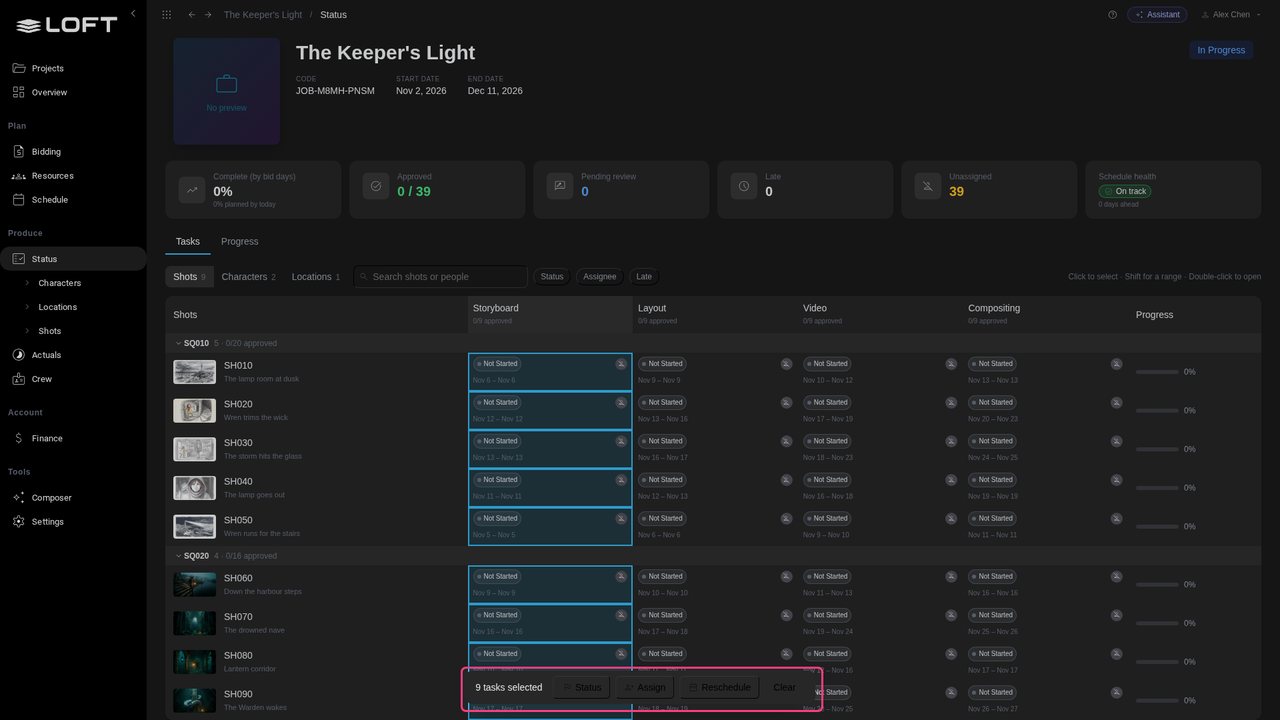
Click Assign. The people booked on this project come first, with what they already have on over the next two weeks, so you can see who has room before you give them work.
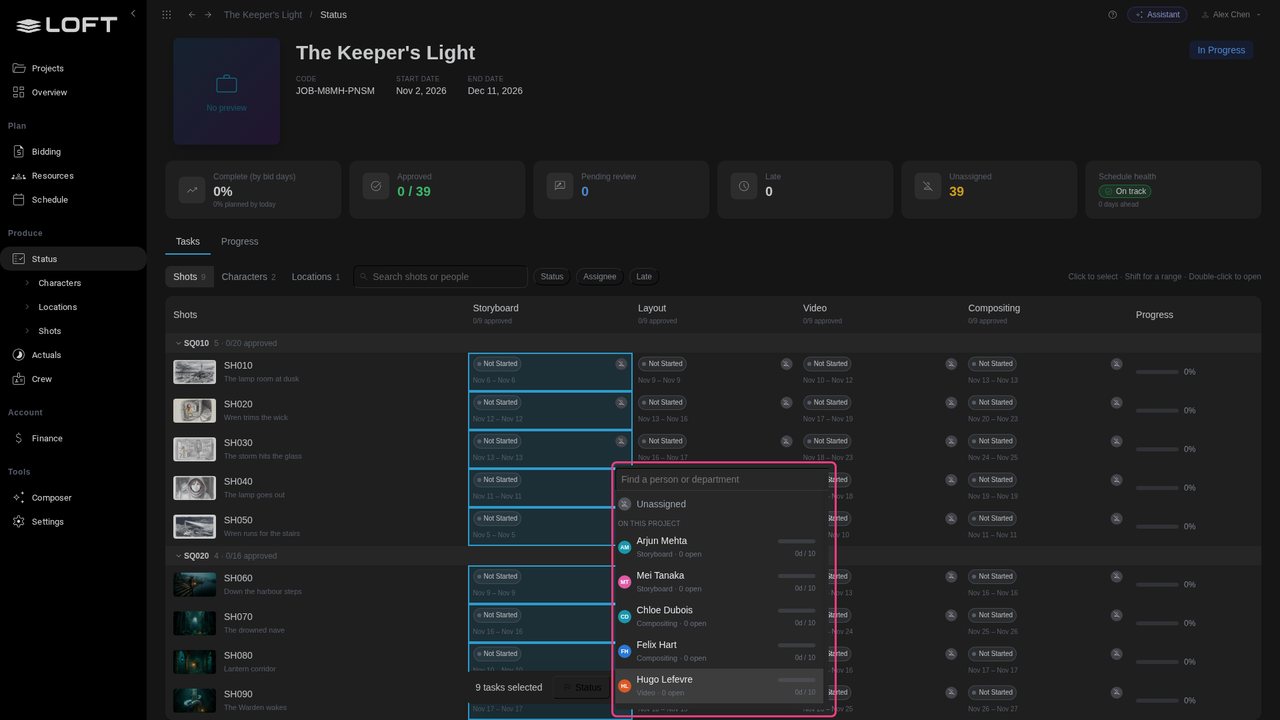
Choose Mei Tanaka, the storyboard artist. All nine storyboards are hers.
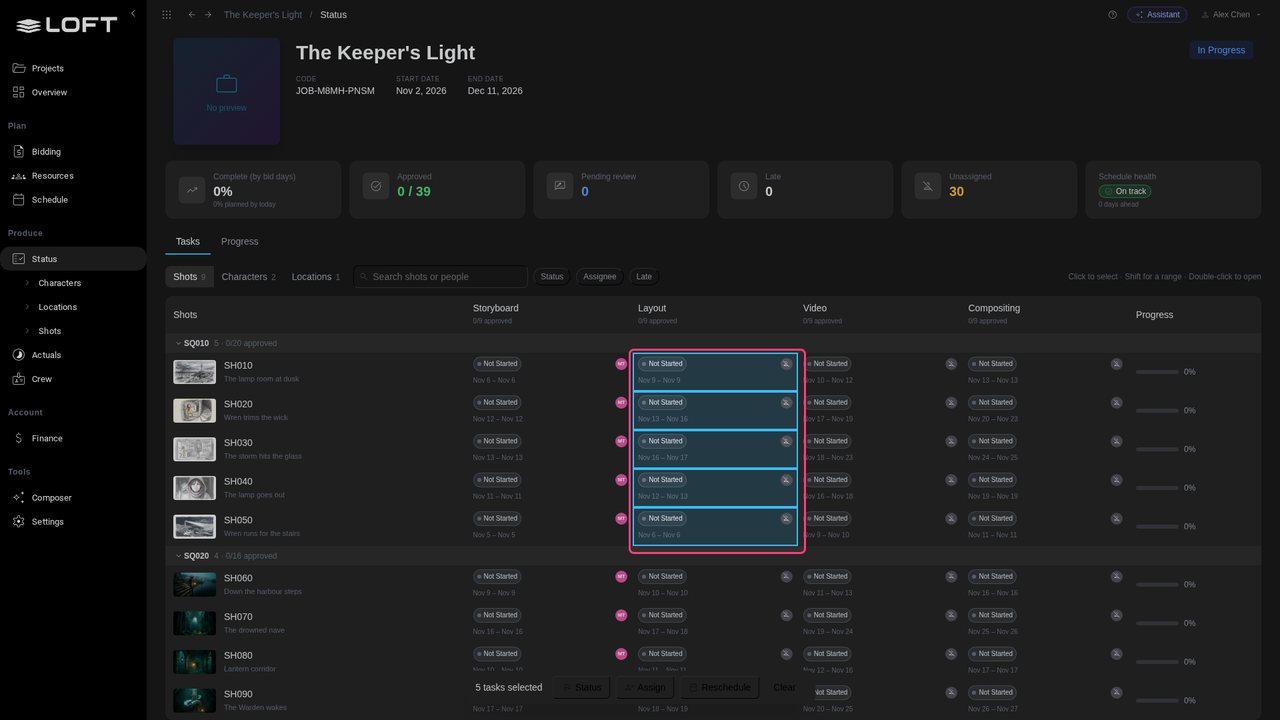
Layout is split by sequence. Click SH010's layout cell, then shift-click SH050's: the five layouts of sequence SQ010 are selected.
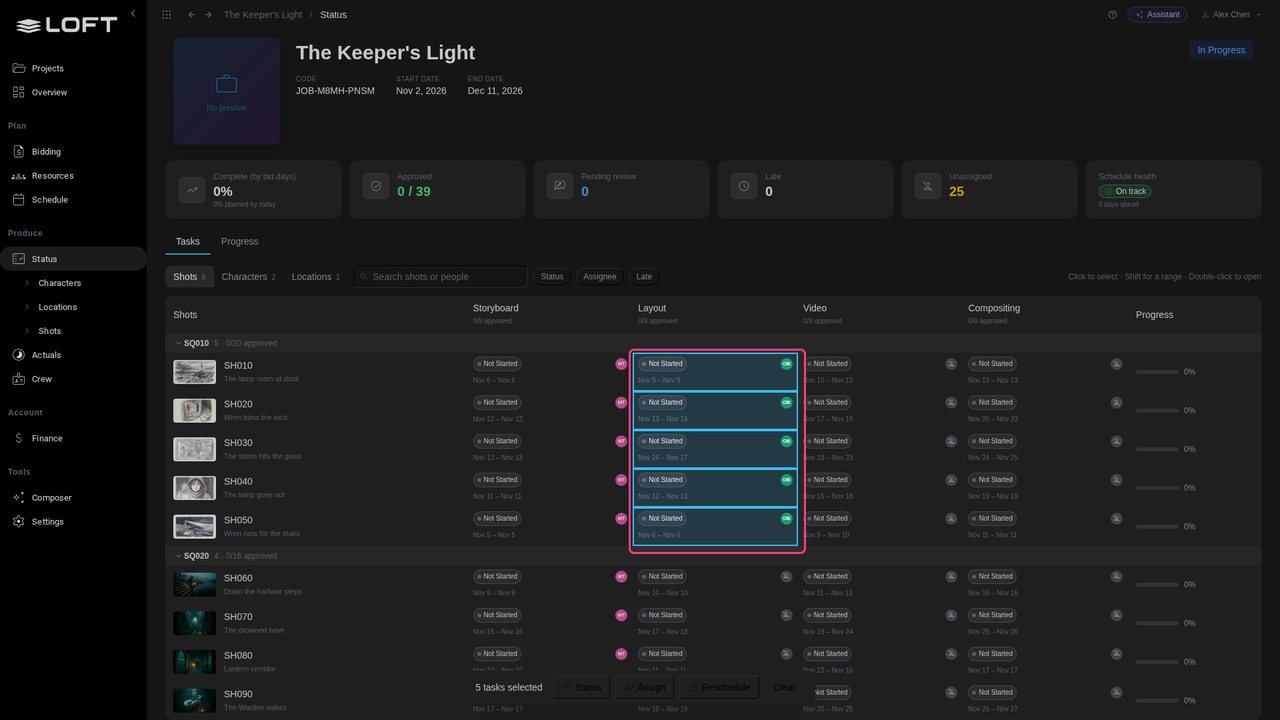
Click Assign and choose Owen Byrne.
The rest can be said in one sentence. Open the Assistant and ask it to assign SQ020's layout, the video for each sequence, the compositing and the lookdev.
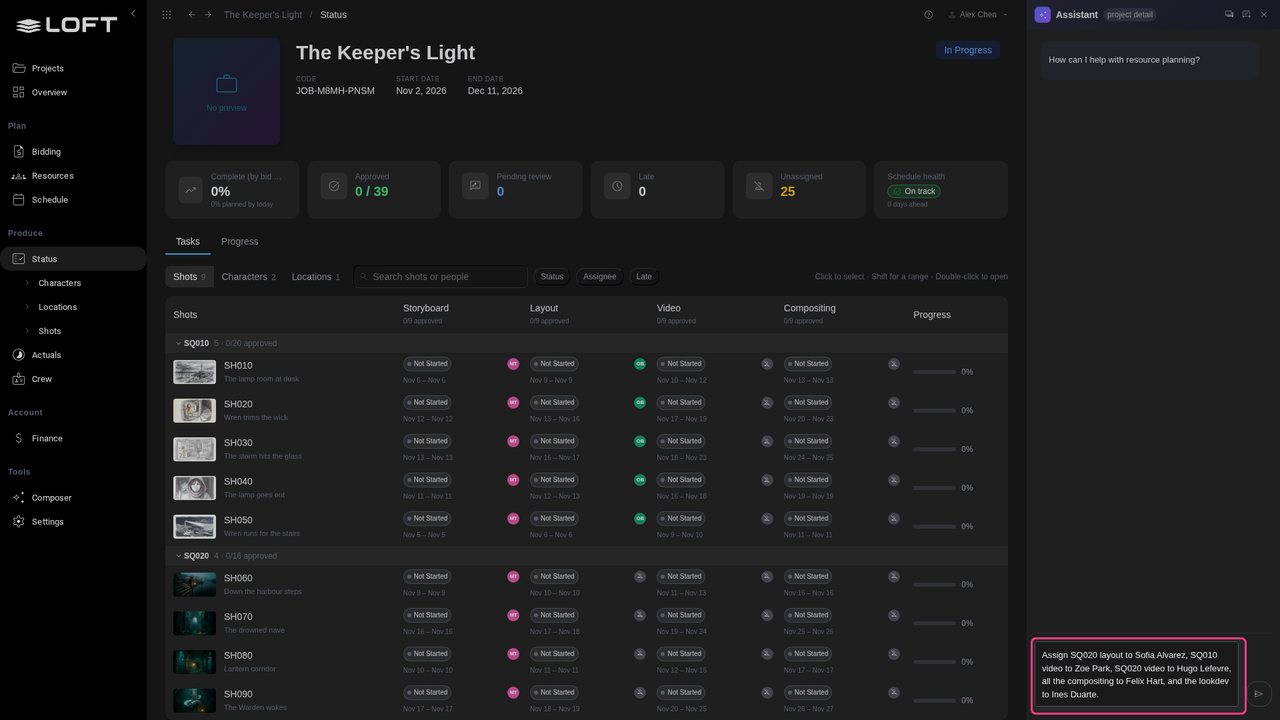
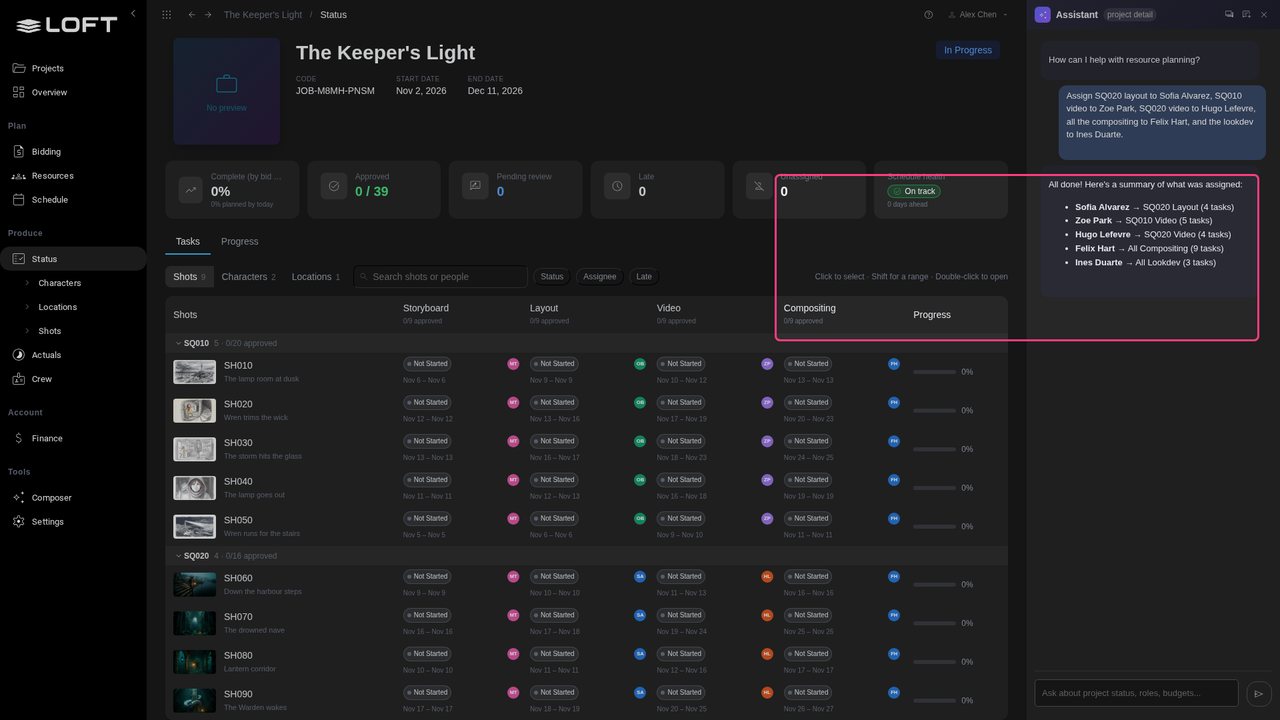
Send it. The Assistant makes the changes and the grid updates: Zoe Park on SQ010's video, Hugo Lefevre on SQ020's, Felix Hart on compositing.
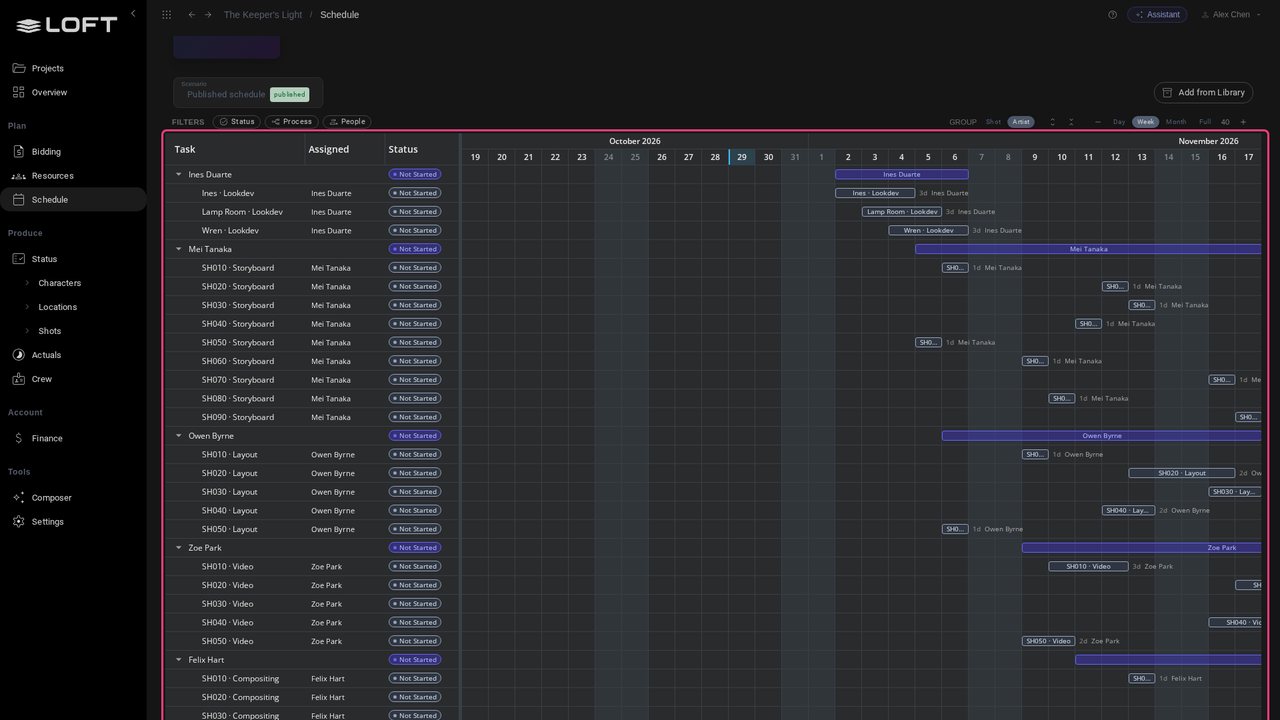
In the sidebar, click Schedule, then group by Artist. Each person's tasks line up on one row, so an overlap means someone is double-booked. Here everyone's work runs one task after another.
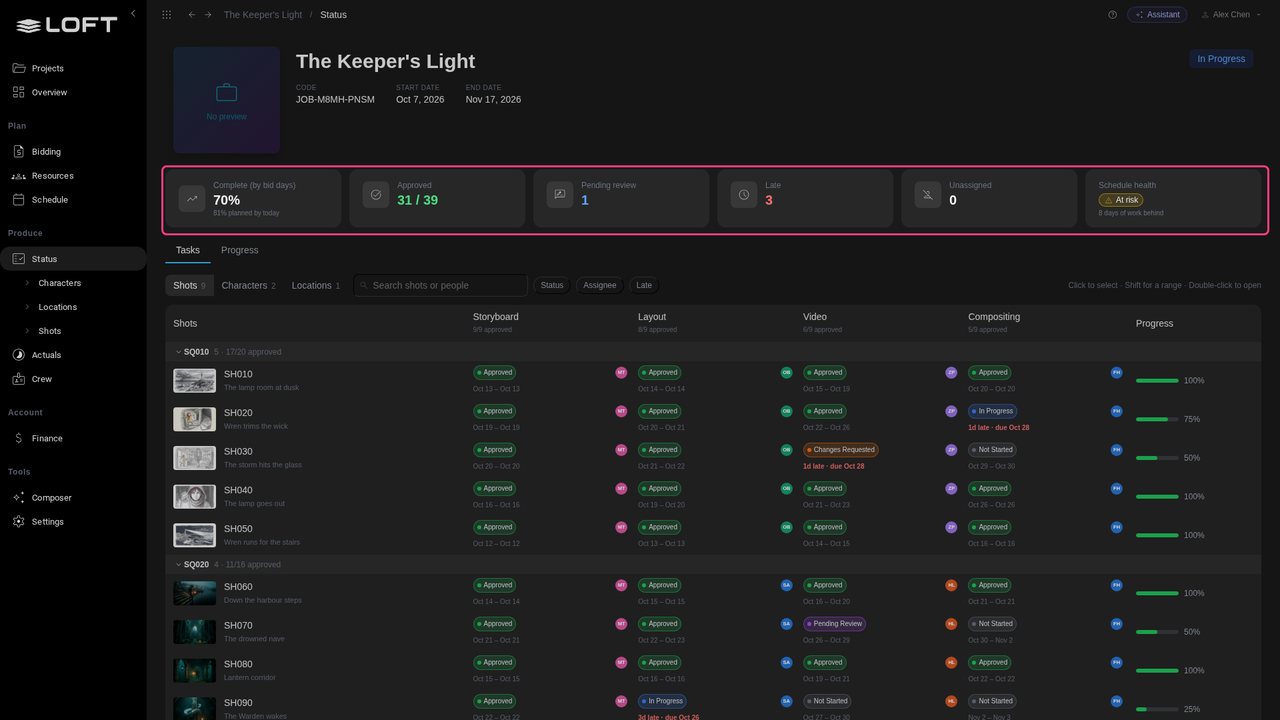
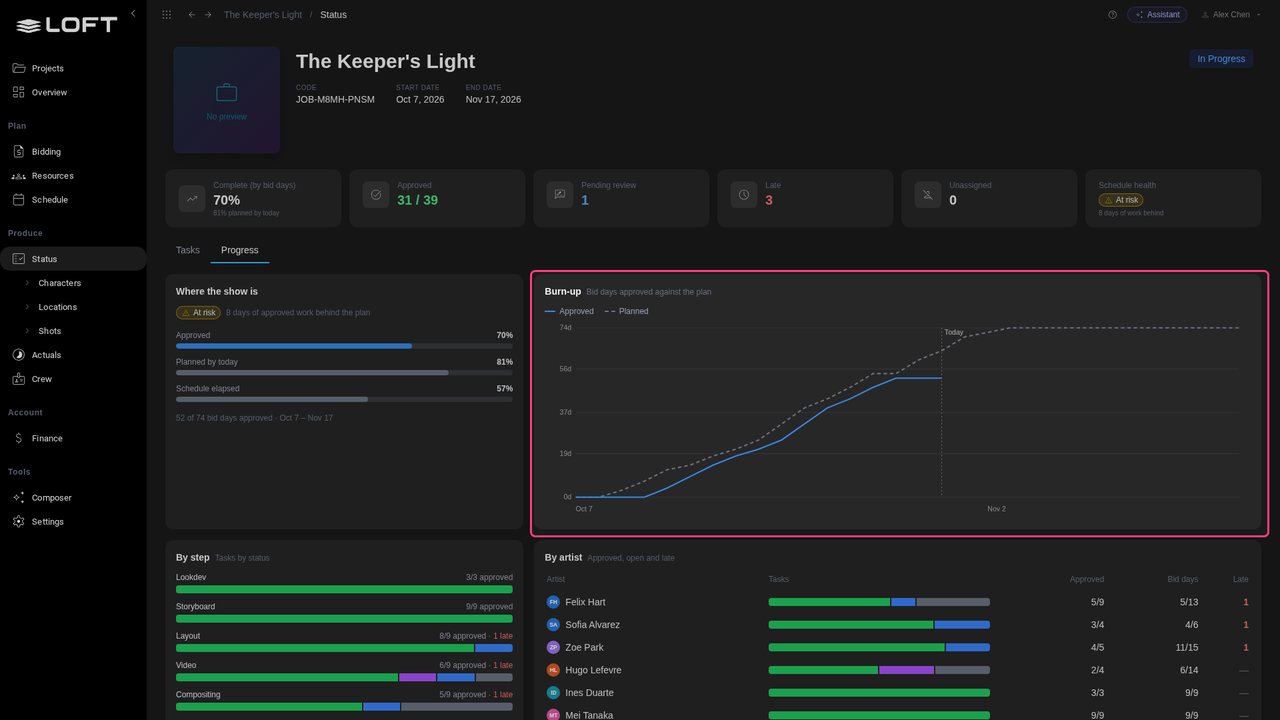
Now jump three weeks ahead. The artists have been moving their tasks along in My Tasks, and supervisors have approved work. Back on Status, the show is 70% done against 81% planned, and its health is At risk.
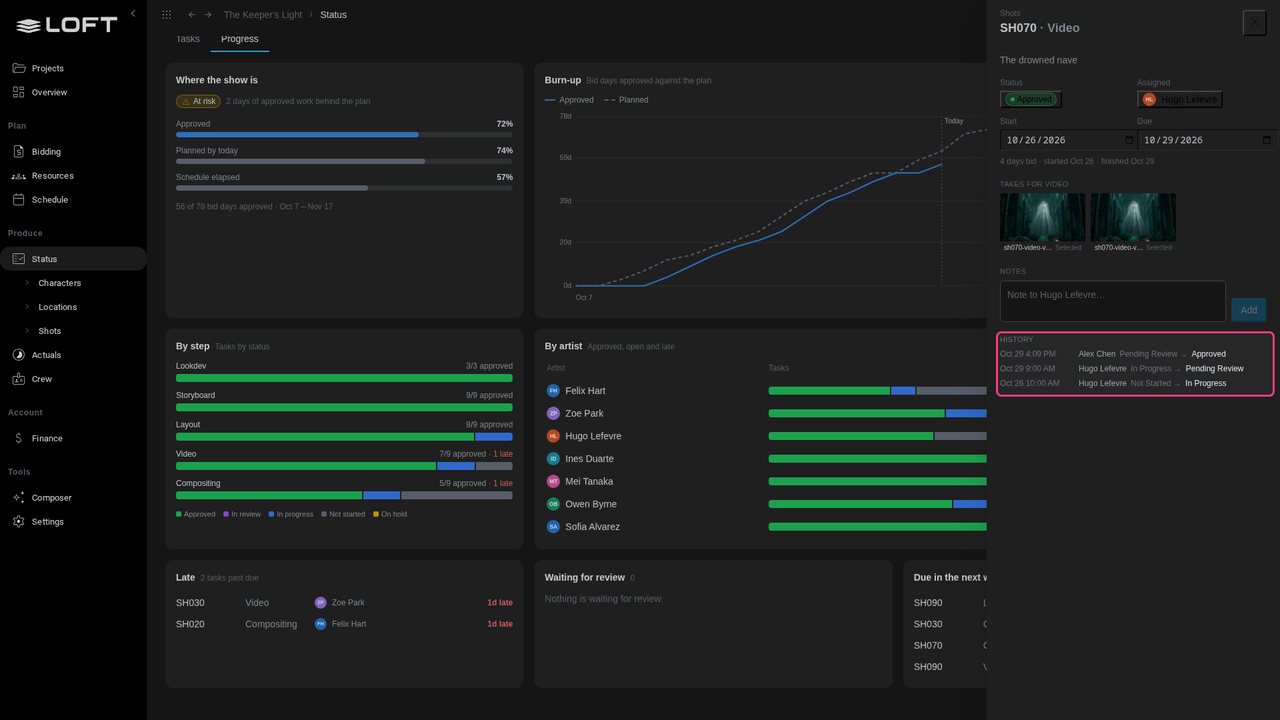
Click the Progress tab. The burn-up compares the bid days the schedule planned to have finished with the days actually approved. The gap between the lines is how far behind the show is: about eight days of work.
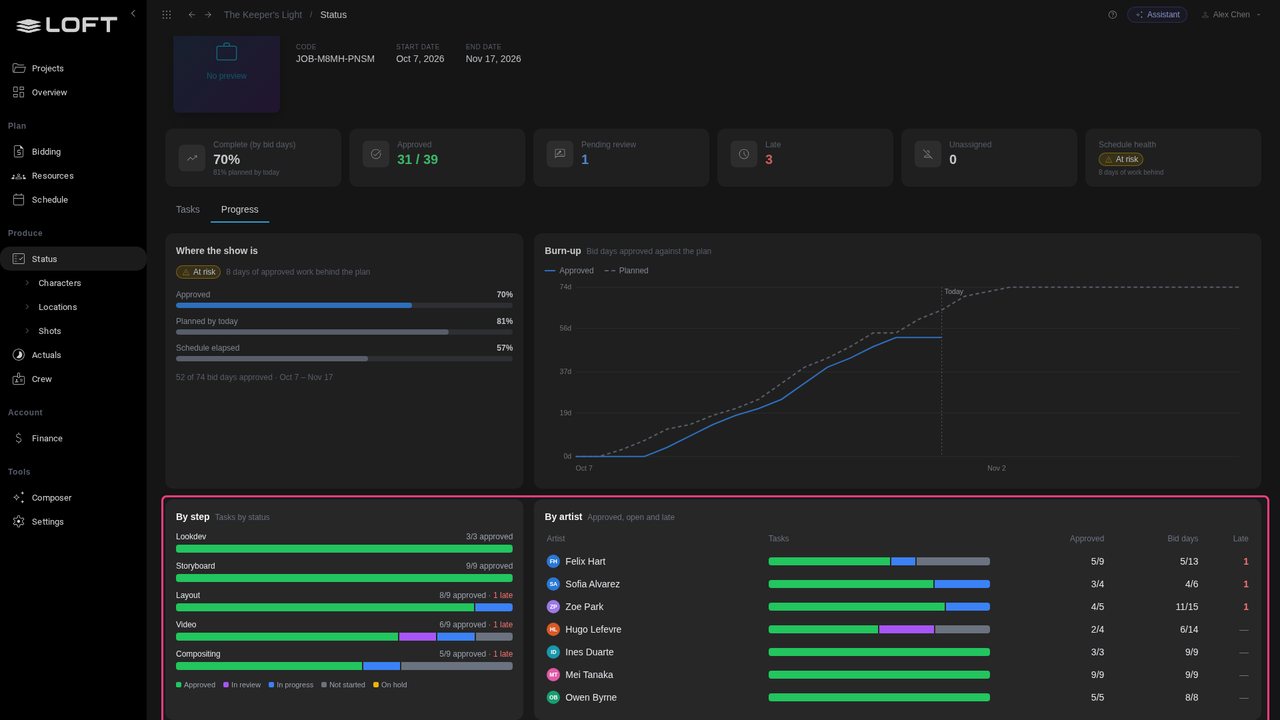
By step shows where: storyboards and lookdev are done, while layout, video and compositing each have a late task. By artist shows who each one belongs to.
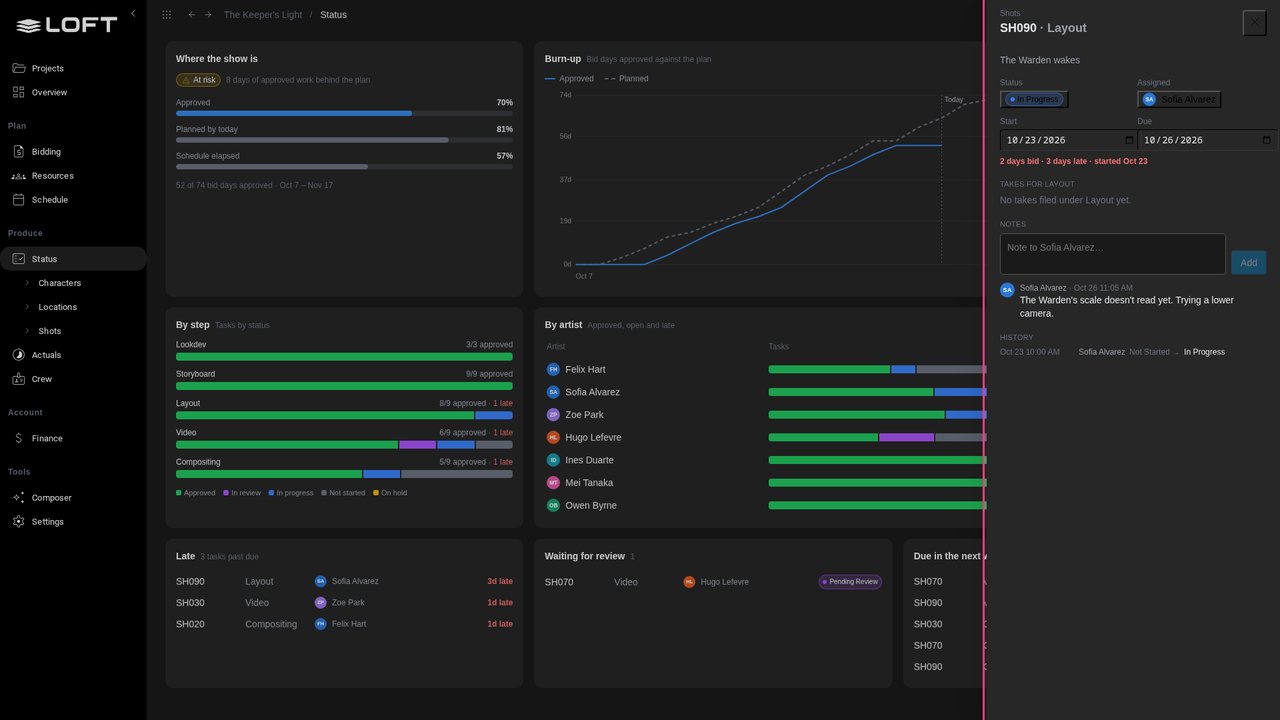
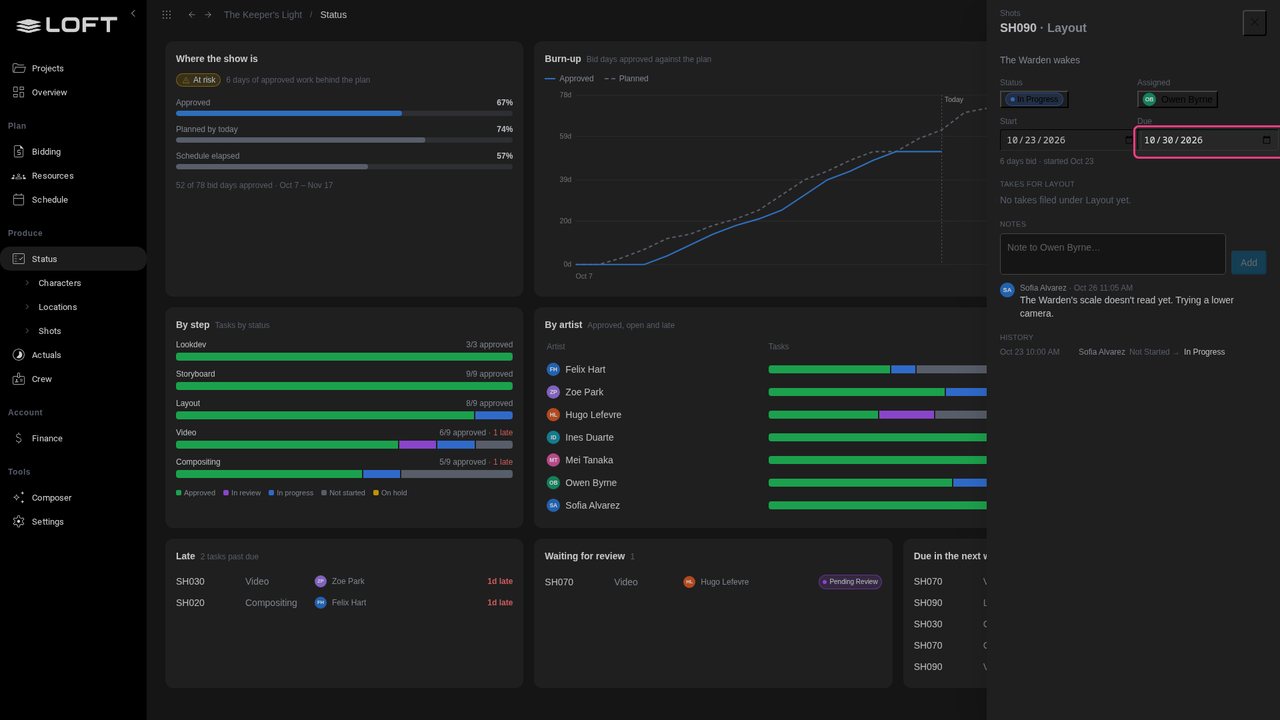
Under Late, click SH090's layout. It is three days late, and it is holding up SH090's video and compositing. The panel shows Sofia's note and the task's history.
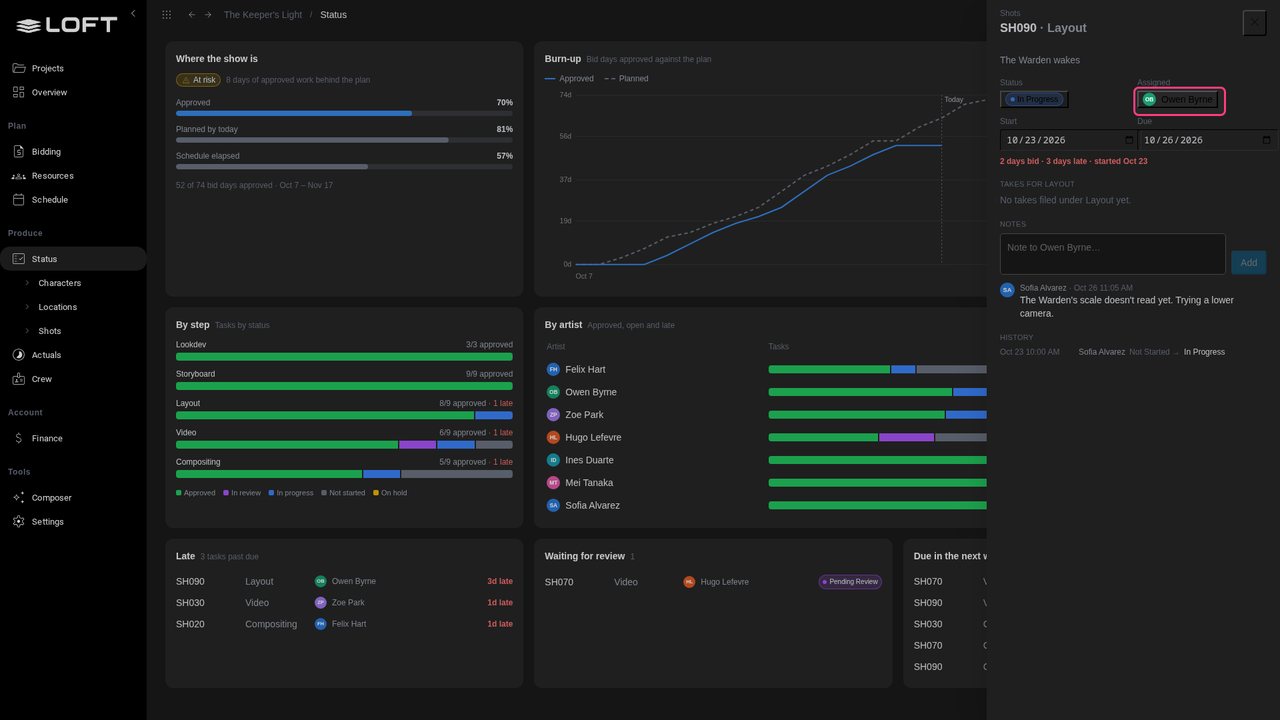
Owen finished sequence SQ010's layouts and has room. Click the assignee and choose Owen Byrne.
Set Due to tomorrow. SH090's video and compositing move out with it, so the schedule stays honest.
Close the panel. Under Waiting for review, click SH070's video. Hugo's two takes are in the panel.
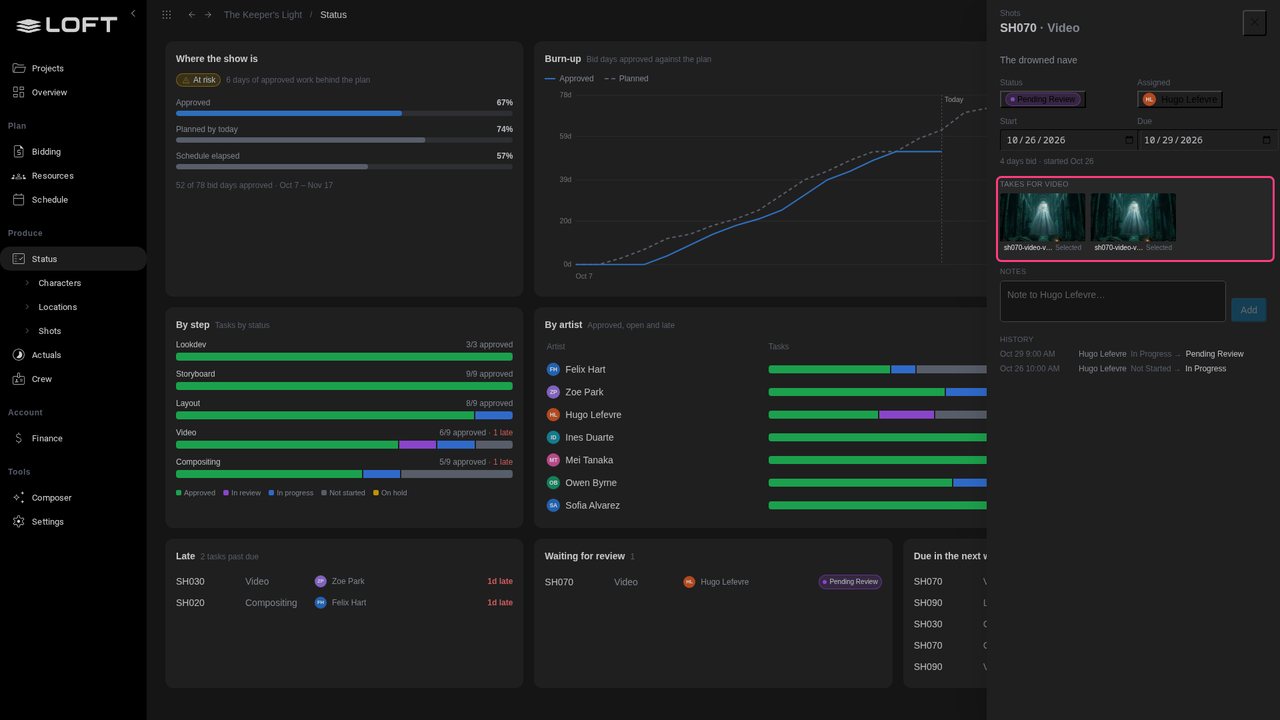
Click the status and choose Approved. The task is done, and the burn-up's approved line moves up.
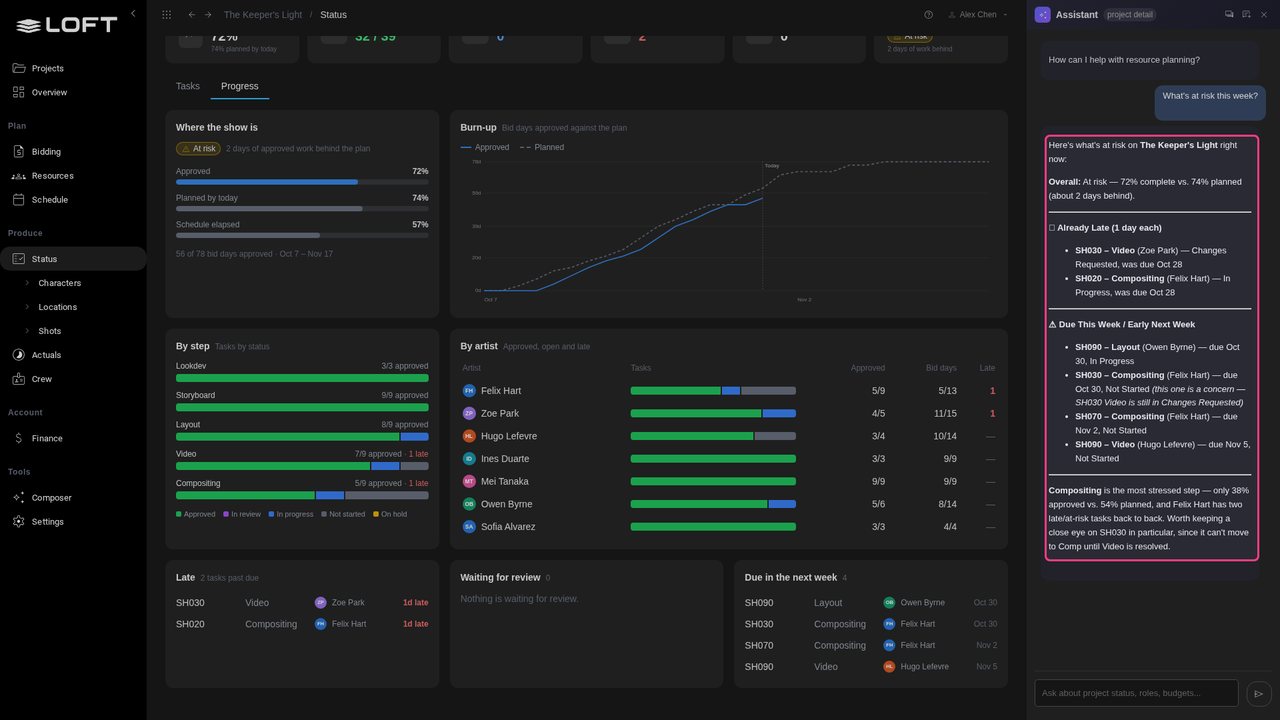
Close the panel and ask the Assistant what's at risk this week.
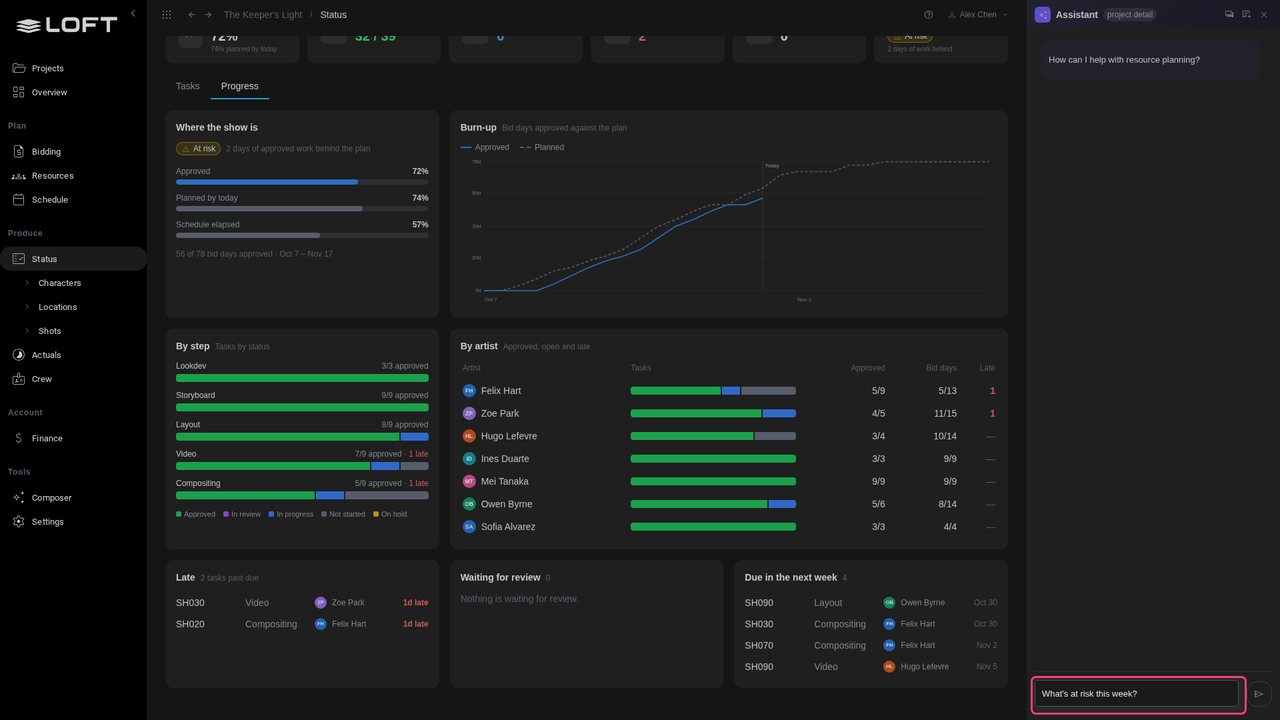
Send it. The Assistant reads the same numbers: what is late, what is waiting, and what is due next.
Up next in Plan and run a production

AI generation is spent in tokens, and like labour it needs a budget. This tutorial budgets an AI short's tokens from its bid, gives an artist an allowance with a hard limit, then comes back three weeks later to see the spend against the work approved, a forecast at completion, an allowance doing its job, and the tokens in the project's P/L.
In the playlists Plan and run a production.